One console, one ticket, one timer
Lavawall®’s Smart Helpdesk closes the loop between the device data you already have and the customer-facing work you’re doing on it. When you connect to a managed device for remote support, a ticket is created automatically. When you reply, our placeholders fill in the customer’s name, the device hostname, and any per-client variables you’ve defined. When you stop the session, the elapsed time is on the ticket as billable minutes — with the chat transcript, screenshots, and your notes attached.
Below is a feature-by-feature tour. If you’d rather just try it, you can skip to the bottom.
Tickets
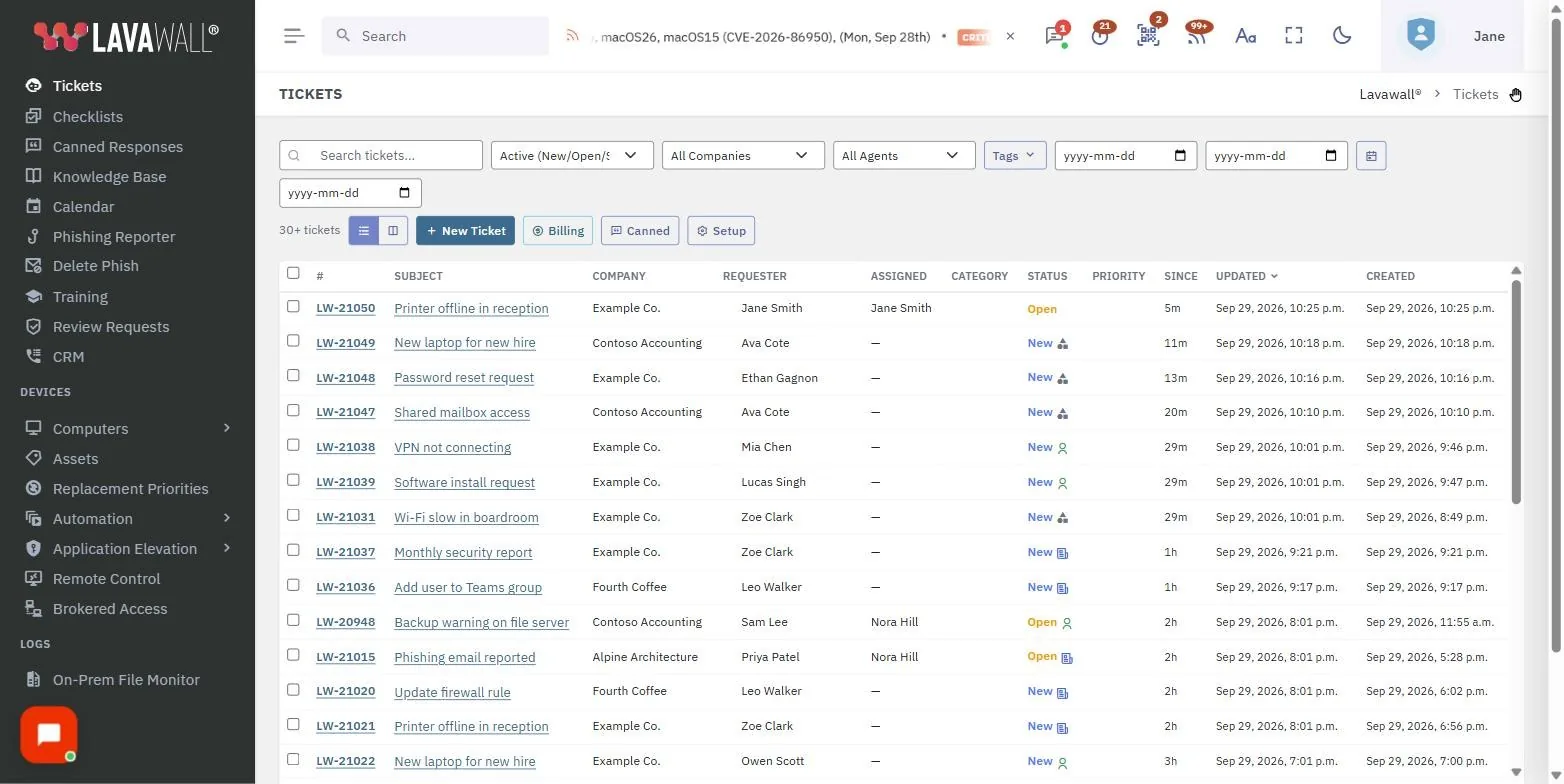
The ticket view is what your technicians live in all day. Fast on a laptop with a hundred Chrome tabs open, not pretty in a screenshot.
Filter & search
Filter by status, priority, assignee, company, tag, date range. Search across subject, requester, and ticket numbers. Filters carry between list and kanban layouts.
Linked to devices
Tickets carry the device GUID when they originate from a remote-support session, so the right side panel shows current device health, patch status, last reboot, and disk space — without leaving the ticket.
Public & internal comments
Reply to the customer, leave an internal note, or both in the same thread. Internal comments are clearly demarcated and never end up in customer email by accident.
Bulk actions
Select multiple tickets to bulk-update status, assignee, or priority — or merge several duplicates into one survivor in a single action.
Recent tickets at a glance
Open any ticket and the sidebar surfaces every other ticket from the same requester — with quick buttons to open or merge into. Spotting “this is the third time they’ve reported the same issue” takes a glance, not a search.
Assignment & status
Assign tickets to any agent, change status (open, pending, waiting on client, scheduled, resolved, closed), set priority, tag for reporting. All changes flow into the activity timeline.
Kanban & swim lane views
Kanban board
Some teams work in lists. Some teams need to see the whole board at once. Lavawall® gives you both. Switch between layouts without losing your filters.
Drag-to-update status
Drag tickets across status columns — New, Open, Pending, Waiting on Client, Resolved, Closed — and the underlying status updates instantly. The same statuses appear in the list view, so the kanban is just a different way of looking at the same queue.
Filters apply everywhere
Whatever filter you set in list view carries over to kanban and back. Filter by company, agent, status, or date range and pick whichever layout suits the moment.
Knowledge base suggestions
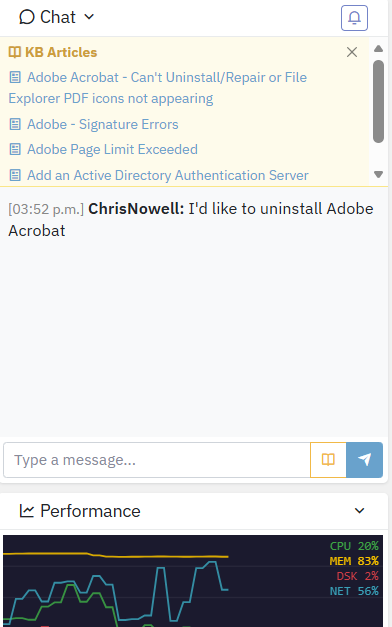
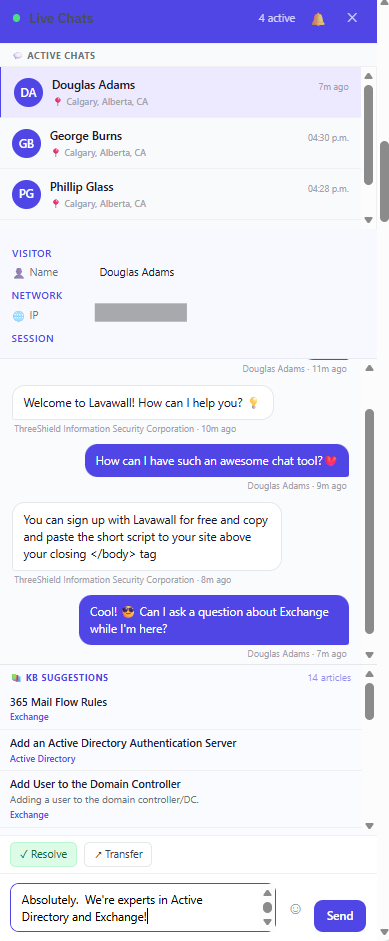
Most tickets aren’t novel. Someone’s asked about VPN reconnection a hundred times before, and the answer is already in your KB. Lavawall® matches the ticket subject and description against your knowledge base and surfaces relevant articles in the ticket sidebar.
Live suggestions in the sidebar
Open a ticket and the KB panel populates with relevant articles based on the subject and most recent comment. Click to read the article in a new tab.
Includes imported articles
Articles imported from ZenDesk are searched alongside articles written natively in Lavawall®, so your existing knowledge base stays useful after migration.
Insights for your queue
A few well-chosen heuristics computed against the data already in your tenant give you the visibility you need to keep work moving — without LLM bills, without sending your customers’ data to a third-party model provider.
Workload visibility
The agent dropdown shows each technician’s current open ticket count next to their name, so when you’re assigning work you can see who’s already drowning.
Repeat-ticket detection
If the same requester opens a ticket with similar subject keywords within a short window, the new ticket gets a “possibly related” badge linking to the prior occurrences — so technicians spot patterns the customer hasn’t articulated yet.
Priority hints
A keyword scanner flags tickets with phrases like “everyone is down,” “ransomware,” or “office offline” for technician review — not auto-escalation. A hint in the priority field that the technician accepts or ignores.
Time-to-resolution baselines
Per-category and per-priority baselines show how long similar tickets typically take to resolve, so an SLA-pressured ticket that’s already over baseline surfaces in the queue with an indicator.
Recurring & scheduled tickets
The work that’s easiest to forget is the routine work nobody’s asking about — quarterly access reviews, monthly server patching windows, the annual SOC 2 evidence collection, the “reboot the file server every first Sunday at 2am” standing task. Lavawall® lets you describe these once and forget them. Tickets are created automatically on schedule, ready to be picked up by whoever’s on rotation.
Daily, weekly, monthly, yearly
Pick the period and how often. “Every day,” “every Wednesday,” “the 15th of every month,” “every June 6th” — all expressible without writing a cron string.
Ordinal day patterns
“First Thursday of the month.” “Last weekday of the quarter.” “Third Tuesday for our patch window.” The scheduling rule supports day-of-week + ordinal so you can describe the pattern your operations actually follow.
Multi-period intervals
“Every third week” for a triage rotation. “Every other Monday” for biweekly check-ins. “Every five days” for log review. Set an interval; the schedule respects it.
Timezone-aware
Each schedule has its own timezone. The 9am Mountain Time monthly access review fires at 9am Mountain Time even when your server clock is UTC and DST has shifted. No off-by-an-hour mistakes the morning after a clock change.
Templates fill in details
A schedule points at a template ticket — subject, body, priority, category, default assignee, embedded screenshots and instructions. Each fire creates a fresh copy ready to work on, so you describe the recurring task once and use it forever.
End conditions
Schedules can run forever, or until a specific date, or for a fixed number of occurrences. Useful for “run weekly for the next 12 weeks” project rituals.
Merging duplicates & breaking work into subtasks
Two related capabilities for keeping the ticket queue clean and the work organized.
Merge duplicates
Customer emailed twice, ten minutes apart? Open one ticket, hit Merge into..., pick the survivor. All comments and time entries move to the keeper. The merged ticket is hidden from default views but preserved with a full audit trail (who merged, when, what counts moved, optional reason).
Audit trail
Every merge logs who did it, when, what got moved, and a free-form note (“duplicate of the same outage report”). Admins can see merge history per ticket; nothing disappears silently.
Child tickets for subtasks
Big work doesn’t fit in one ticket. Onboardings, server migrations, security incident response — spawn child tickets from a parent so each step has its own assignee, schedule, and time entries while still rolling up.
Roll-up status
Parent ticket shows a count of open vs closed children, total time across all children, and links to each. Closing the last child can optionally close the parent.
Unmerge if you change your mind
Merged the wrong ticket? An unmerge action restores the source ticket to open status and clears the merge link. Comments and time that were moved at merge time stay with the target (we don’t track per-row provenance), but the merge note on the target preserves the historical record.
Device-aware tickets
The right side of every ticket shows the devices associated with the requester — not just the device they happened to start a remote session on, but every device they own across your fleet. Found by matching the requester’s email against the device’s logged-in user history and against your Microsoft 365 tenant’s device-to-user mapping.
Multi-source matching
Devices are linked to users via two paths: the device’s historical logged-in account list (every email a Windows account has ever signed in with on that device) and Microsoft 365’s user-device mapping (joined Azure AD devices, mobile devices, and so on). A user’s laptop, desktop, and phone all show up — not just the one they’re calling about.
Live device stats
For each linked device, the ticket panel shows the same stats you’d see in remote support — CPU load, memory pressure, disk free, last reboot, online/offline status, AV health, patch backlog, current logged-in user. No need to open another tab to confirm whether the user’s machine is even running.
One-click device detail
A button on each linked device opens the full device detail page in a new tab — hardware specs, install history, security posture, patch status, full event log. The deep dive is one click away when you need it.
Connect for support
Each linked device has a Remote Support button that drops you straight into a session against that device, with the ticket already linked. Time tracking starts; session notes flow back to the same ticket.
Canned responses
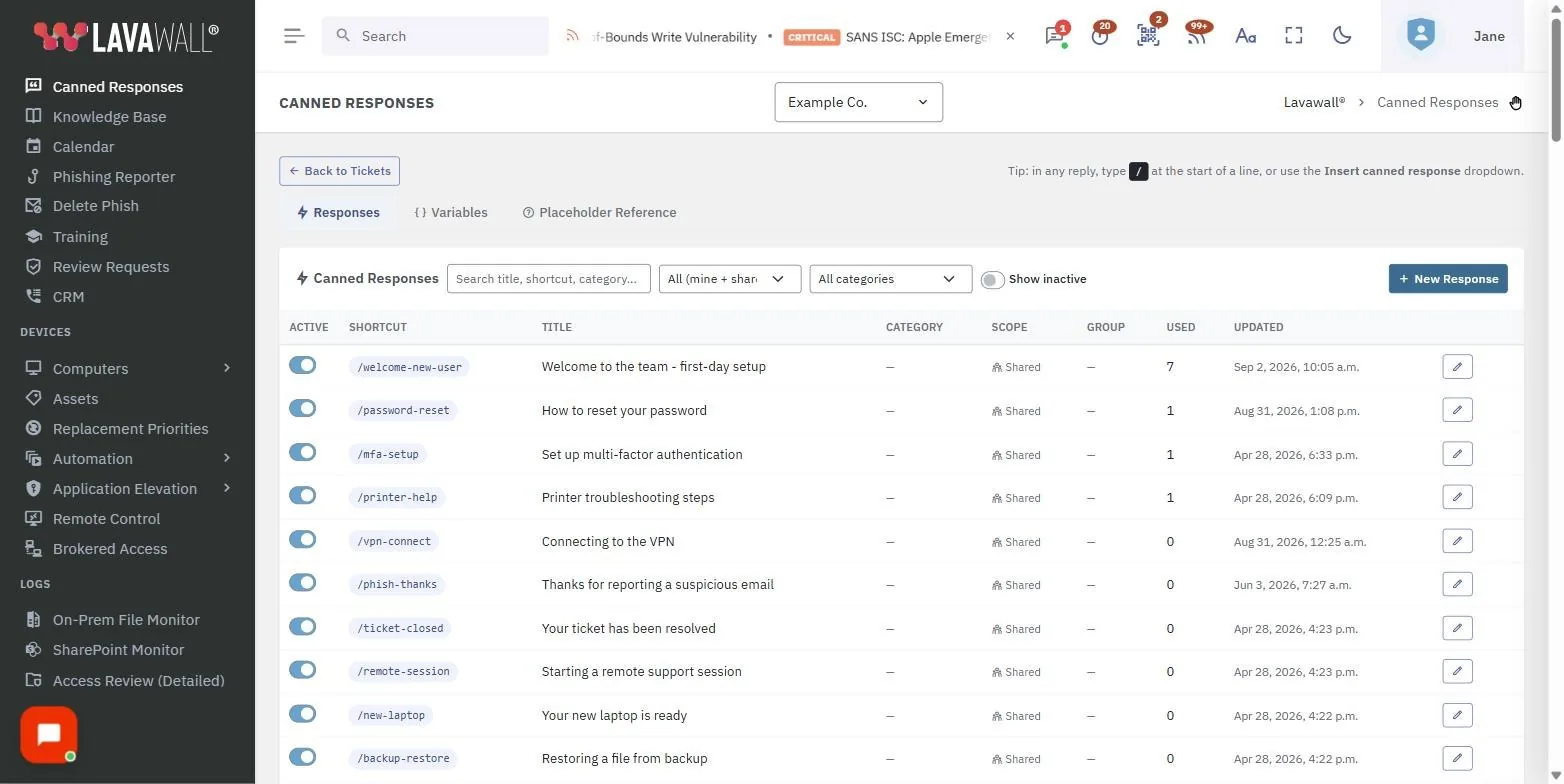
The fastest reply is one you don’t have to type. Lavawall® canned responses combine rich-text bodies with personalized placeholders so “here’s how to reset your VPN” lands in the customer’s inbox addressed to them, with their company’s portal link, and signed by the technician who sent it.
Slash shortcuts
Type /restart in any reply field and the response is filtered live as you type. Hit Enter to insert. Works inside the rich-text editor, in tickets, in remote-support session notes — anywhere a TinyMCE editor lives.
Inline images & screenshots
Paste a screenshot directly into the editor — up to 10 MB per image. Stored as base64 inside the response body so they ride along in outgoing emails without auth-protected URLs that break for end users.
Personal & shared
Each technician can keep private templates the rest of the team can’t see — or contribute shared ones to the team library. Both kinds work the same way at the keyboard.
Group restrictions
Limit a canned response to a specific agent group. Useful for sensitive content like billing escalations or security incident communications.
Preview as a contact
Hit Preview in the editor and pick any contact to see how the response will render for them — with their name, email, company, and any per-company variables substituted in. Catch typos in placeholders before they hit a customer.
Categories
Organize a hundred canned responses with category tags — Billing, Onboarding, Password Resets, Hardware. Filter the list view by category to find what you need.
Placeholders & variables
Lavawall® ships with a complete set of built-in placeholders for ticket and contact context, plus custom variables you can define for your MSP and override per child company.
Built-in placeholders
Available in any canned response or ticket reply:
| Category | Placeholders |
|---|---|
| Requester |
first_name
last_name
full_name
email
phone
mobile
job_title
|
| Company |
company_name
|
| Ticket |
ticket_number
ticket_subject
ticket_status
ticket_url
ticket_priority
ticket_due_date
ticket_created_at
ticket_updated_at
ticket_description
|
| Assignee |
assignee_first_name
assignee_last_name
assignee_full_name
assignee_email
|
| Current agent |
agent_first_name
agent_last_name
agent_full_name
agent_email
agent_phone
agent_signature
agent_job_title
|
| System |
msp_name
date
time
datetime
|
Custom variables
Define your own placeholders — portal_url, support_phone, vpn_endpoint, whatever you need. Every variable has an MSP-wide default value, but you can override it for any individual child company. So portal_url can resolve to https://acme.lavawall.com in a ticket for Acme Corp and https://contoso.lavawall.com in a ticket for Contoso. Set the value once, and every canned response that mentions it stays accurate.
Remote support, integrated
This is the part most other helpdesk tools don’t have. Lavawall®’s remote-support agent runs on Windows, Mac, and Linux endpoints under your management. Connecting to a device from the helpdesk creates a ticket automatically and starts a timer. Disconnecting closes the session and writes everything to the ticket.
Pick a device, click Connect
Either from the device list or from a ticket that’s already linked to a device. The session window opens, consent prompt fires on the user’s side if you’ve configured it, and the screen view starts streaming.
Ticket created, timer starts
Lavawall® identifies the most likely end-user from the device’s logged-in account and the company’s Microsoft 365 directory, then opens a ticket with the right requester pre-filled. The session timer starts on the right panel.
Take notes, paste screenshots
The session-notes editor accepts pasted screen captures up to 10 MB each. Notes autosave to the ticket every two seconds. Chat with the user, run scripts, transfer files — everything is logged.
Stop — everything filed
The timer stops, billable minutes go on the ticket, your notes and chat transcript are appended as a comment, and the ticket status updates to whatever you chose (Resolved, Pending, In progress, etc.).
Reconnect → same ticket
If the same device reconnects within the post-session window, the work continues on the existing ticket. New segment, new time entry, but no new ticket clutter. Different device? Fresh ticket as you’d expect.
Post-session notes
The notes editor stays open after disconnect so you can finish writing up the work, paste the screenshots you took during the session, and have everything attach to the just-ended ticket. No racing to write notes before the session times out.
Time tracking & billable hours
Time entries belong to tickets. Tickets belong to companies. So pulling billable hours by client for a given month is a single report, not a CSV-juggling exercise.
- Automatic from remote support. Every session creates a time entry pegged to the resolved end-user and company.
- Manual entries. Add time directly to any ticket for work done outside Lavawall® — on-site visits, phone support, scripting.
- Billable vs non-billable flag. Mark internal work, training, or warranty fixes as non-billable; they still count for your team’s utilization metrics but stay off the customer invoice.
- After-hours rate detection. Time entries automatically flag whether they fell outside business hours, ready for premium-rate billing.
- Resume sums correctly. If a session is interrupted and resumed, the ticket’s total billable minutes accumulate across all time entries instead of overwriting.
- Reporting & export. Time entries are stored on tickets so you can group billable hours by client, agent, or date range with the included reports. Per-customer monthly summaries export to CSV ready for invoicing.
Integrations
The Smart Helpdesk works on its own, but it’s much better connected to the rest of your stack.
ZenDesk import
Bring your existing tickets, contacts, knowledge base, macros, and dynamic content variables into Lavawall®. Read the ZenDesk integration page for the full picture.
HubSpot sync
Companies, deals, contacts, notes, meetings, calls, quotes, and marketing assets flow in from HubSpot so your CRM context is one click from any ticket. Read the HubSpot integration page for the full picture.
Email-to-ticket
Forward your support inbox in. New emails become tickets, replies are threaded onto the right one, and embedded images are preserved inline in the comment body.
Lavawall® agent
Device health, patch status, security posture, AV alerts, and remote-support are all native to the same console — no separate RMM bolted on the side.
Pricing
The Smart Helpdesk — including ticketing, canned responses, time tracking, KB search, and remote-support session integration — is included with all Lavawall® MSP plans. No per-agent ticketing fees, no add-ons. See pricing.
Try it
Start a free Lavawall® trial and the helpdesk is in the menu — pre-populated with sensible defaults, ready to handle real tickets the day you turn it on.