Free Windows tool
See who’s watching, listening, and playing audio on your PC
A free Windows tool from Lavawall® that shows exactly which apps (and which browser tabs) are using your camera, microphone, or speaker right now.
Get the free download ↓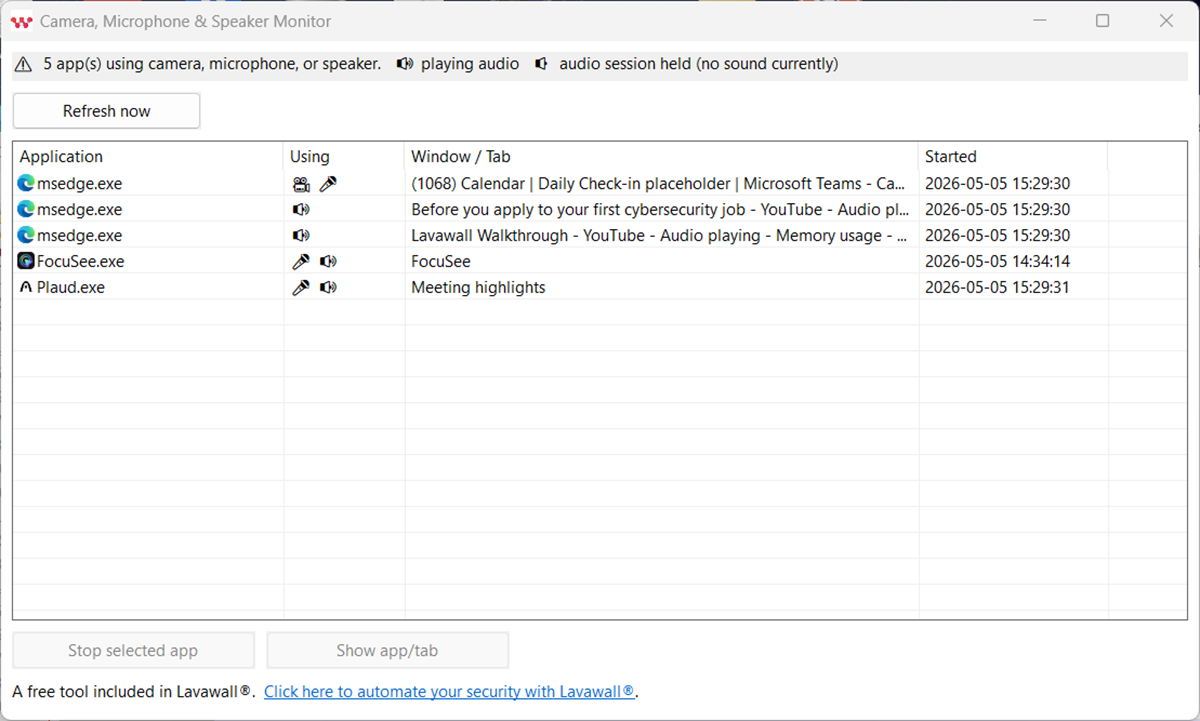
Why the Windows privacy panel is not enough
The Windows privacy panel tells you that something is using your microphone, but not which Edge tab, and definitely not whether an app is silently recording your audio in the background.
Modern meeting-recorder apps (Plaud, Otter, Microsoft Recall, browser extensions, etc.) keep a silent audio session open while they wait for a meeting to start, then record the speaker output. That activity never appears in the Windows privacy indicators because no sound is coming out.
This tool surfaces it. You see the offending app or tab, and you can stop it.
What it shows you
- Per-app rows for everything currently using the camera, mic, or speaker, with the actual app name, not just “some Windows process”.
- Per-tab rows for Firefox and Chromium browsers (Edge, Chrome, Brave, Vivaldi, Opera). If you have YouTube playing in one tab and a Teams meeting in another, you get one row for each.
- Audio capture detection: it flags audio sessions that are active but silent separately from sessions that are actually emitting sound, so meeting-recorder apps can’t hide.
- All audio outputs: speakers, headphones, and any other output you have plugged in, not just the default one.
What the icons mean
| 🎥 | Camera: an app or tab is using your camera right now. |
| 🎤 | Microphone: an app or tab is using your microphone right now. |
| 🔊 | Audio playing: the app is actually emitting sound. You can hear it. |
| 🔈 | Audio session held but silent: the app has the speaker open but no sound is coming out. This is the case worth investigating. It’s normal for some media players (between songs); it’s also exactly the pattern meeting recorders use while listening for a call. |
How to use it
1Run camera-monitor.exe. No installer, no service, no admin rights required. The window opens and refreshes automatically every few seconds.
2Look at the “Using” column. Each row shows what that app or tab is doing. An app using both camera and mic shows 🎥 🎤. A tab playing audio shows 🔊.
3Find the offending tab. For Edge, Chrome, Brave, Vivaldi, and Opera, the “Window / Tab” column shows the actual tab title (“YouTube — Audio playing”, “Google Meet — Camera and microphone in use”, etc.). For Firefox, you’ll see the tab title for tabs playing audio; for camera or microphone use, Firefox shows up as a single “Mozilla Firefox” row, so click it and switch to Firefox to see which site has the permission. Pick the row.
4Click “Show app/tab”. The tool brings the right window forward, and for tabbed browsers, when we know the specific tab, it switches the browser to that tab so you don’t have to hunt.
5Stop it. Click “Stop selected app” to close the offending app. If it needs higher permissions, the tool will ask Windows to confirm with the usual admin prompt. (Stopping a browser closes all the browser’s tabs, not just the offending one.)
Privacy & security
- No network calls. The tool runs entirely locally. It does not phone home, send telemetry, or contact any Lavawall server.
- Read-only registry access. Camera/microphone usage comes from the Windows Capability Access Manager (the same source the OS’s own privacy panel uses), opened read-only with
KEY_READ. - Read-only audio enumeration. The tool reads peak meters; it does not capture audio.
- Safe termination. When you click “Stop”, the tool checks again that the process it is about to close is the one you picked, so it never closes an unrelated process.
- Single executable. Pure code without bundled DLLs, installers, or third-party runtimes. Just like Lavawall®, we keep it simple.
Get the free download
Tell us where to send it. We’ll email the link and follow up once if there’s anything else that might help. We’ll never sell or share your address.
Want to verify what you’re running? Each release’s file hash is published on our changelog page. Questions? Contact us.