Phishing Reporter for Outlook
Most phishing never needs a ticket.
The Lavawall® Phishing Reporter does more than give users an easy way to report a suspect email. It gives them an immediate read on the risk the moment they check a message right inside Outlook. In most cases the answer is obvious on the spot, so there is nothing to escalate. Teams that turn the Reporter on cut phishing report tickets by 93%.
It also restores what link wrapping hides. Proofpoint URL Defense, Egress Defend, Mimecast and others rewrap every link so a user can no longer mouse over it to see the real destination the way their training taught them. Lavawall unwraps the link and shows the true destination and verdict instead, and it flags malicious PDFs and wrapped URLs that reach the inbox.
Start my free trial, no credit cardDrowning in phish tickets?
Windows, Mac, web, iOS, and Android. No separate credentials.
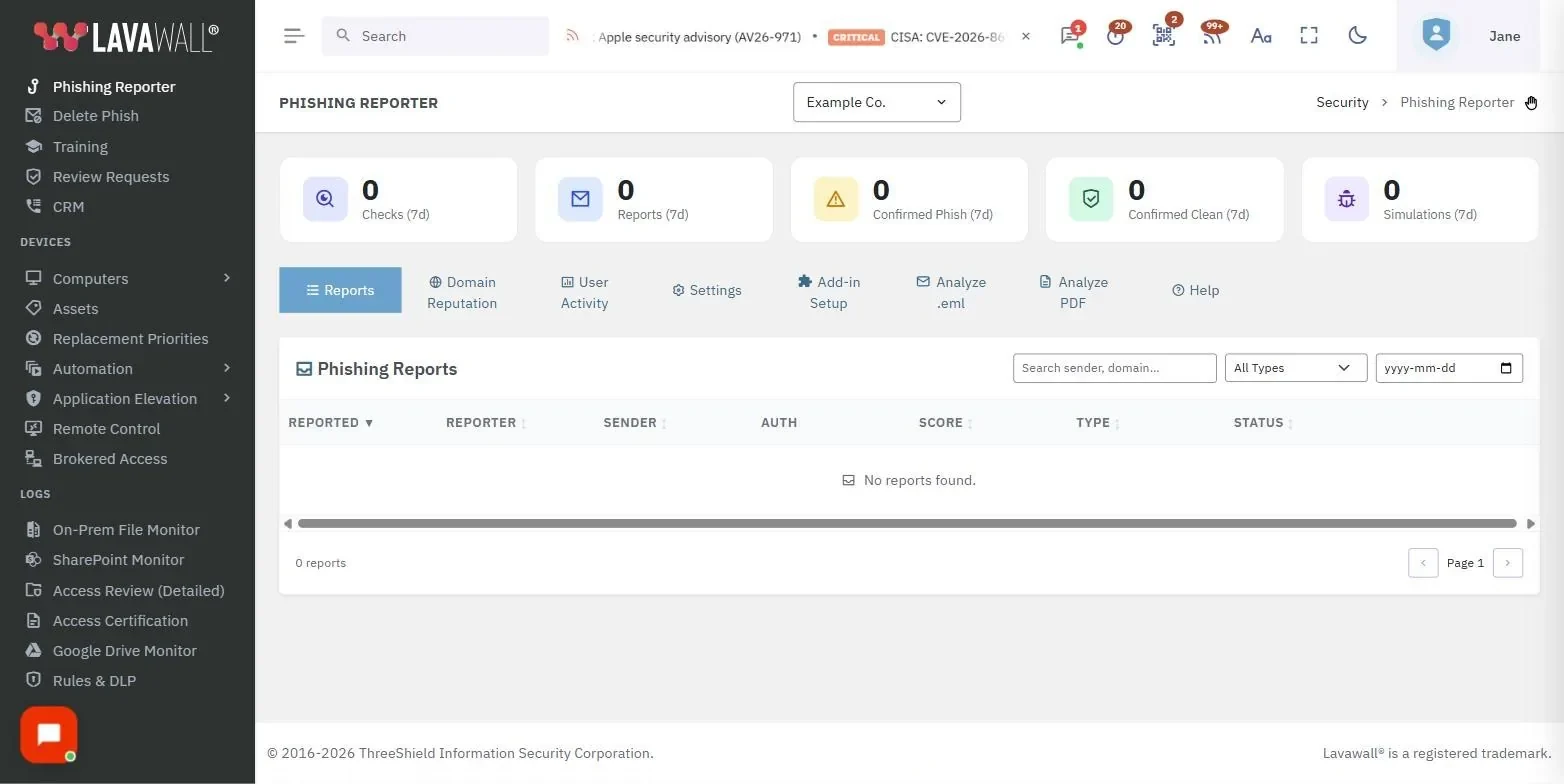
See it in the Lavawall® console
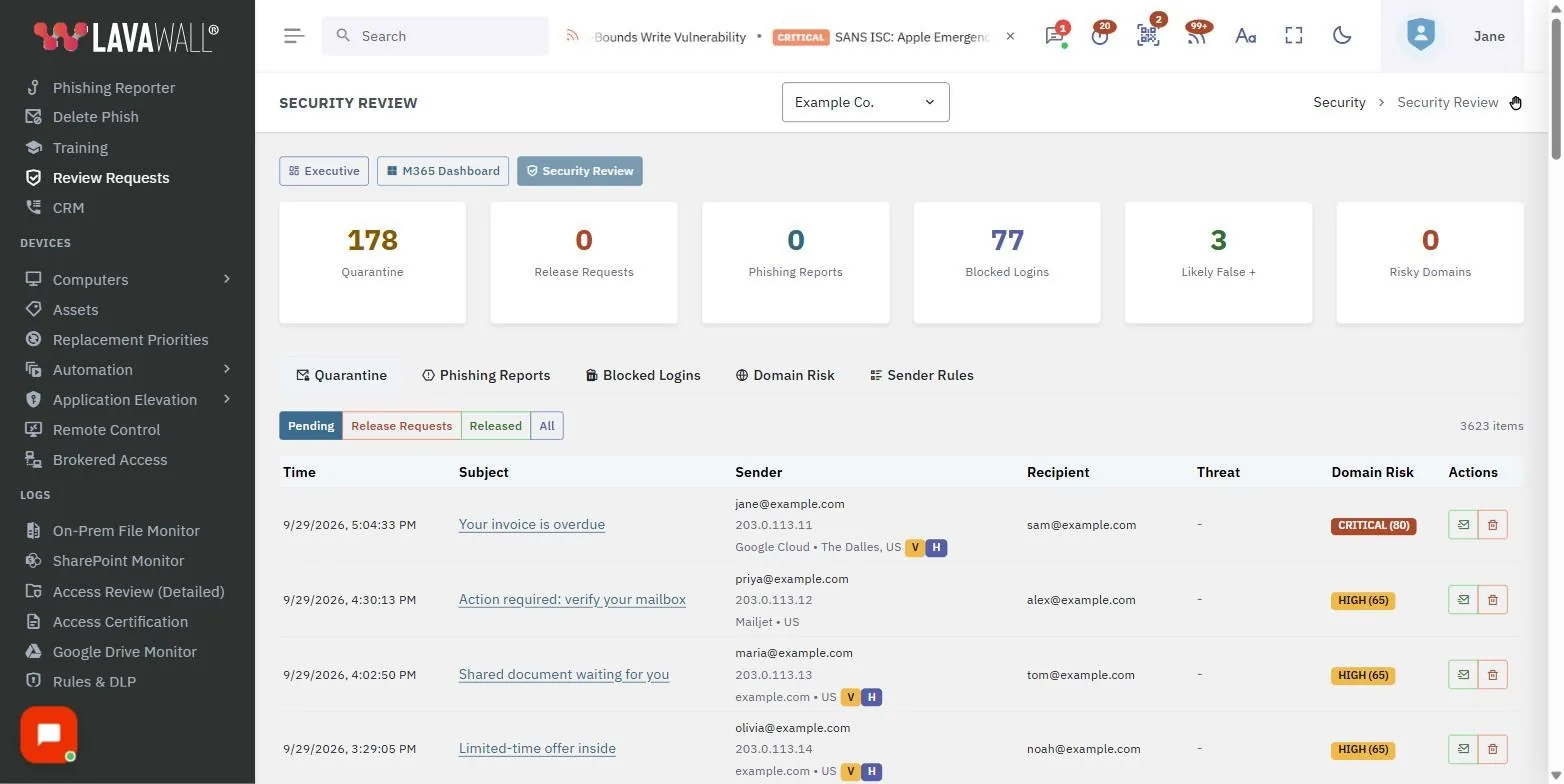
Real screens, shown with example data.
Insight first, ticket only if you need one
Most phishing reporters do one thing: fire a ticket and wait for an analyst. That buries your team in noise, and it leaves the user staring at an email they still do not understand.
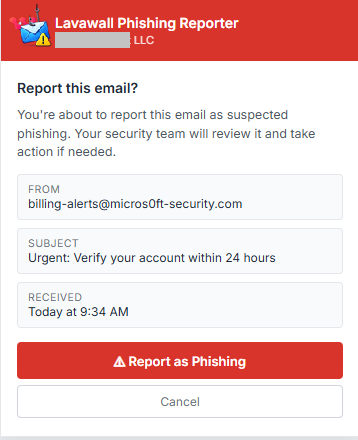
Lavawall® flips the order. The moment a user clicks Phish Report the taskpane shows what the email actually is, in plain language, in about three seconds. A red banner and a clear reason mean they can delete it and move on. A green one means they can relax. Because the answer arrives right there, most checks never turn into a report at all, which is how the Reporter reduces phishing report tickets by 93%. When something genuinely needs a human, one more tap sends your analyst the full message source, headers, links, and attachments.
Competitors rewrap links. We unwrap them.
You have spent years teaching people to hover over a link and read the address before they click. Then a link-protection tool undoes that lesson. Proofpoint URL Defense, Egress Defend, Mimecast URL Protect, Barracuda, Cisco and the rest rewrite every URL into a long address pointing at their own service. Hover now, and all a user sees is the security vendor's domain. The real destination is hidden until the moment of click, which is exactly when it is too late to think.
Worse, that vendor domain often looks trustworthy, so a malicious link can read as safe simply because it was wrapped by a well-known name. Lavawall® does the opposite. Where the true destination can be safely recovered, it unwraps the link and shows where it actually goes: its age, its reputation, and whether it is a look-alike of a brand you trust. Where a tool keeps the destination sealed until click, we say so plainly instead of giving a false all-clear.
The same goes for attachments that reach the inbox. Lavawall reads what a PDF's code actually does, so a harmless print button does not raise the same alarm as a silent data-exfiltration script.
Built for the people who use it
Zero friction for users
One click, no separate login, no consent screen. The add-in identifies the user from the mailbox it is running in, the identity Microsoft 365 already authenticated, and works across every Outlook client from desktop to mobile.
Plain English, detail on tap
The taskpane shows what the email actually is. SPF, DKIM and DMARC appear as one-glance pills with plain-language tooltips, impersonation is flagged across the org tree, and the technical detail is one tap away for anyone who wants it.
Structured intake for analysts
Every report carries the full message source, headers, links and attachments, and feeds a reputation system so you spot campaigns and repeat offenders. It all lands in an admin dashboard with stats and tunable settings.
A DMARC expert your MSP can stand behind
When a legitimate sender fails DMARC alignment, the Reporter explains the sender's misconfiguration and hands over the exact DNS records to fix it, with a link to the free Lavawall® DMARC tool. The advice appears inside the add-in your customer already trusts, from you.

What it checks, and what you see
Click Phish Report and the taskpane returns a plain-language verdict in about three seconds, with a risk score banded like a traffic light: green under 35, amber 35 to 69, red 70 and above. Here is what sits behind that score.
Sender and authentication
- SPF, DKIM and DMARC shown as one-glance pills with plain-English tooltips, not raw header text.
- True-sender authentication. When a message has been relayed through a security gateway, Lavawall identifies the original sending source and checks SPF, DKIM and DMARC against it, not against the gateway that simply passed it along.
- DMARC alignment failures detected and explained in plain language, with platform-specific DNS fix steps (Mailchimp, SendGrid, Constant Contact, Mailgun, Amazon SES, HubSpot, Salesforce and more) and a link to the free Lavawall® DMARC Monitoring tool to confirm the fix.
- Sender-domain age and reputation spelled out as "registered N days ago" or "established X years" rather than a bare date.
- Impersonation detection across the org tree, flagging a display name that matches an internal user while the address differs, and suppressing the alert for your own legitimate brand subsidiaries.
Links and attachments
- Real link destinations. Shortened and wrapped URLs are resolved server-side (the user is never exposed to them), including links pushed through Vade, Proofpoint, Mimecast and Cisco wrappers.
- Typosquat and homoglyph detection, for example paypa1.com dressed up as paypal.com, plus base64-encoded recipient identifiers hidden in tracking links.
- Attachments judged by behaviour. Lavawall opens the actual attachment and looks at what it tries to do, so a document that merely shows a print dialog is treated as harmless, while one that quietly reaches out to the internet, launches a program, or hides another file inside it is flagged as risky, before anyone opens it.
- Office and archive analysis covering macros, .eml and .msg parsing, and ZIP inspection.
- Trusted services that attackers borrow. Links to services such as Google Docs, Dropbox, SharePoint, and Calendly are marked as legitimate but often abused, because anyone can publish on them. The linked page is still checked, and the user is warned not to enter a password there.
- Previews that stay silent. Opening a report never loads anything from the internet, so the sender cannot tell it was looked at.
- Simulation awareness. When a user reports a training simulation, the Reporter recognizes it and shows a "well spotted" screen. No ticket fires and no admin is paged.

For your analysts, the console keeps the full original message, records which spam filters, malware scanners and link-protection tools handled it, and scores every reported domain over time so repeat offenders, newly registered domains and typosquats rise to the top.
Compatibility
The add-in is certified for every modern Outlook surface. Deploy once and it appears on every client your staff use, with no per-device install and no manual updates.
| Platform | Client | Notes |
|---|---|---|
| Windows | Classic Outlook and new Outlook | Full SPF/DKIM/DMARC, link and attachment analysis. |
| macOS | Outlook for Mac | Full checks, same taskpane as Windows. |
| Web | Outlook on the web (OWA) | Full checks in any modern browser. |
| iOS | Outlook for iPhone and iPad | Sender, link, attachment, impersonation and simulation checks. Full headers on v4.2405 and later. |
| Android | Outlook for Android | Same mobile checks. Where the mobile API does not expose message headers, the taskpane shows an honest "headers unavailable on this device" notice instead of a fake verdict, and points to web or desktop. |
Microsoft 365 requirements
- Any mailbox that supports Outlook add-ins can use the Reporter, which covers all standard user mailboxes and most shared mailboxes in Exchange Online.
- Uses the native Outlook identity. No OAuth consent screen and no per-user Entra ID grant (admin console SSO via Entra ID is available for admins viewing the dashboard, not for end users).
Deployment
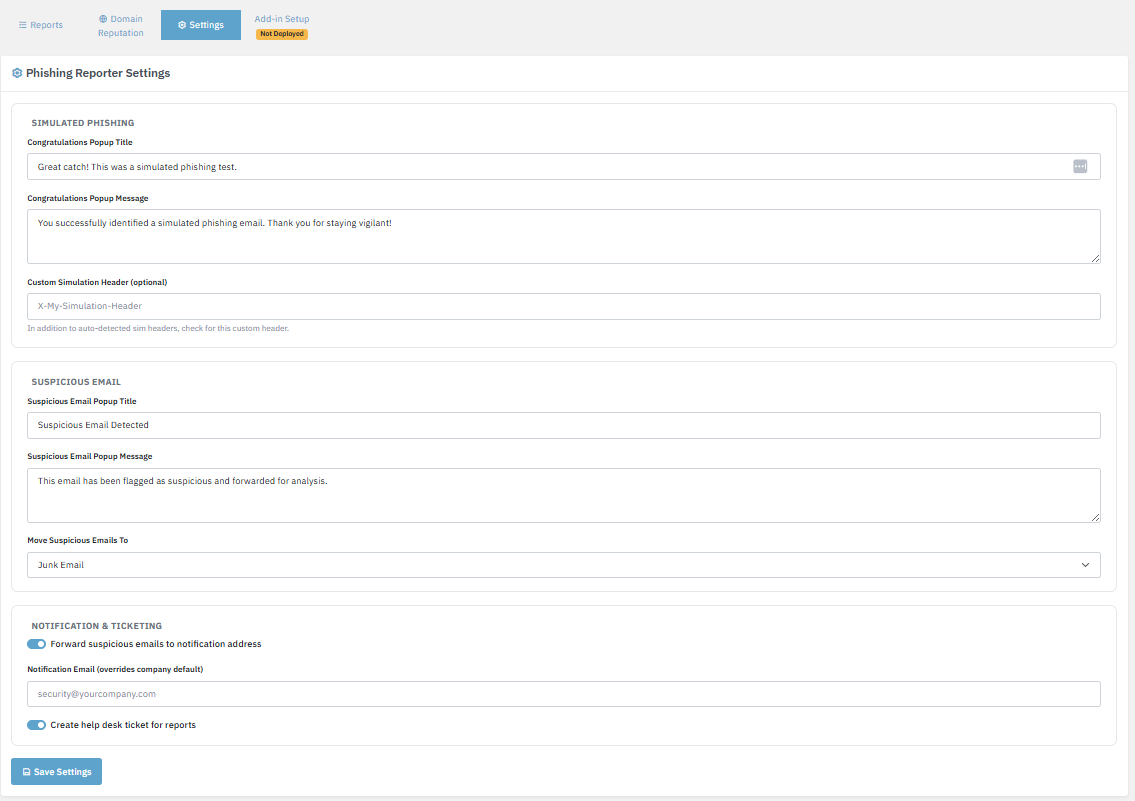
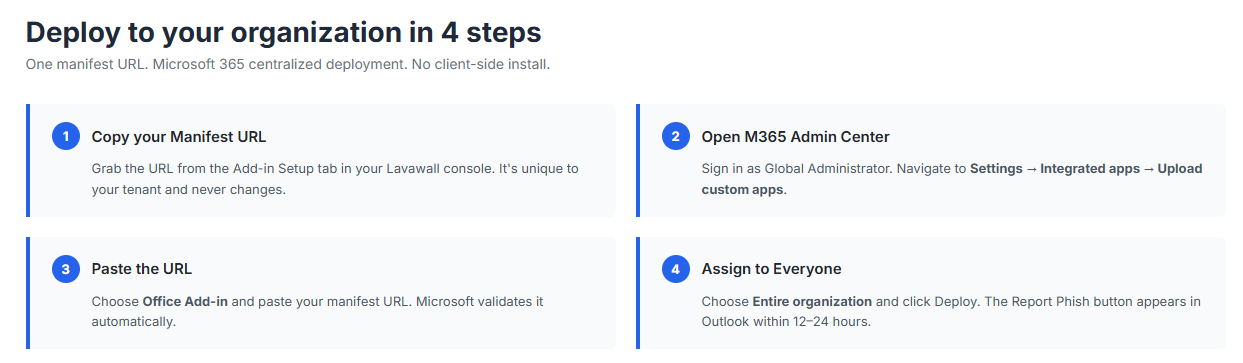
- Push to your whole tenant through Microsoft 365 centralized deployment or the Integrated Apps portal. Paste the manifest URL, assign it, and the button appears.
- Microsoft propagates add-in deployments within roughly 12 to 24 hours. Individual users can pick it up sooner by restarting Outlook.
- For a shared mailbox, deploy the add-in to that mailbox by its address, or add the shared mailbox as a full account in Outlook desktop so your add-ins load in that context.
Where users find the button
On most Outlook clients the Security group with the Phish Report button sits right in the message ribbon while reading a message. When the window is narrow or the ribbon is crowded, Outlook collapses the group to a single Security icon, so one click reveals Phish Report. On Outlook on the web with a busy ribbon it can live one level deeper, under the More Apps icon at the right of the message toolbar.
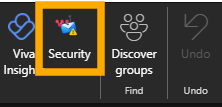
When ribbon space is tight, click the Security icon to reveal Phish Report.
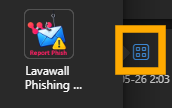
If it is hidden, open More Apps and pick the Lavawall® icon.
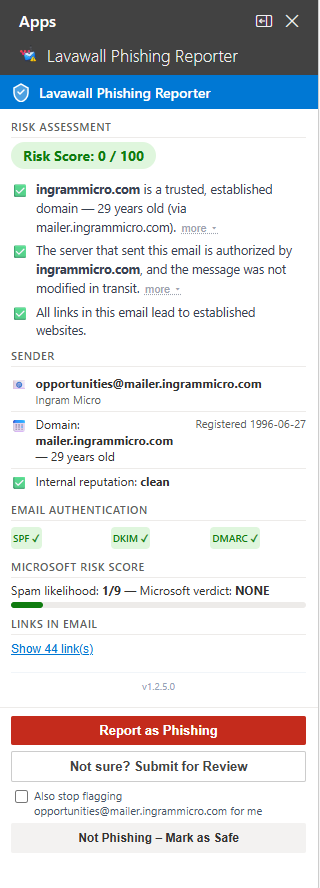
The taskpane opens beside the message, verdict and detail in one view.
What the user sees, and what your analyst sees
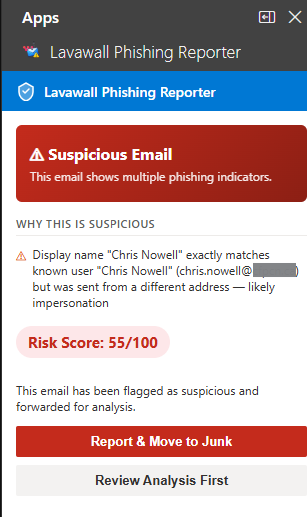
The same report at two levels of detail. The user gets a clear verdict and a recommended action right in Outlook; your analyst gets the full breakdown in the console, including sender authentication, the scored reasons, and every link.
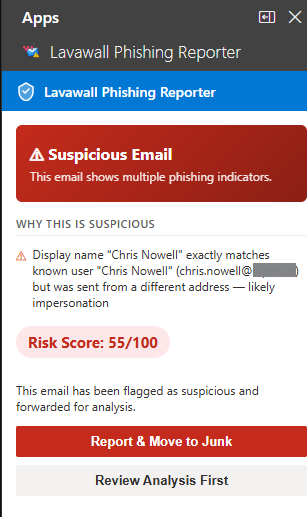
What the user sees: a clear verdict, the reason, and one-tap actions.
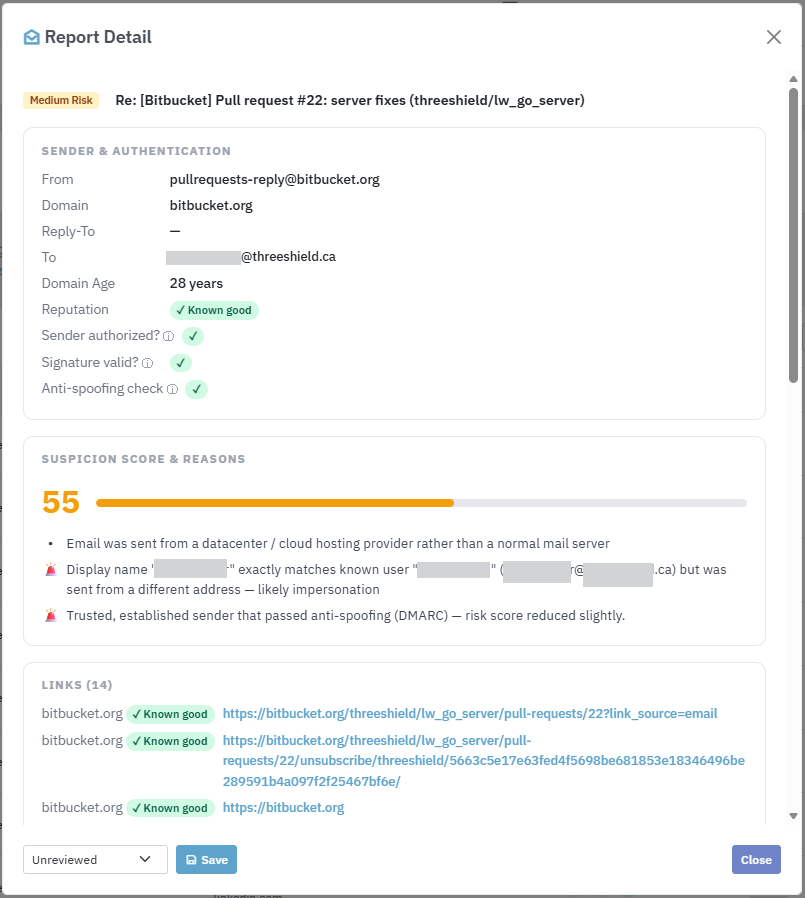
What your analyst sees: sender authentication, scored reasons, and every link.
A DMARC expert your MSP can stand behind
The most common reason a legitimate email gets flagged is not that it is phishing. It is that the real sender never set up their email authentication correctly. The newsletter from a long-standing partner, the receipt from a SaaS vendor, the invoice from a key supplier: any of them can fail DMARC alignment and look like a spoof to anything that is actually checking.
When Lavawall® detects that pattern, the Reporter goes further: it explains what is wrong with the sender’s setup and gives the exact DNS records to fix it. The first time a customer’s vendor sees that guidance, the natural reaction is “where did this come from?”, and the answer is your MSP, right inside the add-in your customer already trusts.
Clicking How the sender can fix this expands a step-by-step panel written for the sender’s IT person: pasteable CNAME records for DKIM alignment, the exact TXT records for SPF on a non-default sub-domain, whether the platform already aligns on its own domain, and a one-click link to the free Lavawall® DMARC Monitoring tool with the affected domain pre-filled.
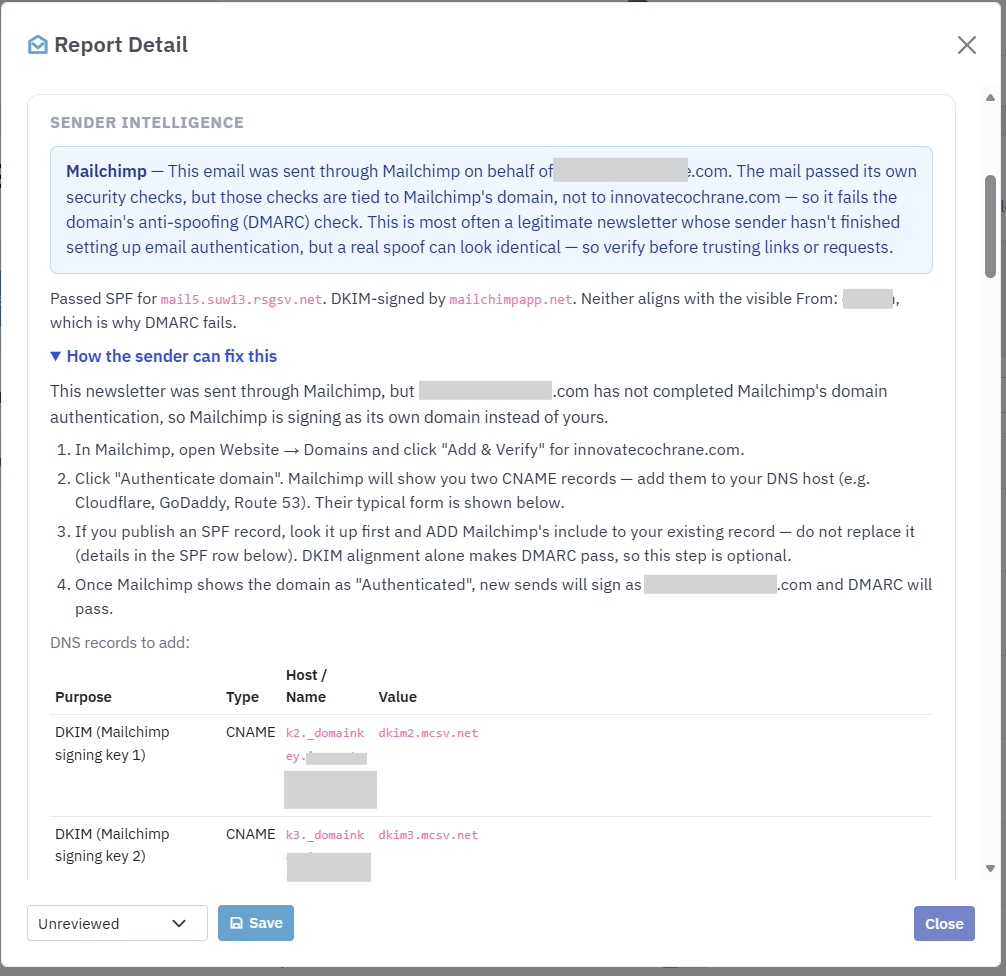
Lavawall® detects and provides fix guidance for messages sent through the major bulk-email platforms, including:
- Mailchimp
- SendGrid
- Constant Contact
- Mailgun
- Amazon SES
- HubSpot
- Salesforce / Pardot
- Campaign Monitor
- ActiveCampaign
- Brevo (ex Sendinblue)
- Klaviyo
- Microsoft 365
- Google Workspace
- Postmark
- SparkPost
For MSPs this is a built-in prospect generator. Every time the add-in shows a customer’s vendor exactly how to fix their authentication, the customer sees their provider’s product solving a problem nobody else flagged: a warm introduction that costs nothing to generate.
On Outlook for Android and iOS
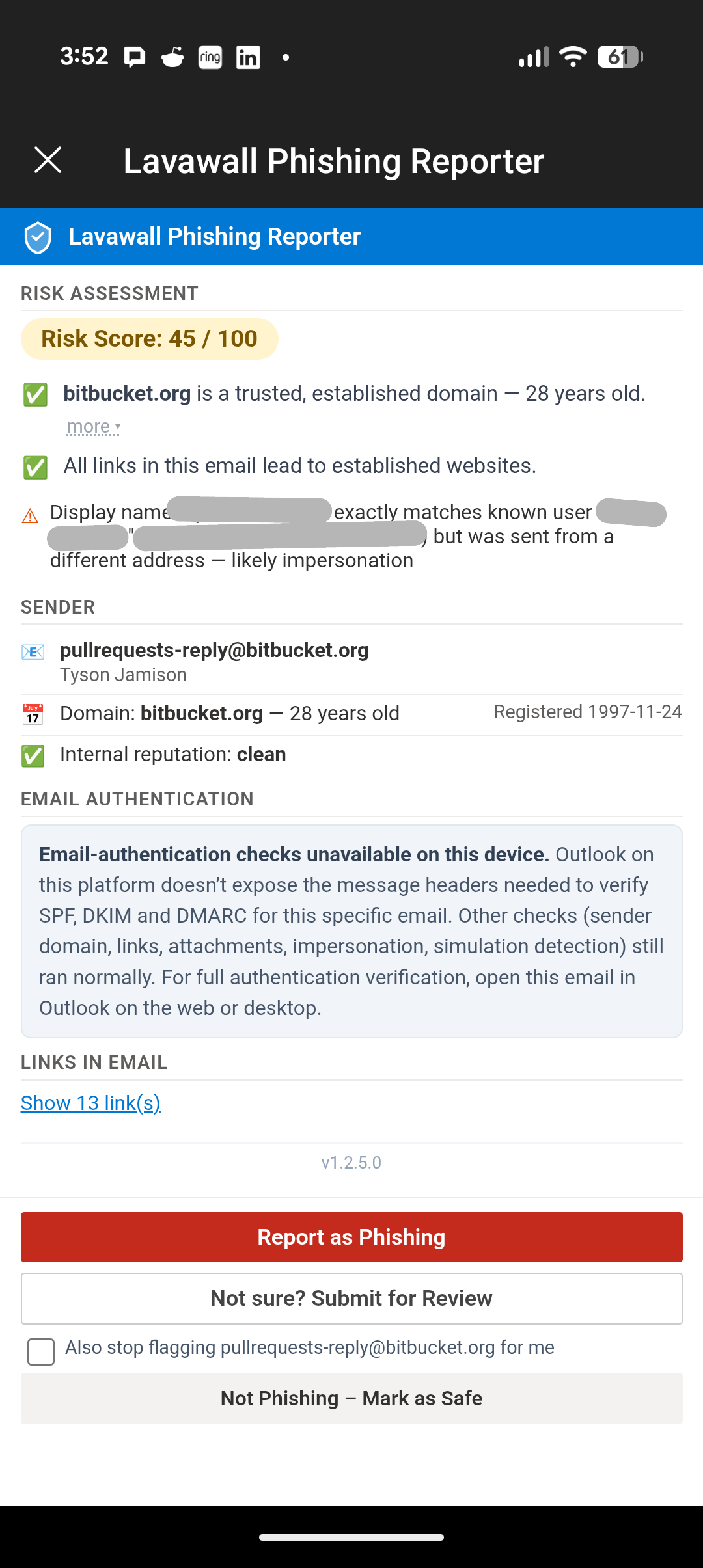
Mobile Outlook is supported. Some message data is not exposed to add-ins on mobile clients yet, specifically the full headers needed to verify SPF, DKIM, and DMARC for a given email. The Reporter handles this honestly: instead of pretending the checks ran, it shows a clear “headers unavailable on this device” notice and points the user to Outlook on the web or desktop for full verification. Every other check (sender, links, attachments, impersonation, and simulation detection) still runs normally on mobile.
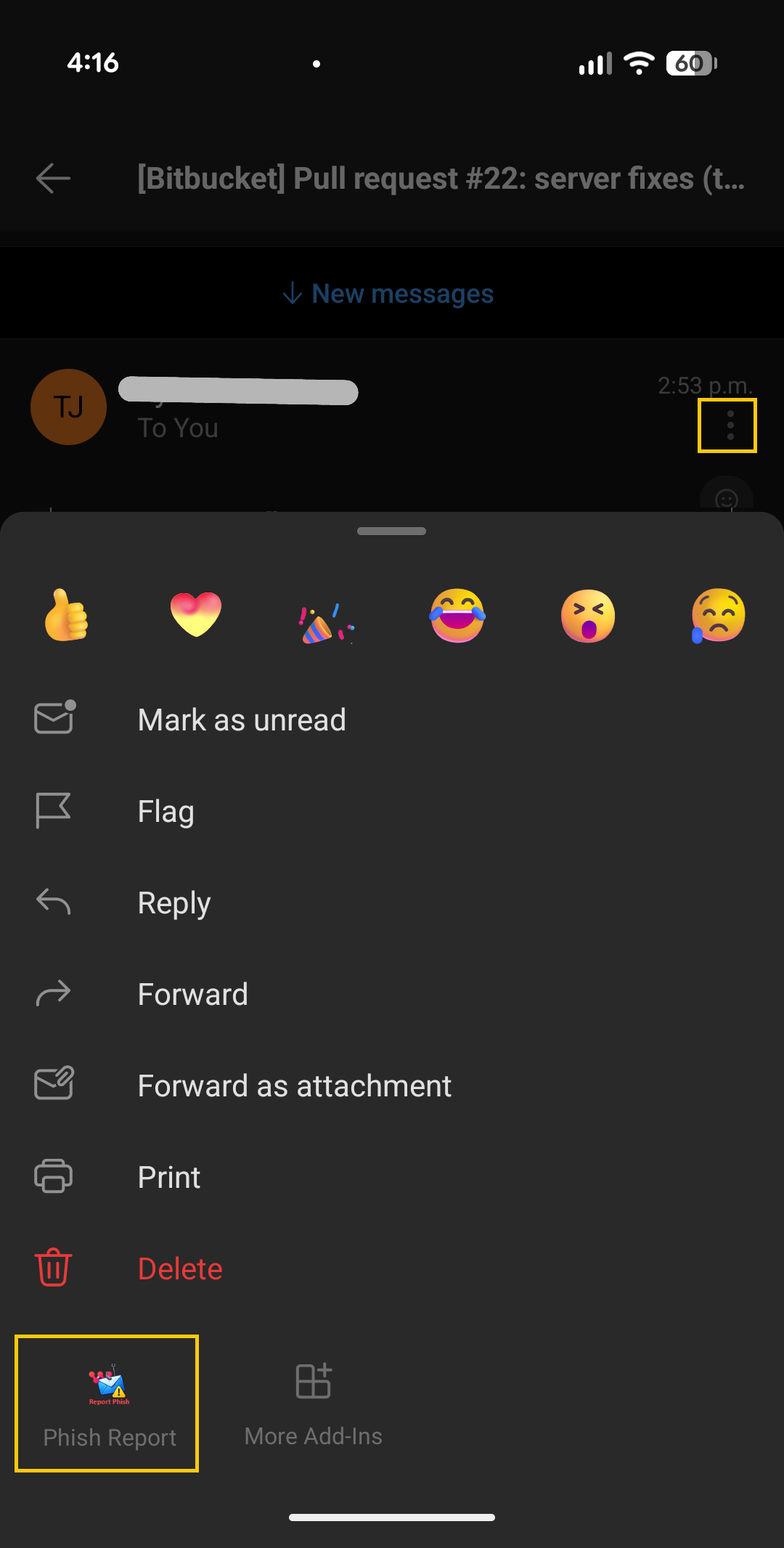
To open Phish Report on Android, tap the three dots beside the sender, scroll down if needed, and choose Phish Report. The example shown is a Bitbucket pull-request notification, which Bitbucket stamps with the author’s name, so Lavawall® flags the display-name and domain mismatch.
Recognizes phishing simulations, and rewards the catch
When a user clicks Phish Report on a training simulation, the Reporter detects it automatically and shows a positive screen instead of a security alert: “well spotted, this was a phishing test, you did the right thing.” No ticket fires and no admin is paged. The user gets the reward of catching the simulation, which is what makes the training stick.
Detection uses reliable per-message signals such as the custom headers simulation platforms stamp on their mail (X-KnowBe4-PhishAlert, X-PhishMe-Id, X-Proofpoint-PSAT, and others) plus dedicated simulation infrastructure, so it does not mis-classify ordinary marketing mail from a vendor’s corporate domain.
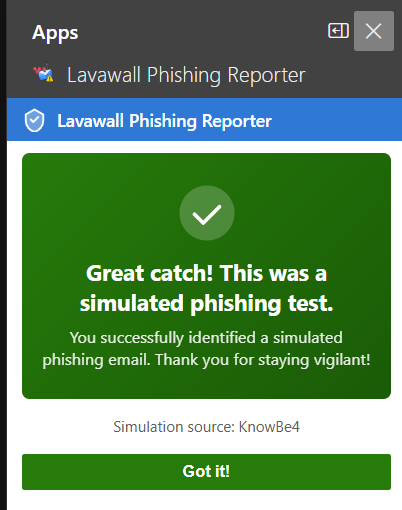
Simulation platforms detected automatically include:
- KnowBe4
- Microsoft Defender Attack Simulator
- Proofpoint Security Awareness
- Cofense PhishMe
- IRONSCALES
- Hoxhunt
- Barracuda PhishLine
- Mimecast Awareness Training
- Infosec IQ
- Sophos Phish Threat
- Huntress Security Awareness
- Abnormal Security
- GoPhish
- Lucy Security
- Wombat / Proofpoint
- Terranova Security
- Ninjio
- Curricula
- Phished.io
- LMS365 Awareness
Sees through your email security stack
Most email does not arrive straight from the sender. It passes through one or more security services first: cloud gateways that scan for spam and malware, and link-protection tools that rewrite every URL to check it again at click time. Those layers do important work, but they change the evidence. The gateway often becomes the “last sender” in the technical record, so a naive analyzer checks the gateway’s reputation instead of the real sender’s, and a malicious email can look clean simply because it passed through a trusted service.
The Lavawall® Reporter looks past those layers. When a message has been relayed through a security service, it identifies the original sending source and evaluates SPF, DKIM, and DMARC against it, not against the gateway. Where a link has been rewritten and the true destination can be safely recovered, it recovers it and analyzes where the link actually goes, its age, its reputation, and whether it is a look-alike of a brand you trust. Where a tool keeps the destination sealed until click, it says so plainly rather than giving a false all-clear. For your analysts, the console also records which spam filters, malware scanners, and link-protection tools handled the message: context a forwarded copy would lose.
Gateways and link-protection tools Lavawall® sees through and works alongside:
- Microsoft 365 Defender (EOP)
- Microsoft Safe Links
- Cisco Secure Email (IronPort)
- Proofpoint
- Proofpoint URL Defense
- Mimecast
- Mimecast URL Protect
- Barracuda
- Barracuda Link Protection
- Egress Defend
- Vade Secure
- Sophos Email
- Forcepoint
- Symantec Email Security.cloud
- Trend Micro Email Security
- Storagepipe / Thrive
- FireEye / Trellix
Trusted-sender allow list: tenant, MSP, and per-user
Some legitimate senders look spoof-shaped on the wire. Newsletter platforms, service notifications from Bitbucket, GitHub, Jira, and Confluence, and partners on shared infrastructure can trip impersonation or free-webmail heuristics without being phishing. The trusted-sender allow list silences those flags at the right scope.
- This company. A standard tenant-wide rule, set by an admin.
- MSP and children. An MSP can roll out a trusted-sender entry across every customer tenant in one action.
- Global. Reserved for Lavawall®, used for senders every customer trusts, such as Microsoft 365 administrative mail.
- Just me. An individual user can silence a false positive for themselves with one tap, without affecting anyone else. Per-user entries are private.
The allow list also accepts entries auto-sourced from addresses found in Outlook on the company’s own managed devices as a soft trust signal. It only softens personal-webmail noise and never overrides a hard spoofing signal.
Full-fidelity intake, so your analysts have everything they need
Forwarded phishing emails lose critical forensic information: headers get rewritten, attachments get stripped, and the chain of custody breaks. The Reporter captures the full original message (every header, link, and attachment exactly as the user received it), so your analysts see what the user saw.
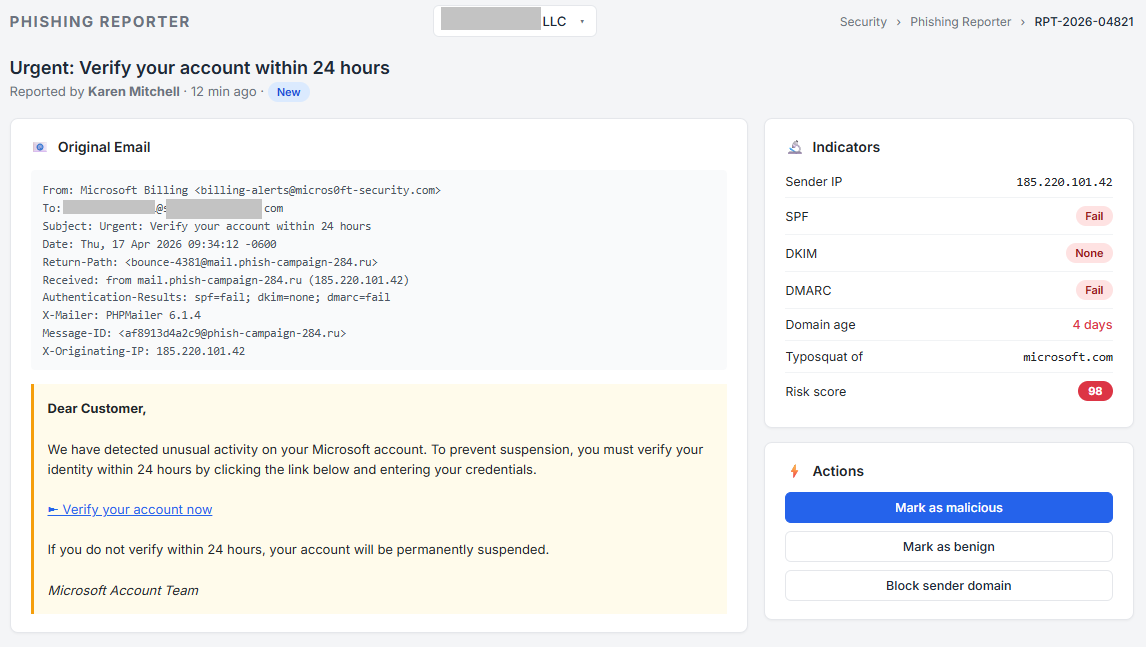
Sender, authentication, score, and reasons: the same view analysts use to triage every report.
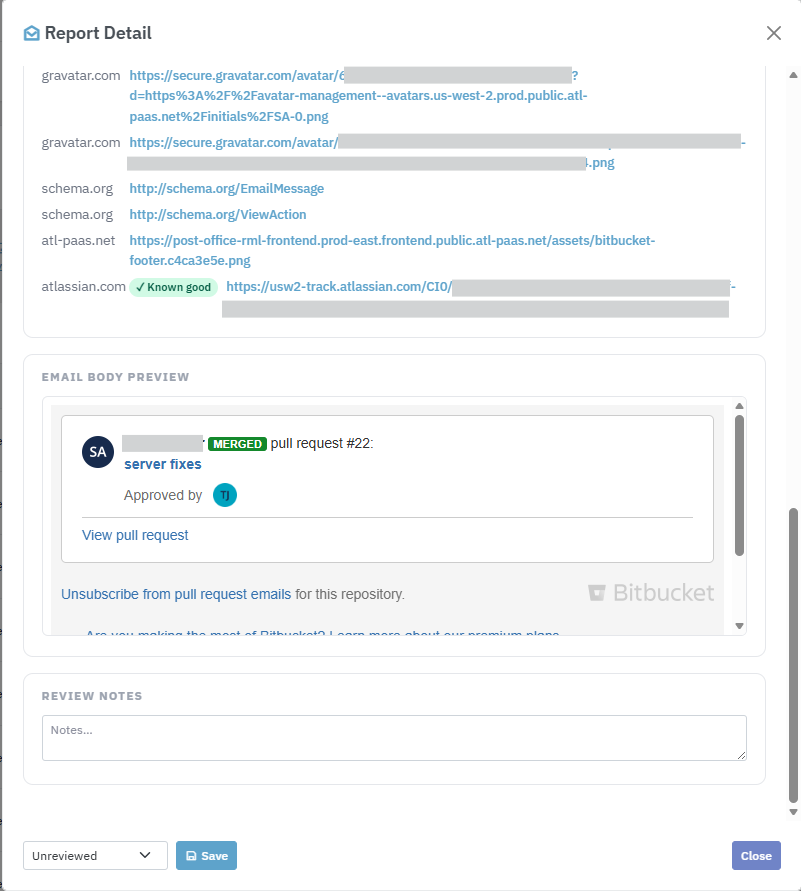
Scroll further for the original headers, every link and attachment, and a sandboxed body preview.
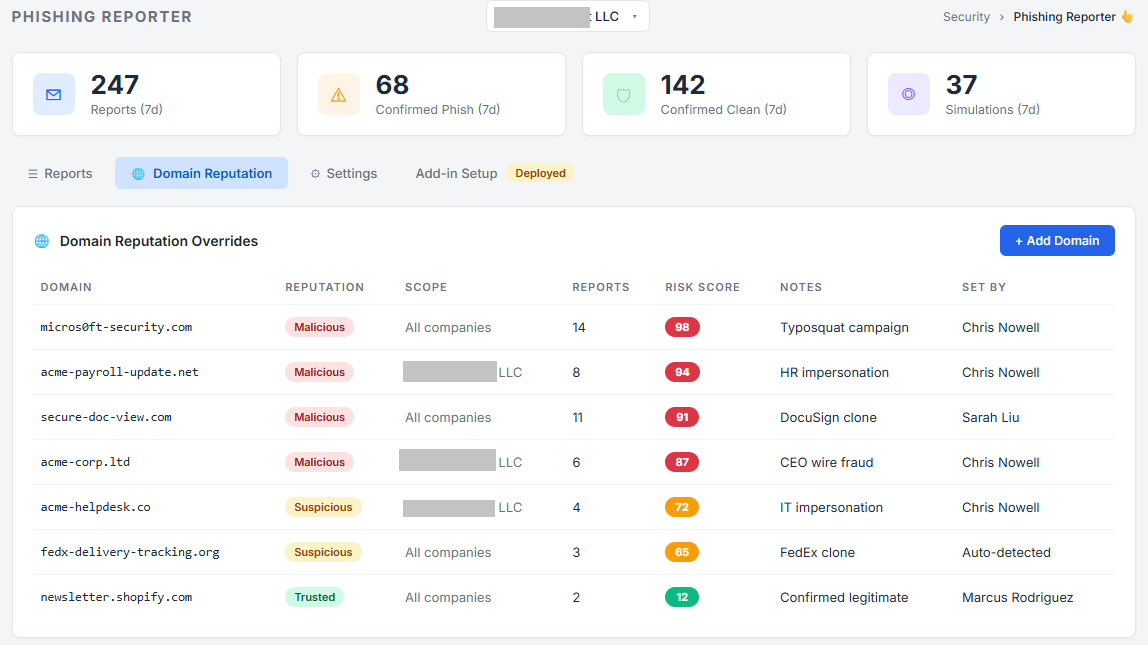
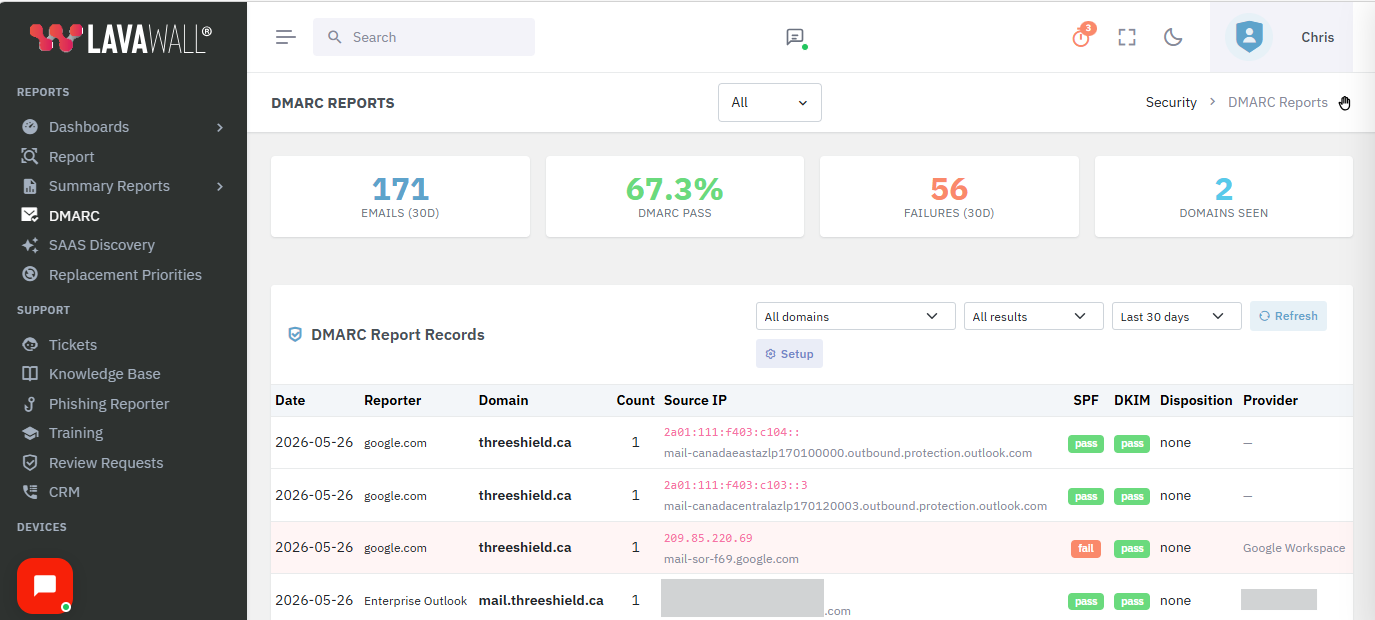
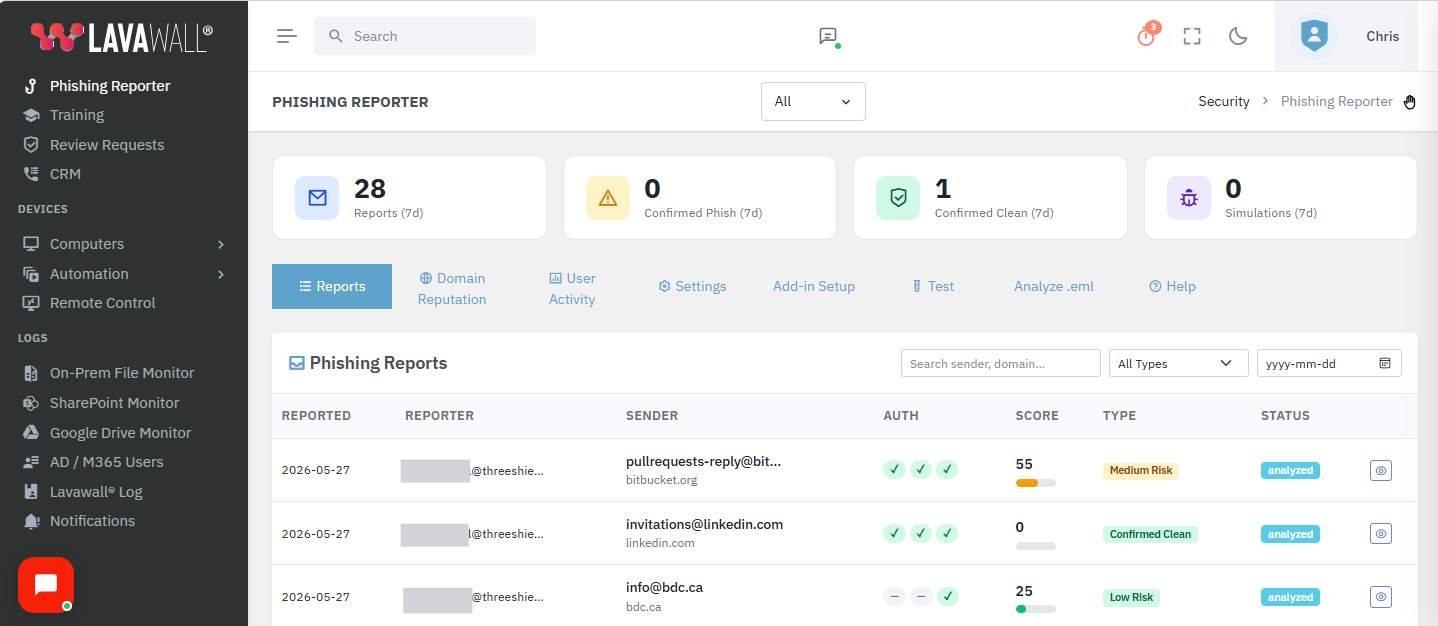
Every reported sender domain is scored and tracked over time, so repeat offenders, newly-registered domains, and typosquats rise to the top. Click any domain to see every report, recipient, and observed indicator in one place.
An admin dashboard built for security teams
Every report lands in one pane of glass with the context your team needs to triage. Filter by reporter, sender, domain, date, disposition, or free-text search, and drill from a report into the domain reputation, the reporter’s history, and the full raw message. The User Activity tab shows, per user, how many emails they checked, how many simulations they caught, how many they reported, how many they marked safe, and how many they opened without acting, with CSV export for your security-awareness review.
Report it once, then remove it everywhere
A report is only half the job. From a reported message, or from an email a technician drags in, uploads, pastes, or describes by its traits, Lavawall® finds the messages that share those characteristics and removes them from every affected mailbox, and across every tenant you support. You choose whether they go to Junk, to Deleted Items, or are hard deleted, with a record of what was pulled and from where.
This is the difference between spotting a phishing wave and stopping it. See how mailbox removal works across your tenants →
Security first: no OAuth, no broad mailbox grants, no separate identity
The Reporter is built on Microsoft’s native Office.js add-in runtime, so it delivers enterprise-grade intake without the permissions other reporters demand.
- No OAuth consent screens. Users are never asked to grant “read your mail”, “send mail as you”, or “maintain access”. Microsoft already trusts the user’s Outlook session, and that is what the Reporter uses.
- No separate login and no per-user Entra ID grant. Admin console SSO via Entra ID is available for admins viewing the dashboard, not for end users.
- Read-only access to the one message being reported. The add-in never reads unrelated mail, never enumerates the inbox, and never runs in the background.
- No client secret, service principal, or tenant-level Mail.Read grant. Reports travel over TLS 1.2 or higher directly to your tenant’s Lavawall® console.
- Per-tenant data isolation, role-based access to the dashboard, and a full audit trail of who reported what, when, and how it was dispositioned.
Attachments checked by what they actually do
When a reported email carries an attachment, Lavawall® opens the real file and looks at how it behaves, then gives it a risk level in plain language. A document that only shows a print dialog is treated as harmless; one that quietly tries to reach the internet, run a program, submit your information, or unpack another hidden file is flagged as dangerous. Your team sees a clear “safe” or “risky” verdict without needing to be a malware analyst.
- The file itself is inspected, not the name on it. A risky attachment dressed up as an ordinary document is judged on what it actually tries to do.
- Hidden or password-protected files are still checked. Disguising the contents doesn’t get a file waved through.
- It is not limited to PDFs. Office documents, email files, and ZIP archives are inspected the same way.
The result is a plain-English verdict your users and help desk can act on, without publishing the mechanics an attacker would love to study.
Easy to deploy, and built for MSPs
The add-in deploys to all your users at once through Microsoft 365 centralized deployment or the Integrated Apps portal. Paste the manifest URL, assign it to your organization, and the button appears in Outlook within about 24 hours. No MSIs, no Group Policy, no user action, and no OAuth consent during rollout. Updates ship automatically through Microsoft’s add-in infrastructure. Every Lavawall® tenant gets its own isolated reporting pipeline, admin console, and reputation database, so an MSP manages phishing reporting across every client from one account while keeping each client’s data strictly separate.
What is included
Every deployment of the Lavawall® Phishing Reporter ships with the Outlook add-in for Windows, Mac, web, iOS, and Android; a central admin console with reports, reputation, user activity, settings, and setup tabs; structured intake with full message fidelity; the trusted-sender allow list with company, MSP-children, global, and per-user scopes; simulation detection across 20 or more vendors with positive user feedback; DMARC alignment detection with platform-specific fix guidance and the free DMARC Monitoring tool; domain reputation scoring and history; user-activity tracking with CSV export; per-report audit trail and disposition tracking; help-desk ticket creation on report; Microsoft 365 centralized deployment; Entra ID SSO for the admin console; configurable email notifications; and role-based access control.
The Phishing Reporter is part of Lavawall® Security Awareness Training, included in the Complete tier, or a per-user add-on at C$1.95 / US$1.50 per user per month on the Grow and Professional tiers, billed month-to-month with no multi-year contract.
How the Reporter compares with Defender and KnowBe4
The Lavawall® Reporter works at the moment a user is reading a suspicious email, giving them the analysis they need to decide right now, with no OAuth consent screen demanding access to read, send, and modify their mail. Features change often, so check Microsoft’s and KnowBe4’s own documentation for their current capabilities.
| Capability | Lavawall® Reporter | Defender for O365 | KnowBe4 PhishAlert |
|---|---|---|---|
| No OAuth consent or permission grants from the user | Yes, native Outlook identity | Yes | Check KnowBe4’s documentation |
| Plain-language risk summary shown to the user | Yes, on every email, instantly | Check Microsoft’s documentation | Check KnowBe4’s documentation |
| Sender domain age and registration date | Yes, shown in the pane | Check Microsoft’s documentation | Check KnowBe4’s documentation |
| SPF, DKIM and DMARC in plain English | Yes, per email, detail on tap | Check Microsoft’s documentation | Check KnowBe4’s documentation |
| DMARC fix guidance with platform-specific DNS records | Yes | Check Microsoft’s documentation | Check KnowBe4’s documentation |
| Authentication checked against the true sender behind a gateway | Yes | Check Microsoft’s documentation | Check KnowBe4’s documentation |
| Recovers the real destination of wrapped links | Yes where safe, flags the rest | Check Microsoft’s documentation | Check KnowBe4’s documentation |
| PDF contextual analysis, benign versus dangerous JavaScript | Yes | Check Microsoft’s documentation | Check KnowBe4’s documentation |
| Per-user trusted-sender list | Yes, one tap | Check Microsoft’s documentation | Check KnowBe4’s documentation |
| Positive feedback for reporting simulations | Yes, 20 or more platforms | Check Microsoft’s documentation | Check KnowBe4’s documentation |
| Multi-tenant MSP dashboard | Yes, native | Check Microsoft’s documentation | Check KnowBe4’s documentation |
| Ticket creation on report | Yes, integrated help desk | Check Microsoft’s documentation | Check KnowBe4’s documentation |
Troubleshooting
- Add-in missing in a shared mailbox opened in its own window. Microsoft does not load personal add-ins there. Deploy the add-in directly to the shared mailbox in the Microsoft 365 admin center under Integrated Apps, assigned by the shared mailbox address, or add the shared mailbox as a full account in Outlook desktop.
- Headers show a dash on mobile. Outlook on Android, and iOS before v4.2405, does not expose full headers to add-ins. Open the same email in Outlook on the web or desktop for full SPF, DKIM, and DMARC verification. Every other check still runs on mobile.
- Authentication shows a dash. Exchange occasionally strips Authentication-Results from add-in views. The Reporter falls back to the Forefront antispam report, compauth inference, and live DNS lookups. If all three fail on a heavily-forwarded email, grey means unknown, not failed.
- Reported mail did not move. Moving mail needs Office.js Mailbox 1.8, which Microsoft has not enabled in Outlook on the web. It works in Outlook desktop for Windows and new Outlook, and the report is always submitted either way.
Want your phishing program run end to end?
ThreeShield, the CISSP and CISA team behind Lavawall®, deploys the Reporter, tunes the analyst workflow, and pairs it with simulation so real threats rise to the top and ticket noise drops.
Common questions
- Do users need a separate login or OAuth consent?
- No. The add-in identifies the user from the Outlook mailbox it runs in. No extra sign-in, no consent dialog, no third-party OAuth grant.
- Which Outlook clients are supported?
- Classic and new Outlook, web, Mac, iOS and Android. On mobile, when headers are not exposed it says so honestly and the other checks still run.
- Does it work with Proofpoint or Mimecast link wrapping?
- Yes. Those tools rewrap every link so users cannot hover to see the real destination. Where it is safe to do so, Lavawall® unwraps the link and shows where it actually goes. Where the tool keeps it sealed until click, we flag that plainly rather than guessing.
- What makes it valuable to my customers?
- When a real sender fails DMARC, it hands the user the exact DNS fix: expert advice inside the add-in they already trust, credited to your MSP.
- Do we have to drop our current training and simulations?
- No. Lavawall includes concise training users prefer over long cinematic courses, and runs simulations natively, but it also works alongside the platform you already pay for and rewards users who catch those simulations, so you are not paying twice and can cut over smoothly on your own schedule.
Google Docs, Dropbox, SharePoint, and Calendly are trademarks of their respective owners. Other product and company names are trademarks of their respective owners.