Reports & Analytics
See where your compliance programme stands, download board-ready reports, and send them on a schedule.
What the page is for
Reports & Analytics is a page in the Lavawall® console, in the Compliance (GRC) area. Lavawall is the RMM, security, and compliance platform from ThreeShield, built and hosted in Canada. About this feature.
This page brings together the figures from across the compliance platform: readiness by framework, the biggest gaps, risks, tasks, evidence, automatic checks, assessments, vulnerability scans and trends over time. The numbers are the same ones used on the compliance dashboard and in nightly snapshots, so a figure here, in a board pack and in last night's snapshot all agree.
Each tab focuses on one area and has its own filters and downloads. The Downloads tab gathers the ready-made reports, such as a board pack, readiness report, statement of applicability, risk register, evidence index and task list, as PDF, Excel (XLSX) or CSV.
On the Schedules tab you can have a report sent automatically. Recipients get a secure link that works for 14 days and asks for a code sent to their address; the report itself is never attached to the email.
What you see
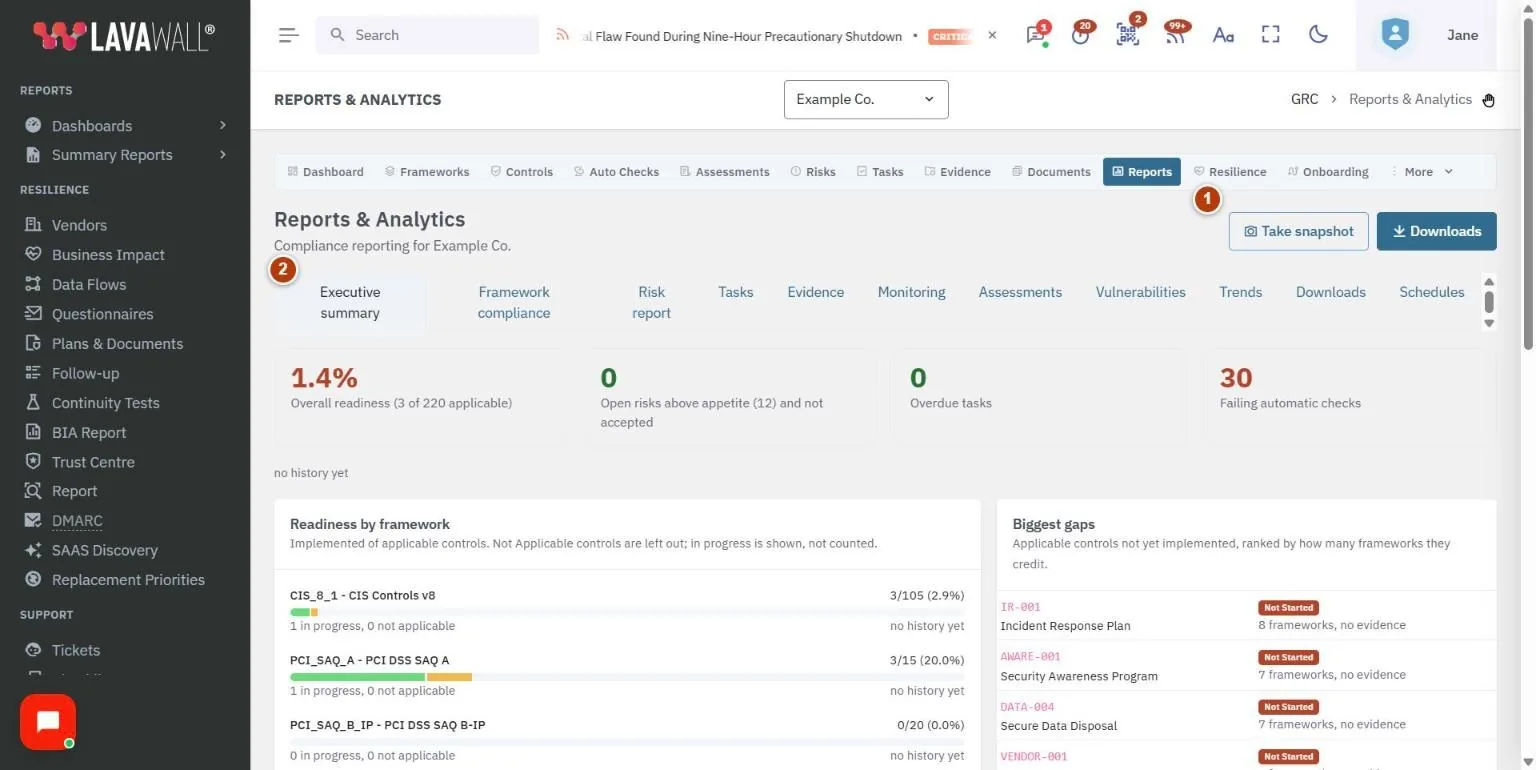
- Page buttons: Take snapshot (record today's figures now) and Downloads.
- Tabs: Executive summary, Framework compliance, Risk report, Tasks, Evidence, Monitoring, Assessments, Vulnerabilities, Trends, Downloads and Schedules.
- Headline figures: overall readiness, open risks above appetite, failing automatic checks and assessments in progress.
- Summary cards: Readiness by framework, Biggest gaps, Open risks by residual level, and summaries of tasks, evidence, monitoring and assessments. The other tabs go into detail, for example the framework compliance table (Ref, Requirement, Control, Status, Owner, Evidence, Last evidence), risk heat maps, tasks by assignee and automatic check pass rates.
- Trends: overall readiness, readiness by framework, tasks completed per month, and critical and high vulnerabilities per scan, over 1 to 24 months.
- Schedules: each scheduled report with how often it runs, recipients, next and last run, and status.
How to download a report
- Select Downloads (or open the Downloads tab).
- Find the report you want. If it offers a framework choice, pick one or leave All active frameworks.
- Select PDF, XLSX or CSV. The file downloads straight away.
How to review compliance for one framework
- Open the Framework compliance tab.
- Choose the framework under Framework, and type in Filter to narrow the list.
- Select a column heading to sort. Select PDF or XLSX to download the view.
How to see trends over time
- Open the Trends tab.
- Choose a Period (1, 3, 6, 12 or 24 months).
- If you need today's figures included right away, select Take snapshot. Snapshots are otherwise recorded every night.
How to schedule a report
- Open the Schedules tab and select New schedule.
- In Report schedule, choose the Report, the Framework (or All active frameworks) and How often.
- Enter the Recipients, separated by commas or new lines. Each gets their own link.
- Leave Active ticked and select Save. Reports are sent at the nightly run on or after 06:00 UTC on the scheduled day.
How to check tasks, evidence and checks
- On Tasks, set Created or completed from and to and select Show. Open tasks are always included.
- On Evidence, review Implemented controls with no evidence and Expiring or expired, and download the Evidence index XLSX.
- On Monitoring, review each automatic check's last result and pass rate.
Tips
- Start with Executive summary. The Biggest gaps list ranks controls that are not yet implemented by how many frameworks they count toward.
- Readiness counts implemented controls out of applicable ones. Not applicable controls are left out, and in-progress controls are shown but not counted.
- The residual heat map shows open risks after treatment; the inherent heat map shows them before treatment.
- The person who last saves or resumes a schedule owns it. If they lose access, or a recipient falls outside your allowed email domains, the schedule pauses and compliance administrators are emailed.
- Every download is recorded in the activity log.
Troubleshooting
- "No frameworks are active."
- Choose your frameworks on the Compliance Frameworks page first.
- A PDF button says "Print view".
- PDF files cannot be produced right now. Open the print view and use your browser's Save as PDF.
- A download says "Your GRC role does not include exports."
- Ask an administrator for export permission.
- "No snapshots yet."
- Snapshots are recorded nightly. Select Take snapshot to record one now.
- "Automatic checks are not set up for this company."
- Set up Automatic Checks to see monitoring figures.
Related articles
Still need help?
Search the support centre, or contact our support team and tell us which page you were on:
- Chat now: use the chat button in the bottom-right corner of this page to reach our team right away. Where cookie consent is needed, the chat starts after you accept (cookie settings).
- Email: send our support team a message through the contact page. It goes straight to a person.
- Phone:
 AB: 1-403-538-5053
 US: 1-406-988-7333
 UK: +44 20 3695 9786
Names, companies, devices and figures in the pictures are examples. Other product and company names are trademarks of their respective owners.