Client Compliance Portfolio
See the compliance position of every client you manage on one page, and spot the ones that need attention first.
What the page is for
Client Compliance Portfolio is a page in the Lavawall® console, in the Compliance (GRC) area. Lavawall is the RMM, security, and compliance platform from ThreeShield, built and hosted in Canada. About this feature.
For MSPs, this page lists every client company below yours, including clients of your resellers, with one row each. Each row shows the client's active frameworks, readiness (implemented controls out of applicable controls across its active frameworks), the change in readiness over 30 days, open high or critical risks, overdue tasks, expired or stale evidence, evidence about to expire, failing automatic checks, and accepted exceptions that expire within 30 days.
Summary figures at the top count your clients, their average readiness, and how many have overdue tasks, failing checks, high or critical risks, or no frameworks yet. Each client name opens that client's compliance dashboard. You can download the whole portfolio as a PDF or spreadsheet.
What you see
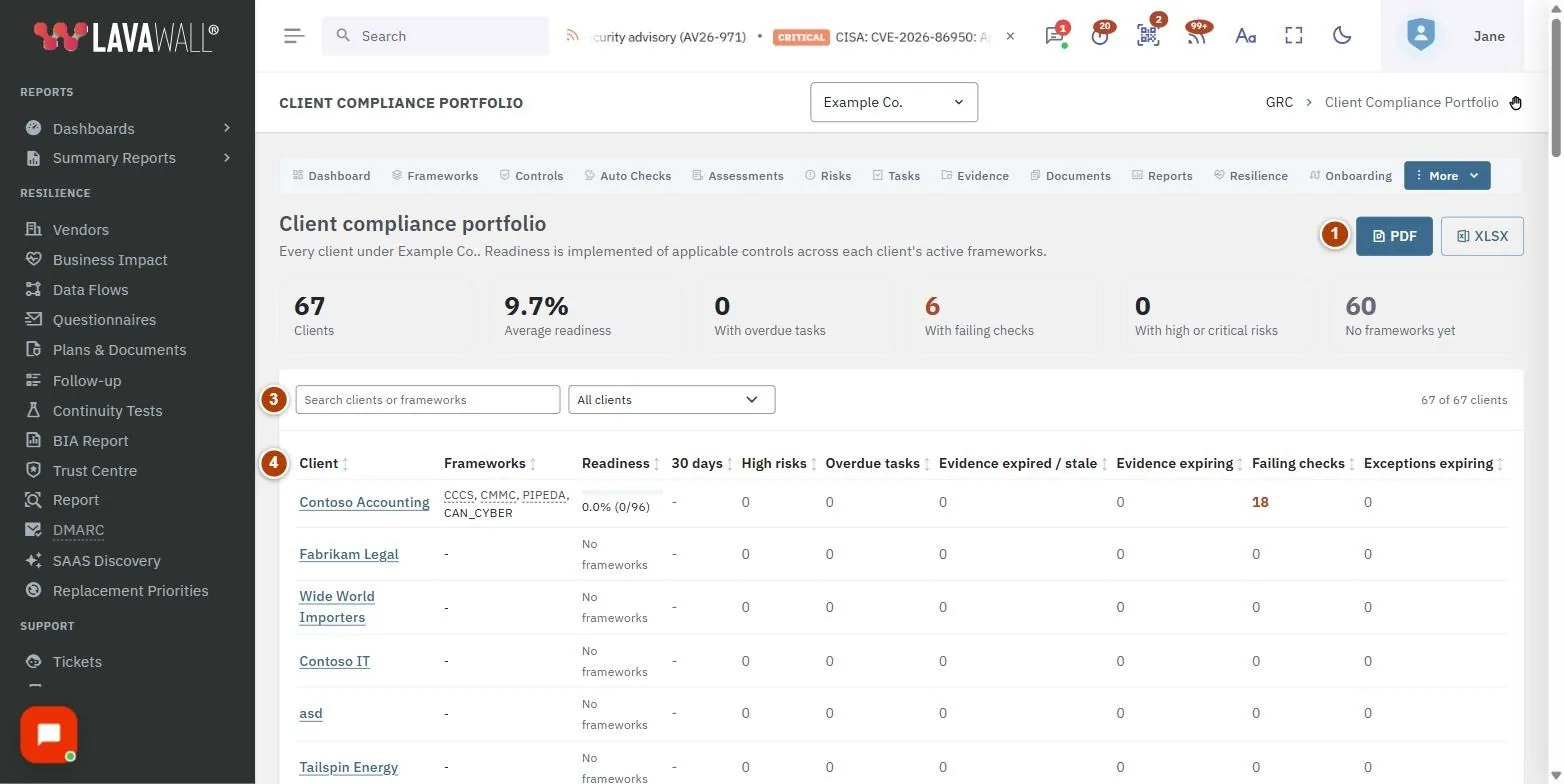
- Download buttons: PDF (or Print view) and XLSX.
- Summary tiles: Clients, Average readiness, With overdue tasks, With failing checks, With high or critical risks, and No frameworks yet.
- Search and filter: Search clients or frameworks, and Show: All clients, Needs attention, Overdue tasks, Failing checks, High or critical risks, Expired or stale evidence, Readiness under 50%, Readiness falling, No frameworks.
- Portfolio table: Client, Frameworks, Readiness, 30 days, High risks, Overdue tasks, Evidence expired / stale, Evidence expiring, Failing checks and Exceptions expiring. Every heading sorts.
How to use Client Compliance Portfolio
How to find the clients that need attention
- In the filter, choose Needs attention (any issue).
- Sort by Readiness or Overdue tasks.
- Select a client's name to open its compliance dashboard.
How to track progress over the month
- Sort by 30 days.
- Green ▲ means readiness went up, red ▼ means it went down, in percentage points.
How to download the portfolio
- Select PDF for a formatted report, or XLSX for a spreadsheet.
- The file downloads when ready. If the PDF renderer is not available, Print view opens a printable page instead.
Tips
- Readiness bars are green at 80% or more, amber from 50%, and red below 50%.
- High risks counts open risks with a residual score of 12 or more; the note underneath shows how many are above the client's risk appetite.
- Evidence expired / stale includes evidence with no expiry date that is over a year old.
- Clients with no frameworks show "No frameworks" and are sorted to the bottom of readiness.
- Numbers in red or amber need action; grey zeros are fine.
Troubleshooting
- "The client compliance portfolio is for managed service providers."
- : This page is only for MSP accounts.
- "No client companies were found under your company."
- : You have no client companies yet. Add one, then enable its frameworks.
- "Your GRC role does not include access to compliance data."
- : Ask your GRC administrator to change your role.
- "Download failed"
- : Try again; if the message mentions the connection, check it and retry.
Task guides that use this page
Related articles
Still need help?
Search the support centre, or contact our support team and tell us which page you were on:
- Chat now: use the chat button in the bottom-right corner of this page to reach our team right away. Where cookie consent is needed, the chat starts after you accept (cookie settings).
- Email: send our support team a message through the contact page. It goes straight to a person.
- Phone:
 AB: 1-403-538-5053
 US: 1-406-988-7333
 UK: +44 20 3695 9786
Names, companies, devices and figures in the pictures are examples. Other product and company names are trademarks of their respective owners.