Compliance Frameworks
Choose which security, privacy and industry frameworks apply to your organization, at what level, and by when you want to be compliant.
What the page is for
Compliance Frameworks is a page in the Lavawall® console, in the Compliance (GRC) area. Lavawall is the RMM, security, and compliance platform from ThreeShield, built and hosted in Canada. About this feature.
This is where you tell Lavawall which frameworks your organization is working towards, such as CIS, NIST, ISO 27001, or AI frameworks like ISO/IEC 42001, ISO/IEC 27090, and the OWASP Top 10 for LLM Applications. Enabling a framework brings its controls into your assessments, dashboard and readiness figures. Frameworks are grouped into Security, Privacy, Industry, Regional, Custom and Onboarding, and each card shows its description, version, number of controls and region.
Many frameworks have implementation levels; for those you choose the level you are aiming for, and you can compare all levels side by side. ISO/IEC 27090, for example, has two: Using AI services, and Building or hosting AI. Frameworks with an audit scope, such as SOC 2, let you tick every scope that applies. Once a framework is enabled you can set a target compliance date.
You can also create a custom framework for your own requirements, share it with your child companies, or submit it to the community, and browse frameworks other organizations have shared.
What you see
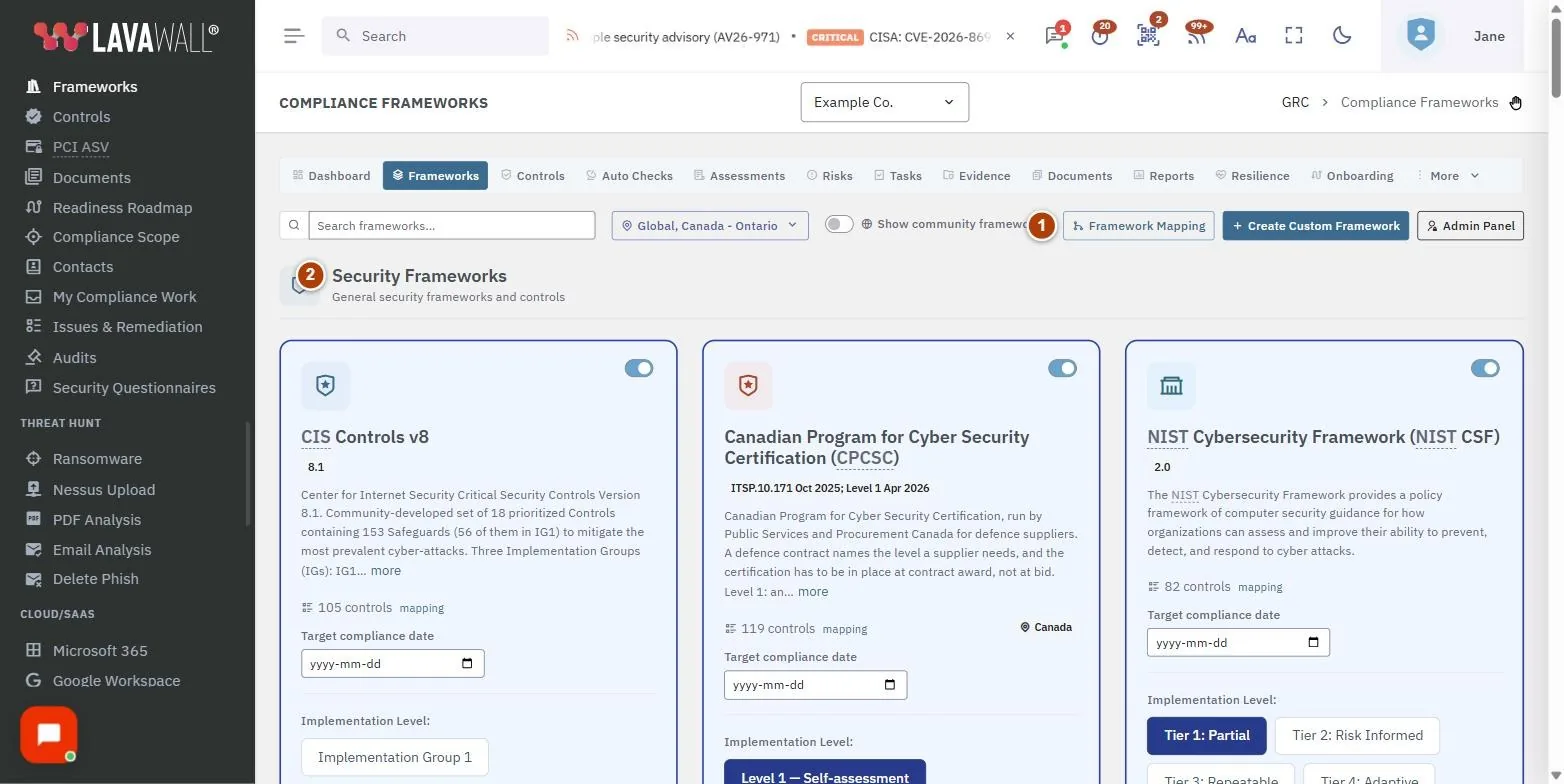
- Toolbar: Search frameworks, a region filter, Show historical frameworks (off by default), Show community frameworks, Framework Mapping and Create Custom Framework.
- Category sections: Security, Privacy, Industry, Regional, Custom and Onboarding Frameworks, each with a short description.
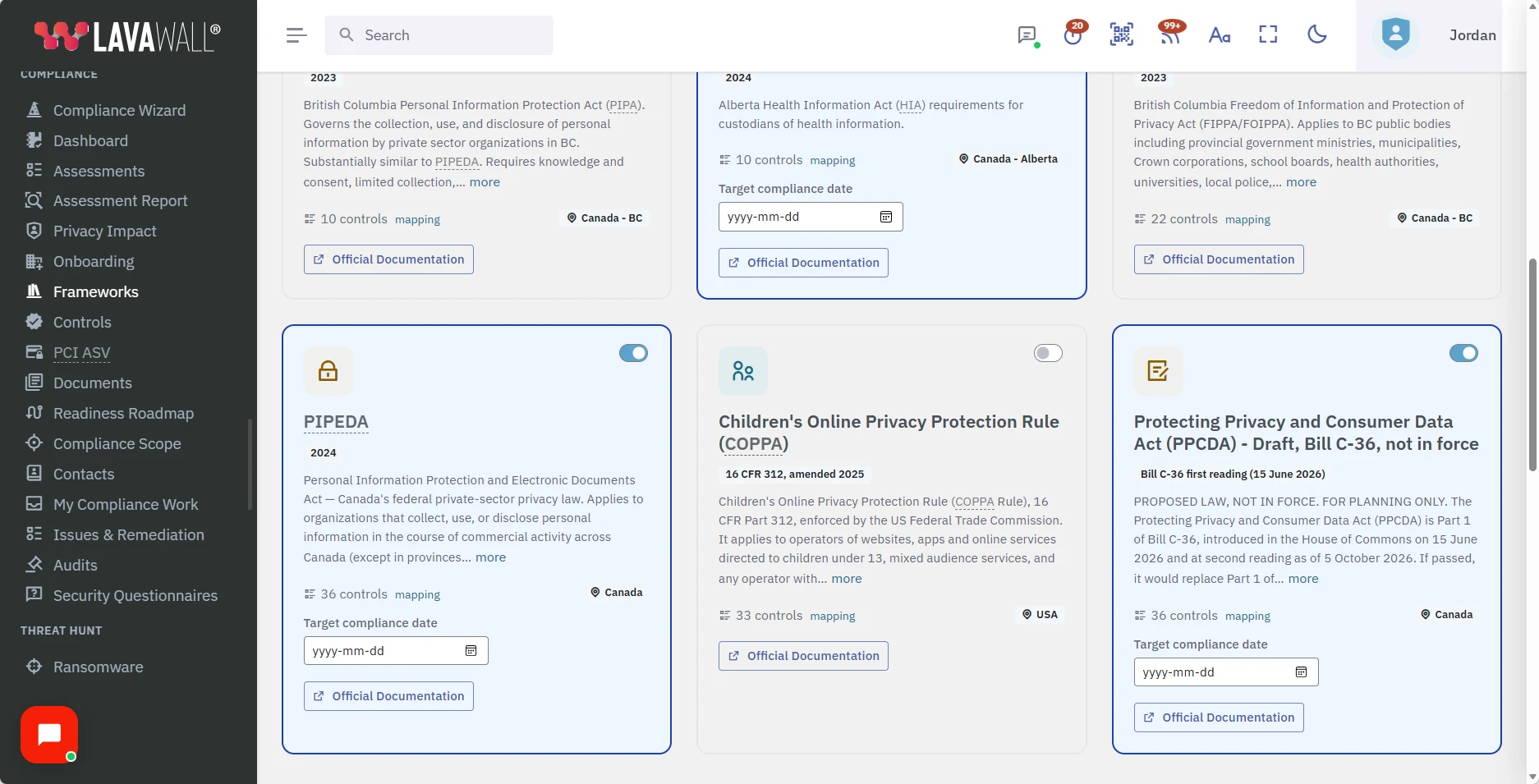
- Framework cards: an on/off switch, name, Community or Custom badge, version, description, number of controls with a mapping link, and region.
- Options on an enabled card: Target compliance date, Implementation Level (with Compare all levels) or Audit Scope (select all that apply).
- Create Custom Framework dialog: Framework Name, Code, Description, Category, Availability, Reference URL, Color and Icon.
How to use Compliance Frameworks
How to enable a framework
- Search for the framework or use the region filter.
- Turn on the switch on its card.
- If the card shows Implementation Level, choose the level you are aiming for. Select Compare all levels to see what each adds.
- If it shows Audit Scope, tick every scope that applies.
- Optionally set a Target compliance date.
How to filter frameworks to where you operate
- Select the region filter (it reads All regions until you choose).
- Tick the countries, provinces or states you operate in, or select My regions to use your organization's locations.
- Select Show all to clear the filter.
How to create a custom framework
- Select Create Custom Framework.
- Enter a Framework Name (at least three characters). The Code is generated if you leave it blank.
- Add a Description, choose a Category, and choose Availability: This company only, This company + child companies, or Submit to community (requires approval).
- Optionally add a Reference URL, and choose a Color and Icon.
- Select Create Framework.
- On the new card, select Add requirements to map controls to it. Until then it measures nothing.
How to see how a framework maps to controls
- Select mapping next to the control count, or Framework Mapping in the toolbar.
Tips
- Choosing a province or state also includes that country's national frameworks, because both apply to you.
- Turning a framework off hides its target date and level options; the target date is kept when you change level.
- A Community badge marks a framework contributed and reviewed by peers; Custom marks one created by your organization.
- A Historical badge marks a framework kept for reference, such as the Consumer Privacy Protection Act (Bill C-27), which died in 2025. Historical frameworks are hidden until you turn on Show historical frameworks, except ones your organization has already turned on. For current planning, use the PPCDA (Bill C-36).
- Long descriptions are shortened; select more to read the rest.
- Ontario's accessibility law has its own framework card, Ontario AODA - Integrated Accessibility Standards (O. Reg. 191/11), under Regional Frameworks. AODA Accessibility Standards explains which size to choose and how to prepare the compliance report.
- If you arrive here from Controls with a message saying "Select Frameworks First", enable at least one framework before managing controls.
Troubleshooting
- "No frameworks match your search."
- : Try different keywords, clear the search, or select Show all in the region filter.
- The switches are greyed out.
- : Your GRC role can view frameworks but not change them.
- "Your GRC role does not include access to frameworks."
- : Ask your GRC administrator.
- "Enable the framework before setting a target date."
- : Turn the framework on first.
- "That level does not belong to this framework."
- : Reload the page and choose the level again.
Task guides that use this page
Related articles
Still need help?
Search the support centre, or contact our support team and tell us which page you were on:
- Chat now: use the chat button in the bottom-right corner of this page to reach our team right away. Where cookie consent is needed, the chat starts after you accept (cookie settings).
- Email: send our support team a message through the contact page. It goes straight to a person.
- Phone:
 AB: 1-403-538-5053
 US: 1-406-988-7333
 UK: +44 20 3695 9786
Names, companies, devices and figures in the pictures are examples. Other product and company names are trademarks of their respective owners.