Compliance Tasks
Track the work behind your controls, risks, issues and audits: who owns it, when it is due, and what is done.
What the page is for
Compliance Tasks is a page in the Lavawall® console, in the Compliance (GRC) area. Lavawall is the RMM, security, and compliance platform from ThreeShield, built and hosted in Canada. About this feature.
Compliance Tasks is the to-do list for your compliance program. Each task has an owner, a priority, a due date and a status, and can be tied to a control or a risk. Tasks are also created automatically from other parts of the module, for example a risk treatment, an issue, an audit request or an evidence request, and each one links back to what created it.
You can view tasks as a list or as a board with a column per status. Tasks can repeat: when a repeating task is completed, the next one is created with the due date moved forward. Tasks tied to a control can carry file attachments, which are encrypted and filed as evidence for that control.
Each task has its own comment thread. Type @ and a name to tell somebody about the task; they are emailed the comment.
What you see
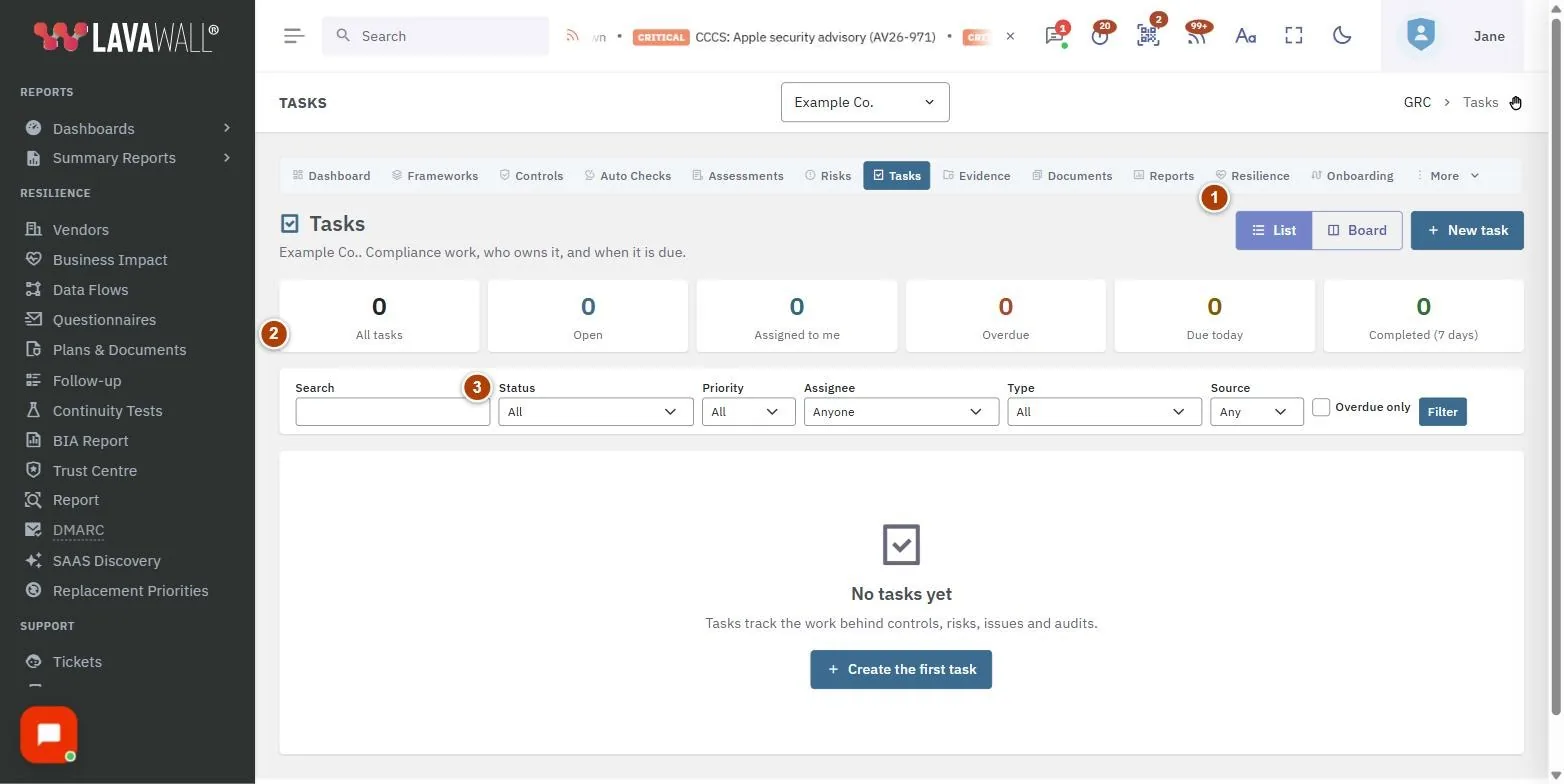
- List, Board and New task: switch between the List view and the Board view, and create a task with New task.
- Summary cards: All tasks, Open, Assigned to me, Overdue, Due today and Completed (7 days). Click a card to filter.
- Filters: Search, Status, Priority, Assignee, Type, Source and Overdue only, with Filter and Clear.
- Task list: Actions (view, edit, delete), a done tick box, Task (with control, risk, source and repeat badges), Type, Priority, Assignee, Due and Status.
- Task dialog: Title, Type, Description, Priority, Assignee, Due, Status, Repeats, Related risk and Related control, with Save task.
How to create a task
- Select New task.
- Enter a Title (required) and choose a Type, Priority, Assignee, Due date and Status.
- To make it repeat, choose a schedule in Repeats.
- Optionally pick a Related risk, and a Related control (use Filter by code or name to find it).
- Select Save task.
How to update or complete a task
- In the list, tick the box next to the task to mark it complete, or change the Status list on its row.
- On the board, drag a card to another column to change its status.
- If the task repeats, a message tells you when the next one is due.
- To change other details, select the edit (pencil) button and then Save task.
How to comment and attach evidence
- Click a task's name (or the view button) to open it.
- Under Comments, type your comment. Type @ and a name to notify someone, then select Post comment.
- Under Attachments, choose a file and select Attach as evidence. The file is encrypted and filed as evidence for the task's control.
How to delete a task
- Select the delete (bin) button on the task's row.
- Confirm with Yes, delete it. Its comments are deleted too; evidence it attached stays.
Tips
- Use Assigned to me and Overdue cards for a quick personal view, or open My Compliance Work for everything waiting on you.
- Overdue tasks show a red alarm icon beside the due date.
- Use Source to see only tasks created from risks, issues, audit requests or evidence requests.
- Filtered views have their own web address, so you can bookmark them.
Troubleshooting
- "No tasks yet".
- Select Create the first task, or create tasks from risks, issues and audits.
- "No tasks match these filters".
- Select Clear to reset the filters.
- "Link a control to this task to attach evidence files."
- Attachments are saved as evidence for a control. Edit the task, pick a Related control, then attach.
- "Showing the first 5,000 tasks."
- Use the filters to narrow the list.
- "Your GRC role does not include viewing tasks."
- Ask a GRC administrator for a suitable role.
Task guides that use this page
Related articles
Still need help?
Search the support centre, or contact our support team and tell us which page you were on:
- Chat now: use the chat button in the bottom-right corner of this page to reach our team right away. Where cookie consent is needed, the chat starts after you accept (cookie settings).
- Email: send our support team a message through the contact page. It goes straight to a person.
- Phone:
 AB: 1-403-538-5053
 US: 1-406-988-7333
 UK: +44 20 3695 9786
Names, companies, devices and figures in the pictures are examples. Other product and company names are trademarks of their respective owners.