Evidence Library
Keep every file and record that proves your controls work in one place, reviewed, linked to controls and tracked for expiry.
What the page is for
Evidence Library is a page in the Lavawall® console, in the Compliance (GRC) area. Lavawall is the RMM, security, and compliance platform from ThreeShield, built and hosted in Canada. About this feature.
The Evidence library holds the files and records that show your controls are working: policies in action, screenshots, reports, test results and exports. One item can support many controls. Every stored file is encrypted when it arrives and gets a SHA-256 fingerprint, so you can prove later that it has not changed.
Evidence comes from several places: files you upload here, files sent in through evidence requests, assessments, and automated records such as the device inventory. For automated evidence from Microsoft 365, endpoint protection, backups and the agents, use Automatic Checks, which tests live data.
Each item can be reviewed (accepted or rejected with a note), given an owner and an expiry date. Items expiring soon are flagged so a replacement can be collected before the control shows a gap.
What you see
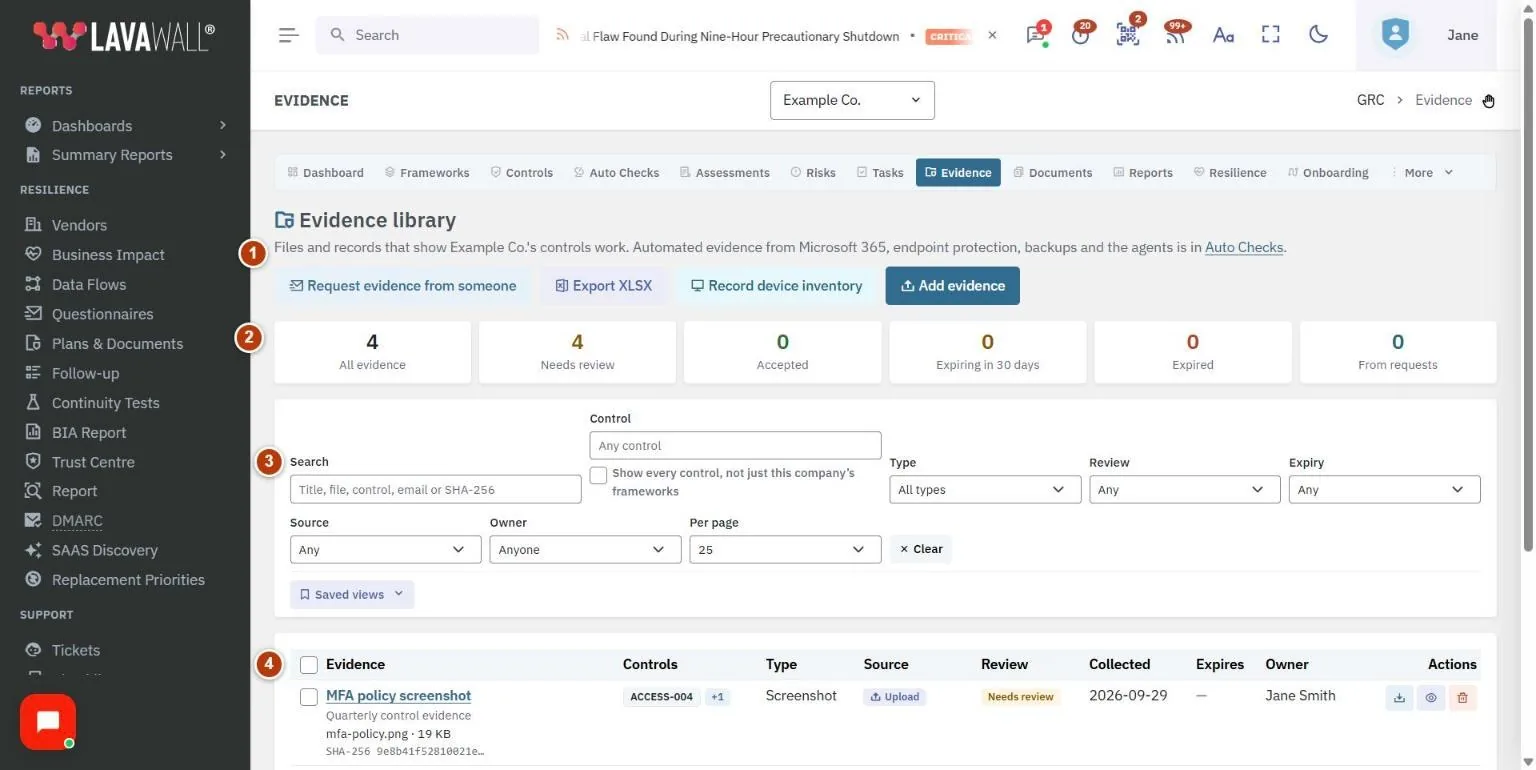
- Header actions: Request evidence from someone, Export XLSX, Record device inventory and Add evidence.
- Summary tiles: All evidence, Needs review, Accepted, Expiring in N days, Expired and From requests. Click a tile to filter.
- Filters and saved views: Search, Control, Type, Review, Expiry, Source, Owner and Per page, with Clear and Saved views.
- Evidence table: Evidence, Controls, Type, Source, Review, Collected, Expires, Owner and Actions, with tick boxes for bulk editing.
- Add evidence dialog: File, Title, Type, Controls it supports, Description, Collected on, Expires on and Owner.
How to add evidence
- Select Add evidence.
- Choose the File. Large files are sent in pieces and resume if the connection drops.
- Enter a Title, choose a Type, and pick the Controls it supports. The first control chosen is the primary one.
- Add a Description (what it shows and where it came from), Collected on, Expires on (leave blank if it does not expire) and Owner.
- Select Save evidence.
How to review evidence
- Click the Needs review tile.
- Open an item and check the file (use Download).
- Select Accept, or Reject with a note (a note is required to reject).
- Reviewing evidence you collected yourself needs a reason that auditors can read, and is only possible where your company allows self-approval.
How to edit many items at once
- Tick the items in the table (only items on the current page can be selected).
- Select Edit the selected evidence.
- Change the Owner, Expiry date, Link them all to one more control or Review status.
- Select Review the change, check the summary, and confirm with Yes, change them.
How to record the device inventory as evidence
- Select Record device inventory.
- Choose the Control it supports (for example an asset inventory control).
- Select Record it. Lavawall counts the devices its agent reports for your company, by operating system and how many were seen in the last 30 days, and saves the result as dated evidence.
How to save a filtered view or export the index
- Set the filters you want, open Saved views and save them with a Name.
- Tick Open this view by default when I come to Evidence or Share it with everyone in this company if needed, then select Save the view.
- Select Export XLSX to download the evidence index as a spreadsheet.
Tips
- Changing the expiry date of accepted evidence, or linking it to a new control, sends it back for review.
- The expiry warning period comes from Evidence expiry warning (days) on Compliance Settings.
- Search accepts titles, file names, controls, email addresses and SHA-256 fingerprints.
- If evidence requests are waiting, a banner offers Review them.
- By default, the control picker lists the controls in the frameworks you have adopted. Tick Show every control when you need one outside them.
Troubleshooting
- "Files cannot be uploaded until it is."
- Evidence storage is not ready for your company yet. Contact support.
- "This company has adopted no frameworks yet, so the whole control library is listed."
- Adopt a framework to narrow the control picker.
- Some items were left alone after a bulk change.
- Evidence you collected yourself is skipped in bulk reviews; review it one at a time with a reason.
- "Your GRC role does not include viewing evidence."
- Ask a GRC administrator for a suitable role.
Task guides that use this page
Related articles
Still need help?
Search the support centre, or contact our support team and tell us which page you were on:
- Chat now: use the chat button in the bottom-right corner of this page to reach our team right away. Where cookie consent is needed, the chat starts after you accept (cookie settings).
- Email: send our support team a message through the contact page. It goes straight to a person.
- Phone:
 AB: 1-403-538-5053
 US: 1-406-988-7333
 UK: +44 20 3695 9786
Names, companies, devices and figures in the pictures are examples. Other product and company names are trademarks of their respective owners.