Compliance Assessments
Work through a compliance questionnaire, answer each control once, attach evidence, and get the result signed off.
What the page is for
Compliance Assessments is a page in the Lavawall® console, in the Compliance (GRC) area. Lavawall is the RMM, security, and compliance platform from ThreeShield, built and hosted in Canada. About this feature.
An assessment is a questionnaire you answer to measure how well your organization meets a framework. You can start an assessment for a single framework, or a Unified Cross-Framework Assessment that asks each control question once and applies the answer to every framework you have enabled, so you do not answer the same question twice.
Each question can be answered Yes, No or N/A (or with text), and carries internal notes, evidence attachments and report fields such as risk rating, mitigating controls, a custom recommendation and management response. Each control also has a context panel explaining what good looks like, and where Lavawall has data, what it suggests the rating should be.
The page shows completion and a compliance percentage (Yes answers out of applicable questions; N/A is excluded rather than counted as a failure). When every question is answered, you send the assessment for sign-off; once signed off it is locked.
What you see
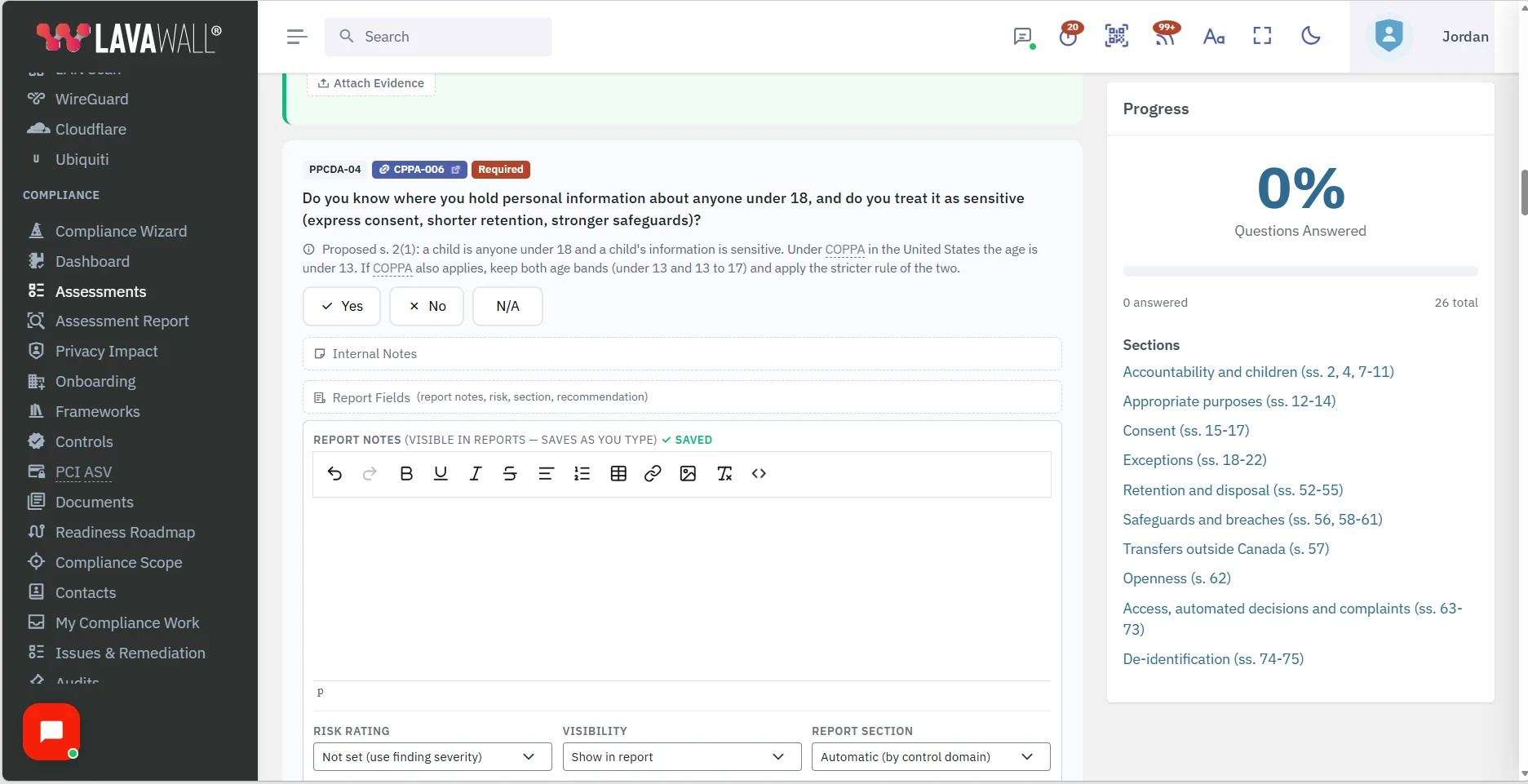
The page has three views: the list of assessments, the start page for a new one, and an open assessment. The picture shows an open assessment (items 1 to 4).
- Assessment header: name, questionnaire, % Complete, % Compliant, Access and Back, plus the review bar (Send for sign-off, Sign off, Return for changes, Withdraw).
- Question filters: All, Assessed, Not assessed and Findings, and Search questions.
- Question cards: Yes, No, N/A buttons, Internal Notes, Report Fields and Attach Evidence.
- Progress panel: the share of questions answered, the number answered out of the total, and a list of sections. Only answers count: a note, report field or piece of evidence on a question you have not answered does not move it.
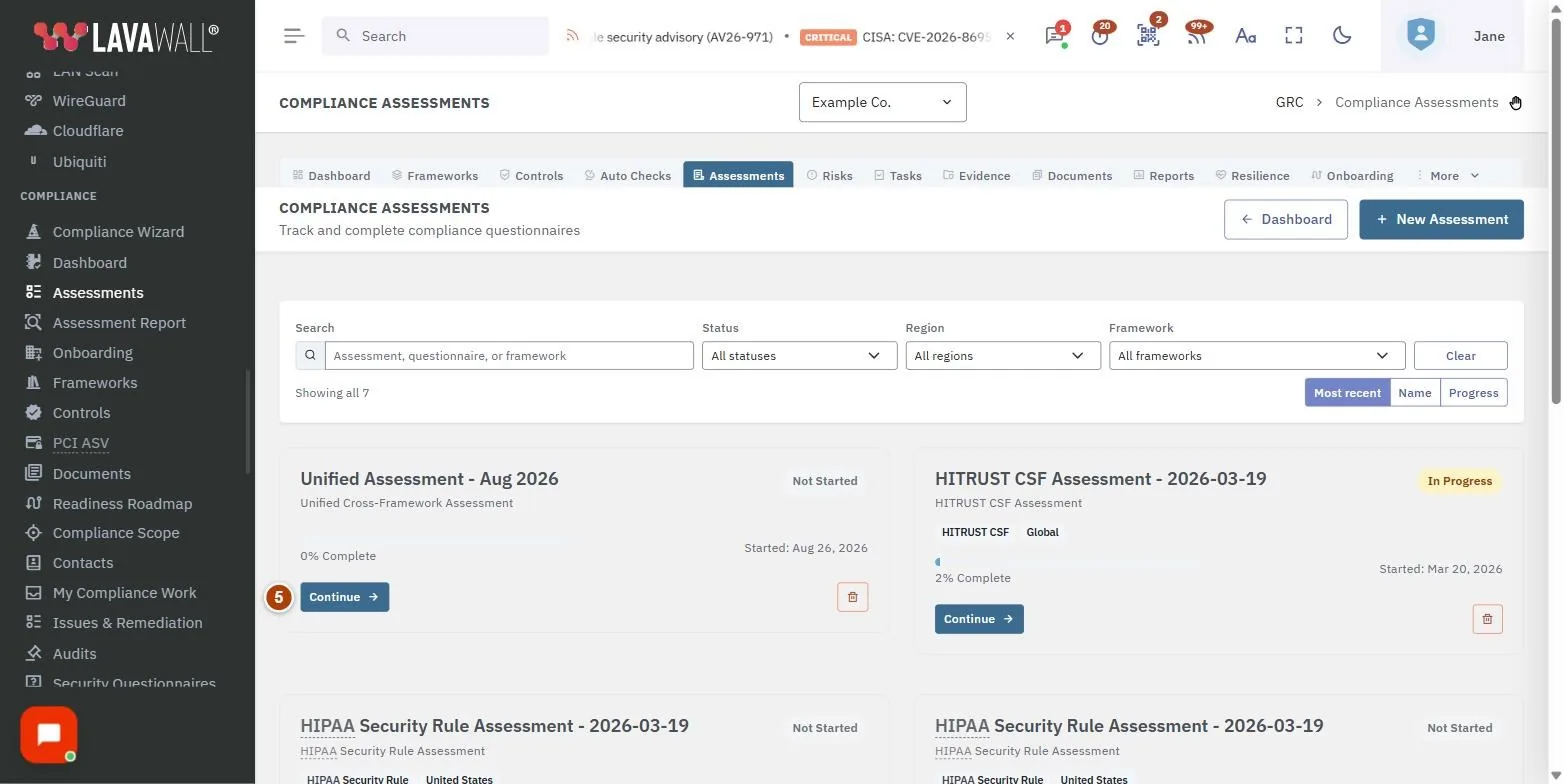
- Assessment list (not pictured): each assessment with framework, region, status, due date and progress, with Continue (or Review) and delete; plus Dashboard and New Assessment. Filter by Search, Status, Region and Framework, Clear, and sort by Most recent, Name or Progress.
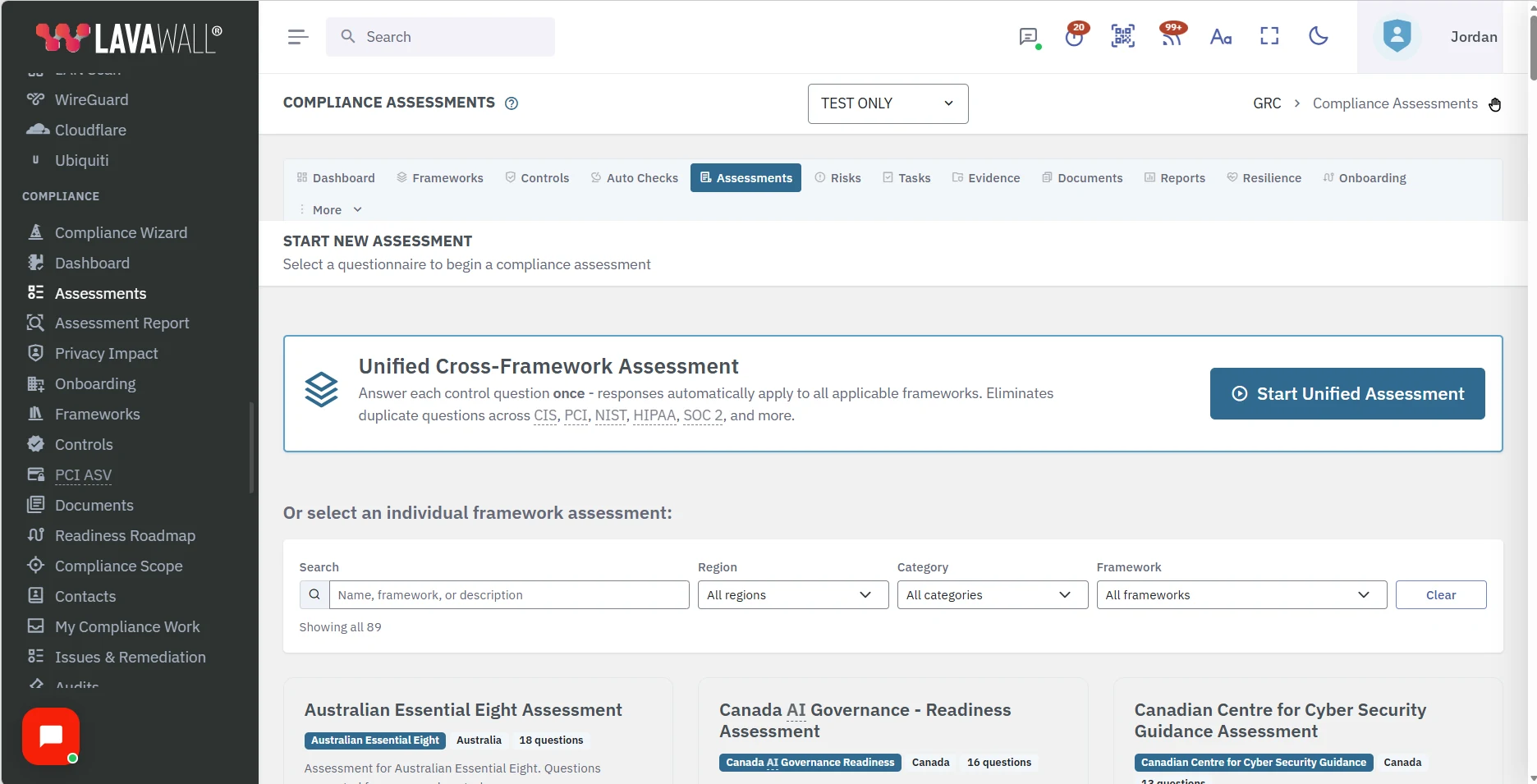
- Start New Assessment (not pictured): the Unified Cross-Framework Assessment card and individual questionnaires, with Search, Region, Category and Framework filters.
How to use Compliance Assessments
How to start an assessment
- Select New Assessment.
- Choose Start Unified Assessment to cover all your enabled frameworks at once, or select one questionnaire below.
- Enter an Assessment Name (for example "Q1 2026 CIS Assessment") and an optional Due Date.
- Select Create & Start.
How to answer questions
- Select Yes, No or N/A on each question. Answers save as you go.
- Use Not assessed to see what is left, and Findings to see the gaps.
- Open the control name to read what the control expects and any Lavawall insights.
- Add Internal Notes for your team; they save as you type.
How to get implementation suggestions
- At the top of the assessment, turn on Show implementation suggestions. It is on by default for people who can answer questions, and Lavawall remembers your choice in this browser.
- Under a question that is tied to a control, select How to implement. You see the control's guidance, any of your documents already linked to the control, and the policy templates that implement it.
- Select Preview to read a template filled in with your company's details, or Create document to start your own copy in Documents. It opens in a new tab, so your answers stay where they are.
- Select the control code at the bottom of the panel to open the control's full record, where you can also search every template.
The option is not shown to people with the Internal auditor role, so an assessor's view of the assessment stays independent. Creating a document needs a GRC role that can edit.
How to attach evidence
- On the question, select Attach Evidence and choose the file.
- The file appears under the question. Remove it with the bin icon if you added the wrong one.
How to fill in report fields
- Open Report Fields on a question.
- Set Risk Rating, Visibility (including hiding it or moving it to the appendix) and Report Section, and add Mitigating Controls and a Custom Recommendation.
- Management can add a Management Response.
How to send for sign-off and sign off
- When every question is answered, select Send for sign-off. The assessment cannot be changed while it waits.
- An approver selects Sign off to lock it, or Return for changes. The sender can Withdraw it.
- A signed-off assessment can be unlocked by someone allowed to do so, which records who did it.
How to limit who can open an assessment
- Inside the assessment, select Access.
- Add users and tick what each can do: View, Respond, Evidence, Notes, Mgmt Response and Manage.
- Select Save Access Settings. Adding the first user locks everyone else out, including you if you are not on the list.
Tips
- N/A excludes a control from the compliance figure rather than counting it as a failure; hover the % Compliant figure to see the maths.
- Compliance colours: green at 80% or more, amber from 50%, red below 50%.
- Findings shows questions answered No, so you can plan remediation.
- The unified assessment shows how many unique questions it contains across your active frameworks.
- To reopen an assessment to the whole company, remove every user from its access list.
Troubleshooting
- "No Questions Found"
- : The questionnaire has no questions yet. Check that the framework is enabled on Compliance Frameworks and that controls are mapped.
- "You do not have view access to that assessment."
- : It has an access list and you are not on it. Ask someone with Manage access to add you.
- "That assessment is not available here."
- : It belongs to another company. Switch company and open it from that company's list.
- "We could not identify your user account."
- : Sign out and back in.
- "Answer not saved"
- or "Note not saved": Your connection or session dropped. Reload and try again.
Task guides that use this page
Related articles
Still need help?
Search the support centre, or contact our support team and tell us which page you were on:
- Chat now: use the chat button in the bottom-right corner of this page to reach our team right away. Where cookie consent is needed, the chat starts after you accept (cookie settings).
- Email: send our support team a message through the contact page. It goes straight to a person.
- Phone:
 AB: 1-403-538-5053
 US: 1-406-988-7333
 UK: +44 20 3695 9786
Names, companies, devices and figures in the pictures are examples. Other product and company names are trademarks of their respective owners.