Remote Support
Connect to a managed computer's screen or command line, fix the problem, and record what you did in a ticket, all from your browser.
What the page is for
Remote Support is a page in the Lavawall® console, in the Remote support area. Lavawall is the RMM, security, and compliance platform from ThreeShield, built and hosted in Canada. About this feature.
Remote Support opens a live connection to a computer that runs the Lavawall agent. You can view and control the desktop, open a command shell without showing the screen, or use Backstage to run admin tools in the background while the user keeps working undisturbed.
Around the session you have the tools a technician needs: file upload and download, clipboard sync, chat with the user, drawing and a laser pointer to show the user what to do, snapshots, a list of Windows sessions, script running, and quick-launch admin tools. A side panel shows the device's health and lets you take notes and update a ticket as you go.
Only devices that are connected to Lavawall right now can be chosen. Linux devices offer a remote shell and Backstage tools rather than a desktop.
What you see
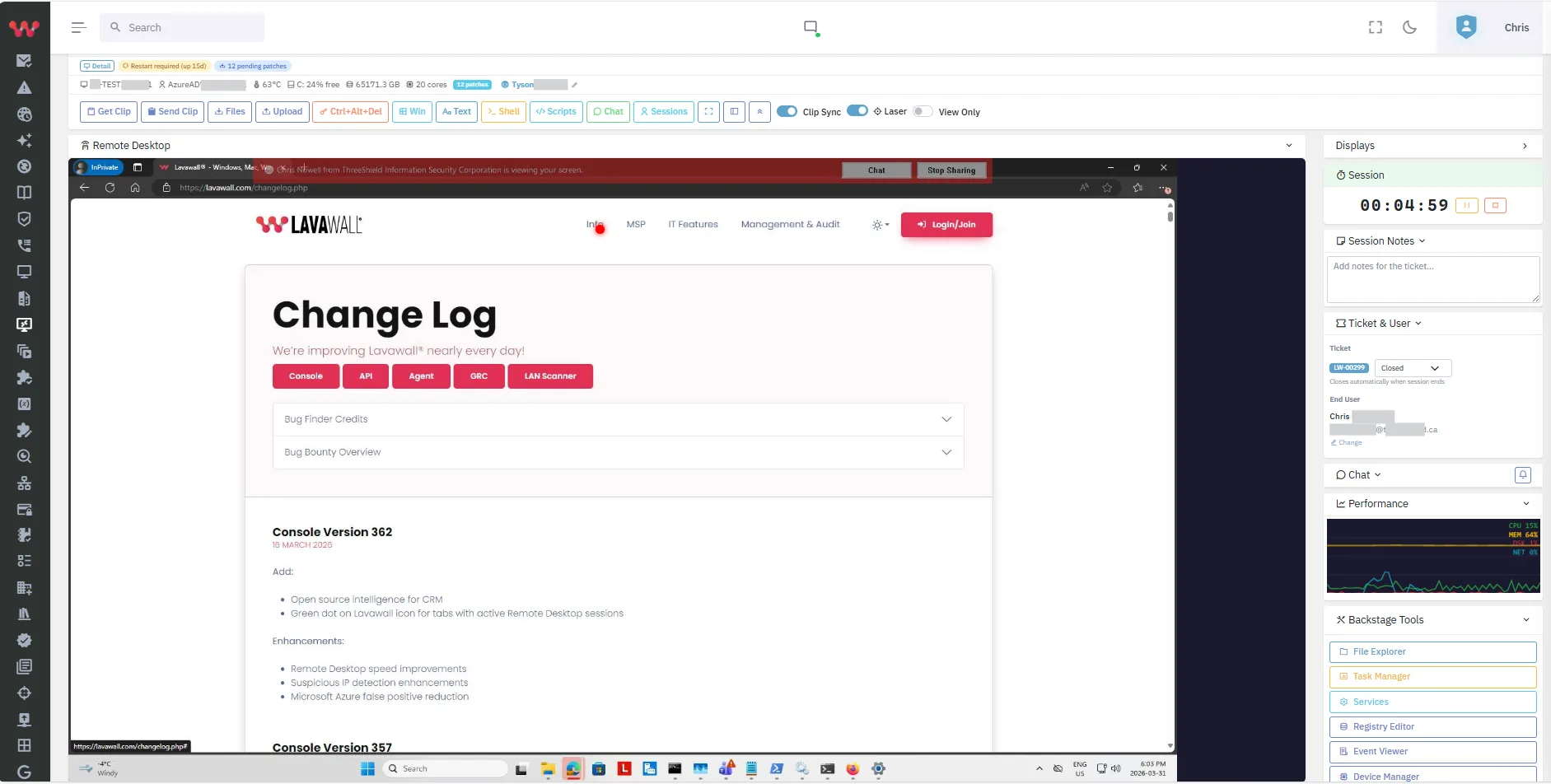
- Device and connection buttons: the chosen device with Desktop, Shell and Backstage buttons, Disconnect, Notify, Update agent (when a newer agent is available), Change to pick another device, and an Ad-hoc link.
- Status and health: connection status, frame rate, temperature, free disk space, and warnings such as Restart needed or AV issue.
- Session toolbar: Text, Files, Upload, Clip Sync, Get Clip, Send Clip, Ctrl+Alt+Del, Win, Scripts, Chat, Sessions, Laser, Draw, Snapshot, View Only, full screen and More.
- Remote screen: the live desktop, or the Remote Shell when connected in shell mode.
- Side panel: Displays, Session timer, Session Notes, Ticket & User, Chat, KB Articles, Performance and the Admin Launcher.
How to use Remote Support
How to connect to a computer
- Type the computer's name in the Search box at the top of any console page and click the remote desktop, Backstage or remote shell icon in the results. You can also click the remote desktop icon on the computer's row in Devices › Computers (Backstage and Remote Shell are beside it, or in the ⋮ menu on a narrow screen), or open Remote support › Remote Control.
- If no device is chosen, search for it in the device picker. Only connected devices are listed.
- Click Desktop to see and control the screen, Shell for a command line only, or Backstage to work without showing or interrupting the user's desktop.
- If the device asks for consent, the user sees a prompt and must click Accept before you can see their screen. You can click Backstage instead to work without the prompt.
How to control the session
- Use Ctrl+Alt+Del, Win and the other key buttons to send keys your own computer would catch.
- Click View Only to watch without controlling.
- Choose a screen under Displays when the computer has more than one monitor. In full screen and on a phone, tap Display (on a phone it is also under More) and tap the screen you want; the picker closes when you choose, when you tap anywhere else (that tap is not sent to the remote computer), with its X, or with Escape.
- Click Text to send text to the remote clipboard, or Type as Keystrokes for login screens and admin prompts where pasting does not work, then Send to Remote.
How to move files
- Click Files to browse the remote computer. Type or paste a path, filter the folder, or search subfolders, then click Download.
- Click Upload, choose a file (up to 2 GB) and send it to the remote computer.
How to show the user what to do
- Click Laser to point, or Draw and pick Pen (freehand), Line, Arrow, Rectangle or Circle.
- Click Clear to remove your drawings.
- Click Chat to message the user.
How to use the shell and admin tools
- In the Remote Shell, choose the shell to open, for example PowerShell (System), CMD (System), PowerShell (User), or bash (root) on Linux and Mac.
- Open the Admin Launcher to start tools such as Task Manager, Services, Event Viewer, Registry Editor or Disk Management on Windows, or Activity Monitor, Disk Utility and Terminal on a Mac.
- Click Scripts to pick a saved script and click Run Now. The output appears in the panel.
- Every command typed in the shell is recorded on the remote computer, with passwords and keys removed, and appears in the Activity Log under the session's Commands button. The shell says so when it starts. Shell output is not recorded.
How to add session notes to a ticket
- In Session Notes, type what you did. Click Snapshot to attach a screen capture to the notes.
- In Ticket & User, open or create the ticket, set its status (Open, In Progress, Pending, Resolved or Closed) and confirm the end user.
- When you finish, click Disconnect, or stop and close the ticket.
Tips
- Backstage is ideal for maintenance while the user is working. Each admin tool opens as its own window, and the user's desktop is not shown.
- Turn on text mode for sharper text when reading logs or code. It uses more bandwidth.
- Other technicians in the same session are listed under Operators. Use Take Control and Release Control to hand over.
- On a Mac, Restart (skip FileVault) restarts to the normal login window so you can reconnect, and Force Quit closes a frozen app.
- Click Notify to send a desktop message to the computer before you connect.
Troubleshooting
- "Remote support is not available for your account."
- Your plan or role does not include remote support. Ask your administrator.
- The device is not in the picker, or the remote buttons are greyed out.
- The device is offline or not connected to Lavawall right now. Check that it is turned on and online.
- "User Consent Required".
- The device is set to ask the user first. Ask the user to click Accept, or use Backstage instead if that is allowed.
- "Not connected" stays showing.
- Click Desktop again. If it still fails, try Update agent if it is offered, then reconnect.
- A Linux device has no desktop.
- Linux devices offer a remote shell and Backstage tools only.
Task guides that use this page
Related articles
Still need help?
Search the support centre, or contact our support team and tell us which page you were on:
- Chat now: use the chat button in the bottom-right corner of this page to reach our team right away. Where cookie consent is needed, the chat starts after you accept (cookie settings).
- Email: send our support team a message through the contact page. It goes straight to a person.
- Phone:
 AB: 1-403-538-5053
 US: 1-406-988-7333
 UK: +44 20 3695 9786
Names, companies, devices and figures in the pictures are examples. Other product and company names are trademarks of their respective owners.