Activity Log
See who did what in your Lavawall console, and prove to an auditor that the record has not been altered.
What the page is for
Activity Log is a page in the Lavawall® console, in the Logs & monitoring area. Lavawall is the RMM, security, and compliance platform from ThreeShield, built and hosted in Canada. About this feature.
The Activity Log records actions taken in the Lavawall console and by its components: sign-ins, changes to users, devices, software packages, scripts, remote sessions, consent and more. Each entry shows when it happened, what the action was, who did it, what it affected, which company it belongs to and the IP address it came from.
The log is tamper-evident. It is sealed automatically once a day, and the Integrity bar shows whether the log still matches its last seal. You can re-run that check at any time, export the log for an auditor with what they need to verify it, and record that you reviewed a range of entries.
What you see
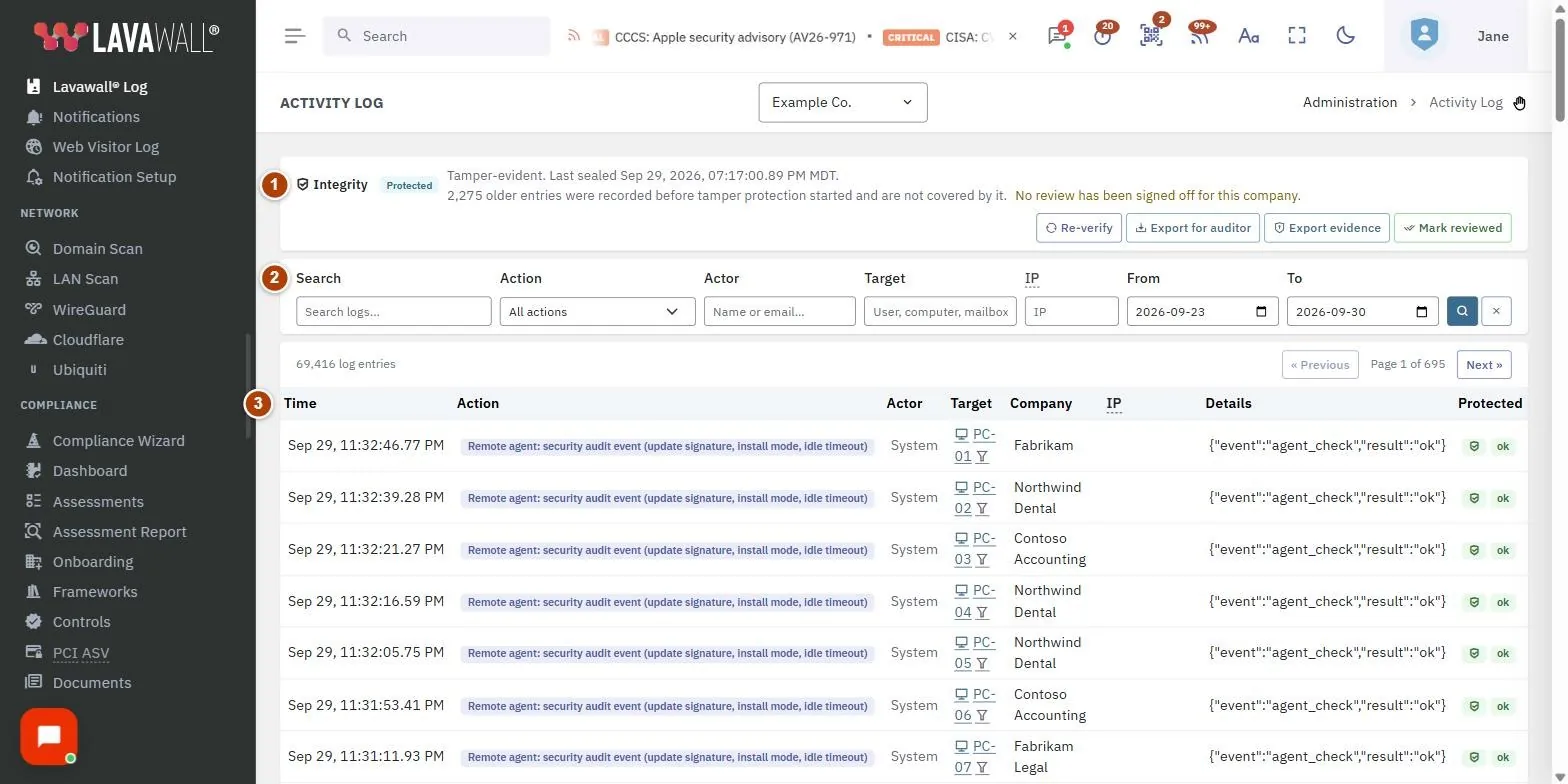
- Integrity bar: the seal status, when it was last sealed and last reviewed, with Re-verify, CSV (export for auditors), JSON (export the evidence package) and Mark reviewed.
- Filters: Search, Action, Actor, Target, IP, From and To, with search and clear buttons.
- Results: a count and Previous / Next paging.
- Log table: Time, Action, Actor, Target, Company, IP, Details and Protected.
- Log Entry Detail: the full entry, including exact time, integrity status, actor and target companies and details.
How to use Activity Log
How to find an action
- Enter words in Search, or pick an Action (type part of its name to search the list).
- Start typing a name or email in Actor, or a user, computer or mailbox in Target, and choose a match from the list for an exact filter.
- Set From and To dates, then click the search button.
- Click a row to open Log Entry Detail.
How to follow a trail
- Click an IP address in the table to show all activity from that address.
- Click the filter icon next to a computer to show all activity for it, or the computer name to open its detail page.
- Click the clear button to reset the filters.
How to check the log has not been altered
- Look at the Integrity badge: Verified or Protected is expected.
- Click Re-verify to check the log against its seal again.
How to give an auditor the log
- Set From and To (and optionally Action).
- Click CSV and Download CSV for a spreadsheet with what the auditor needs to check it, or JSON and Download JSON for the full evidence package, including each seal and a fresh check.
- Each export is itself recorded in the log.
How to sign off a log review
- Filter and page to the entries you reviewed.
- Click Mark reviewed.
- Optionally type Findings, such as "no anomalies", and click Sign off. The Integrity bar then shows when the last review was done and by whom.
Tips
- Action badges are colour-coded by type, for example sign-in activity, device actions, packages, user management, remote sessions, consent and scripts.
- Times are shown in your local time to hundredths of a second; the detail view also shows the stored UTC time.
- In the Protected column, a shield means the entry is covered by the seal. ok or fail shows the stated outcome. A dash means the entry was recorded before tamper protection started.
- Sign off reviews on a regular schedule so your compliance evidence shows continuous monitoring.
Troubleshooting
- "Admin access required to view activity logs."
- Ask an administrator in your organization for access.
- "Not sealed yet".
- The log is sealed automatically once a day. Check again tomorrow.
- "Altered", "Does not match seal" or "Seal invalid".
- The check found a mismatch. Contact Lavawall support.
- "Nothing to review".
- Load some entries first; a review records the range you actually looked at.
- "No matching operators" in Actor.
- Only people who have acted in the console appear. Check the spelling or search by email.
Related articles
Still need help?
Search the support centre, or contact our support team and tell us which page you were on:
- Chat now: use the chat button in the bottom-right corner of this page to reach our team right away. Where cookie consent is needed, the chat starts after you accept (cookie settings).
- Email: send our support team a message through the contact page. It goes straight to a person.
- Phone:
 AB: 1-403-538-5053
 US: 1-406-988-7333
 UK: +44 20 3695 9786
Names, companies, devices and figures in the pictures are examples. Other product and company names are trademarks of their respective owners.