Device Detail
Everything Lavawall knows about one computer, with the tools to fix it, on a single page.
What the page is for
Device Detail is a page in the Lavawall® console, in the Devices area. Lavawall is the RMM, security, and compliance platform from ThreeShield, built and hosted in Canada. About this feature.
Device Detail is the full record for a single computer or server. It opens when you click a device name anywhere in the console, such as the Computers list, a dashboard or a report.
The top of the page shows the device's name and nickname, its owner and your notes. A Device card appears straight away with the basics the Lavawall agent last reported: Computer name, Current user, Operating system, Kernel, Architecture, IP address and Last seen (in your local time). The rest of the detail loads underneath in tabs.
Buttons for remote support appear as soon as the page opens, so you can connect to the computer without waiting for the full detail to load.
What you see
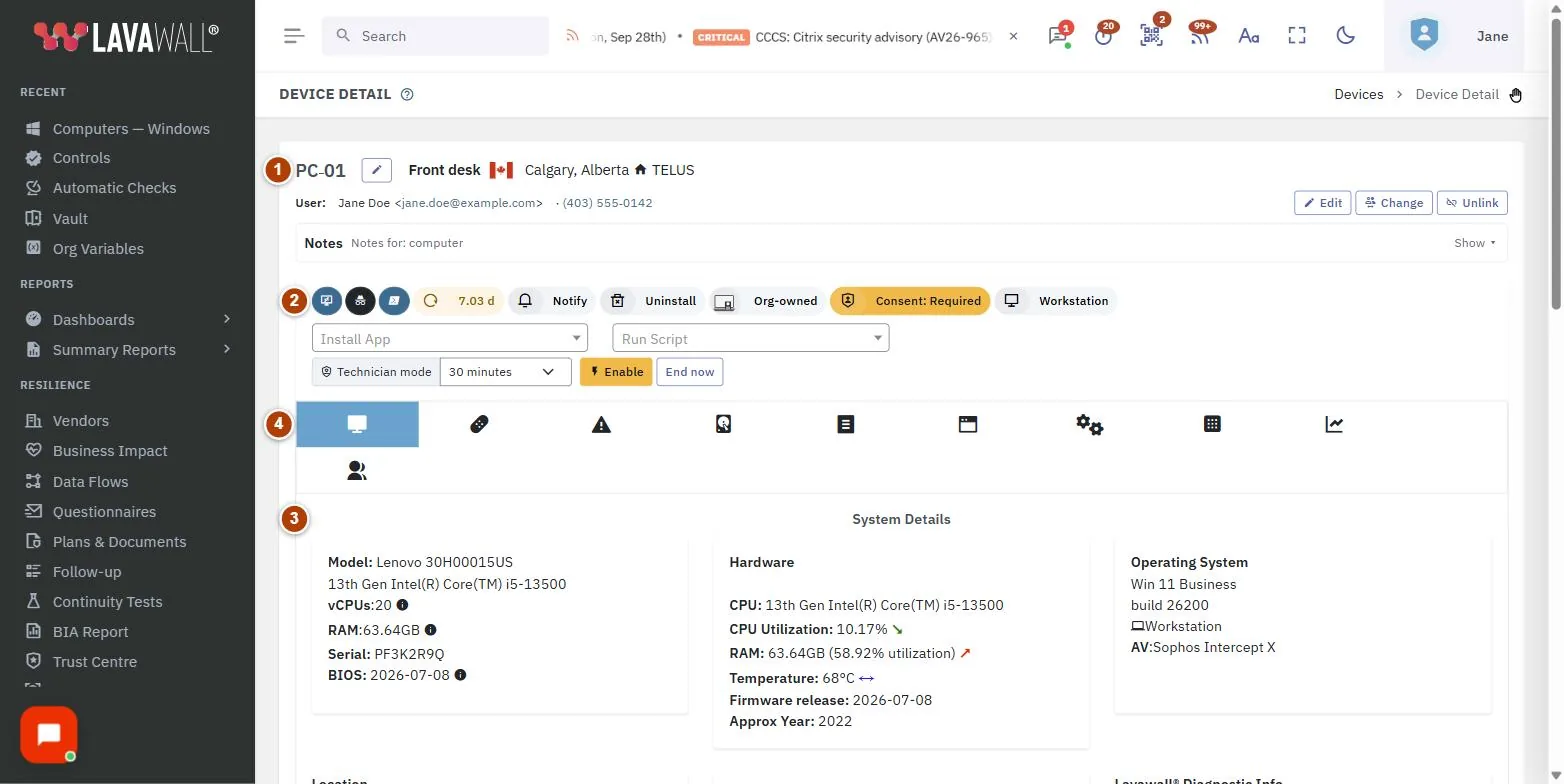
- Device header: the device name and nickname, the owner, and a notes panel.
- Remote support buttons: connect to the device's desktop or shell (when the device is online and your plan includes remote support), plus device actions such as restart.
- Device card: Computer name, Current user, Operating system, Kernel, Architecture, IP address and Last seen.
- Detail tabs: the full record, including hardware details, missing patches, configuration issues and performance graphs. A Threats tab appears when the computer has malware detections, antivirus problems or Huntress and Sophos incidents; see Malware & AV.
How to use Device Detail
How to open a device
- Go to Devices › Computers.
- Open the ⋮ menu on a row and choose Full Detail Page. It opens in a new browser tab.
- You can also click a device name in a dashboard or report.
How to connect to the device
- Use the remote support buttons at the top of the page.
- A remote session opens in a new tab. See Remote Support for the controls.
How to review patches, configuration and performance
- Click the tab you need in the detail area.
- Patches lists the updates the device is missing. Configuration lists failed security checks. Performance shows CPU, memory, storage and network use.
How to give the device a nickname, owner or note
- Use the header at the top of the page to set a nickname, change or create the owner, or add notes.
- Your changes are saved to the device and show in the Computers list.
How to restart the device
- Choose the restart action at the top of the page.
- Type the computer's name exactly as shown to confirm. This protects against restarting the wrong machine.
Tips
- Last seen is shown in your own time zone.
- If the nickname is different from the real computer name, both are shown so you can still find the machine.
- Remote buttons are available only while the device is connected. An offline device shows them greyed out.
- Bookmark a device's page to get back to it quickly.
Troubleshooting
- "Device not found or you do not have access to this device."
- The link is wrong, the device was removed, or it belongs to a company your account cannot see.
- "No device parameter provided."
- The page was opened without choosing a device. Open it from the Computers list instead.
- The page shows "Loading device details…" for a long time.
- The basic Device card is already correct. Wait a moment for the rest, or reload the page.
Task guides that use this page
Related articles
Still need help?
Search the support centre, or contact our support team and tell us which page you were on:
- Chat now: use the chat button in the bottom-right corner of this page to reach our team right away. Where cookie consent is needed, the chat starts after you accept (cookie settings).
- Email: send our support team a message through the contact page. It goes straight to a person.
- Phone:
 AB: 1-403-538-5053
 US: 1-406-988-7333
 UK: +44 20 3695 9786
Names, companies, devices and figures in the pictures are examples. Other product and company names are trademarks of their respective owners.