Run Script
Run a script on every device in chosen companies, or on hand-picked devices, now, later or on a schedule. You can also send a desktop notification to users.
What the page is for
Run Script is a page in the Lavawall® console, in the Scripting & automation area. Lavawall is the RMM, security, and compliance platform from ThreeShield, built and hosted in Canada. About this feature.
Run Script is where you send scripts to devices through the Lavawall agent. Pick a script, choose the companies or individual devices to run it on, choose when it runs, and click Execute Script. Lavawall queues the job for each device, and devices that are offline run it when they come back online.
Scripts can come from the Lavawall script library, which ships inside the agent, or be your own custom scripts from Add/Modify Scripts. Library scripts ask only for their parameters.
The Send Notification tab uses the same targeting and scheduling to show a desktop notification on Windows computers, for example to ask users to close an application for patching or to warn them a restart is needed.
What you see
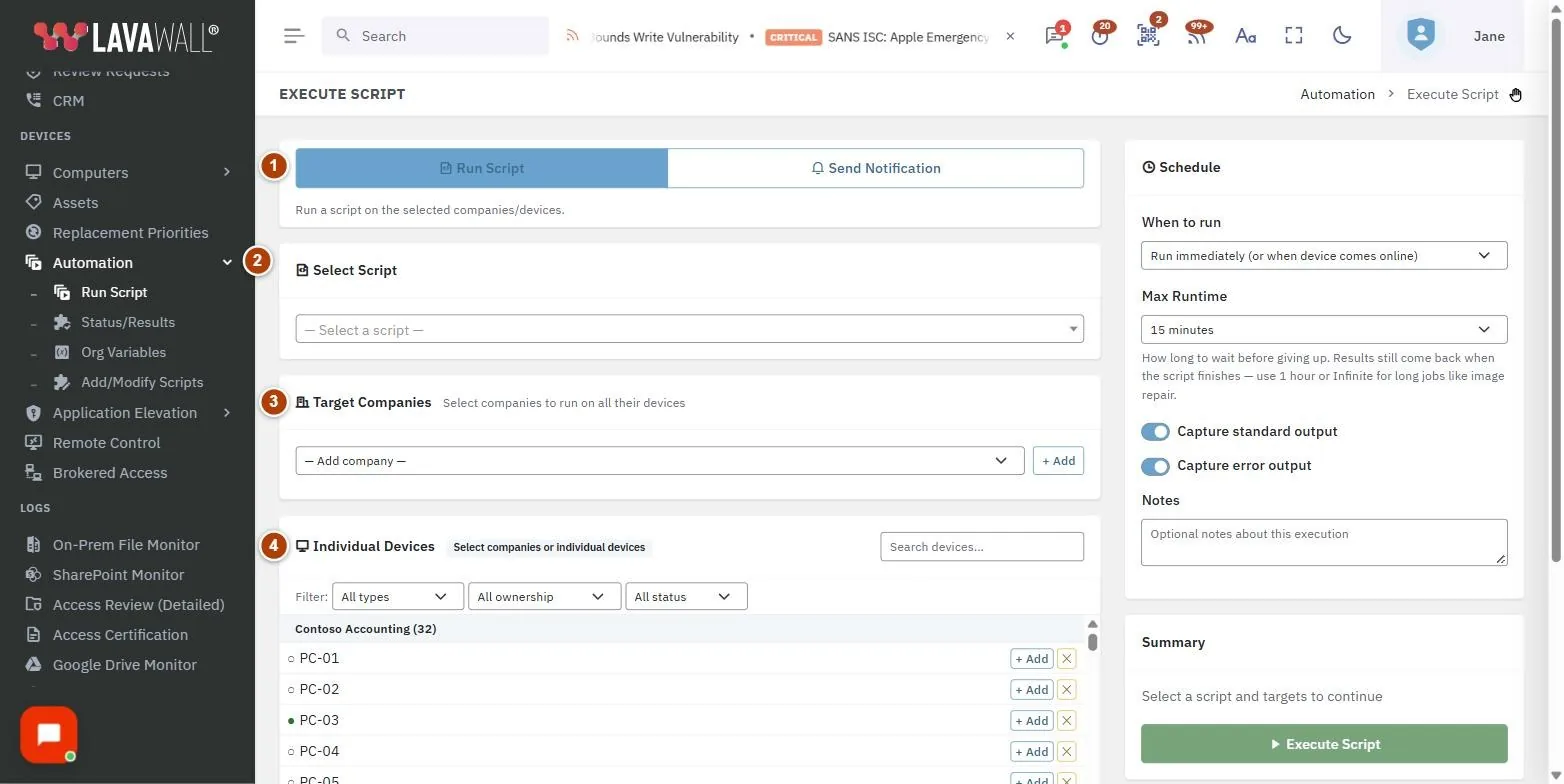
- Tabs: Run Script and Send Notification.
- Select Script: the script to run, its details and any parameters it needs.
- Target Companies: add companies to run on all their devices.
- Individual Devices: a filterable list of devices (All types, Servers only, Workstations only; ownership; Online or Offline), with Manually Added Devices and Excluded Devices.
- Schedule: When to run, Max Runtime, output capture and Notes.
- Summary: what will run where, with the Execute Script button and links to View Execution Status, Edit Scripts and Manage Variables.
How to run scripts
How to run a script now
- Choose a script under Select Script. Fill in any parameters it shows.
- Under Target Companies, pick a company and click + Add. Repeat for more companies. The list follows the organization selector at the top of the page: choose All to see every active client you manage.
- Or, under Individual Devices, add specific devices. They appear under Manually Added Devices.
- To skip some devices in a selected company, add them to Excluded Devices.
- Leave When to run on Run immediately (or when device comes online).
- Check the Summary and click Execute Script, then confirm.
How to schedule a script
- Under When to run, choose Run at specific date/time and set Date & Time.
- Under Interpret time as, choose My local time (converted to UTC) or Each device's local time to run at that clock time in each device's own time zone.
- For a repeating job, choose Recurring schedule and enter a Cron Expression (minute, hour, day of month, month, day of week).
- To run the script on every new device as it is installed, choose On new device registration.
- Click Execute Script.
How to set how long a script may run
- Under Max Runtime, choose 5 minutes, 15 minutes, 1 hour, 1 day or Infinite.
- Tick Capture standard output and Capture error output to see the results on the status page.
How to send a desktop notification
- Click the Send Notification tab.
- Choose a Type: General notification, Please close an application (for patching) or Restart required.
- Enter a Title and Message. For an application, add the Application name and optionally its PID; for a restart, add a Reason. You can add an https Link.
- Choose the Reminder options the user sees under "Remind me".
- Pick targets and a schedule as for a script, then click Send Notification.
How to use a vault secret in a library script
- Make sure the secret exists on the vault's Script secrets tab, and that its Where this secret may be used list includes this library script and parameter. See Script secrets in the Vault.
- Choose the library script under Select Script. Below its parameters, the page lists the vault secret variables you can use.
- In a text parameter, type
{{secret:NAME}}as the whole value, on its own. It cannot be part of a longer value such as a web address, and only text parameters can take one. - Pick targets and a schedule, then click Execute Script. Running or scheduling a script that uses a secret needs permission to use the Vault.
How to check the results
- After you execute, click View Status in the confirmation, or View Execution Status on the page.
Tips
- Scripts that change a device may ask you to type CONFIRM before they run.
- Filter Individual Devices by Online to target only devices that can run the script straight away.
- Pick a long Max Runtime (1 hour or Infinite) for long jobs such as image repair. Results still come back when the script finishes.
- Use Notes to record why you ran the script. It helps when reviewing results later.
- Notifications are shown by the Lavawall agent on Windows only.
- Vault secrets work on Windows computers for now, and only on computers that have been given access on the vault's Script secrets tab. Otherwise the script is refused for that computer and Script Execution Status says why.
Troubleshooting
- "Library scripts only".
- Your organization only allows scripts from the signed Lavawall library. Custom scripts are listed but cannot be run.
- "Parameter refused".
- One of the parameter values is not allowed. Check the values and try again.
- "Nothing was sent".
- No devices matched your targets. Check your companies, devices and exclusions.
- The Execute Script button is greyed out.
- Select a script and at least one company or device first.
- "This script uses vault secrets ({{secret:...}}). Queuing it needs permission to use the Vault; ask an administrator."
- An administrator can give you Vault access under Users & Permissions, or someone who has it can run the script.
- "… a {{secret:NAME}} placeholder must be the whole value" or "… cannot take a secret placeholder (only text parameters can)"
- Put the placeholder on its own in a text parameter, with nothing before or after it.
Task guides that use this page
Related articles
Still need help?
Search the support centre, or contact our support team and tell us which page you were on:
- Chat now: use the chat button in the bottom-right corner of this page to reach our team right away. Where cookie consent is needed, the chat starts after you accept (cookie settings).
- Email: send our support team a message through the contact page. It goes straight to a person.
- Phone:
 AB: 1-403-538-5053
 US: 1-406-988-7333
 UK: +44 20 3695 9786
Names, companies, devices and figures in the pictures are examples. Other product and company names are trademarks of their respective owners.