Ad-Hoc Support
Help someone whose computer does not have Lavawall installed, using a one-time support code.
What the page is for
Ad-Hoc Support is a page in the Lavawall® console, in the Remote support area. Lavawall is the RMM, security, and compliance platform from ThreeShield, built and hosted in Canada. About this feature.
Ad-Hoc Support lets you start a remote support session with anyone, even if their computer is not managed by Lavawall. You create a short code and send the person a join link. They open the link, enter the code, download a small support tool and click Allow. As soon as they connect, you can take them straight into the live session.
Each code works once and expires after a few minutes. The page shows a countdown so you know how long the person has.
The page also lists your open codes, so you can see who is still waiting, who has connected, and revoke any code you no longer need.
What you see
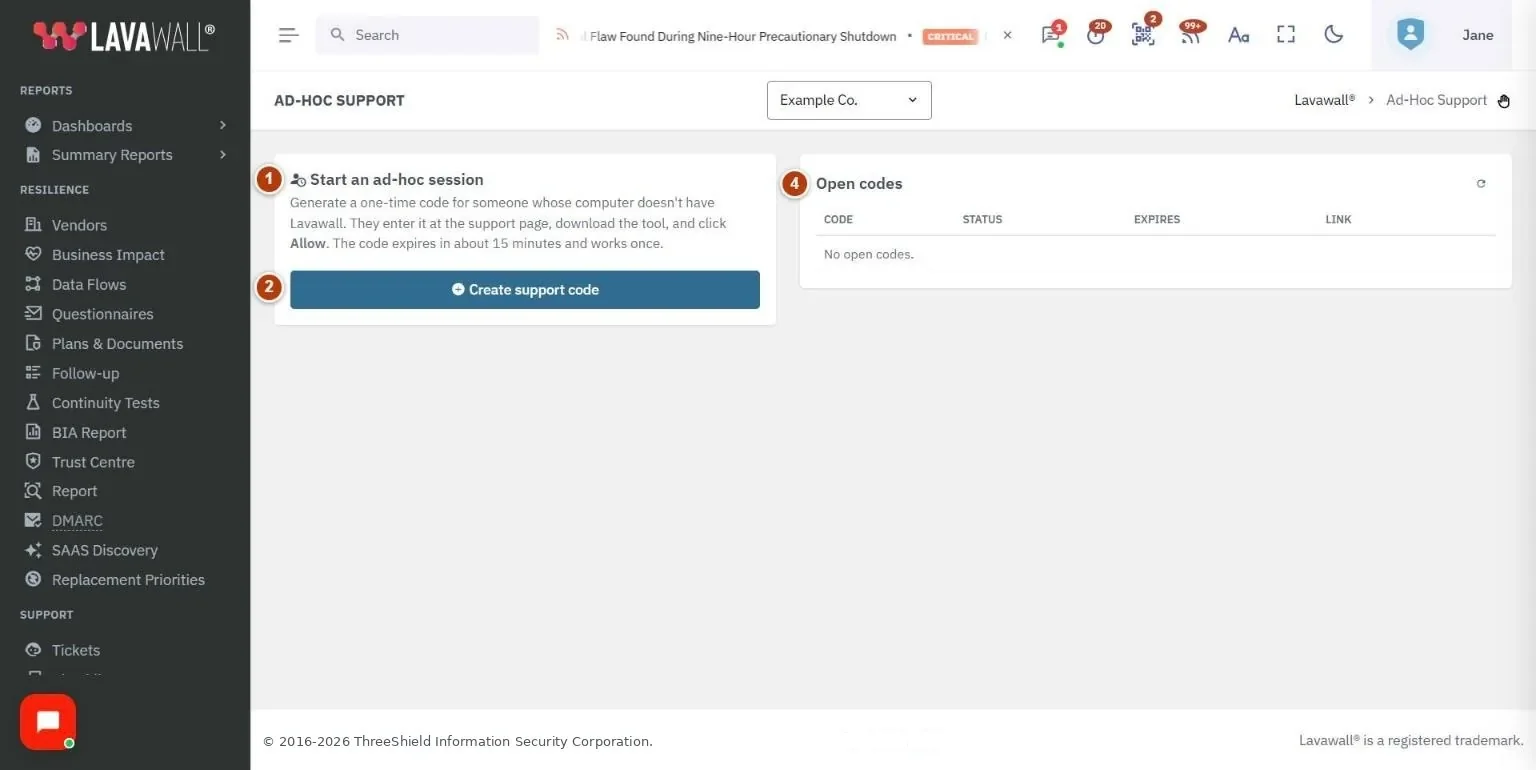
- Start an ad-hoc session: a short explanation and the Create support code button.
- Support code: the new code in large type, its connection status and an Expires in countdown.
- Join link: the link to send, with Copy message, Email, Create ticket and Revoke.
- Open codes: a table of your open codes with Code (hidden for security), Status, Expires and a revoke button, plus a refresh button.
How to give ad-hoc support
How to start a session
- Click Create support code.
- Send the person the join link. Click Copy message to copy a ready-to-send message with the link and simple instructions, or Email to open a new email with it.
- Ask them to open the link, enter the code, run the downloaded tool and click Allow.
- Watch the status change from Waiting for connection… to Connected. The page takes you into the live session when they connect.
How to log the session in a ticket
- After creating a code, click Create ticket.
- A new ticket opens in another tab with the join link already filled in.
How to cancel a code
- Click Revoke under the join link, or the revoke button on the code's row in Open codes.
- Confirm. The code stops working immediately.
How to rejoin a connected session
- In Open codes, find the row marked Connected.
- Click the status to open the live session.
Tips
- Codes work once. If the person needs to reconnect, create a new code.
- Read the code to the person over the phone if they cannot receive the link. They can type it on the support page.
- The status goes Waiting → Connecting (the support tool is running) → Connected, then Ended when the session finishes.
- A code is shown in full only when it is created. In Open codes it appears as dots and cannot be shown again, so create a new one if you lose it.
Troubleshooting
- "No open codes."
- You have no codes waiting or in use. Click Create support code to start.
- "Attended ad-hoc support isn't enabled for your account."
- Your subscription does not include attended support. Check your plan on the billing page or ask your administrator.
- Status shows "Didn't connect".
- The person ran the support tool, but it could not reach Lavawall. Codes work once, so issue a new one and check their internet connection or firewall.
- "Could not create code".
- Try again. If it keeps happening, reload the page.
- The code expired before they joined.
- Create a new code and send the new link.
Task guides that use this page
Related articles
Still need help?
Search the support centre, or contact our support team and tell us which page you were on:
- Chat now: use the chat button in the bottom-right corner of this page to reach our team right away. Where cookie consent is needed, the chat starts after you accept (cookie settings).
- Email: send our support team a message through the contact page. It goes straight to a person.
- Phone:
 AB: 1-403-538-5053
 US: 1-406-988-7333
 UK: +44 20 3695 9786
Names, companies, devices and figures in the pictures are examples. Other product and company names are trademarks of their respective owners.