Computers
Every computer and server running the Lavawall agent, in one list you can filter, search, export and act on.
What the page is for
Computers is a page in the Lavawall® console, in the Devices area. Lavawall is the RMM, security, and compliance platform from ThreeShield, built and hosted in Canada. About this feature.
The Computers page lists the devices that have the Lavawall agent installed. For each one it shows the company, operating system, security issues, missing patches, when it was last seen, where it is, how old it is and a small performance graph.
Use it to find a device quickly, see which ones need patches or a restart, start a remote session, or remove the agent from a machine you have retired. Dates are shown in your local time.
The information comes from the Lavawall agent on each computer. Remote buttons work only while the device is connected to Lavawall.
What you see
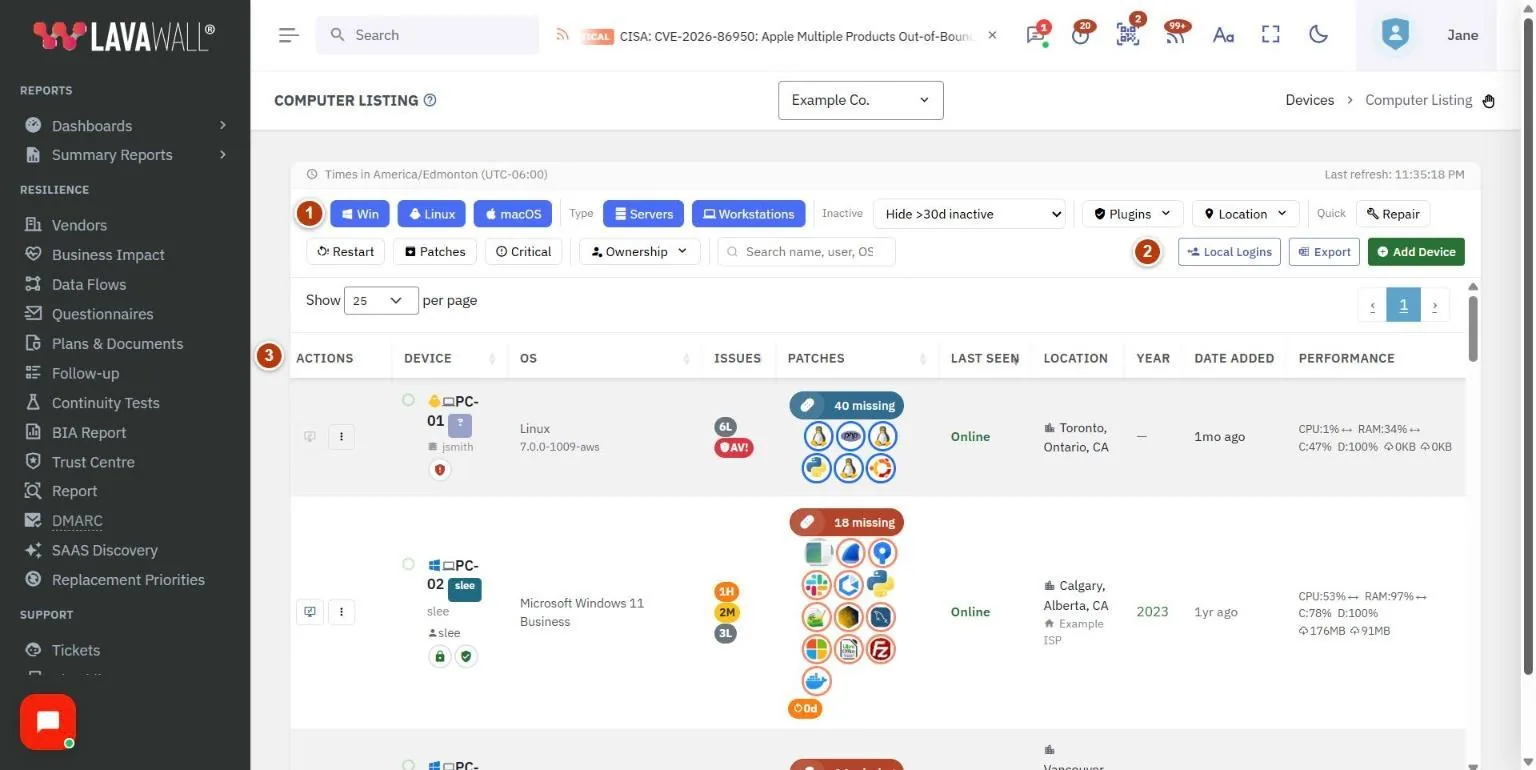
- Filter bar: OS (Win, Linux, macOS), Type (Servers, Workstations), Inactive, Plugins (Huntress, Datto RMM, Sophos), Location, Quick filters (Repair, Restart, Patches, Critical) and Ownership.
- Search and buttons: search by name, user or OS; Local Logins, Export and Add Device.
- Device table: Actions, Device, Company, OS, Issues, Patches, Last Seen, Location, Year, Date Added and Performance.
- Row actions: a Remote Desktop button and a ⋮ menu with Backstage, Remote Shell, Device Details, Config Issues, Patches, Performance, Full Detail Page and Uninstall.
- Device detail window: opens over the list when you click a row, with tabs for details, patches, configuration and performance.
How to use the Computers page
How to find a computer
- Type part of the name, user or operating system in Search name, user, OS….
- Narrow the list with the filters. For example, turn off Win to hide Windows computers, or pick Servers only.
- Click the row to open its details.
How to find computers that need work
- Under Quick, click Patches for computers with missing patches, Restart for ones waiting for a restart, Critical for critical issues, or Repair for Windows computers that need repair.
- In the Issues column, badges show counts by severity: C critical, H high, M medium and L low. Click them to see the configuration issues.
- In the Patches column, click the patch icons to see what is missing.
How to restart a computer
- In the Patches column, click the restart badge (it shows how many days since the last reboot).
- Read the reasons for the restart, then type the computer's name exactly to confirm.
- Choose Restart immediately or a Notify and delay option (15 seconds, 30 seconds, 5 minutes or 15 minutes) so the user can save their work.
- Click Restart.
How to connect remotely
- From any console page, type the computer's name in the Search box at the top. In the results, click the remote desktop, Backstage or remote shell icon beside the computer.
- Or, in the Computers list, click the remote desktop icon on the computer's row. It is always shown, and the session opens in a new tab.
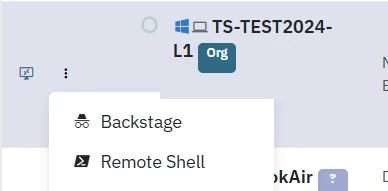
- For Backstage (a hidden desktop that does not disturb the user) or Remote Shell, click its icon on the row. On a narrow screen they are in the ⋮ menu.

How to export the list
- Set the filters you want.
- Click Export. Lavawall downloads an Excel file of the devices.
How to uninstall the agent from a retired computer
- Open the ⋮ menu on the row and choose Uninstall.
- Type the computer's name to confirm and click Uninstall.
- The agent removes itself the next time the computer checks in.
Tips
- Click the ownership badge next to a device to cycle it through Unknown, Org (company-owned) and BYOD. Then filter by Ownership.
- Inactive hides devices that have not checked in for a while. The default hides devices inactive for more than 30 days. Choose Show all (incl. uninstalled) or Only uninstalled / removed to see removed devices.
- Your filter choices are remembered the next time you open the page.
- A green ✓ OK in Issues or Patches means nothing is outstanding.
- Issue badges also flag an antivirus problem (AV!), an unencrypted drive, a disabled firewall and active Huntress incidents.
- Click a performance graph to open the full 24-hour performance view.
Troubleshooting
- "No device data available. Please install the agent to get started."
- No devices match. Clear the filters, or add your first device with Add Device.
- "The device list did not load."
- Refresh the page and try again.
- The remote buttons are greyed out.
- The device is offline or not connected to Lavawall right now.
- "Computer name does not match."
- The name typed in a restart or uninstall confirmation must match exactly.
- "The restart request could not be sent."
- Try again. If the device is offline, it cannot receive the restart.
Task guides that use this page
Related articles
Still need help?
Search the support centre, or contact our support team and tell us which page you were on:
- Chat now: use the chat button in the bottom-right corner of this page to reach our team right away. Where cookie consent is needed, the chat starts after you accept (cookie settings).
- Email: send our support team a message through the contact page. It goes straight to a person.
- Phone:
 AB: 1-403-538-5053
 US: 1-406-988-7333
 UK: +44 20 3695 9786
Names, companies, devices and figures in the pictures are examples. Other product and company names are trademarks of their respective owners.