Knowledge Base
Write, organize and find your team's support articles in one place so answers are ready when a ticket comes in.
What the page is for
Knowledge Base is a page in the Lavawall® console, in the Service desk area. Lavawall is the RMM, security, and compliance platform from ThreeShield, built and hosted in Canada. About this feature.
The Knowledge Base is your company's library of support articles. Each article has a title, a short description, a formatted body, categories and keywords, so technicians can find the right answer quickly.
The left side lists articles and lets you search and filter by category. The right side is the editor, where you open, write and save articles. The editor supports rich formatting, including tables, code blocks and pasted images.
Besides your own articles, the list can also include shared public articles. You can read those but not change them. Articles you can edit show a small pencil icon in the list.
What you see
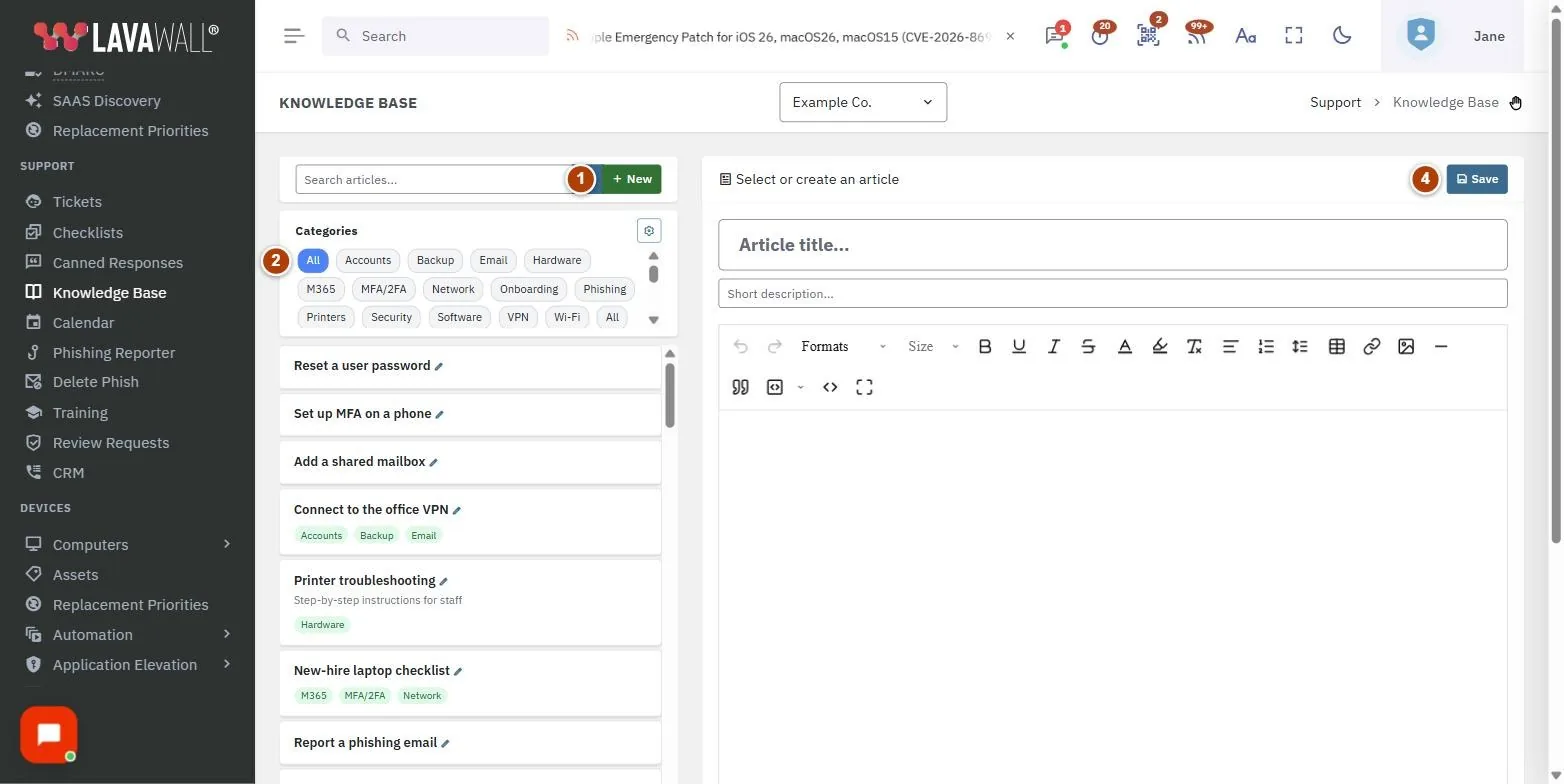
- Search and New: search box to find articles, and the New button to start a blank article.
- Categories: category chips that filter the list (All shows everything), with a settings button to manage your categories.
- Article list: cards with each article's title, description, a Public badge where it applies, and up to three keywords.
- Editor: title, short description and article body, with Save and a delete button in the header. The header reads "Editing:" or "Viewing:" depending on whether you can change the article.
- Categories and Keywords: tag boxes for the open article, plus Auto-suggest keywords.
How to use this page
How to write a new article
- Select New.
- Type the Article title and a Short description.
- Write the body in the editor. Use the toolbar for headings, lists, tables, code blocks and images.
- Under Categories, type to pick an existing category, or type a new name and choose Create "…".
- Under Keywords, add keywords the same way, or select Auto-suggest keywords to have keywords suggested from the body text.
- Select Save. A title is required.
How to find an article
- Type words into Search articles... and press Enter or select the search button.
- To narrow the list, select a category chip under Categories. Select All to clear the filter.
- Select an article card to open it in the editor.
How to edit or delete an article
- Open the article from the list. If it shows a pencil icon, you can edit it.
- Change the title, description, body, categories or keywords, then select Save.
- To delete it, select the delete (bin) button in the editor header and confirm Delete in the Delete Article? prompt. Deleting cannot be undone.
How to manage categories
- Select the settings button beside Categories.
- In Manage Categories, review your company's categories.
- Type a New category name and select Add.
Tips
- In the tag boxes, use the arrow keys and Enter to pick a suggestion. Backspace in an empty box removes the last tag.
- Blue tags are existing categories or keywords; green tags are new ones that will be created when you save.
- Keywords make articles easier to find. Run Auto-suggest keywords after writing the body, then remove any that do not fit.
- Articles marked Public are shared library articles. You can read them but they open read-only.
- In the editor, Shift+Enter adds a line break inside a list item.
Troubleshooting
- "No articles found."
- Nothing matches your search or category filter. Clear the search box or select All, or select Create one? to start an article.
- The Save button is greyed out.
- The article is a shared article that you can view but not edit.
- "Title is required"
- appears when you save an article with no title.
- "Article not found"
- when opening a link to an article means the article does not exist or is not visible to your company.
- "No keywords detected"
- means the body did not contain enough text to suggest keywords. Add keywords manually.
Task guides that use this page
Related articles
Still need help?
Search the support centre, or contact our support team and tell us which page you were on:
- Chat now: use the chat button in the bottom-right corner of this page to reach our team right away. Where cookie consent is needed, the chat starts after you accept (cookie settings).
- Email: send our support team a message through the contact page. It goes straight to a person.
- Phone:
 AB: 1-403-538-5053
 US: 1-406-988-7333
 UK: +44 20 3695 9786
Names, companies, devices and figures in the pictures are examples. Other product and company names are trademarks of their respective owners.