Custom scripting
Simple and powerful custom scripting
With Lavawall® you paste a script, pick a platform, and deploy it across the right organizations, using placeholder variables so you never maintain a dozen near-identical copies. Many RMMs make scripting either overly complicated or badly inefficient; Lavawall takes a straightforward approach that even automates the automation.
Start free, no credit card See placeholder variables
Batch · Bash · PowerShell · Zsh · per-organization access
See it in the Lavawall® console
Real screens, shown with example data.
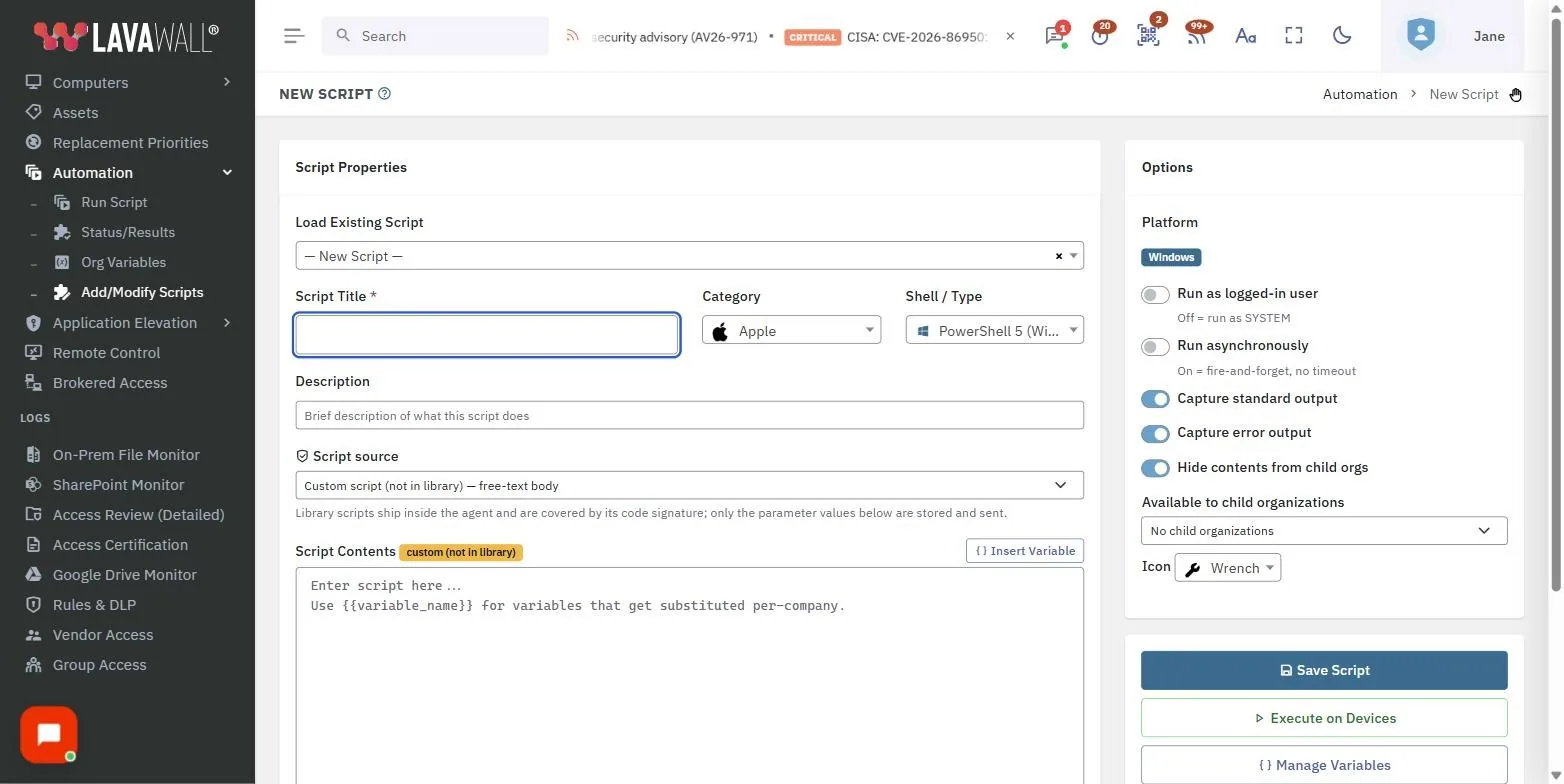
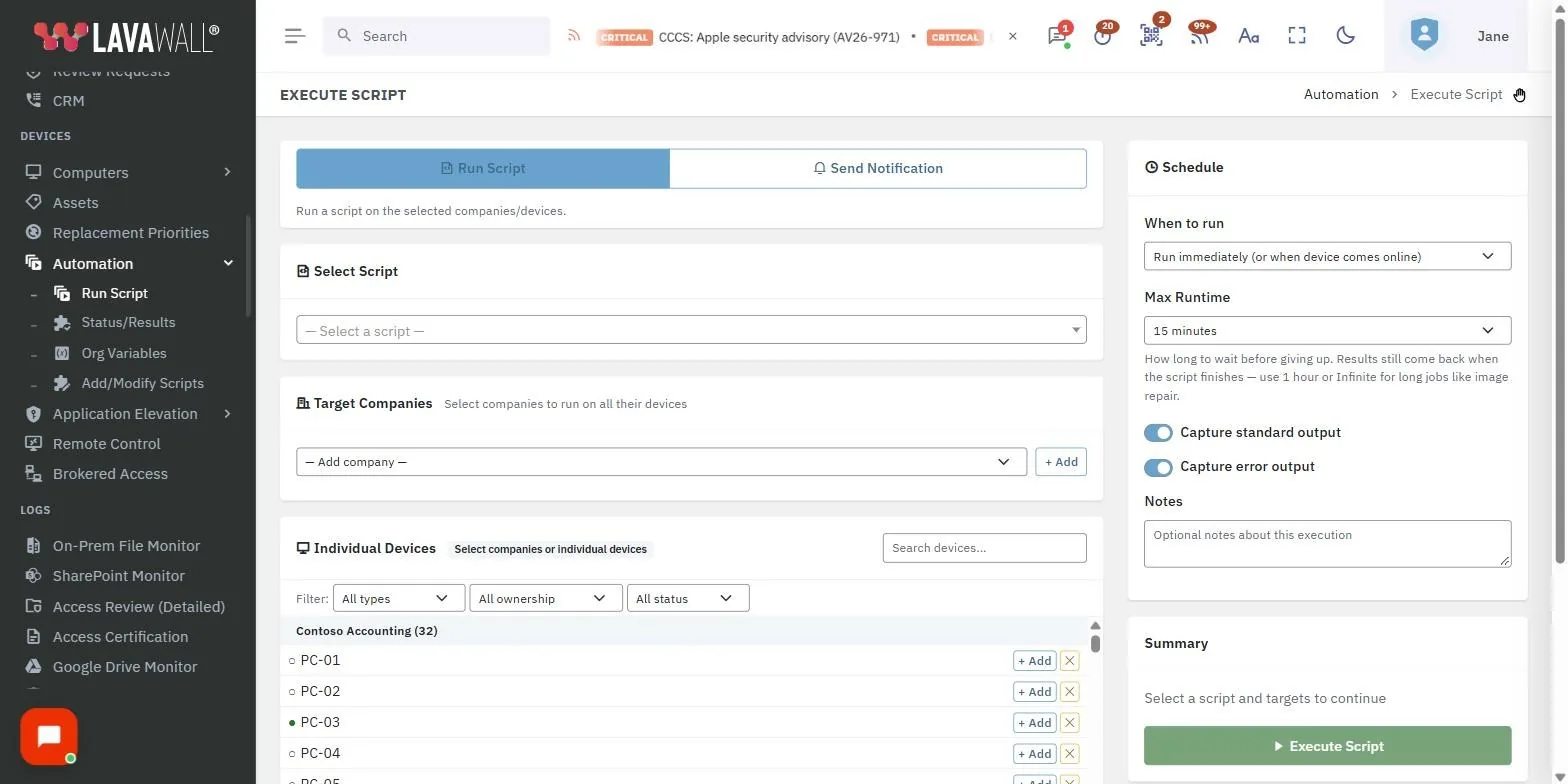
Enter a script with the defaults
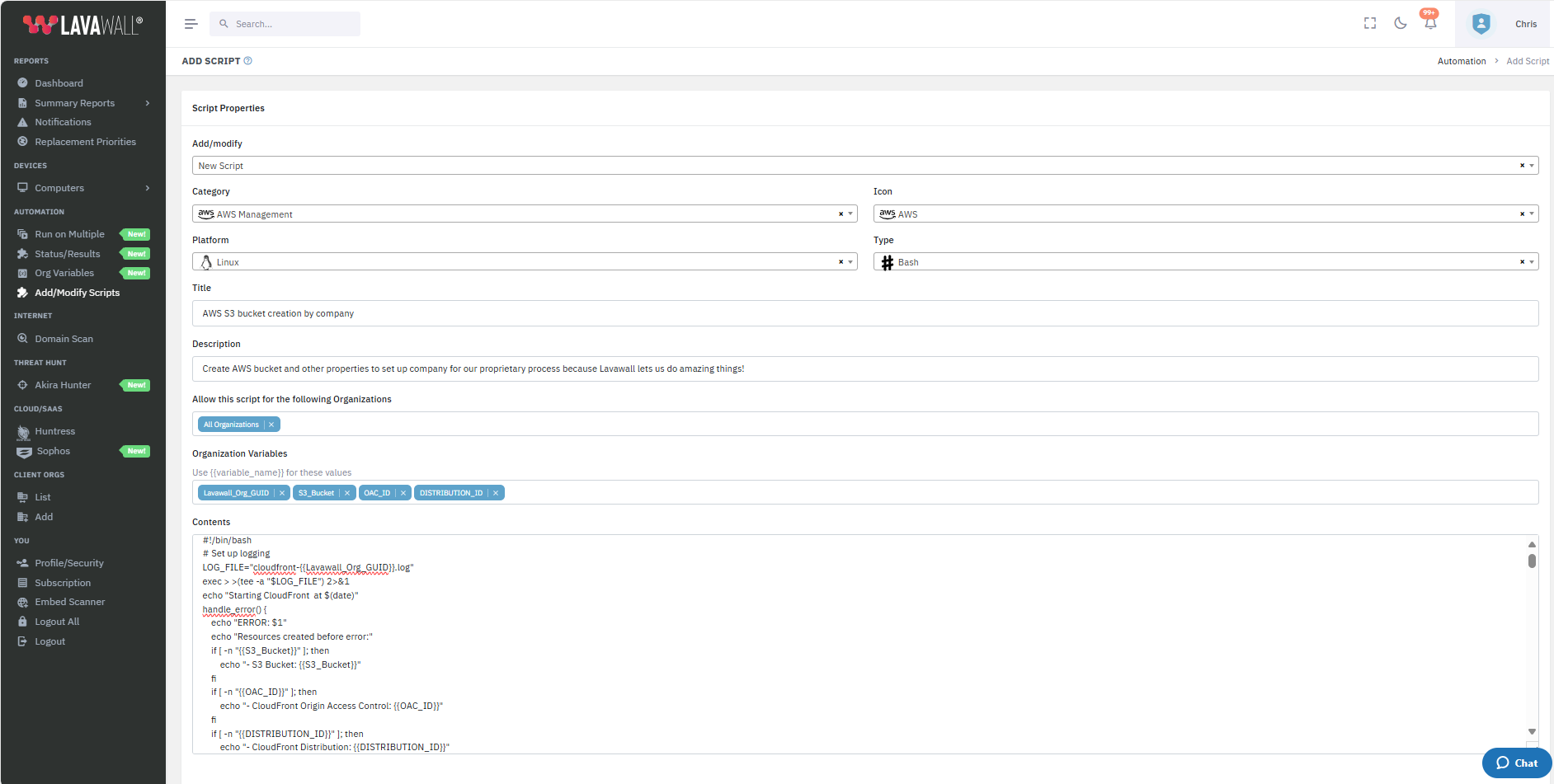
Creating a script takes four steps. Start typing a title, enter an optional short description, paste your script into the Contents field, and click Save. Choose the platform and Lavawall® selects the interpreter for you.
- Mac automatically uses Zsh.
- Linux automatically uses Bash.
- Windows defaults to PowerShell, and you can select Batch instead.


Make scripts easier to find
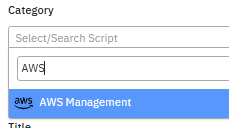
Assign a category so your library stays organized. The predefined categories are AWS Management, Diagnostics, Free Disk Space, General Scripts (the default), Hardware Information, Management Facilitation, OS Maintenance, and Tools.
A default icon is chosen based on the category you select, but to make scripts even easier to spot you are welcome to pick from many additional icons.
Limit access by organizations
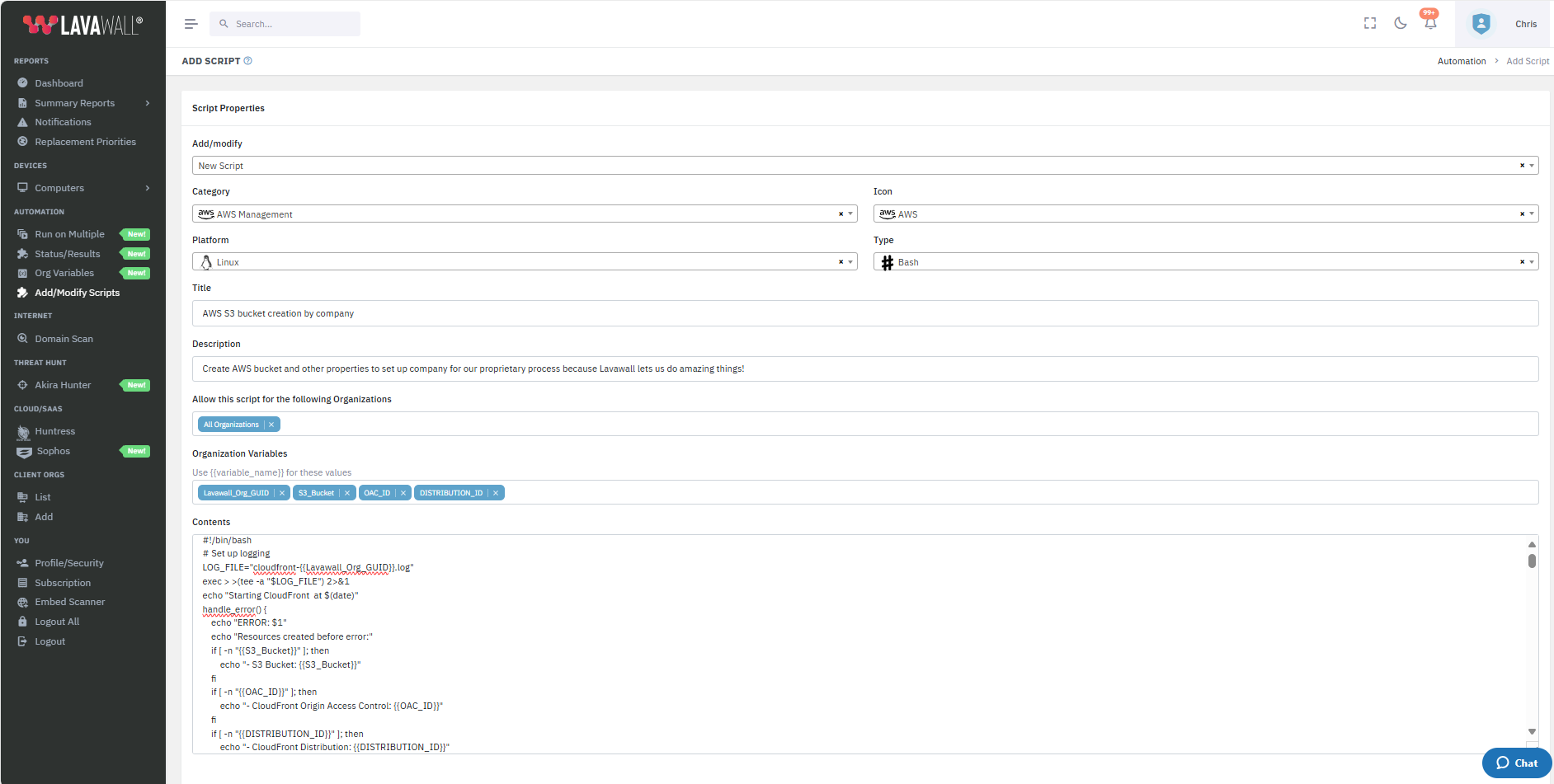
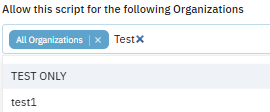
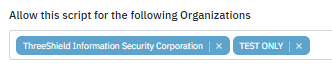
By default, all of your organizations can access your script. If you would like to limit access to users and devices within specific organizations, you can select them from the Allow this script for the following Organizations field. Start typing to filter, and add as many organizations as you need.
One script for every organization
Instead of having to upload separate scripts for each company because an argument is different, Lavawall® lets you use placeholder variables within scripts. Variables use a double curly-brace format, for example {{variable_name}}.
Since these can be easy to forget or miss, the system automatically adds a list of the variables found in your script to the Organization Variables field, so you always know exactly what each organization needs to supply.
Secrets in scripts, without putting the secret in the script
A password, an API key, or a licence string does not belong in a script body, where it lands in the job history, the console logs, and every copy of the script. Lavawall® keeps those out of the script entirely. A secret is sealed in your browser with the same encryption as the vault, delivered to the endpoint as an encrypted parameter the platform only carries, and opened on the device at run time. It is never written into the script text and never shows up in the logs. You keep these secret variables on the vault’s Script secrets tab, choose which computers may read each one and which scripts may use it, and write it in a script as {{secret:NAME}}. Secret variables work on Windows computers. How to move a sensitive value into the vault.
The clearest example is WireGuard deployment: the endpoint generates its own private key locally and it never leaves the device, and an optional preshared key rides down sealed rather than pasted into a config file. For where this sits in the wider design, see security and privacy and FIPS 140-3 support. Ordinary, non-secret settings still use the {{variable_name}} placeholders above.
Run scripts as the logged-in user
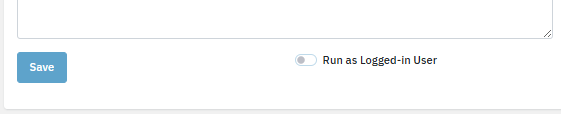
Most scripts run well with system-level permissions. However, sometimes you need to run Windows scripts in the user context, so a Run as Logged-in User checkbox is available. These scripts may fail on certain headless servers and in other user circumstances, so the setting is left off by default.
Try Lavawall® scripting free →
Free plan · no credit card · month-to-month
Frequently asked questions
- Which scripting languages does Lavawall® support?
- Batch and PowerShell on Windows, Bash on Linux, and Zsh on macOS. When you pick a platform, Lavawall® selects the right interpreter automatically, and on Windows you can choose PowerShell (the default) or Batch.
- How do I reuse one script across many organizations?
- Use placeholder variables written as double curly braces, for example
{{variable_name}}. Instead of uploading a separate script per client because one argument differs, you write the script once and Lavawall® fills the value per organization. Any variables it finds are added to the Organization Variables field automatically. - Can I limit a script to certain organizations?
- Yes. By default every organization can access your script, but you can restrict it to specific organizations using the Allow this script for the following Organizations field.
- Can a script run in the logged-in user's context?
- Yes. Most scripts run well with system-level permissions, but you can tick Run as Logged-in User when a Windows script needs the user context. It is off by default because such scripts can fail on headless servers and in some user circumstances.