Script Execution Status
Follow every script you have sent to devices, read what it printed, and cancel or re-run jobs.
What the page is for
Script Execution Status is a page in the Lavawall® console, in the Scripting & automation area. Lavawall is the RMM, security, and compliance platform from ThreeShield, built and hosted in Canada. About this feature.
When you run a script, Lavawall queues one job for each device. This page lists those jobs with their progress: queued, sent to the device, running, completed, failed with an error, timed out or cancelled.
For each job you can see which device and script it was, when it was queued and completed, and the start of its output. Open the output to read everything the script printed, including errors, and copy it for a ticket.
Choose a company in the company selector at the top of the console to see only the jobs on that company's devices. With All selected, the page lists the devices of every organization you manage and adds an Organization column and filter.
What you see
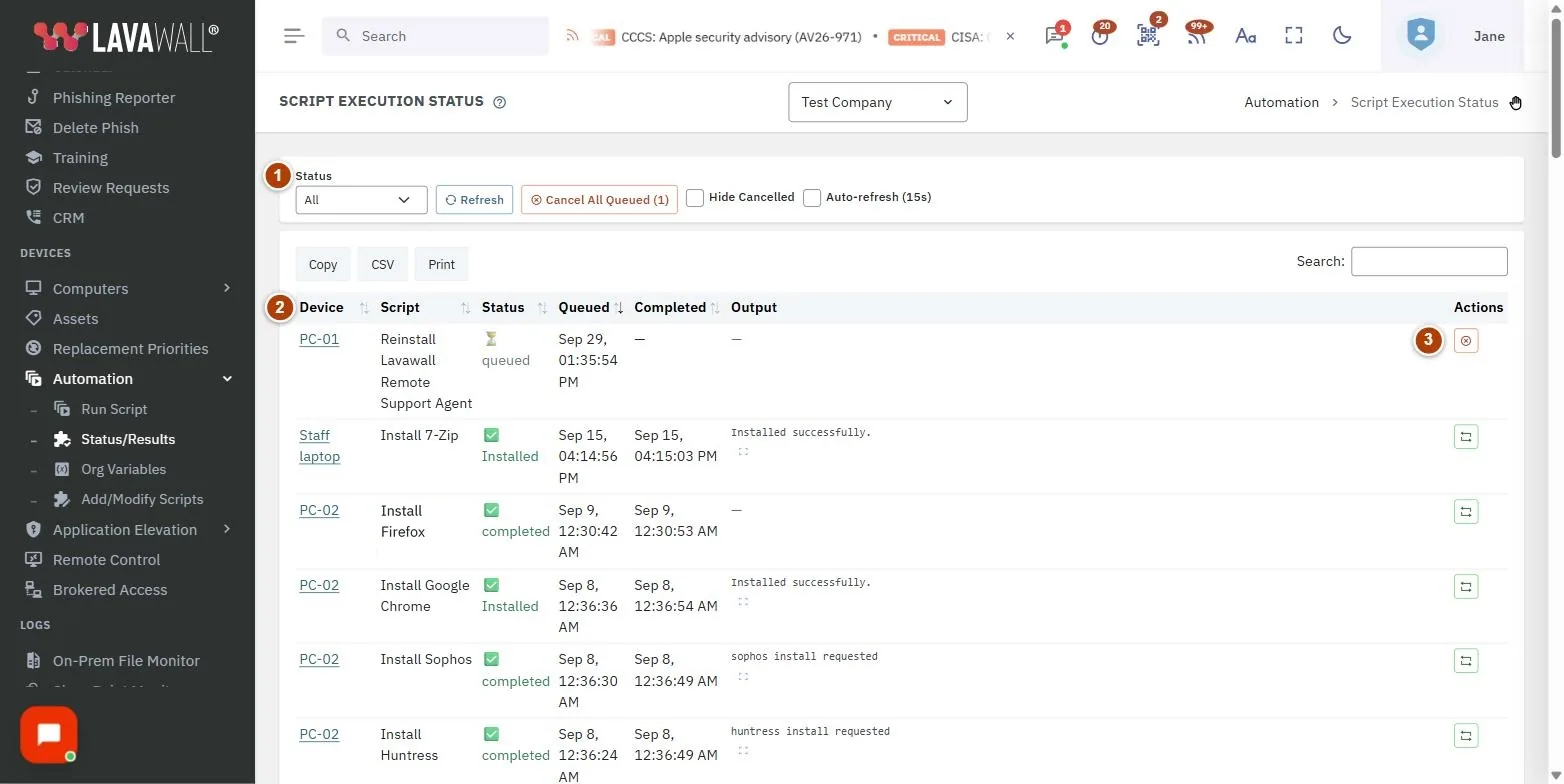
- Toolbar: a Status filter (All, Queued, Sent, Running, Completed, Error, Timeout, Cancelled), Refresh, Cancel All Queued, Hide Cancelled and Auto-refresh (15s).
- Job table: Device, Organization (when All is selected), Script, Status, Queued, Completed, Output and Actions.
- Row actions: cancel a job that has not finished, or run a finished job again.
- Execution Output: a window with Standard Output and Error Output, Copy Output and Close.
How to track your scripts
How to watch jobs as they run
- Tick Auto-refresh (15s) to update the list every 15 seconds, or click Refresh.
- Use the Status filter to show, for example, only Running or Error jobs.
How to read a script's output
- Click the output preview in the Output column, or its expand button.
- Switch between Standard Output and Error Output.
- Click Copy Output to copy it, then Close.
How to cancel jobs
- To cancel one job, click the cancel button in its Actions column and confirm. You can cancel jobs that are queued, sent, running or waiting for a user to sign in.
- To cancel every job that has not started, click Cancel All Queued and confirm with Cancel all.
How to run a job again
- Find a job that has finished (completed, error, timeout or cancelled).
- Click the run again button in Actions and confirm with Run Again. The same script is queued on the same device.
Tips
- Tick Hide Cancelled to keep the list focused on real results.
- Jobs for offline devices stay queued until the device comes back online.
- If a job timed out, run it again with a longer Max Runtime from Run Script.
- Only the output the script was set to capture is shown. Turn on output capture in Add/Modify Scripts or Run Script.
- Drag the edge of a column heading to resize it.
Troubleshooting
- A job has stayed Queued for a long time.
- The device is probably offline. It will run when the device checks in, or you can cancel it.
- The Output column shows a dash.
- The script printed nothing, or output capture was turned off.
- "Cancel failed".
- The job may have already started or finished. Click Refresh and check its status.
- I can't find an older job.
- The page shows your most recent jobs. Use the Status filter to narrow the list.
Task guides that use this page
Related articles
Still need help?
Search the support centre, or contact our support team and tell us which page you were on:
- Chat now: use the chat button in the bottom-right corner of this page to reach our team right away. Where cookie consent is needed, the chat starts after you accept (cookie settings).
- Email: send our support team a message through the contact page. It goes straight to a person.
- Phone:
 AB: 1-403-538-5053
 US: 1-406-988-7333
 UK: +44 20 3695 9786
Names, companies, devices and figures in the pictures are examples. Other product and company names are trademarks of their respective owners.