Add/Modify Scripts
Write, import and share the scripts you run on your devices, with variables that fill in different values for each company.
What the page is for
Add/Modify Scripts is a page in the Lavawall® console, in the Scripting & automation area. Lavawall is the RMM, security, and compliance platform from ThreeShield, built and hosted in Canada. About this feature.
This page is your script library. Create a new script or load an existing one, choose the shell it runs in, and either pick a script from the signed Lavawall library or paste in your own. Save it, and it is ready to run from Run Script.
Scripts can use Lavawall variables written as {{variable_name}}. When a script runs, each variable is replaced with the value set for that device's company on the Script Variables page. If you paste in a script from another RMM tool, Lavawall spots that tool's variable style and offers to convert it.
MSPs can share a script with all or some of their client organizations, and can hide the script's contents from them.
What you see
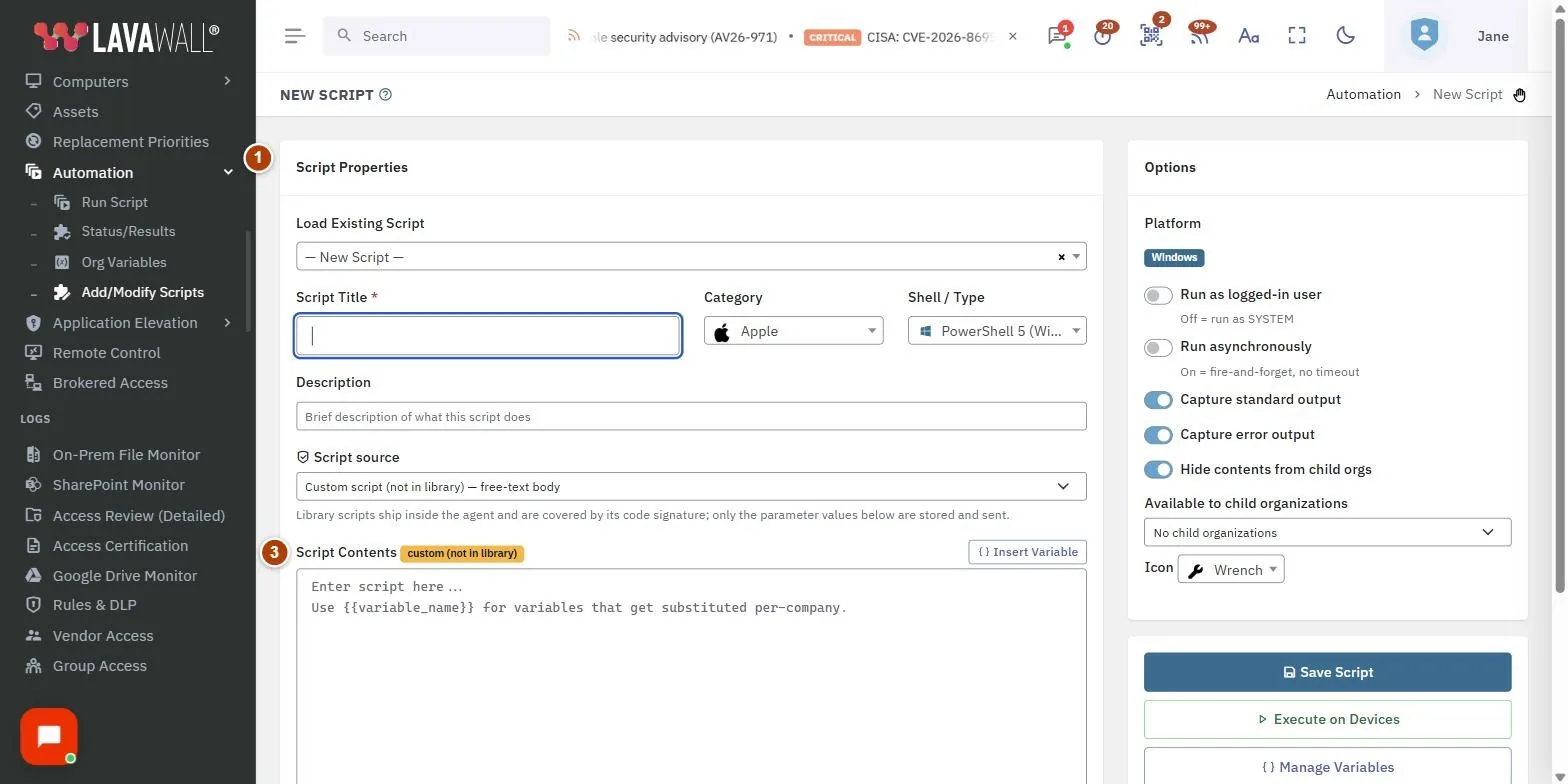
- Script Properties: Load Existing Script, Script Title, Category, Shell / Type and Description.
- Script source: choose a signed library script or Custom script (not in library).
- Script Contents: the script text, with Insert Variable.
- Detected Variables and RMM Variables Detected: the variables the script uses, and any variables from other RMM tools you can convert with one click.
- Variable Values by Company: a grid showing each company's value for each variable the script uses.
- Options: Platform, Run as logged-in user, Run asynchronously, output capture, Hide contents from child orgs, Available to child organizations and Icon.
- Buttons: Save Script, Delete Script, Execute on Devices and Manage Variables.
How to work with scripts
How to create a script
- Leave Load Existing Script on New Script.
- Enter a Script Title, pick a Category and a Shell / Type: PowerShell 5 (Windows), PowerShell 7 (Windows), CMD / Batch (Windows), Linux Bash, Apple Bash (macOS) or Apple zsh (macOS).
- Add a Description.
- Under Script source, pick a library script, or choose Custom script (not in library) and type or paste the script into Script Contents.
- Set the Options and click Save Script.
How to use variables
- Click Insert Variable and choose a variable to add it at the cursor, or type
{{variable_name}}yourself. - Check Detected Variables to confirm Lavawall has found them.
- Look at Variable Values by Company to see which companies still need a value. Click Manage Variables to set them.
How to convert a script from another RMM
- Paste the script into Script Contents.
- Under RMM Variables Detected, click each variable to convert it to Lavawall's
{{variable}}form. Lavawall recognizes styles used by Datto RMM, NinjaRMM, ConnectWise Automate, Atera, Syncro, N-able and generic PowerShell. - Save the script and set the variable values for each company.
How to share a script with client organizations
- Under Available to child organizations, choose All child organizations or Only the ones I choose, then pick them.
- Tick Hide contents from child orgs if clients should be able to run it but not read it.
- Click Save Script. Each client still needs its own script variables set before the script will run there.
How to edit, run or delete a script
- Choose the script in Load Existing Script and make your changes.
- Click Save Script, or Execute on Devices to go straight to Run Script. If you have unsaved changes you are asked to save or discard them first.
- To remove it, click Delete Script and confirm. This cannot be undone.
Tips
- Run as logged-in user runs the script with the signed-in user's permissions. When it is off, the script runs as SYSTEM.
- Run asynchronously fires the script and does not wait for it, with no timeout.
- Tick the output capture options to see what the script printed on the Script Execution Status page.
- Library scripts are covered by the agent's code signature. Only their parameter values are stored and sent.
Troubleshooting
- "Script title is required".
- Enter a Script Title before saving.
- "Library scripts only".
- Your organization only runs scripts from the signed Lavawall library. Choose a library script instead of a custom one.
- "This script is owned by another organization."
- You can run it but not edit or delete it.
- "Saved, with a caveat".
- The script saved, but sharing with child organizations could not be completed. Check the message and your sharing choices.
- "No variables defined yet."
- Create variables on the Script Variables page first.
Task guides that use this page
Related articles
Still need help?
Search the support centre, or contact our support team and tell us which page you were on:
- Chat now: use the chat button in the bottom-right corner of this page to reach our team right away. Where cookie consent is needed, the chat starts after you accept (cookie settings).
- Email: send our support team a message through the contact page. It goes straight to a person.
- Phone:
 AB: 1-403-538-5053
 US: 1-406-988-7333
 UK: +44 20 3695 9786
Names, companies, devices and figures in the pictures are examples. Other product and company names are trademarks of their respective owners.