Notification Setup
Decide who hears about what, how quickly and on which device, so the right person gets the right alert without being flooded.
What the page is for
Notification Setup is a page in the Lavawall® console, in the You section at the bottom of the side menu. Lavawall is the RMM, security, and compliance platform from ThreeShield, built and hosted in Canada. About this feature.
Notification Setup controls how Lavawall notifications reach people. Company-wide, you choose the email subscribers for a company, which notification types each one receives, whether they also get browser notifications, and how often they are contacted for each severity level, including daily digests at set times.
For yourself, you can turn on notifications for the phone or computer you are using, so elevation requests and security advisories reach you without the console open. If live chat is on for your account, you can also set chat alerts for this browser.
The page also sets when inactive users are reported (users in Active Directory, Microsoft 365 or Google Workspace who have not signed in for a set number of days) and whether service provider outages, reported on providers' own status pages, become notifications.
How to open Notification Setup
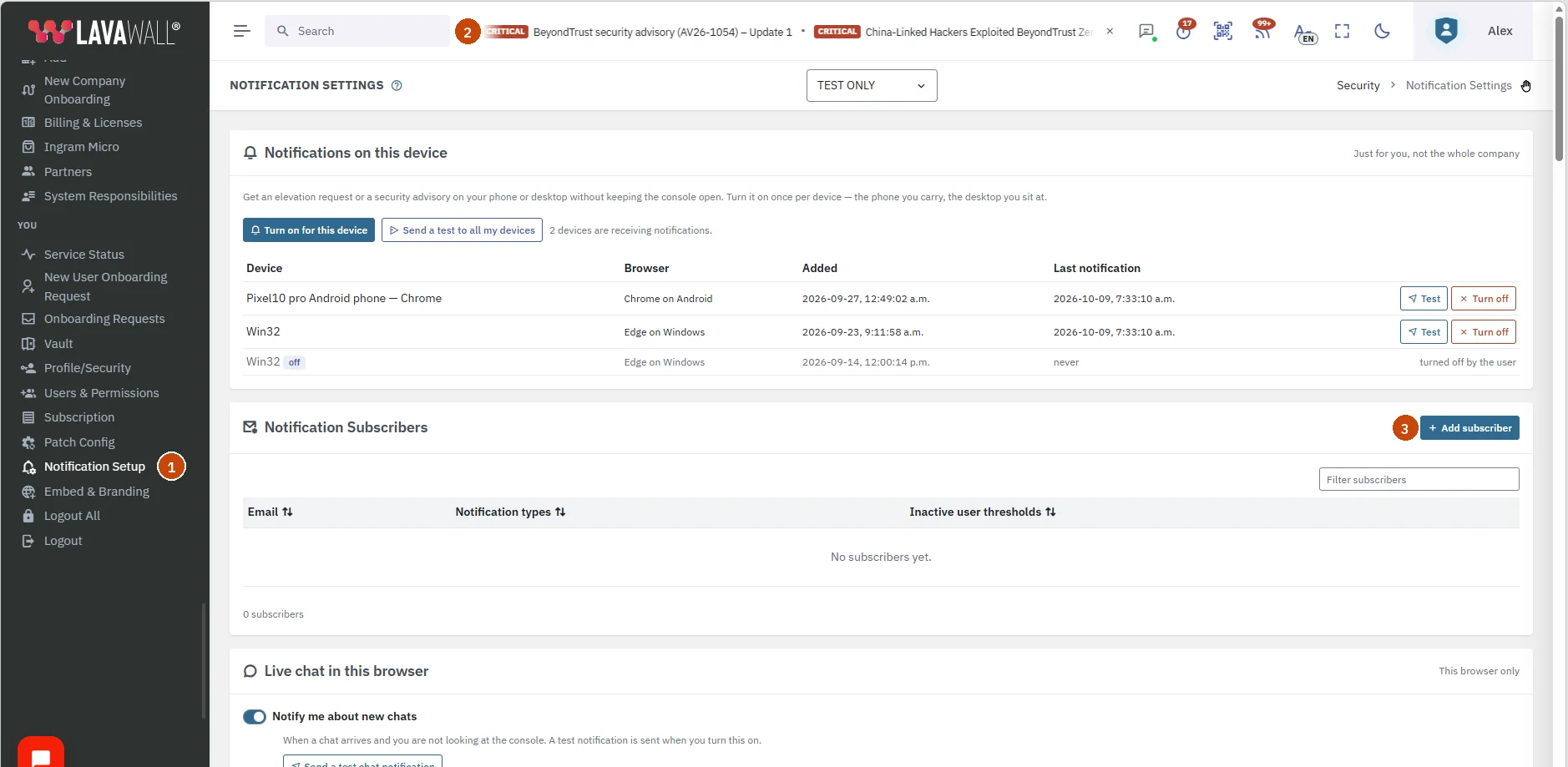
- Notification Setup in the You section at the bottom of the side menu.
- The Search bar at the top of the console: type Notification setup and choose it from the list.
- Add subscriber, beside Notification Subscribers, adds a person who is emailed about this company.
When you set up a new organization, the New Company Onboarding wizard has a Notifications step, Who should hear about problems?. Enter an email address, choose How often (Critical and server outages only, Everything immediately or Daily digest at 9:00 weekdays) and click Add subscriber. Changes there save at once. More settings opens this page for notification types, digest times and browser notifications.
What you see
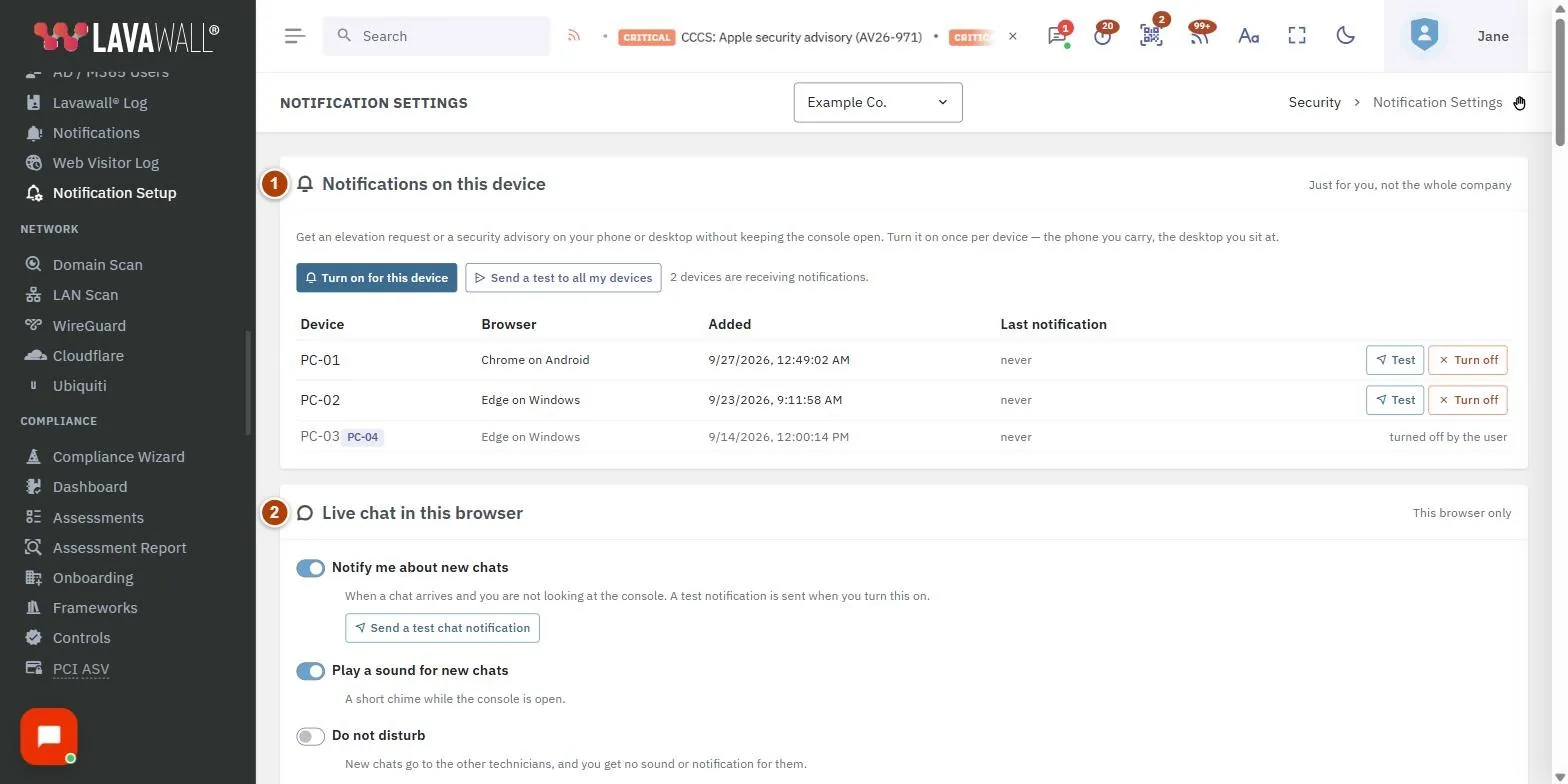
- Notifications on this device: turn on notifications for this browser, send tests, and see your registered devices.
- Live chat in this browser: Notify me about new chats, Play a sound for new chats, with a switch and a Play button for each kind of chat sound, and Do not disturb (shown when live chat is available to you).
- More notification settings: links to Elevation requests, Threat news and All notifications.
- Service provider incidents: which providers' outages and maintenance create notifications.
- Company-Wide Inactive User Defaults: days before an inactive user is reported, per directory.
- Notification Subscribers: each subscriber's email, notification types and inactive user thresholds, with Add subscriber.
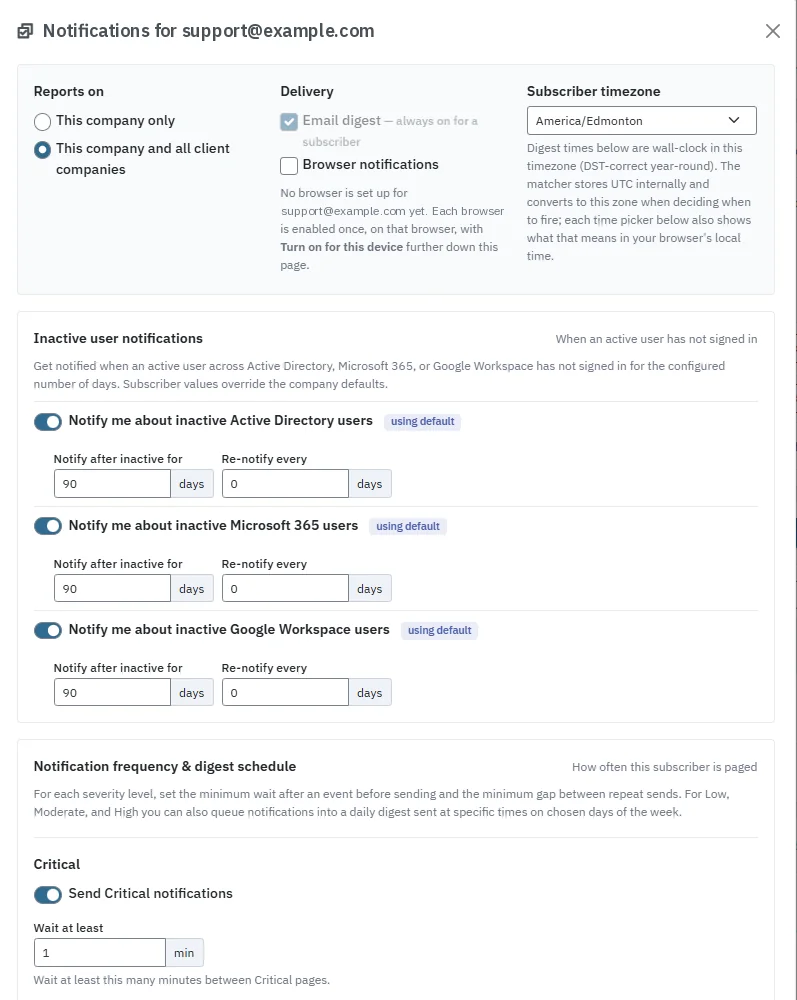
- Notifications for (subscriber): the settings dialog for one subscriber.
How to use Notification Setup
How to get notifications on your phone or computer
- Open this page on the device you want to use.
- Click Turn on for this device, allow notifications when the browser asks, give the device a name and click Turn on.
- Click Send a test to this device to check it works. Send a test to all my devices checks every device you have turned on.
- To stop, click the turn-off button next to the device in the table and confirm.
How to add a subscriber
- Open Notification Setup from the You section of the side menu, or type Notification setup in the search bar.
- Select the company in the company selector at the top of the page.
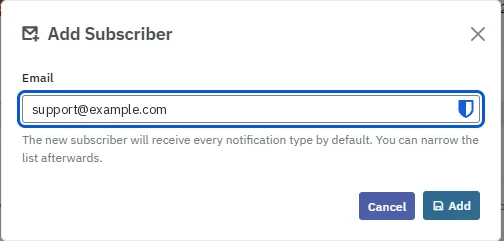
- Click Add subscriber beside Notification Subscribers, enter the email address and click Add.
- The new subscriber receives every notification type by default. Click the edit button on their row to narrow it.
Super Admins of the company are added automatically and receive Critical and Server outage notifications as they happen. If you remove one, they are not added again.
How to choose what a subscriber receives
- Click the edit button on the subscriber's row.
- Under Reports on, choose This company only or This company and all client companies.
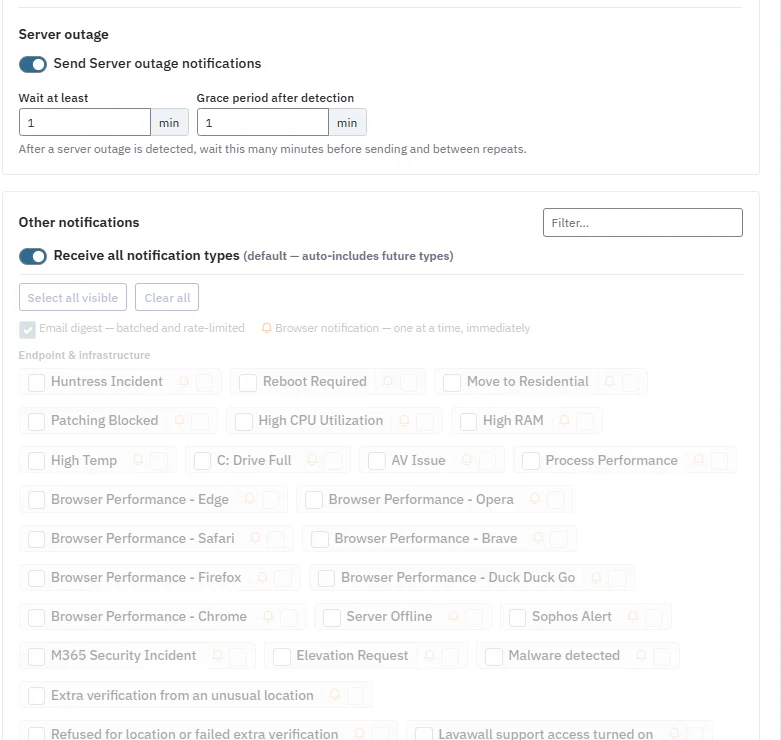
- Under Delivery, the Email digest is always on. Tick Browser notifications to also send to their registered devices.
- Choose the Subscriber timezone. Digest times are in this timezone.
- Under Other notifications, leave Receive all notification types on to include future types automatically, or turn it off and tick the types you want. Use Filter..., Select all visible and Clear all to speed this up.
- Click Save.
How to get backup storage notifications
The Backup section of the notification types has two notifications about the storage in your Lavawall Backup plan:
- Backup storage nearly full: the space used has reached the plan's warning level, 90% unless the plan sets another. Backups pause when it is full.
- Backup storage full, backups paused: new backups are paused. Restores and downloads still work and nothing is deleted.
- Click the edit button on the subscriber's row.
- Under Other notifications, a subscriber with Receive all notification types on already gets both. Otherwise, turn it off and tick Backup storage nearly full and Backup storage full, backups paused in the Backup section. Type Backup in Filter... to find them.
- Click Save.
Each notification is raised once when the level is reached, links to the storage and capacity details on Backup & Recovery, and closes by itself when the space used drops back down. They are raised only for plans with a set capacity.
How to control how often someone is contacted
- Open the subscriber's settings.
- Under Notification frequency & digest schedule, for each level (Critical, High, Moderate, Low, Server outage) tick Send … notifications and set Wait at least (minutes between sends).
- For High, Moderate and Low, set up to two digest slots with a time and days of the week. Turn off sending for Low if you only want Low notifications in the digest.
- Click Save.
How to set inactive user thresholds
- Under Company-Wide Inactive User Defaults, for Active Directory, Microsoft 365 and Google Workspace, set Notify after inactive for (days) and Re-notify every (days, 0 = once only), tick Enabled for this company and click Save. Reset returns to the default.
- To override for one person, open their settings, and under Inactive user notifications change the values or click Use company default.
How to get service provider outage alerts
- Under Service provider incidents, choose For every provider: Automatic (providers in use), All providers or Off.
- Override individual providers in the table with Filter providers and the Alerts column.
- To be emailed, tick Service provider outage and Service provider issue or maintenance for a subscriber.
Tips
- Device notifications are just for you; everything below that card applies to the whole company.
- Super Admins are subscribed automatically to Critical and Server outage notifications. Remove one from Notification Subscribers if they should not be emailed; they are not added back.
- Critical and Server outage notifications are sent immediately; they are never held for a digest.
- The inactive user threshold falls back to 90 days when nothing is set.
- Provider incidents close on their own when the provider marks the problem resolved. Only active clients are counted.
- Do not disturb for chat sends new chats to other technicians instead of you.
- Each chat sound is different: a new chat, another message from the visitor, an invitation from a colleague, and a waiting visitor whose chat has been left unattended. Turn off any you do not want, and press Play to hear one. With several console tabs open, each sound plays once.
Troubleshooting
- The test did not appear.
- Check that notifications are allowed for your browser in the device's own settings, and that Do Not Disturb or Focus is off.
- "That device needs turning on again".
- Its registration expired. Open this page on that device and choose Turn on for this device.
- "Invalid days".
- Inactive days must be between 1 and 3650; re-notify between 0 and 3650.
- "Your role cannot change provider alerts."
- Ask an administrator to change the provider settings.
- A subscriber gets nothing.
- If Receive all notification types is off and no types are ticked, they receive nothing. Tick at least one type.
Task guides that use this page
Related articles
Still need help?
Search the support centre, or contact our support team and tell us which page you were on:
- Chat now: use the chat button in the bottom-right corner of this page to reach our team right away. Where cookie consent is needed, the chat starts after you accept (cookie settings).
- Email: send our support team a message through the contact page. It goes straight to a person.
- Phone:
 AB: 1-403-538-5053
 US: 1-406-988-7333
 UK: +44 20 3695 9786
Names, companies, devices and figures in the pictures are examples. Other product and company names are trademarks of their respective owners.