Elevation Settings
Choose how Application Elevation runs for a company, how long approvals last, who is notified, and what users see.
What the page is for
Elevation Settings is a page in the Lavawall® console, in the Application elevation area. Lavawall is the RMM, security, and compliance platform from ThreeShield, built and hosted in Canada. About this feature.
Settings apply to one company at a time. At the top you choose the operating mode: Disabled, Audit, Enforce, or Enforce + Ringfence. Below that you set how decisions are made (audit period, default approval length, how long a computer waits for a decision, the technician session window, offline grace period and several safety switches), how notifications and tickets work, and what the elevation prompt says to your users.
If the module is included in your plan but not switched on for this company, the page offers Turn on Application Elevation. Turning it on does not enforce anything; you pick a mode next.
What you see
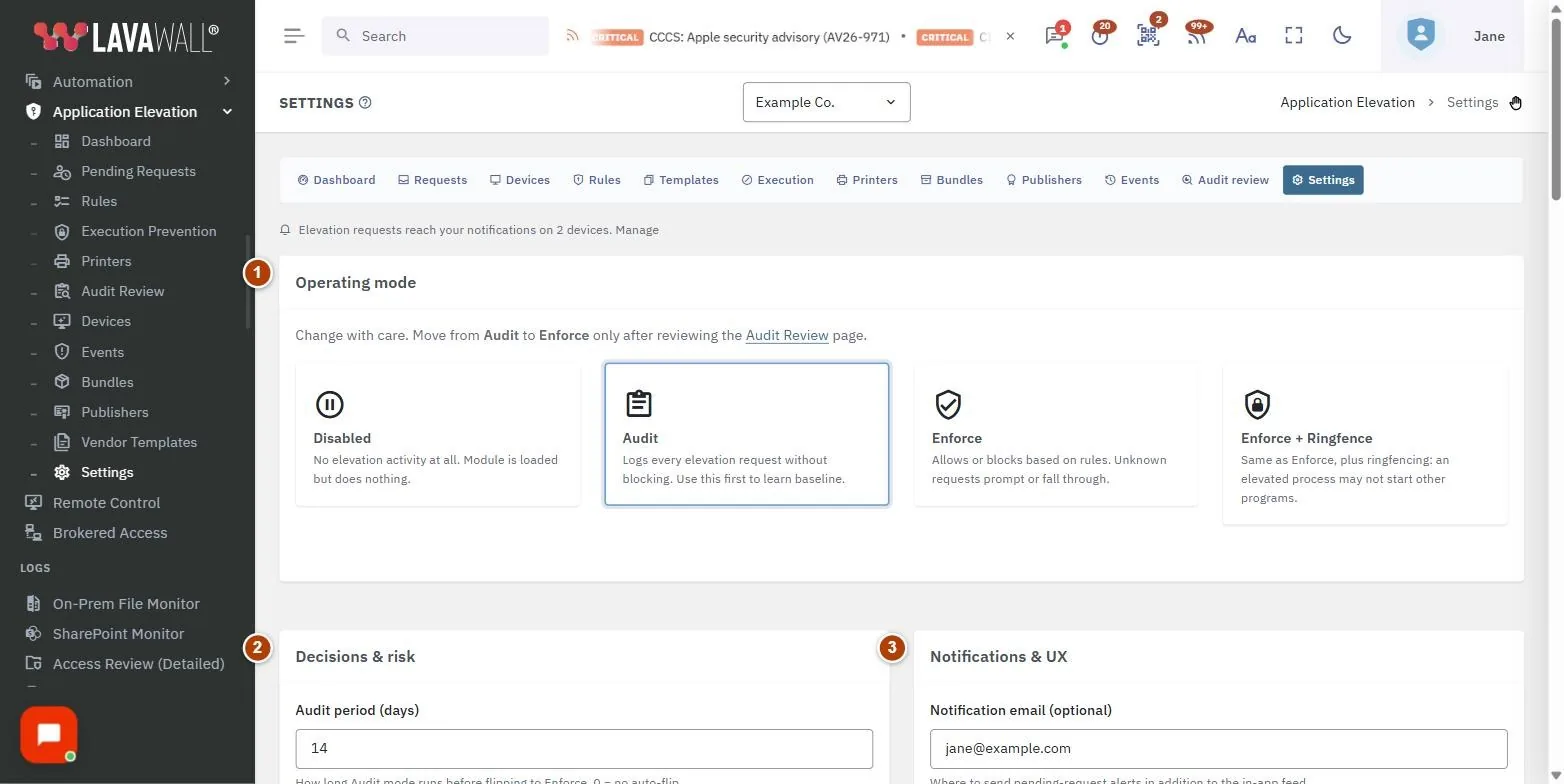
- Operating mode: four cards: Disabled, Audit, Enforce and Enforce + Ringfence. Selecting a card changes the mode immediately.
- Decisions & risk: Audit period (days), Default approval TTL (minutes), Wait for a decision (minutes), Technician session window (minutes), UAC credential provider, Restrict the temporary account, Offline grace period (hours) and four switches.
- Notifications & UX: Notification email, User message branding, Hotkey (technician quick-prompt), Max CPU (%) and Max RAM (%).
- When somebody asks for elevation: Show a notification in the console, Notify the parent company too, Raise a ticket for each request, and Time to log when a request was allowed automatically.
- Save changes: saves everything except the mode.
- Danger zone: Deauthorize Application Elevation.
How to use Elevation Settings
How to move from Audit to Enforce
- Review the Audit Review page and allow the common items first.
- Select the Enforce card. The mode changes straight away.
- Alternatively, set Audit period (days) so Audit switches to Enforce by itself after that many days (0 means no automatic switch).
How to change approval timings
- Set Default approval TTL (minutes), used when an approver does not pick one. 0 means one-time only.
- Set Wait for a decision (minutes): how long the computer keeps a request open. The default is 1440 (24 hours).
- Set Technician session window (minutes): after a QR approval, how long the technician can re-elevate without another prompt.
- Select Save changes.
How to set the technician hotkey
- Under Hotkey (technician quick-prompt), tick at least one of Ctrl, Alt, Shift or Win.
- Choose one letter or digit as the key. A preview shows the combination, with a warning if Windows or browsers already use it.
- Select Save changes.
How to set up notifications and tickets
- Enter a Notification email for pending-request alerts, in addition to the in-app feed.
- Turn on Show a notification in the console so approvers see a pop-up and a count on the scanner button.
- For customers who manage their own elevation, turn off Notify the parent company too.
- Turn on Raise a ticket for each request and set the minutes to log for requests an allow rule approved automatically (0 closes the ticket without logging time).
- Select Save changes.
How to customise the prompt users see
- Type a short message in User message branding, for example "Need help? Call Example Co. IT on 555-0100."
- Select Save changes.
How to switch the module off
- Under Danger zone, select Deauthorize Application Elevation and confirm.
- Computers stop enforcing rules within the offline grace period. Your rules and audit logs are kept.
Tips
- Start in Audit: it logs every request without blocking and shows you what Enforce would do.
- Block elevation when parent is browser, mail, or script host stops a common attack path where a downloaded file or email attachment asks for admin rights.
- Require 2FA for technician approvals adds a second factor for the person approving.
- Max CPU (%) and Max RAM (%) cap how much the agent may use on each computer.
- The UAC credential provider lets a computer answer an administrator-password prompt by itself while a technician session is open, using a temporary local account. Keep Restrict the temporary account on its recommended setting.
- A Block on the credential provider, or a requirement to restrict the temporary account, applies to that company and every company below it and cannot be relaxed lower down. A customer can always be stricter than their MSP, never looser.
Troubleshooting
- "Pick a company first."
- : Settings belong to one customer at a time. Choose one in the company selector.
- "Application Elevation is included in your plan: turn it on for this customer."
- : Select Turn on Application Elevation (administrators only).
- "You don't have permission to change elevation settings."
- : Ask for the elevation Admin permission.
- "Failed to change mode."
- : The mode change was refused; the page reloads to show the current mode.
- The credential provider option says "not available: … has blocked it".
- : A company above this one has blocked it, and that cannot be overridden here.
Task guides that use this page
Related articles
Still need help?
Search the support centre, or contact our support team and tell us which page you were on:
- Chat now: use the chat button in the bottom-right corner of this page to reach our team right away. Where cookie consent is needed, the chat starts after you accept (cookie settings).
- Email: send our support team a message through the contact page. It goes straight to a person.
- Phone:
 AB: 1-403-538-5053
 US: 1-406-988-7333
 UK: +44 20 3695 9786
Names, companies, devices and figures in the pictures are examples. Other product and company names are trademarks of their respective owners.