Threat News
Keep up with security advisories and vulnerabilities from the sources you choose, and get them by email or console notification.
What the page is for
Threat News is a page in the Lavawall® console, in the Threat hunting area. Lavawall is the RMM, security, and compliance platform from ThreeShield, built and hosted in Canada. About this feature.
Threat News collects security advisories, vulnerability notices, research and product updates from a list of sources, and shows them in one place. It starts on High and above so routine vendor posts do not bury the advisories that matter.
Each item shows a severity badge, the title (which opens the original advisory in a new tab), the source, when it was published, a summary, any CVE numbers (linked to the US National Vulnerability Database), and tags. Items you have not read are highlighted. Sources are available in English and French (see French-language sources).
On the right you choose which sources you follow and how you want to be told about new items: a desktop ticker, an email digest, or console notifications.
What you see
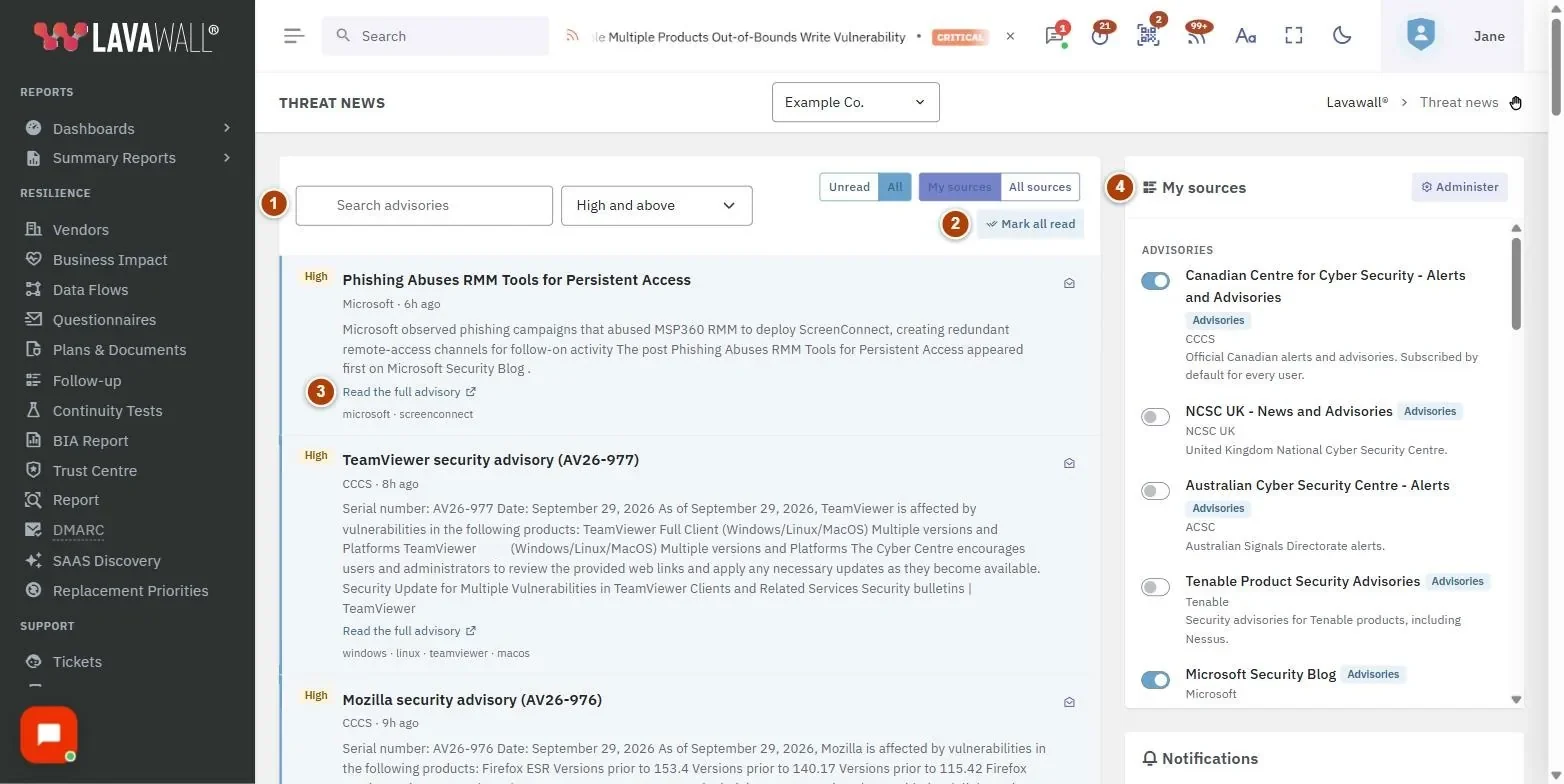
- Search and filters: Search advisories, a severity drop-down, Unread / All, and My sources / All sources.
- Mark all read: marks every item published so far as read.
- Advisory list: items with severity, title, source, time, summary, CVE links, Read the full advisory and a read/unread button, with Load more at the bottom.
- My sources: a switch for each source, grouped by category, with its vendor, description, and language. Administrators also see the Administer button.
- Notifications: Show the desktop ticker, Email digest, Send at, On, Only include items at or above, Console notifications and Save.
How to find advisories
- Type a word or CVE number in Search advisories.
- Pick a severity: Any severity, Low and above, High and above or Critical only.
- Choose Unread to hide what you have already seen, and All sources to look beyond the sources you follow.
- Click Load more to see older items.
How to choose your sources
- In My sources, turn on the switch beside each source you want to follow, and turn off the ones you do not.
- Changes save as you switch them. Sources with a lock icon are required by your administrator and cannot be turned off.
Each source shows its language. To follow advisories in French, turn on the French-language sources described below; you can keep the English sources on at the same time.
How to get a digest by email
- Under Notifications, set Email digest to Hourly, Daily or Weekly.
- For daily or weekly, choose the time in Send at, and for weekly the day in On.
- Choose the lowest severity to include in Only include items at or above.
- Click Save. The digest goes to your account's email address, shown under the field.
How to turn on console notifications or the ticker
- Tick Console notifications and choose the lowest severity to be notified about.
- Tick Show the desktop ticker to show scrolling headlines in the console.
- Click Save.
How to mark items read
- Clicking an item marks it read. Use the envelope button on the right of an item to mark it read or unread.
- Click Mark all read and confirm to clear everything published up to now.
French-language sources
French-language sources sit alongside the others in My sources, and are labelled French in the administrator's list. They include:
- Centre canadien pour la cybersécurité – Alertes et avis (CCCS): Canada's official alerts and advisories, in French. This source is on by default for people who use the console in French.
- Centre canadien pour la cybersécurité – Conseils, nouvelles et événements (CCCS): the Centre's guidance and news, in French.
- Centre gouvernemental de cyberdéfense (Québec) – Avis de sécurité (Gouvernement du Québec): security advisories published by Quebec's government cyber defence centre.
- CERT-FR – Alertes de sécurité (CERT-FR, ANSSI): alerts from the French government CERT on critical vulnerabilities being exploited or imminent threats. It publishes rarely.
- IT-Connect: French-language news and analysis, such as the monthly Microsoft Patch Tuesday summary.
The English feeds from the Canadian Centre for Cyber Security remain available and are labelled English. Turn on either, or both.
For administrators: company sources
Administrators decide which sources every user in a company starts with, and which ones are required. In My sources, click Administer to open the News sources page, then choose the Company subscriptions tab. The tab also has Sources and Mailbox sources.
- Choose the company in Company.
- To turn a source on for everyone, for example a French-language source, turn on Subscribed for everyone on its row. Each user can still turn it off.
- Turn on Required only when nobody should be able to turn the source off. The source stays on and the switch is locked for users.
- Turn on Raise console notifications and choose the Minimum severity to tell users about important new advisories.
The French version of this article shows the Company subscriptions tab in French.
Tips
- The RSS icon in the top bar shows how many unread items you have and a short list; View all opens this page.
- CVE badges link to the National Vulnerability Database entry for that CVE.
- To read mostly in French, turn on the French-language sources and turn off their English equivalents.
- Keep the list on High and above day to day, and use Any severity when you are researching a specific product.
- To change where the digest is sent, change your email address on your Profile.
Troubleshooting
- "Nothing to read here."
- No items match your filters. Pick sources under My sources, or switch to All sources.
- "No email address on your account, so a digest cannot be delivered."
- Add an email address to your account.
- "Could not save" or "Could not change that."
- Try again in a moment.
- A source cannot be switched off.
- Your administrator has made it required. Administrators manage this under Company subscriptions.
- I cannot see any French-language sources.
- Choose All sources, then turn on the French-language sources under My sources. If a source does not appear at all, your administrator may have removed it from the company list.
Related articles
Still need help?
Search the support centre, or contact our support team and tell us which page you were on:
- Chat now: use the chat button in the bottom-right corner of this page to reach our team right away. Where cookie consent is needed, the chat starts after you accept (cookie settings).
- Email: send our support team a message through the contact page. It goes straight to a person.
- Phone:
 AB: 1-403-538-5053
 US: 1-406-988-7333
 UK: +44 20 3695 9786
Names, companies, devices and figures in the pictures are examples. Other product and company names are trademarks of their respective owners.