Training Management
Assign security awareness courses to staff, track who has finished, and keep training up to date automatically.
What the page is for
Training Management is a page in the Lavawall® console, in the Security awareness training area. Lavawall is the RMM, security, and compliance platform from ThreeShield, built and hosted in Canada. About this feature.
This is the control centre for Lavawall security awareness training. It shows how training is going at a glance, lists the course library, and lets you assign courses or bundles to groups of people or to individuals with a due date. To build a program of several modules for a group, sent all at once or one module at a time, click Build a program to open Training Programs.
Training groups can be built automatically from your Microsoft 365 or Google Workspace users, including a group of new users who have not done any training yet. You can turn on auto-assignment so new staff are enrolled in a default course as soon as they appear, and set training to expire so people are re-enrolled on a regular cycle.
Learners receive email invitations and reminders and take courses in a branded training portal. Courses can require people to acknowledge a company policy before they receive their certificate, which gives you evidence for audits.
What you see
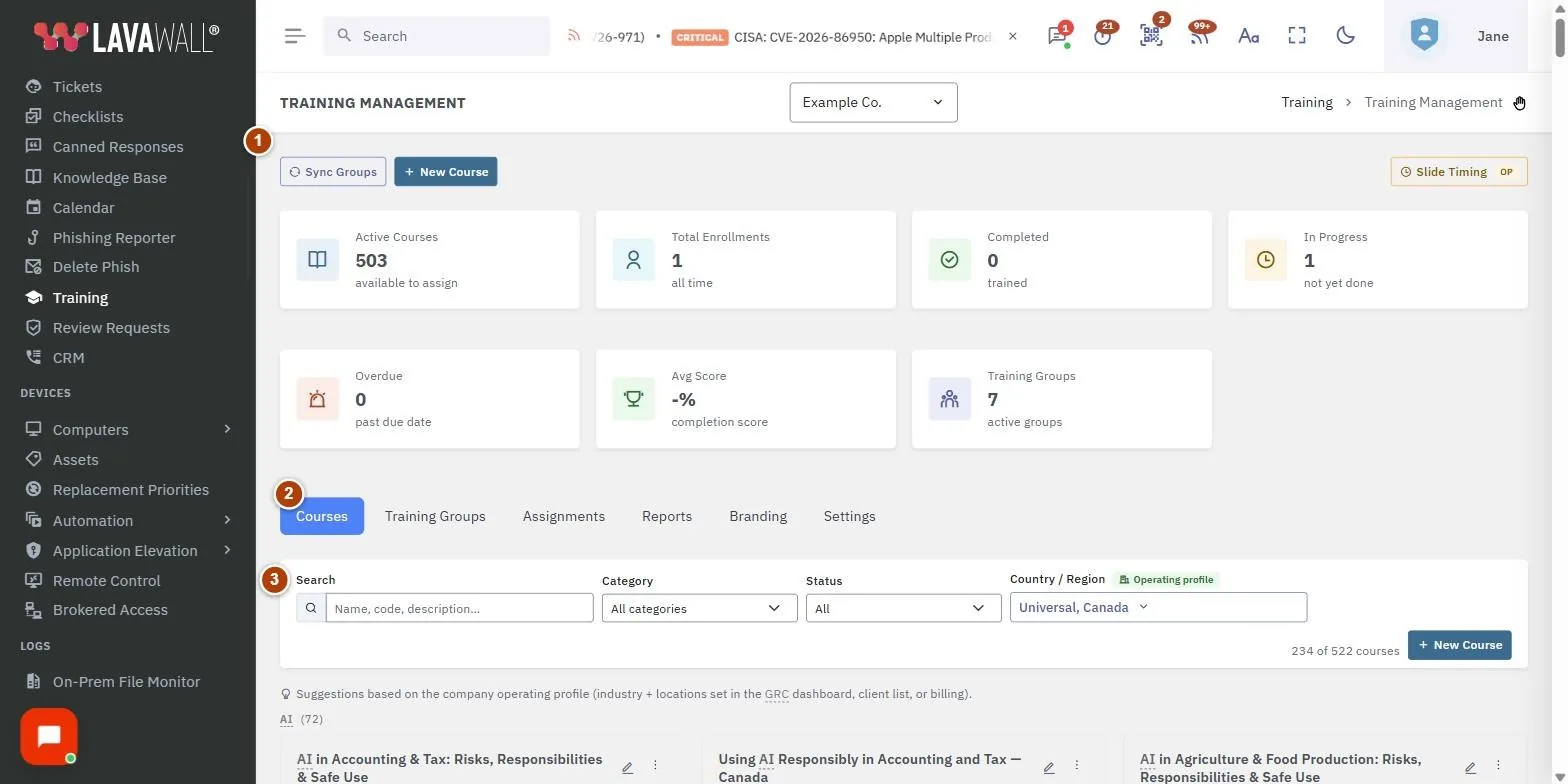
- Actions and summary cards: Sync Groups and New Course, and cards for Active Courses, Total Enrollments, Completed, In Progress, Overdue, Avg Score and Training Groups.
- Sections: Courses, Training Groups, Assignments, Reports, Branding and Settings.
- Courses: filters for Search, Category, Status (Has Enrollments, Never Assigned, Requires Policy Ack) and Country / Region. Category, Status and Country / Region each let you tick more than one; with nothing ticked in Category or Status, every course shows, and a course matches Status when it meets any ticked status, and a grid of course and bundle cards. Suggested courses for the company's industry and locations are marked with a star.
- Course card menu: Edit Course or Edit Bundle, Assign to Group, View Report and Preview.
- Assignments: Assign to Individual and New Assignment, a table with Course / Combo, Group, Due Date, Enrolled, Progress and Lang, and Individual Enrollments below. Expand an assignment to see each person's status, score, dates and whether they accepted the policy.
How to assign training to a group
- Open Assignments and click New Assignment (or choose Assign to Group on a course card).
- Choose the Course or Combo. Starred items are suggested for this company.
- Choose a Training Group, or All Company Users.
- Set a Due Date, an optional Language Override and Reminder Days Before Due.
- Leave Send invitation emails immediately ticked to email people now.
- To require a policy, tick Require policy acknowledgement for this assignment and choose the Policy to Acknowledge.
- Click Assign & Enrol.
How to assign training to one person
- Click Assign to Individual.
- Search for the Person by name or email, or add a new person with first name, last name and email and click Use this person.
- Choose the Course or Combo, Due Date and Language.
- Click Enrol Individual.
How to set up training groups
- Open Training Groups. The system groups All Users, M365 Licensed Users, Google Workspace Users and New Users Without Training are created for you; click Refresh System Groups to create or update them.
- Click New Group to make your own, fill it in and click Save Group.
- Use the row menu to Sync Now, open the Group Report or Delete Group. Sync Groups at the top syncs them all.
How to follow up on overdue or incomplete training
- Open Assignments and expand an assignment.
- Use the resend button to send the invitation again, or the re-enrol button to re-enrol the person and send a fresh invitation.
- To collect a policy acknowledgement from someone who has already finished, click the policy button next to them (Re-enrol for Policy Acknowledgement), choose the policy and confirm.
- For wider reporting, open Reports and click CSV or Full Reports.
How to automate training for new staff
- Open Settings.
- Under Auto-Assignment Settings, tick Auto-assign default course to new licensed users and choose the Default Course for New Users.
- Under Completion & Expiry, set Training Expiry (days) so people are re-enrolled automatically, and Reminder Days Before Due Date.
- Click Save Settings.
How to brand the training portal and emails
- Open Branding and set Company Name on Training Pages, Primary Colour, Accent Colour and Training Portal Logo (PNG, JPEG, GIF, WebP or SVG up to 2 MB; about 300×80 px works best). Optionally set a Custom Portal Domain, as a host name such as training.example.com. Click Save Branding.
- In Settings, under Training Email Settings, set the From Email Address, From Name and Reply-To Email, and click Save Email Settings. The From address must use a domain your organization has verified in Lavawall, or be left blank to send from Lavawall.
What learners see when they take a course
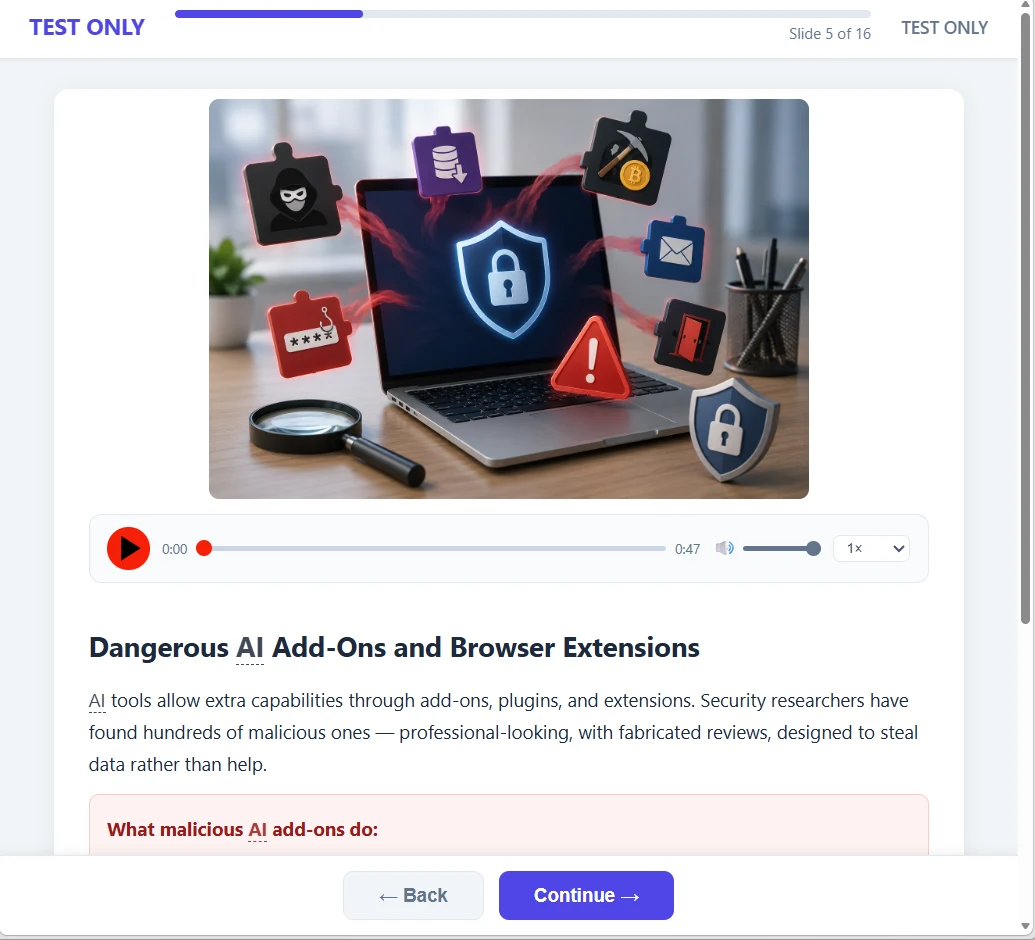
- Each question allows two tries. After a wrong first answer the learner is told so and can choose again. The correct answer and the explanation appear once the question is answered correctly or the second try is used.
- Only the first two tries count toward the score, even if the learner opens a newer invitation link for the same enrolment.
- Every slide has to be viewed for its minimum time, and any policy on the course has to be acknowledged, before Finish Training records a result. If something is missing, the learner sees a short message and can go back; their answers are kept.
- The continuing professional education (CPE) time on a certificate is the time the learner was active in the course (the course had focus, or its audio or video was playing), never more than the time the course was open, and up to the course's total voiceover and video time. A slide without voiceover or video counts its minimum time. A certificate keeps the CPE time it was issued with.
Tips
- Set the company's industry and operating locations to get suggested courses first. The page tells you where to set them.
- Child companies use the parent's branding unless you override it.
- Assign bundles when a group needs several courses. Build them on the Course Bundles page.
- Watch the Overdue card. Expand the assignment to resend invitations to the people who have not started.
- Training emails come from a Lavawall address by default. Use your own verified domain in Training Email Settings so staff trust them.
- An SVG logo must be a plain drawing: Lavawall refuses SVG files that contain scripts, links to other files or embedded images. Export it again as plain SVG, or use PNG.
- For training emails, use a PNG, JPEG or GIF logo under 1 MB: it travels inside each email, so it shows in Outlook, Gmail and Apple Mail. A WebP or SVG logo is linked instead, and many email apps do not show it.
Troubleshooting
- "No courses match your filters."
- Click Clear filters, tick more categories or statuses, or tick more countries in Country / Region.
- "No groups yet."
- Click New Group, or Refresh System Groups to create Microsoft 365 and Google Workspace groups automatically.
- "No assignments yet."
- Click New Assignment to enrol a group in a course.
- A system group has no members.
- Connect Microsoft 365 or Google Workspace, then click Sync Groups.
- "This SVG cannot be used" when saving the logo.
- The file contains something other than a drawing, such as a script, a link to another file or an embedded image. The message names what was found. Export the logo again as plain SVG, or upload a PNG.
- "The From address must use a domain your organization has verified".
- Verify the domain for your organization in Lavawall first, or leave the From address blank.
- A learner says the course will not finish.
- The message tells them what is missing: a slide not viewed long enough, or a policy not acknowledged. Ask them to go back through the course with Back; their answers are kept.
- You see an access message instead of the page.
- Your role or plan does not include training administration. Ask an administrator.
Task guides that use this page
Related articles
Still need help?
Search the support centre, or contact our support team and tell us which page you were on:
- Chat now: use the chat button in the bottom-right corner of this page to reach our team right away. Where cookie consent is needed, the chat starts after you accept (cookie settings).
- Email: send our support team a message through the contact page. It goes straight to a person.
- Phone:
 AB: 1-403-538-5053
 US: 1-406-988-7333
 UK: +44 20 3695 9786
Names, companies, devices and figures in the pictures are examples. Other product and company names are trademarks of their respective owners.