Training Programs
Build a training program for a group from short micro-modules and full courses, then send it all at once or one module at a time.
What the page is for
Training Programs is a page in the Lavawall® console, in the Training section of the menu. Lavawall is the RMM, security, and compliance platform from ThreeShield, built and hosted in Canada. About this feature.
It builds a security awareness training program for one training group. You answer a few questions about where the group works, its industry, the rules it must follow and the language it trains in, and Lavawall suggests a list of short micro-modules and full courses in a sensible order. You can change the list before you send it.
You then choose how the program goes out: everything at once with one due date, or one module at a time on a schedule (drip), so people get a short lesson every week or month instead of one long course. People who join the group later are enrolled too.
The programs you build are listed at the top of the page with their delivery, cadence, number of learners and progress. Single courses and bundles are still assigned on Training Management.
What you see
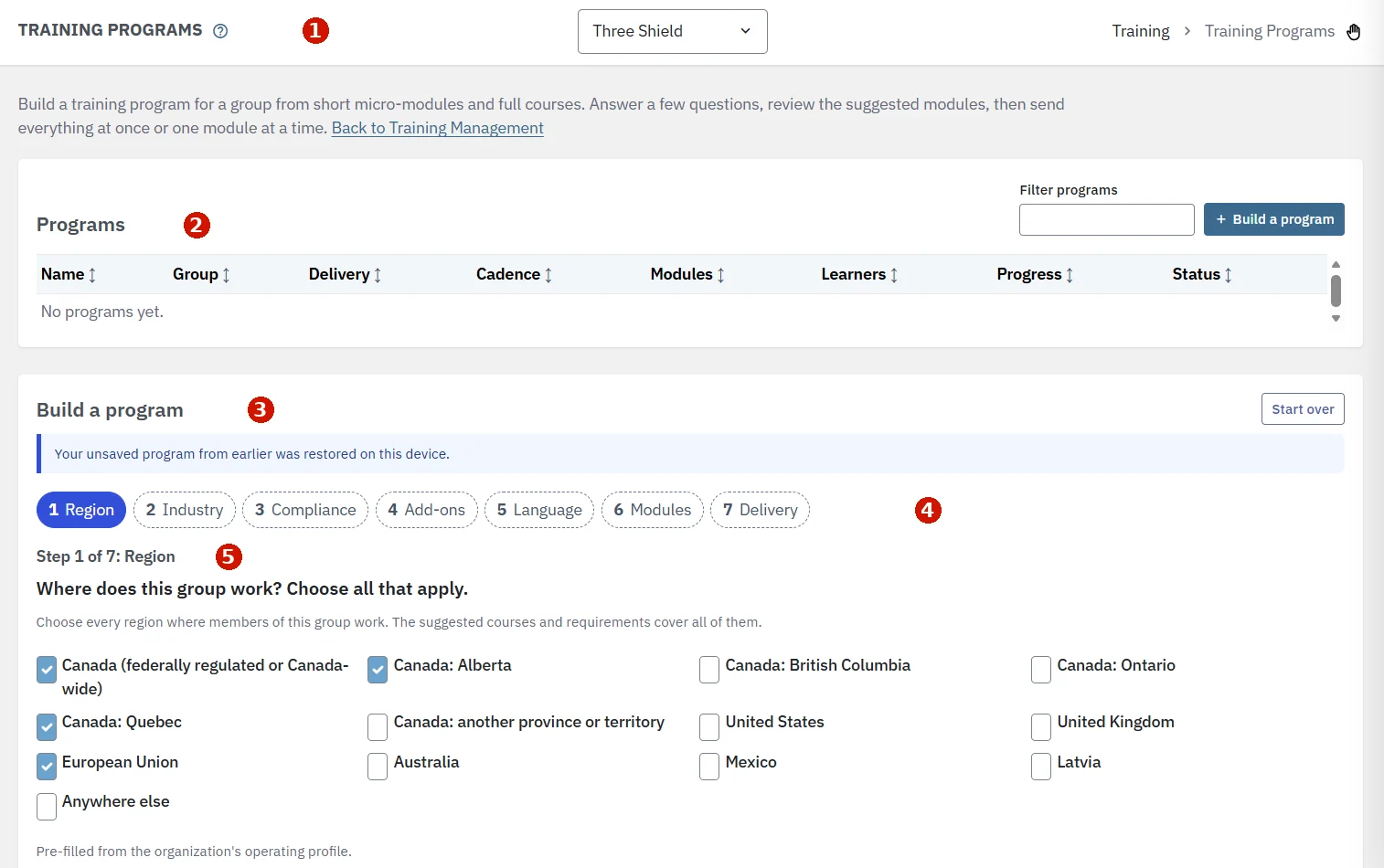
- Page title: Training Programs, the organization selector and the breadcrumb. The link Back to Training Management sits below.
- Programs: a table with Name, Group, Delivery, Cadence, Modules, Learners, Progress and Status, a Filter programs box and the Build a program button. Click a column heading to sort. Each row has View, Pause or Resume, and Delete, plus Assign now when the program is not assigned yet.
- Build a program: the wizard, with Start over. When you come back to an unfinished program, a note says Your unsaved program from earlier was restored on this device.
- Steps: Region, Industry, Compliance, Add-ons, Language, Modules and Delivery. Click a step you have already completed to go back to it.
- Current step: here Step 1 of 7: Region, with the question and its choices. The regions are pre-filled from the organization's operating profile. The list includes Canada-wide, every province and territory, the United States as a whole, every state and the District of Columbia, and other countries.
How to build a program
- Open Training Programs from the sidebar, or click Build a program on Training Management. Choose the organization at the top of the page, then click Build a program. The wizard opens by itself when the organization has no programs yet.
- Region: tick every region where members of the group work. Each province, territory and state is a choice of its own, for example Canada: Alberta or United States: New York. The suggested courses and requirements cover all the regions you tick. A province also draws on Canada-wide courses, and a state on courses for the United States as a whole. Click Next.
- Industry: choose the group's industry. The security awareness course is matched to it when one exists; choose General (no specific industry) when none fits.
- Compliance requirements: the requirements suggested for the region and industry are already ticked. Tick or untick any. Only requirements that have a course are listed. The choices now include requirements by region and topic, such as US state consumer privacy laws, US state breach notification laws, US state AI laws, Children online safety laws, Canadian accessibility laws, Provincial health information privacy laws and Canadian AI rules, as well as messaging and calling rules such as CASL (Canada anti-spam law) and CAN-SPAM. Lavawall ticks the ones that fit the regions and industry you chose.
- Add-ons: tick any extra topics that apply to the group, such as Executives and senior staff, Working from home or Using AI tools, or none.
- Language: choose English or Français (Canada). When French is chosen, only courses that are complete in French are used.
- Modules: review the suggested order. Move, remove or add modules; learners take them in this order. Under Add a module, use Search courses by title or code and filter by Format (Micro-modules or Full courses) or Tag. Total time shows the estimated length.
- Delivery: enter the Program name, choose the Training group, choose how the modules are sent (see below) and set Reminder (days before the due date).
- Click Create program. A message confirms how many people were enrolled, or when module 1 goes out.
Delivery options
- All at once: one invitation for the whole program, with one due date. Set a Due date (optional) up to two years ahead, and leave Send invitations now ticked to email people now. Slides that appear in more than one module are shown only once.
- One module at a time (drip): each module is sent on a schedule. Under Send a new module, set Every and the Unit (Days, Weeks or Months), the date in First module on (within the next year) and Days to complete each module. Modules go out at about 9 AM your time, or within a few minutes when the date is today. People who join the group later start at module 1 on the day they join. Short micro-modules are preferred for drip delivery.
- Reminder (days before the due date): from 0 to 60 days. 0 turns reminders off.
Everyone in the training group is enrolled. People who join the group later are enrolled automatically when the group is set to send training to new members.
How to manage a program
- Click View on a program's row to see its delivery, language, region, industry, status and modules. For a drip program, the learners table shows what each person has been sent and completed, and when their Next module is due.
- Click Pause to stop a program for now. No modules are sent while a drip program is paused, and when you click Resume, every learner's schedule moves forward by the time it was paused. People who join the group while a program is paused are not enrolled.
- Click Delete to end a program. No more modules are sent; learners keep the training they already have, and their results stay in the reports.
- If a program shows Not assigned yet, click Assign now.
Tips
- Tick the states or provinces where people work, not only the country. Courses written for one state or province are matched to those regions.
- Set the organization's operating locations and industry first. The wizard pre-fills the region from them and suggests matching requirements.
- If you change your answers after editing the module list, Lavawall asks before rebuilding it. Choose Keep my list to keep your changes, or Rebuild the list for a fresh suggestion.
- Use drip delivery for ongoing awareness: a short micro-module each month keeps security in mind all year without taking people away from their work for long.
- Unfinished answers are kept in this browser on this device only. Click Start over to clear them.
- Your organization's own courses can be added to a program alongside the Lavawall course library.
Troubleshooting
- "No programs yet."
- Click Build a program and answer the seven steps.
- "No security awareness course is available for this region and language. Add one with the search box."
- No base course fits the regions and language you chose. Add a course under Add a module, or go back to Language and choose English.
- "No course is available for … in this language."
- That requirement has no course in the chosen language yet. Choose English, or add another course under Add a module.
- "No modules yet. Add at least one module below."
- Add at least one module with Search courses by title or code before you go on.
- "The program was saved, but it could not be assigned to the group yet."
- Click Assign now on the program's row in the Programs table to try again.
- "Your unsaved program from earlier was restored on this device."
- Carry on where you left off, or click Start over to begin again.
- You see an access message instead of the page.
- Your role or plan does not include training administration. Ask an administrator.
Related articles
Still need help?
Search the support centre, or contact our support team and tell us which page you were on:
- Chat now: use the chat button in the bottom-right corner of this page to reach our team right away. Where cookie consent is needed, the chat starts after you accept (cookie settings).
- Email: send our support team a message through the contact page. It goes straight to a person.
- Phone:
 AB: 1-403-538-5053
 US: 1-406-988-7333
 UK: +44 20 3695 9786
Names, companies, devices and figures in the pictures are examples. Other product and company names are trademarks of their respective owners.