Course Editor
Browse the security awareness course library, preview any course as a learner sees it, and edit the slides, questions and settings of courses your organization owns.
What the page is for
Course Editor is a page in the Lavawall® console, in the Security awareness training area. Lavawall is the RMM, security, and compliance platform from ThreeShield, built and hosted in Canada. About this feature.
This page is the course catalogue for Lavawall training. It lists every course available to you, with its code, version, number of slides, how many of your people are enrolled and which languages it is available in. You can search and filter the list and preview any course in a new tab.
For courses your organization owns, the editor lets you change the course settings (title, description, category, passing score, minimum time per slide, estimated minutes, certificate and policy acknowledgement), manage translations, and build the slides. Slides can be content, questions, policy acknowledgements or summaries, and can be reordered by dragging.
Courses provided by Lavawall are available to everyone and can be previewed and assigned, but not edited.
What you see
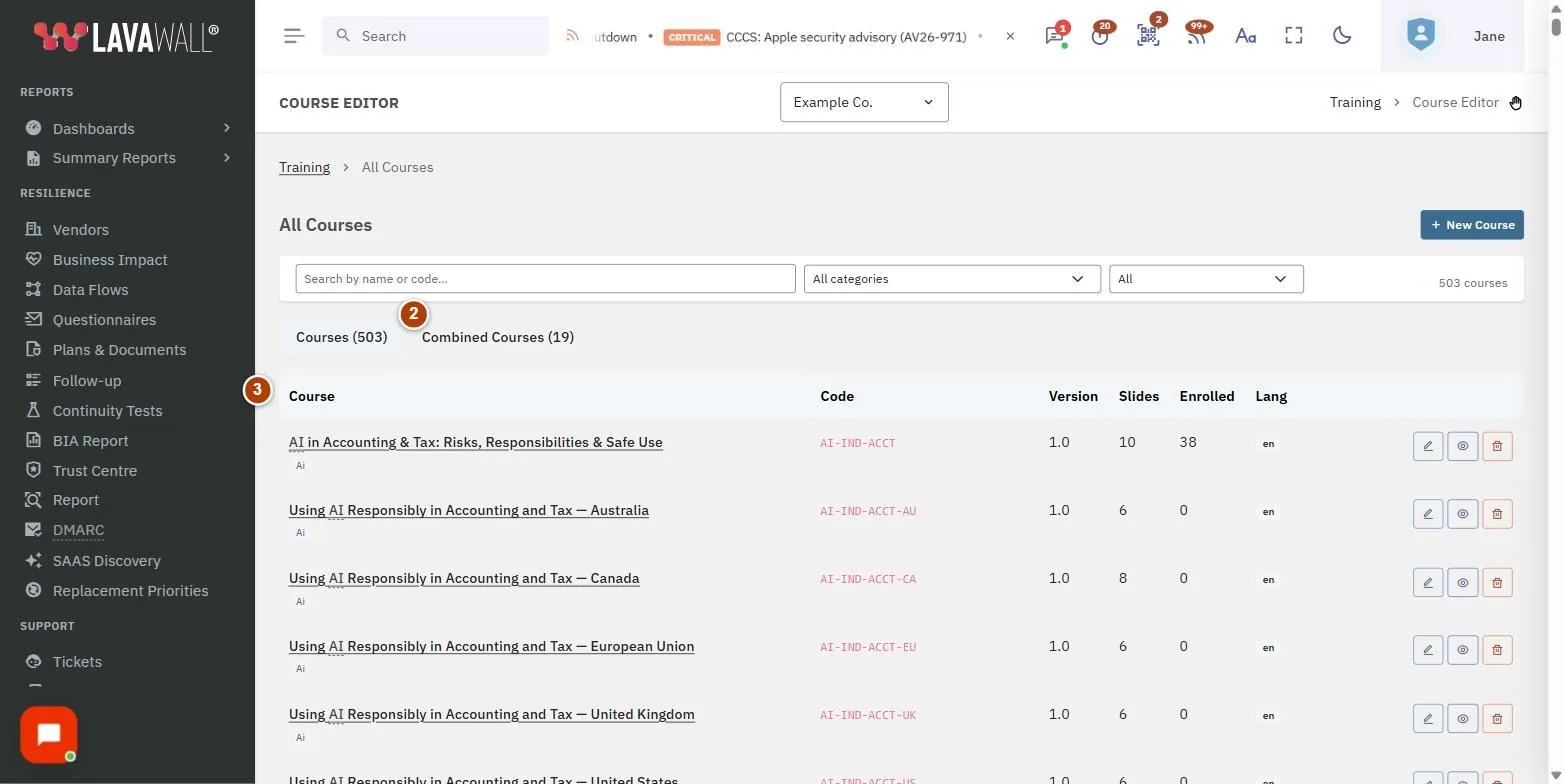
- Search and filters: search by name or code, All categories and a status filter (All, Active, Inactive).
- Tabs: Courses and Combined Courses, each with a count.
- Courses table: Course, Code, Version, Slides, Enrolled and Lang, with preview, edit and delete buttons (edit and delete only on courses you own).
- Course Settings (editor): Course Code, Title (English), Description, Category, Version, Passing Score (%), Min Sec/Slide, Est. Minutes, Issue certificate on completion, Requires policy acknowledgment, Default Policy to Acknowledge, Course Thumbnail, Save and preview.
- Course Translations: title and description in French, Spanish, Arabic and Inuktitut, each saved separately.
- Slides: the ordered slide list with edit and delete buttons, and + Content, + Question, + Policy Ack and + Summary.
How to find and preview a course
- Type in the search box, or choose a category.
- Click the preview button (eye icon) on a course. It opens in a new tab as a learner sees it.
How to edit a course you own
- Click the course title or its edit button.
- Change the settings in Course Settings and click Save.
- To require staff to accept a policy, tick Requires policy acknowledgment and choose a Default Policy to Acknowledge from your compliance documents.
How to add and arrange slides
- In Slides, click + Content, + Question, + Policy Ack or + Summary.
- Fill in the slide in Edit Slide and click Save Slide.
- Drag slides to change their order.
- To remove a slide, click its delete button and confirm. This cannot be undone.
How to add a translation
- In Course Translations, enter the title and description for the language.
- Click the save button next to that language.
How to combine courses
- Open Combined Courses and click New Combo.
- Enter a Combo Code, Title, Description and Passing Score (%), tick the Courses to Include and click Save Combo.
- For more control over order and certificates, use the Course Bundles page instead.
Tips
- Save a new course before adding slides.
- Min Sec/Slide stops learners clicking through slides without reading.
- Use Policy Ack slides to collect evidence that staff have read a policy; the default policy is attached to any policy slide that has none of its own.
- The Lang column shows which languages a course is available in.
- Deleting a course cannot be undone. Consider marking it inactive instead.
Troubleshooting
- "No courses match your search."
- Clear the search box and filters.
- "Save course first."
- Click Save on a new course before adding slides.
- A course title is not a link.
- The course is provided by Lavawall or another organization, so you can preview it but not edit it.
- No New Course button.
- Creating brand-new courses is not available to your account on this page.
Related articles
Still need help?
Search the support centre, or contact our support team and tell us which page you were on:
- Chat now: use the chat button in the bottom-right corner of this page to reach our team right away. Where cookie consent is needed, the chat starts after you accept (cookie settings).
- Email: send our support team a message through the contact page. It goes straight to a person.
- Phone:
 AB: 1-403-538-5053
 US: 1-406-988-7333
 UK: +44 20 3695 9786
Names, companies, devices and figures in the pictures are examples. Other product and company names are trademarks of their respective owners.