Course Bundles
Group several training courses into one bundle that you can assign, track and certify as a single item.
What the page is for
Course Bundles is a page in the Lavawall® console, in the Security awareness training area. Lavawall is the RMM, security, and compliance platform from ThreeShield, built and hosted in Canada. About this feature.
Some groups of staff need more than one course, for example security awareness plus privacy plus payment card handling. A bundle lets you combine existing courses into one assignable item, in the order learners should take them, with one passing score and one certificate.
Bundles reuse existing courses. A course can belong to as many bundles as you like, and changing a course updates it in every bundle that uses it.
The list shows every bundle with its status, code and number of courses. From each bundle you can edit it, preview it as a learner would see it, or go straight to assigning it.
What you see
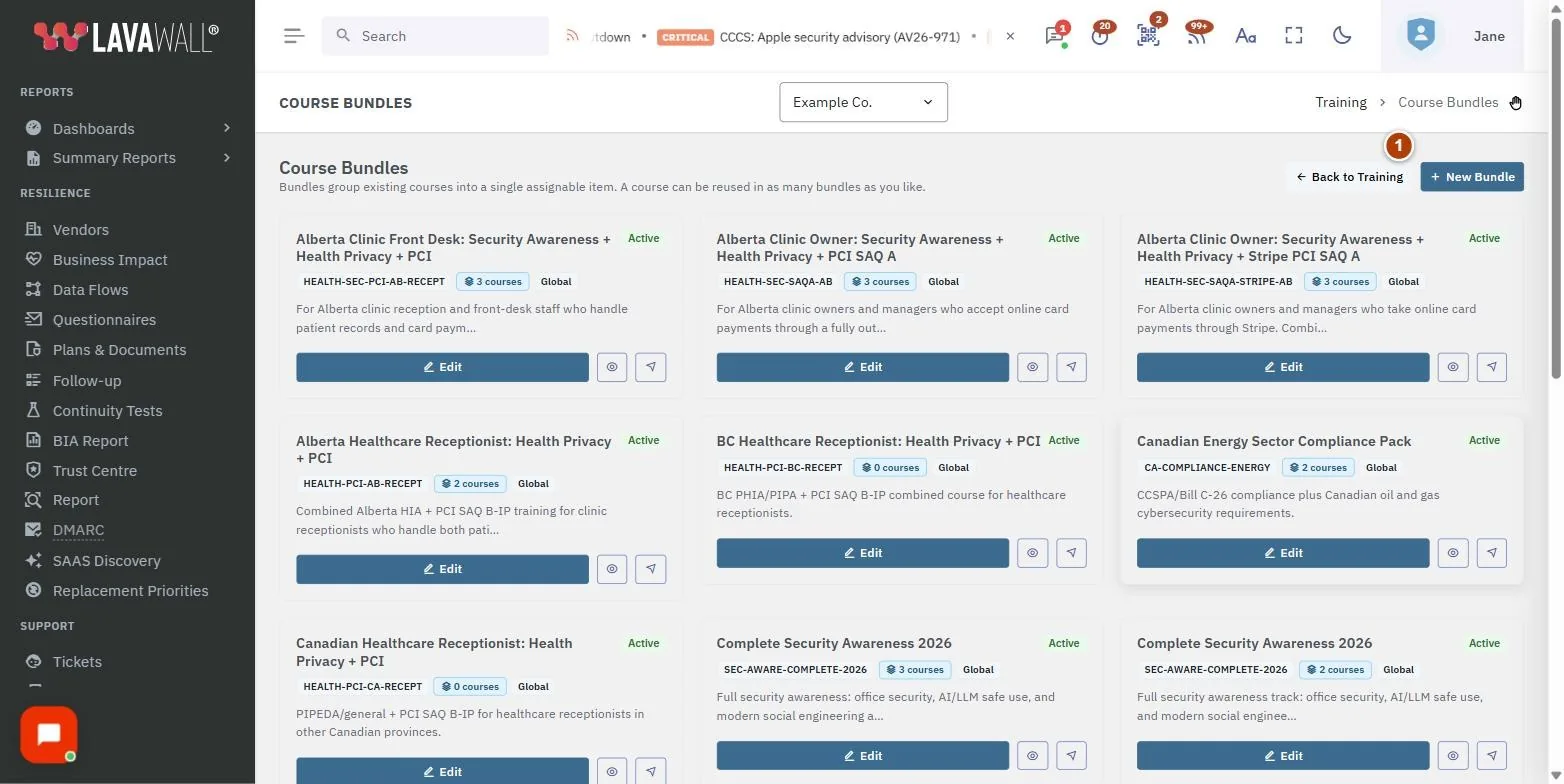
- Course Bundles: Back to Training and New Bundle.
- Bundle cards: title, Active or Inactive, bundle code, number of courses, a short description, and Edit, preview and assign buttons. Bundles provided by Lavawall for everyone are marked Global.
- Bundle Details (editor): Title, Bundle Code, Description, Passing Score %, Certificate and Active.
- Courses in this Bundle: the ordered list of member courses. Drag to reorder; learners take them top to bottom.
- Add Courses: search the available courses and add them to the bundle.
- Editor buttons: All Bundles, Preview, Delete and Save Bundle.
How to create a bundle
- Click New Bundle.
- Enter a Title. Leave Bundle Code blank to have one generated.
- Add a Description saying who the bundle is for.
- Set the Passing Score % and tick Certificate if learners should get one.
- In Add Courses, search for each course and click its add button.
- Drag the courses in Courses in this Bundle into the right order.
- Click Save Bundle.
How to change a bundle
- Click Edit on the bundle card.
- Change the details, add or remove courses (use the remove button on a course), or drag to reorder.
- Click Save Bundle.
How to preview and assign a bundle
- Click the preview button (eye icon) to open the bundle as a learner sees it, in a new tab.
- Click the assign button (send icon) to open Training Management with the bundle ready to assign.
How to retire or delete a bundle
- To stop using a bundle but keep its history, untick Active and click Save Bundle.
- To remove it, open it and click Delete, then Delete bundle. The courses themselves are not deleted, but the bundle and its enrollments are, and this cannot be undone.
Tips
- Build bundles by role, for example "Front desk" or "Finance team".
- Put the most important course first. Learners go top to bottom.
- Prefer marking a bundle inactive over deleting it, so completion records stay.
- The default passing score for a new bundle is 80%.
Troubleshooting
- "No bundles yet."
- Click New Bundle to create one from existing courses.
- "Title required."
- Give the bundle a title before saving.
- "Saved, but… course list failed."
- The bundle details saved but the course list did not. Check the courses and click Save Bundle again.
- You see the list but no editor.
- Your role can view training but not manage it. Ask an administrator.
Task guides that use this page
Related articles
Still need help?
Search the support centre, or contact our support team and tell us which page you were on:
- Chat now: use the chat button in the bottom-right corner of this page to reach our team right away. Where cookie consent is needed, the chat starts after you accept (cookie settings).
- Email: send our support team a message through the contact page. It goes straight to a person.
- Phone:
 AB: 1-403-538-5053
 US: 1-406-988-7333
 UK: +44 20 3695 9786
Names, companies, devices and figures in the pictures are examples. Other product and company names are trademarks of their respective owners.