Devices & Internet Dashboard
Find the computers, servers and printers that need attention today, and see how exposed your domain is on the internet.
What the page is for
Devices & Internet Dashboard is a page in the Lavawall® console, in the Dashboards area. Lavawall is the RMM, security, and compliance platform from ThreeShield, built and hosted in Canada. About this feature.
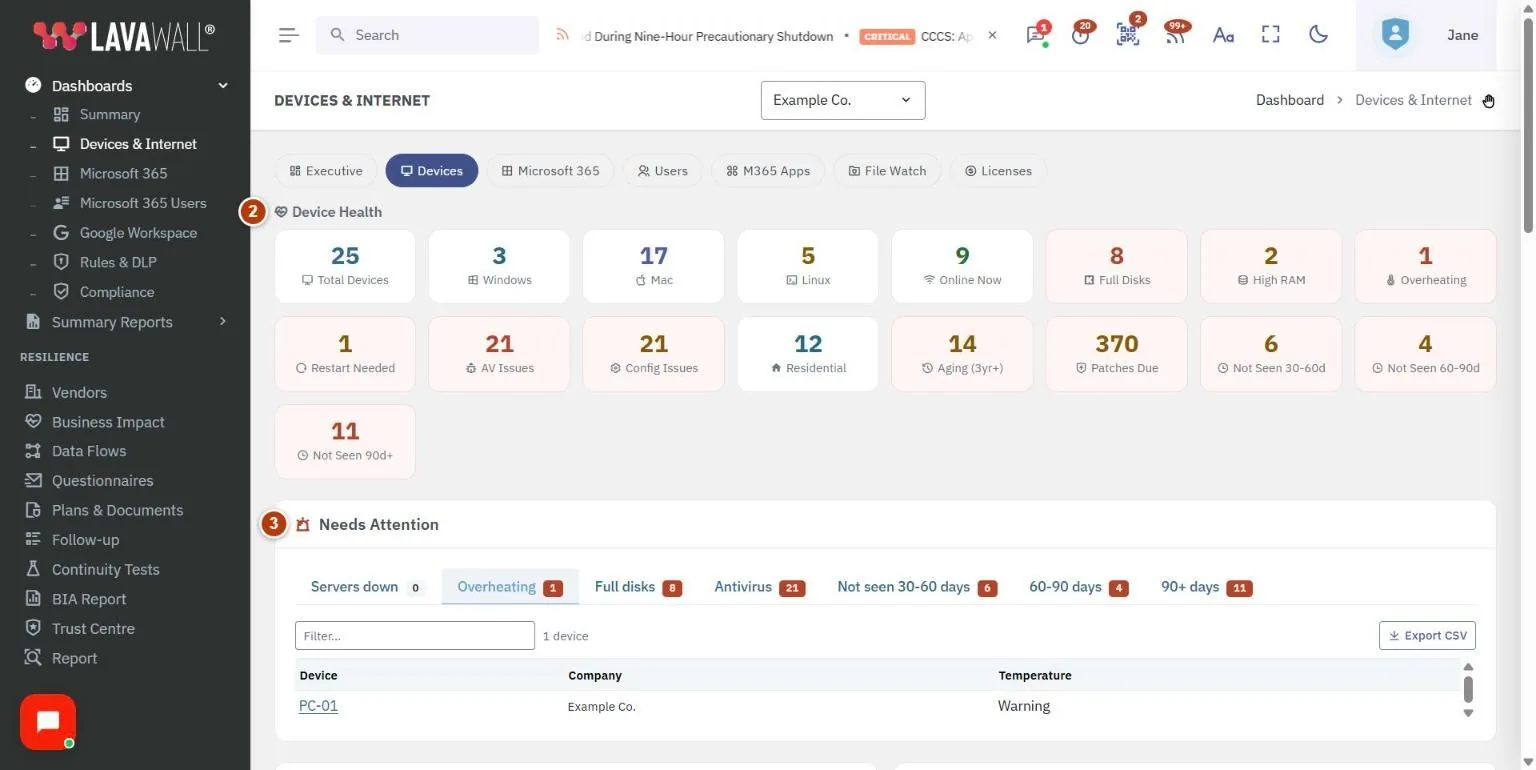
This dashboard is the device-focused view of Lavawall. It counts your monitored computers and flags the ones with problems: servers that are down, disks that are nearly full, high CPU or memory use, overheating, pending restarts, antivirus problems and computers that have stopped checking in.
The figures come from the Lavawall agent on each computer. Printer supply levels come from Lavawall's printer monitoring, and the internet section uses your most recent domain scan.
A row of links at the top lets you jump between the other dashboards (Executive, Devices, Microsoft 365 and Google Workspace when connected) and related pages such as Users, File Watch and Licenses.
What you see
- Dashboard links: quick links to the other dashboards and related pages.
- Device Health: a grid of counts such as Total Devices, Windows, Mac, Linux, Servers, Online Now, Servers Down, Full Disks, High CPU, High RAM, Overheating, Restart Needed, AV Issues, Config Issues, Residential, Aging (3yr+), Battery Issues, Patches Due, Not Seen (30-60, 60-90 and 90+ days) and Low Consumables. Only counts above zero are shown. Hover over a tile for what it means; click it for the list of devices or the matching report.
- Needs Attention: tabs listing the devices behind the most urgent counts: Servers down, Overheating, Full disks, Antivirus, Not seen 30-60 days, 60-90 days and 90+ days.
- Internet Vulnerability: a radar chart for the domain with the most issues, comparing it with the typical scanned domain, plus the number of issues, an issue trend line across recent scans and a short summary. All Domains opens the full domain results.
- Battery Health: up to eight laptops with the most worn batteries, colour-coded by health. View All opens the Battery Summary.
- Top Patches: the applications most often missing updates, with Critical or High badges. All Patches opens the patch report.
- Replacement Priorities: up to ten computers to replace first, with Computer, Year, Reason and a priority Score.
- Low Consumables: printers with low toner or drum, showing Black, Cyan, Magenta, Yellow and Drum levels. All Printers opens the printer report.
- Device Locations: a map of where devices are connecting from. Devices at the same location are grouped into one marker.
How to use the dashboard
How to see which devices have a problem
- In Device Health, click a tile such as Full Disks or High CPU.
- A window opens with the list of affected devices. Type in the search box to narrow the list.
- Click a device name to open its Device Detail page.
How to work through the Needs Attention list
- Scroll to Needs Attention.
- Click a tab, for example Servers down or 90+ days.
- Review the devices listed and open each one to fix it, or remove computers that are no longer in use.
How to check your internet exposure
- Look at the Internet Vulnerability card. Red outside the blue shape means more problems than the typical domain in that area.
- Click the domain name to open its scan results, or All Domains to see every domain.
- If the card says No domain scan data, click Add Domain to start your first scan.
How to follow up on patches, batteries and printers
- Click a patch in Top Patches to see which computers are missing it.
- Click View All on Battery Health or All Printers on Low Consumables for the full list.
Tips
- Tiles with a red or amber highlight are the ones that need action. Tiles for things like Windows or Online Now are information only.
- Full Disks means less than 15% free space. High CPU and High RAM mean above 80%.
- Not Seen tiles are a good way to find computers that were retired but never uninstalled.
- Printer levels under 20% are shown in red.
- Choose a single company in the company selector to see only that company's devices.
Troubleshooting
- A tile I expect is missing.
- Tiles with a count of zero are hidden. That usually means there is nothing to fix.
- "This list could not be loaded. Choose the tab again to retry."
- Click the same Needs Attention tab again.
- Low Consumables says "Printer monitoring not configured."
- Printer supply levels only appear once printer monitoring is set up.
- Battery Health says "All batteries are healthy!"
- No monitored laptop has a worn battery. Desktops have no battery data.
- Device Locations says "No device location data."
- None of the devices in view have reported a location yet.
Task guides that use this page
Related articles
Still need help?
Search the support centre, or contact our support team and tell us which page you were on:
- Chat now: use the chat button in the bottom-right corner of this page to reach our team right away. Where cookie consent is needed, the chat starts after you accept (cookie settings).
- Email: send our support team a message through the contact page. It goes straight to a person.
- Phone:
 AB: 1-403-538-5053
 US: 1-406-988-7333
 UK: +44 20 3695 9786
Names, companies, devices and figures in the pictures are examples. Other product and company names are trademarks of their respective owners.