Lavawall Overview
See the health of your computers, your internet-facing domains and your cloud services on one welcome page.
What the page is for
Lavawall Overview is a page in the Lavawall® console, in the Getting started area. Lavawall is the RMM, security, and compliance platform from ThreeShield, built and hosted in Canada. About this feature.
The Overview is the welcome page of the console. It pulls together short summaries from the rest of Lavawall so you can spot what needs attention without opening each report.
When a company is selected in the company selector at the top of the console, the page starts with that company's cloud security summary for Microsoft 365 and Google Workspace. Below that are cards about your domains and your computers.
Computer cards use the information the Lavawall agent sends from each computer: missing patches, temperatures, battery wear, antivirus status, disk space, CPU and memory use, and age. Domain cards use the results of Lavawall's domain scans. Each card links to the full report when you want more detail.
If you have not added a domain or a computer yet, the card shows a short list of what you will get and a button to add one.
What you see
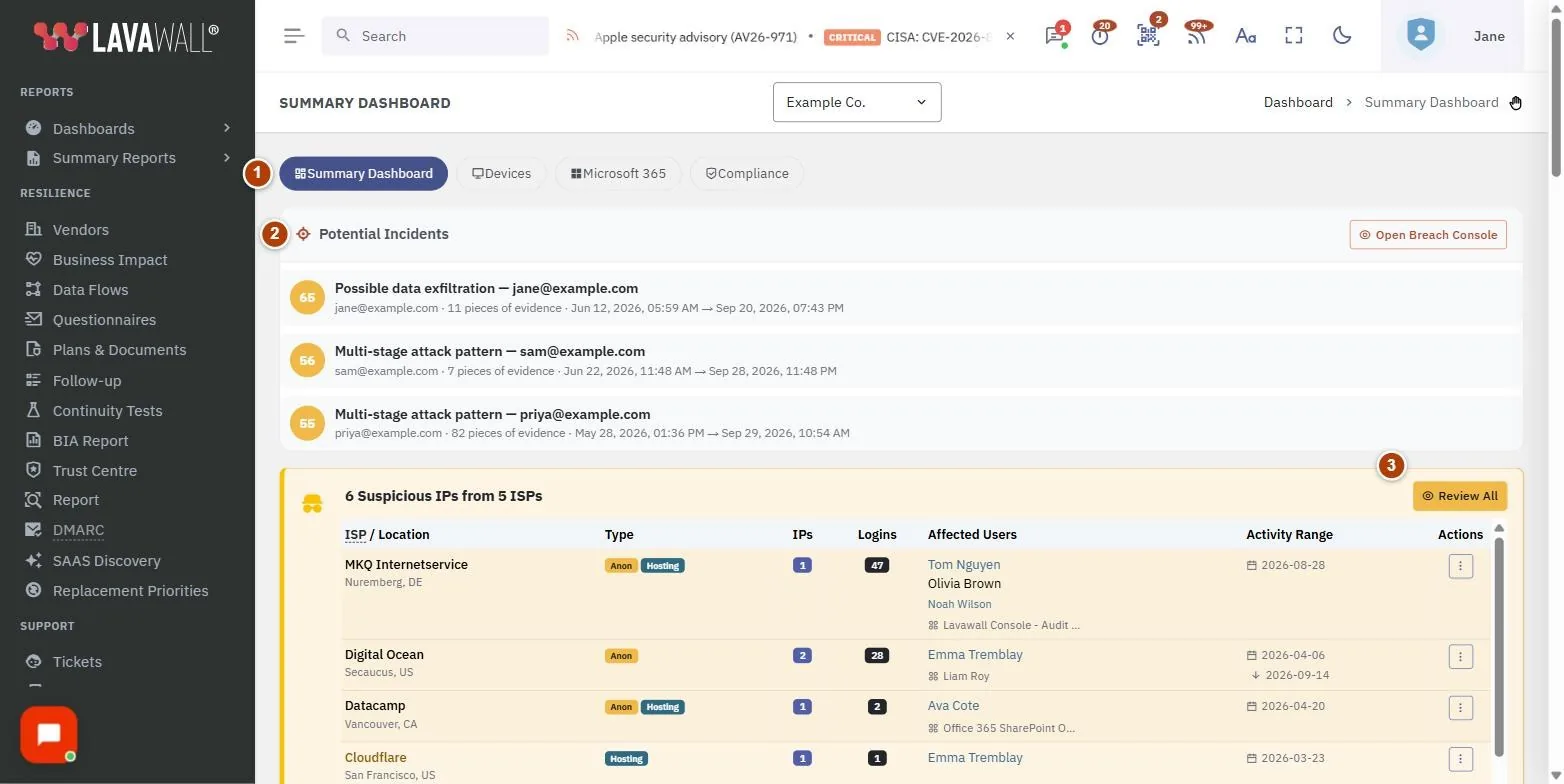
- Cloud security summary: Microsoft 365 and Google Workspace findings for the selected company (shown only when a company is selected).
- Internet Issues: a radar chart comparing your domain's errors (red shape) with the typical scanned domain (blue shape) across email, domain, web security, admin services and encryption. All Domains opens the full results.
- Top Patches: the total number of missing patches and the applications most often out of date, with a Full Report link.
- Computer health cards: counts for Computers (Windows, Mac, Linux, servers, added and uninstalled in the last 30 days), Overheating, Residential internet connections, Battery Health, AV Issues, Restart Required, Full disks, High CPU, High RAM and Old Computers.
- Configuration Issues: the share of configuration problems at Critical, High, Medium and Low risk, linking to the Configuration Summary.
- Replacement Priorities: computers that should be replaced soon, with the Year and the Reason (for example no TPM 2.0, an unsupported Mac, a failing drive, low memory or a worn battery).
- Map: where your computers are connecting from, with a "You" marker for your own location.
How to use the Overview
How to add your first domain
- On the Internet Issues card, click Add your domain.
- Enter the domain and start the scan. When it finishes, the radar chart appears here.
How to add your first computer
- On any computer card that is empty, click Add your first computer.
- Follow the install steps for Windows, Mac or Linux on the Download Agents page.
- Come back to the Overview. The cards fill in once the computer checks in.
How to see the details behind a card
- Click the card's button, for example All Domains, Full Report on Top Patches, the Battery Health link or the Configuration Issues link.
- In Replacement Priorities, click a computer name to open its Device Detail page.
How to switch to another company
- Use the company selector at the top of the console.
- The Overview reloads with that company's figures and its cloud security summary.
Tips
- In the radar chart, a red shape bigger than the blue shape in any direction means that area has more problems than most scanned domains. Hover over the chart for an explanation.
- Restart Required also shows how many computers have been waiting more than 30 days.
- Battery Health counts batteries with more than 500 charges and batteries with more than 20% wear.
- Pick "all companies" in the selector for an MSP-wide view, or a single company before a client meeting.
Troubleshooting
- A card only shows a list of features and an Add button.
- You have not added that kind of data yet (a domain or a computer). Add one and the card fills in.
- The cloud security section is missing.
- It appears only when one company is selected in the company selector.
- Replacement Priorities says "No computers need to be replaced".
- None of your computers currently meet a replacement reason.
- The map says "Loading map..." for a long time.
- The map needs location data from your computers. Try reloading the page.
Related articles
Still need help?
Search the support centre, or contact our support team and tell us which page you were on:
- Chat now: use the chat button in the bottom-right corner of this page to reach our team right away. Where cookie consent is needed, the chat starts after you accept (cookie settings).
- Email: send our support team a message through the contact page. It goes straight to a person.
- Phone:
 AB: 1-403-538-5053
 US: 1-406-988-7333
 UK: +44 20 3695 9786
Names, companies, devices and figures in the pictures are examples. Other product and company names are trademarks of their respective owners.