Domain Scan Results
Scan a domain from the outside, the way an attacker would see it, and get a clear list of website, email and DNS issues to fix.
Run the free domain scan Open Domain Scan Results in your console
What the page is for
Domain Scan Results is a page in the Lavawall® console, in the Domains & web area. Lavawall is the RMM, security, and compliance platform from ThreeShield, built and hosted in Canada. About this feature.
The Domain Scan Results page runs a non-intrusive external scan of a domain and its subdomains and shows what it found. It checks open ports and services, website security headers, encryption and certificates, email and phishing protection (such as SPF and DMARC), the software components and content management system a site runs, performance, and domain and DNS settings, and whether a web application firewall is in front of the site. It also flags AI services that anyone on the Internet can reach, such as AI model servers, AI chat interfaces, and data science notebooks, which usually should not be public.
Results are summarized in plain language with the business risks they create, counted by area (Email, Web, Domain, Admin, Encryption, Ports and WAF) and compared with the median of other scanned domains. Scanned domains are kept as monitored domains for the selected company, so you can come back to them, download reports and have results emailed after each scan.
What you see
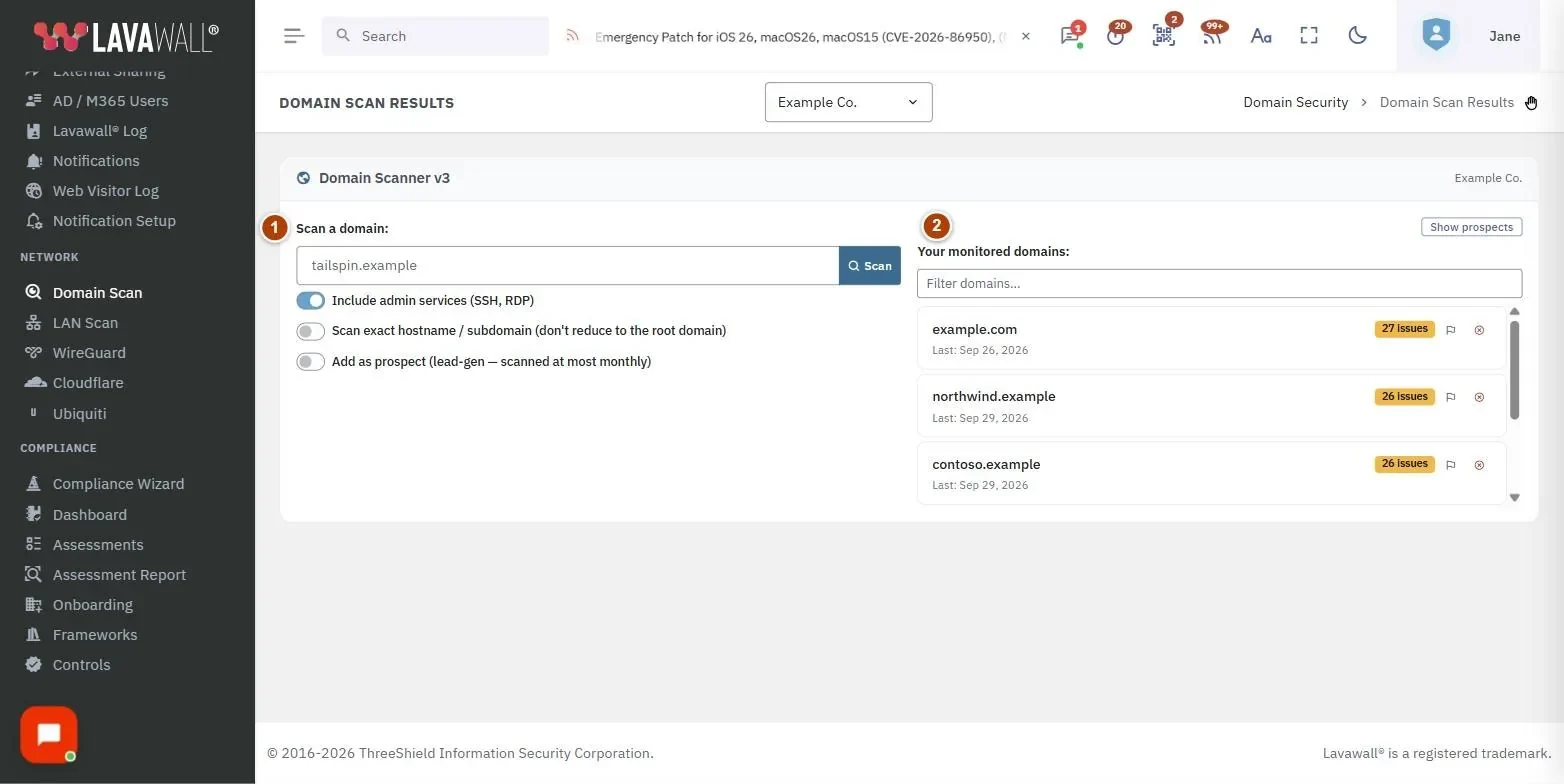
- Scan a domain: the domain box, Scan button and options.
- Your monitored domains: each domain with its issue count, last scan date and badges such as No DMARC, No SPF or No TLS.
- Scan Overview: progress, PDF Report, Word Report and Email Report, a plain-language summary, business risk context and issue counts per area.
- Findings and comparison chart: the list of issues to fix, a chart comparing this domain with the median (smaller is better), and short explainer videos.
- Technical Details: Open Ports & Services, Web Security & Headers, Subdomain Services, Where It Is Hosted, Encryption, Email & Phishing Protection, Components, Performance and Domain & DNS.
How to use Domain Scan Results
How to scan a domain
- Select the company the domain belongs to.
- Type the domain in Scan a domain (for example example.com). Web addresses are trimmed to the domain automatically.
- Leave Include admin services (SSH, RDP) on to also check for exposed administrative services.
- Turn on Scan exact hostname / subdomain to scan, for example, a staging site exactly as typed instead of the main domain.
- Click Scan and watch the progress bar. Sections fill in as results arrive.
How to review an existing domain
- Click the domain in Your monitored domains. Use Filter domains… when you have many.
- Read the summary and business risk context first, then the area counts.
- Open Technical Details for the evidence behind each issue.
How to see where a domain is hosted
- Open the domain's results and scroll to Technical Details.
- In Where It Is Hosted, read Hosts by provider and Hosts by country for the overall picture.
- The table lists each host with its IP address, provider, ASN (the network's autonomous system number), location and notes. Click a column heading to sort, type in Filter hosts to narrow the list, or pick one provider from the list.
- Click Download CSV to save the rows shown. The By Subdomain CSV under Open Ports & Services and the PDF and Word reports include the same details.
A host marked CDN edge sits behind a content delivery network or proxy such as Cloudflare or Akamai. Its location is the edge that answered the scan, not where the website actually runs. A Private or reserved address is only reachable inside a private network (or is reserved), so it is not looked up. The details are refreshed every time the domain is scanned; results from before 19 October 2026 show what Lavawall already knew and fill in fully at the next scan.
A domain that an organization has verified in Lavawall (through Microsoft 365, Google Workspace or a DNS record) can be scanned, and its results seen, only by that organization and the organizations above it, such as its managed service provider. Anyone else, including visitors to the public scanner, sees that no results are available for it. Subdomains of a verified domain follow the same rule. Domains nobody has verified can be scanned by anyone, and earlier results are reused so they appear faster.
How to share results
- Click PDF Report or Word Report to download a report.
- To send the current results once, click Email Report, enter any email address, and click Send now.
- To send reports automatically after each scan, open Scan schedule & alerts. Under Email reports for the domain, enter an address, choose Only when new issues found or Every scan, and click Add. Click Send now to all to email every recipient straight away.
Each organization keeps its own recipient list. If a domain is also monitored by another organization, you see and email only your own recipients.
How to set the scan schedule and new-issue alerts
Lavawall® rescans every monitored domain on a schedule, so new problems show up without anyone pressing Scan. The schedule and alerts apply to the whole organization, not to one domain.
- Select the organization, then open Scan schedule & alerts under the domain list.
- Choose how often to Rescan monitored domains: Daily, Weekly, Every two weeks, Monthly, or Off to scan only when you ask.
- Leave Notify me when a scan finds new issues on, and choose which issues count: Critical only, High or critical (the default), or Medium, high, or critical.
- Click Save.
When a scheduled scan finds an issue that was not there on the previous scan, a New domain scan issues notification appears in the bell with a link back to the results. To also get it as a browser notification or an email, open Notification settings and turn it on under Vulnerability scanning. The first scan after you turn alerts on sets the starting point, so you are never flooded with issues you already know about.
Only administrators can change the schedule and alerts. Prospect domains are rescanned monthly whatever you choose.
How to remove a domain
- Click the remove button next to the domain in Your monitored domains.
- Confirm Remove domain?. This only removes the company association; scan data is kept.
Tips
- Issue badges are green for 5 or fewer, blue up to 20, amber up to 50 and red above 50.
- In the comparison bar, red is your issues, green is the remainder and ▲ marks the median.
- Only scan domains you are authorized to scan. Some well-known domains cannot be scanned.
- Click Show prospects to include prospect domains, which are hidden by default for faster loading.
Troubleshooting
- "Invalid Domain".
- Check the spelling and enter a domain, not an email address.
- "Scan is taking longer than expected."
- Large sites take a while. Wait, or try again.
- "No domains monitored yet."
- Scan a domain above to get started.
- "Your session token was out of date."
- Reload the page and try again.
- "Only administrators can change these settings."
- Ask an administrator in your organization to change the scan schedule or alerts.
Task guides that use this page
Related articles
Still need help?
Search the support centre, or contact our support team and tell us which page you were on:
- Chat now: use the chat button in the bottom-right corner of this page to reach our team right away. Where cookie consent is needed, the chat starts after you accept (cookie settings).
- Email: send our support team a message through the contact page. It goes straight to a person.
- Phone:
 AB: 1-403-538-5053
 US: 1-406-988-7333
 UK: +44 20 3695 9786
Names, companies, devices and figures in the pictures are examples. Other product and company names are trademarks of their respective owners.