Remote support · Backstage admin tools
Fix the problem. Don’t take over the screen.
Backstage is the private admin-tools panel inside a Lavawall® remote-support session. It gives a technician a real Windows administrator toolkit, a remote shell, and scripts, open beside the person’s screen instead of over it, so they keep working while you fix the problem.
Start free, no credit card See the tools
No screen takeover · no UAC prompts · real & synthetic admin tools · remote shell · scripts
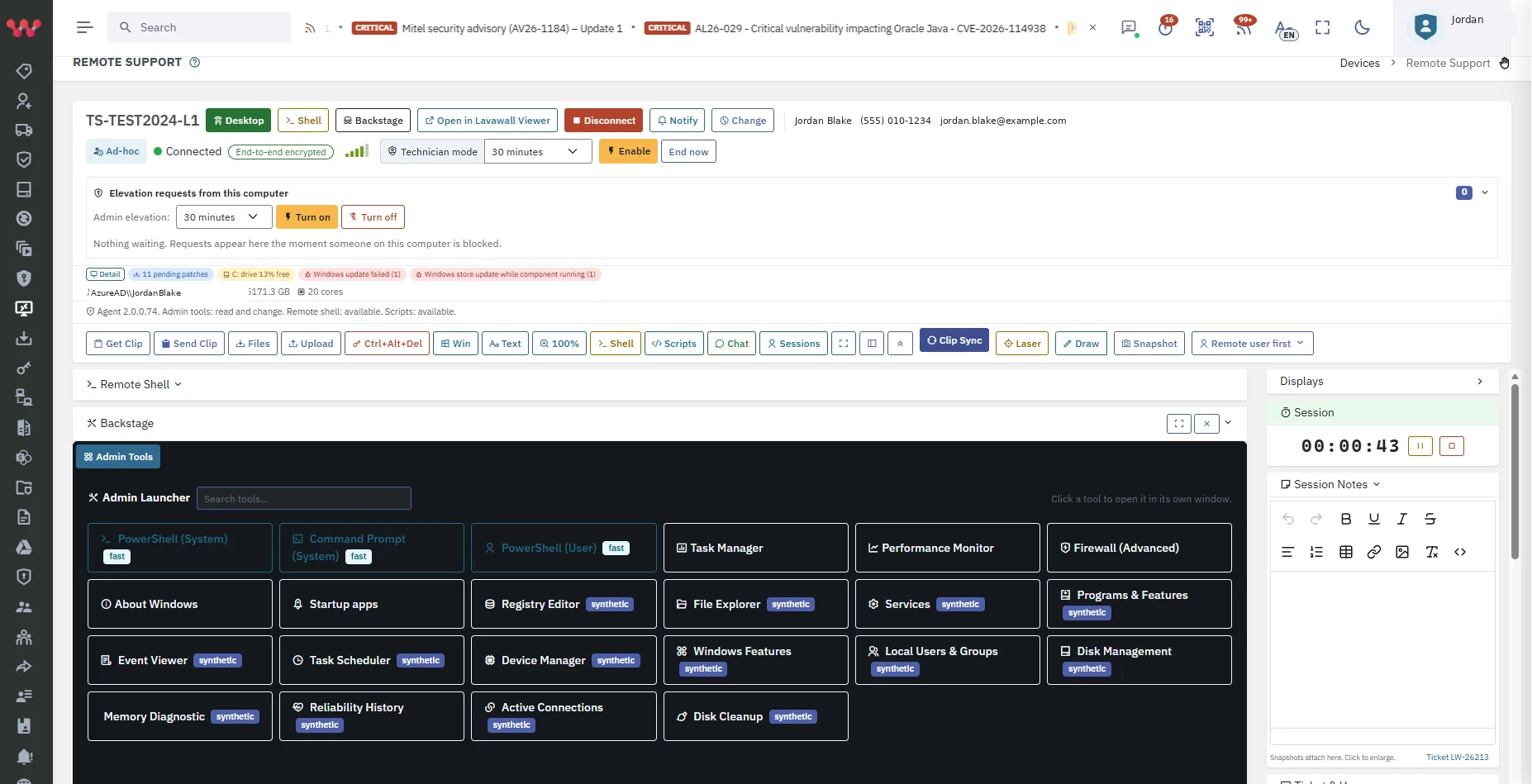
See it in the Lavawall® console
Real screens, shown with example data.
The problem Backstage solves
A full remote-desktop session is a blunt instrument. It freezes the person’s screen, shows them every window you open, and interrupts whatever they were doing, just so you can check a service or edit a registry key.
Backstage gives the technician a private workspace instead: a panel that runs beside the live session, with administrator rights, while the person at the keyboard keeps working. No UAC prompt reaches them, and no separate elevation product like ThreatLocker or AutoElevate is needed, because the elevation happens inside the permissioned, fully-logged session itself.
Real tools and synthetic tools, side by side
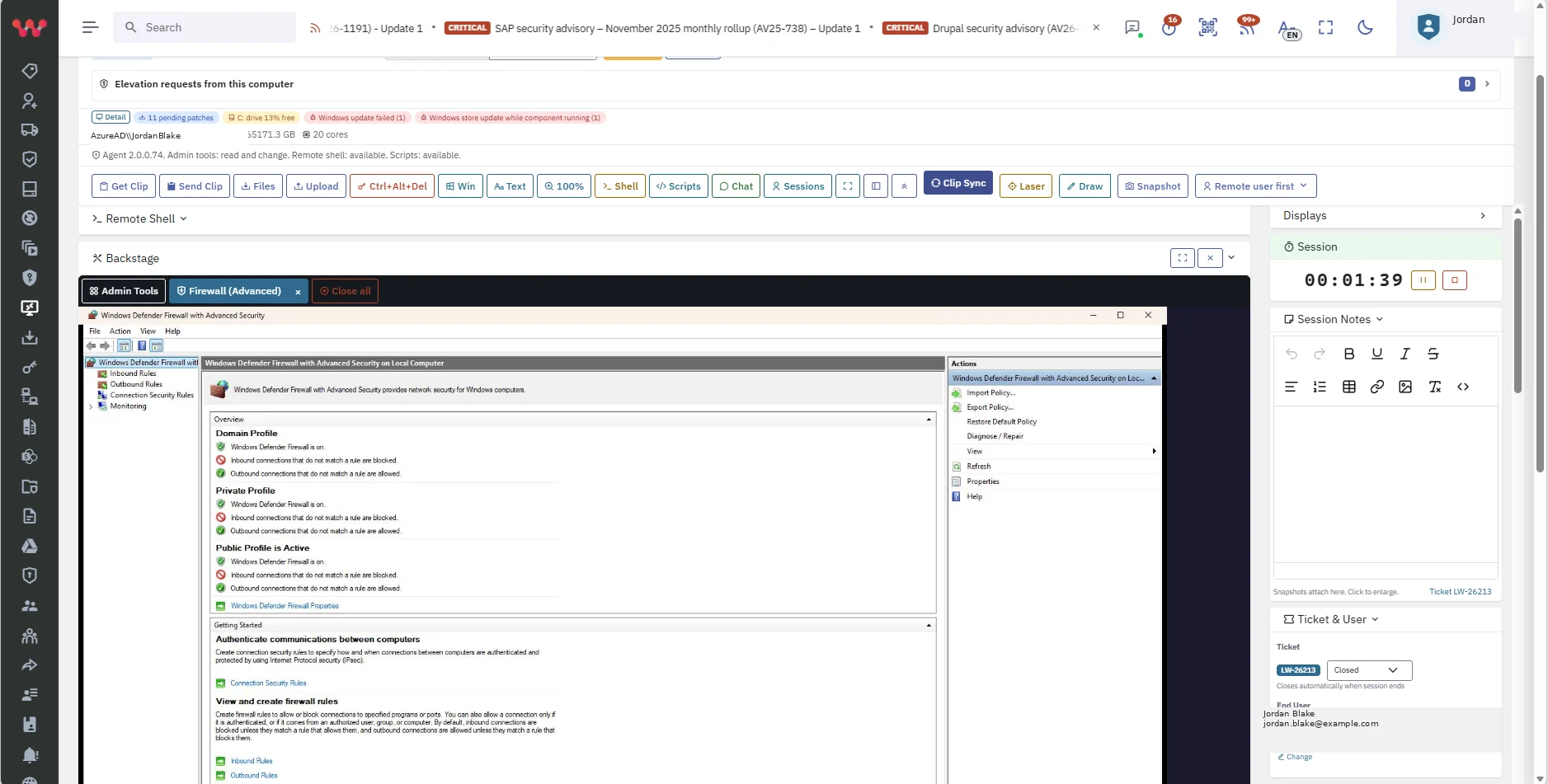
The real Windows tool, with rights
Firewall, Device Manager, Disk Management, Task Scheduler, Local Users & Groups, Group Policy and more open exactly as they do locally, running as administrator, with nothing extra installed on the endpoint.
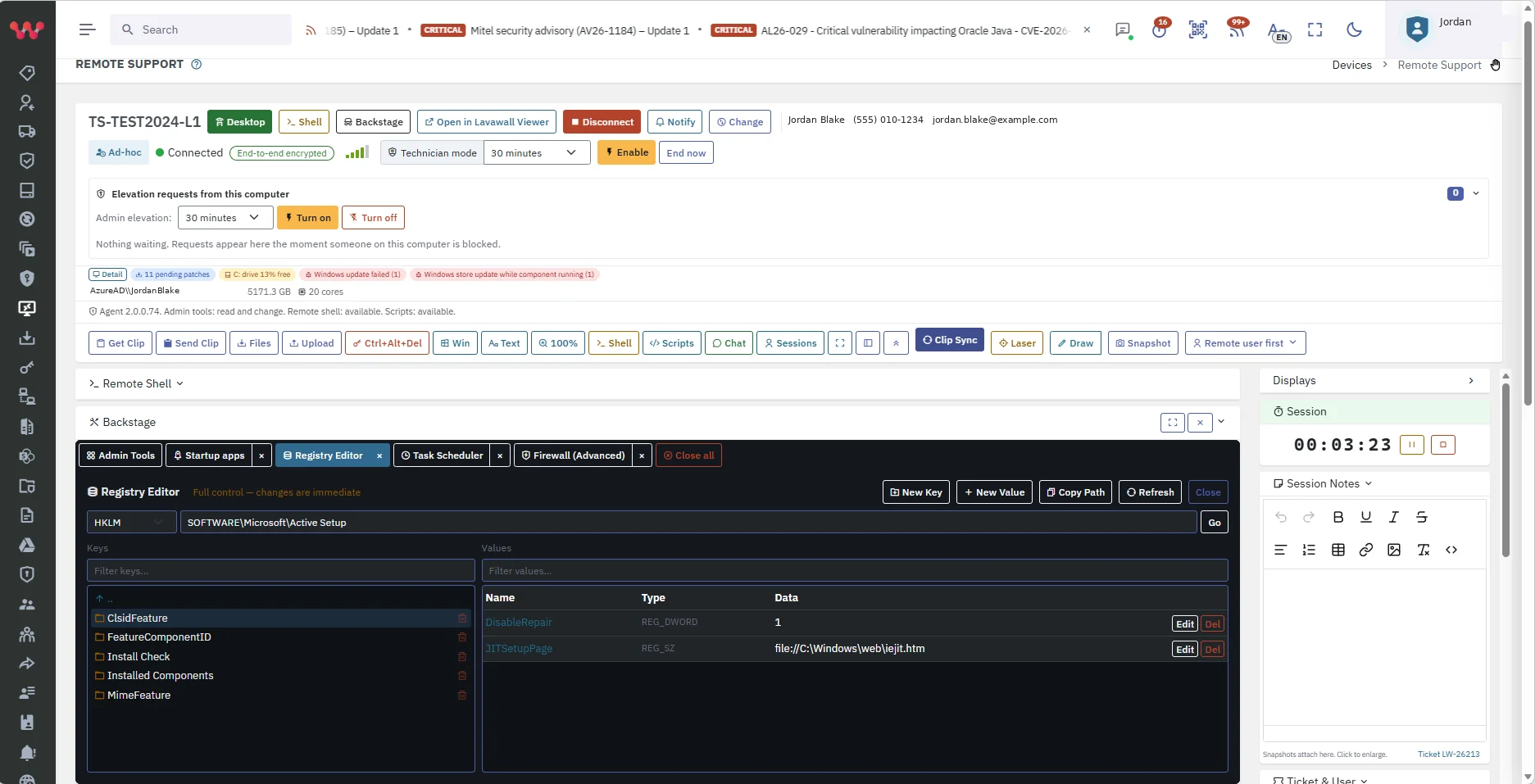
Synthetic tools for the gaps
Windows has no browser-friendly Registry Editor, so Backstage builds one with full read and change access. The same goes for a few other tools Windows never gave a remote-friendly face.
Task Manager that groups and explains
Processes are grouped, with instant CPU, memory, disk, network and thread stats, and one click on a process shows its parent, its children, and whether it is signed.
File Explorer, linked to the process
Jump from a process straight to its file on disk, with richer file detail than Windows shows by default, and download or run a file from the same screen.
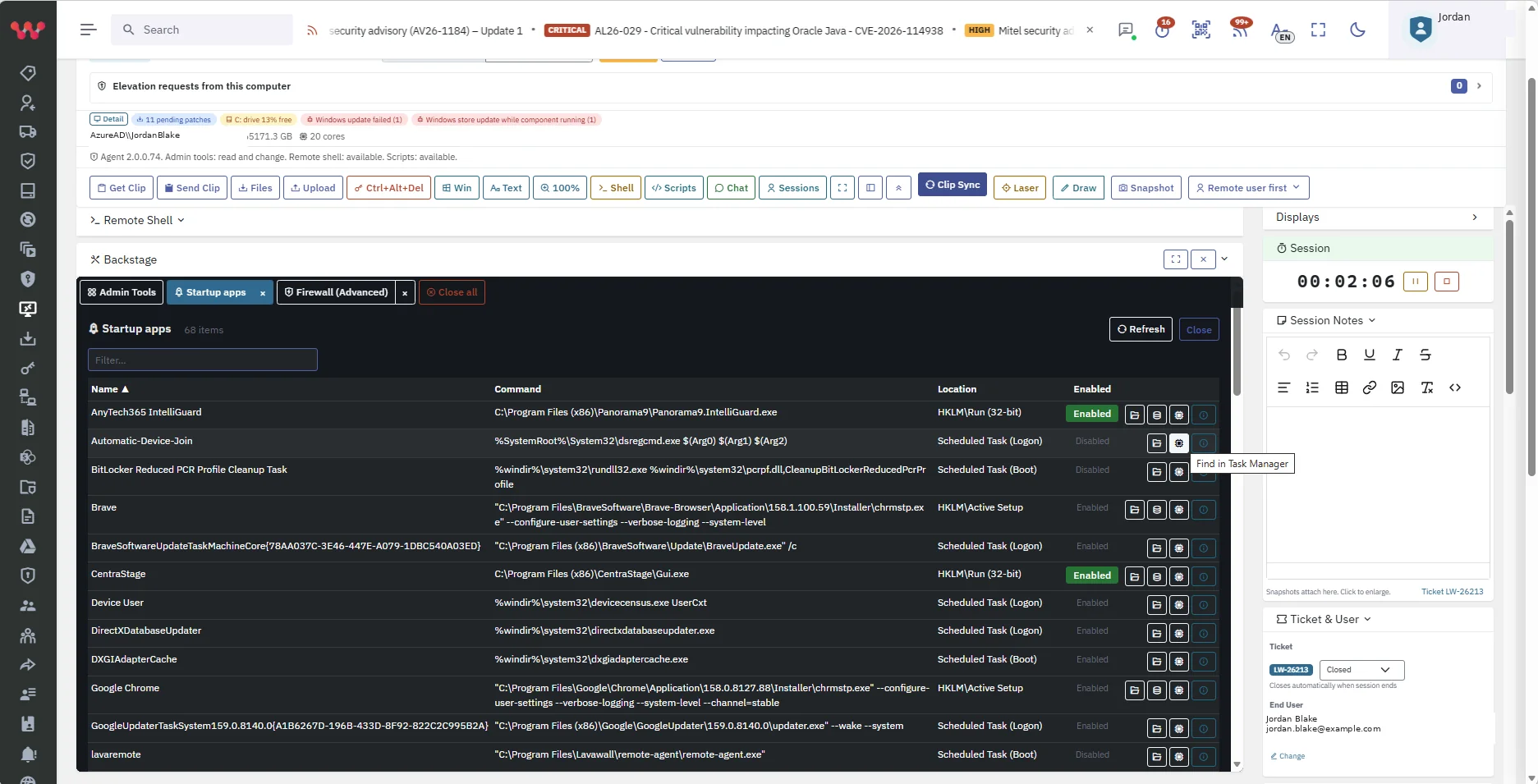
Services and Startup, cross-linked
An enriched Services view and a Startup apps list that link back to Task Manager and the Registry, so a suspicious entry is one click from its source, not a five-tab hunt.
Remote shell and scripts, same panel
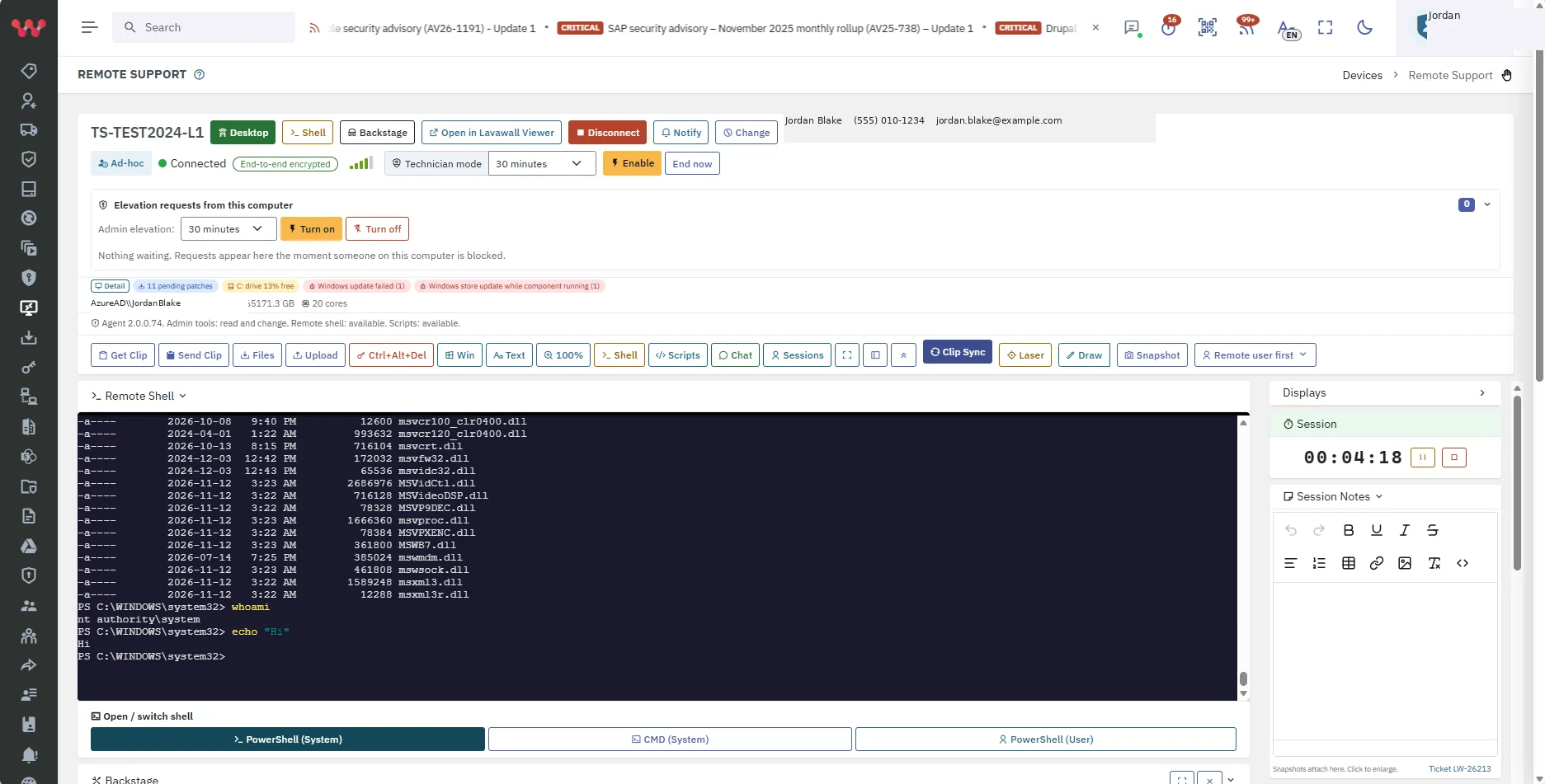
PowerShell as the system account, PowerShell as the signed-in user, Command Prompt, or a saved script, all launch from the same session without opening a separate tool.
The person at the computer never knows you were in the Registry
A translucent, repositionable notice stays on the user’s screen for the whole session, so they always know someone is connected and can chat or end the session in one click. What they do not see is a frozen desktop, a string of unfamiliar windows opening, or a UAC prompt demanding a decision they are not equipped to make. Backstage runs beside their work, not instead of it.
Every tool opened, every shell command sent, and every script run is logged to the session, exactly like the rest of Lavawall® remote support, so the privacy for the user comes with full accountability for the account.
What else you can reach without connecting at all
A lot of what Backstage is used for doesn’t need a live session. Device details already show historical CPU and RAM trends, configuration security weaknesses, intelligent event-log highlights, connected USB drives, browser extensions, malware and antivirus status, network drive settings, patch status including device drivers, and which AI coding assistants a computer is running and what they can reach. Backstage is for when you need to act; these pages are for when you just need the answer.
Tired of interrupting people to fix their computer?
ThreeShield, the CISSP/CISA team that builds Lavawall®, will show you Backstage on your own environment and help you move off a full-takeover remote tool.
Common questions
- What is Backstage, exactly?
- Backstage is the private admin-tools panel inside a Lavawall remote-support session. It opens beside the session screen, not over it, so a technician can run Windows admin tools, a remote shell, and scripts while the person at the computer keeps working undisturbed.
- Does the user see what I'm doing in Backstage?
- No. Backstage runs in its own panel on the technician's screen. The person at the computer is not shown a UAC prompt and the tools do not take over their desktop, though Lavawall's usual connection notice still tells them someone is connected.
- Are the admin tools real Windows tools, or something Lavawall built?
- Both. Where Windows already has a solid built-in tool, such as the Firewall or Device Manager, Backstage opens the real tool with administrator rights. Where Windows has no good remote equivalent, such as a browser-friendly Registry Editor, Lavawall adds a synthetic tool that does the same job.
- What does “linking” Task Manager, Registry, Files and Services mean?
- A startup entry, a running process, a registry key, a service, and the file it loads are usually five separate screens. Backstage's synthetic tools cross-link them: open a startup entry and jump straight to the matching process in Task Manager, or from a process straight to its file on disk, instead of hunting across tools by hand.
- Can I run scripts and shell commands too?
- Yes. A full remote shell (PowerShell as the system account, PowerShell as the signed-in user, or Command Prompt) and a script launcher both run from the same session, so a quick one-line fix or a saved script is one click away without opening a separate tool.
Start free, no credit card →See the full remote-support page
Related Lavawall® pages
- Remote support & the Admin Workspace
- Historical CPU & RAM performance
- Configuration security weaknesses
- Smart event log analysis
- USB drive control
- Network drive management
- Browser extension monitoring
- Browser notification permissions
- Agentic AI discovery
- Cross-platform patch management
- On-prem file monitoring