ZenDesk Integration
Bring your ZenDesk organizations, users, tickets, knowledge base and macros into the Lavawall help desk.
What the page is for
ZenDesk Integration is a page in the Lavawall® console, in the Integrations area. Lavawall is the RMM, security, and compliance platform from ThreeShield, built and hosted in Canada. About this feature.
This page connects Lavawall to your ZenDesk account with an API token and imports your ZenDesk data: organizations, users, tickets and knowledge base articles. ZenDesk macros become Lavawall canned responses, and ZenDesk dynamic content becomes canned-response variables.
After the first sync you map each ZenDesk organization to one of your existing Lavawall client companies. Organizations you do not map are created as prospects. A sync log shows each run and how many records it created or updated.
Disconnecting keeps everything that was already imported; it just stops further updates.
What you see
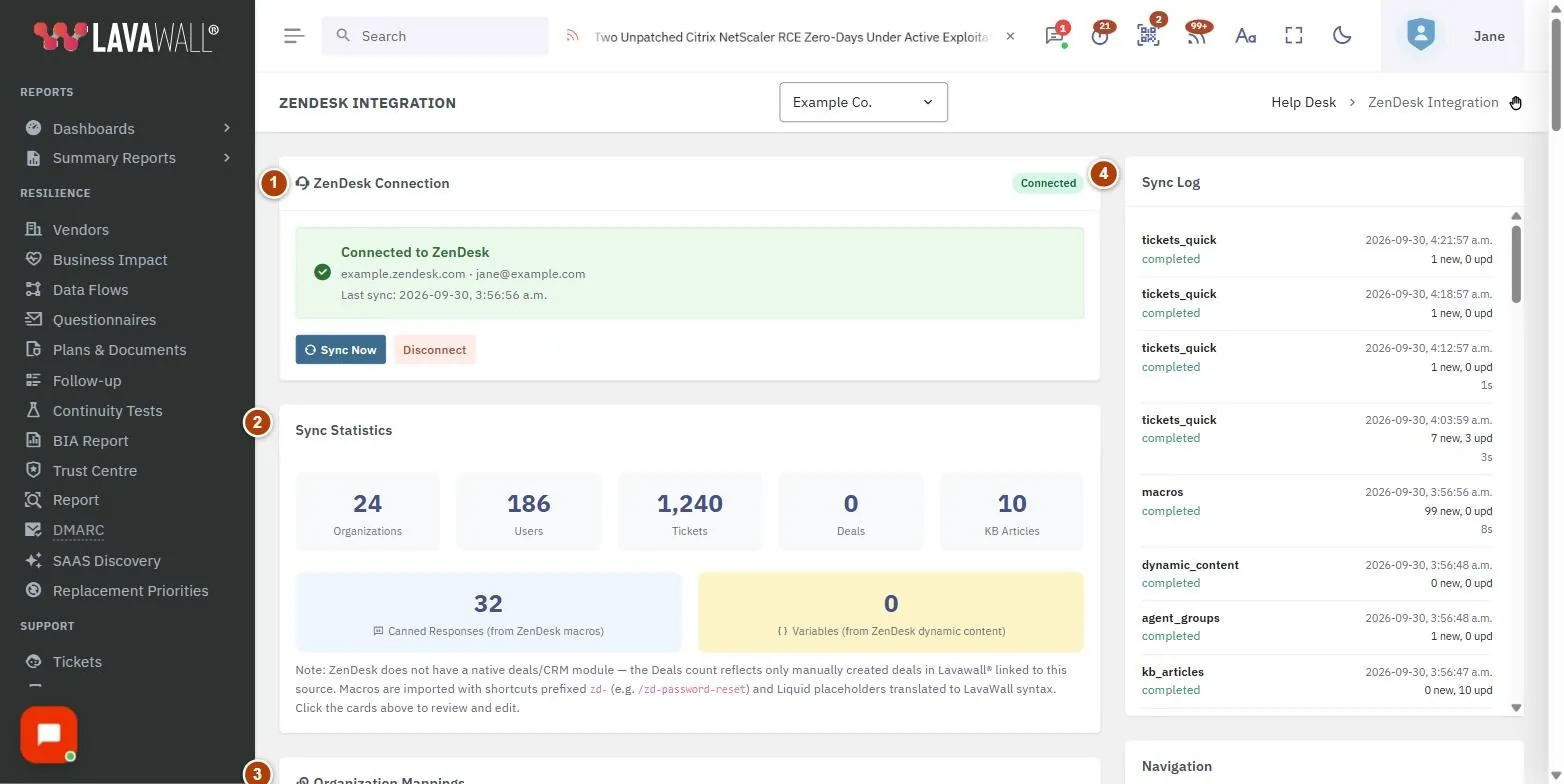
- ZenDesk Connection: a Connected or Not Connected badge, setup instructions and the connection form, or once connected, the subdomain, admin email, last sync time and the Sync Now and Disconnect buttons.
- Sync Statistics: counts of Organizations, Users, Tickets, Deals and KB Articles, plus Canned Responses (from ZenDesk macros) and Variables (from ZenDesk dynamic content).
- Organization Mappings: each ZenDesk organization with a drop-down of your Lavawall client companies.
- Sync Log: recent sync runs with type, status, start time, records created and updated, and duration.
- Navigation: links to Help Desk Tickets, CRM & Sales and HubSpot Integration.
How to connect ZenDesk
- In ZenDesk Admin Center, go to Apps and integrations › APIs › API configuration and make sure Allow API token access is checked.
- Under APIs, click API tokens, then Add API token. Give it a description such as "Lavawall" and copy the token.
- In Lavawall, enter your ZenDesk Subdomain (just the part before .zendesk.com), the Admin Email Address of the ZenDesk admin or agent who owns the token, and the API Token.
- Click Connect. Lavawall checks the details and starts the first sync straight away.
How to map ZenDesk organizations to your clients
- After a sync, find the organization in Organization Mappings. Organizations Lavawall matched on its own show an Auto-matched badge.
- Choose the Lavawall client company from its drop-down. The choice saves as soon as you pick it.
- Leave -- Create as Prospect -- selected for organizations that are not clients.
How to sync again
- Click Sync Now. A progress bar shows while the sync runs, and the statistics update as records arrive.
- When it finishes, Last sync updates and a new line appears in Sync Log.
How to review imported macros
- Click the Canned Responses (from ZenDesk macros) card to open Canned Responses.
- Imported macros have shortcuts starting with zd- (for example /zd-password-reset), and ZenDesk placeholders are translated to Lavawall's format. Review and edit them there.
- Click the Variables (from ZenDesk dynamic content) card to review imported variables.
How to disconnect ZenDesk
- Click Disconnect and confirm.
- Imported data stays in Lavawall but is no longer updated.
Tips
- Map organizations before you start working imported tickets, so tickets land under the right client.
- ZenDesk has no deals or CRM module. The Deals count only shows deals created in Lavawall and linked to this source.
- Use an admin or agent account's token that can see all the tickets and articles you want to import.
Troubleshooting
- "Please enter your ZenDesk subdomain" / "admin email" / "API token".
- A field was left blank.
- The Connect button returns an error.
- The subdomain, email or token was not accepted. Check that API token access is allowed in ZenDesk and that the email owns the token.
- "Sync error: …" after a sync.
- ZenDesk reported a problem during the run. Check the Sync Log, fix the cause and click Sync Now again.
- "No organization mappings yet. Run a sync first."
- Mappings appear after the first successful sync.
- The badge says "Status unavailable".
- Lavawall could not check the connection just then. Reload the page.
Related articles
Still need help?
Search the support centre, or contact our support team and tell us which page you were on:
- Chat now: use the chat button in the bottom-right corner of this page to reach our team right away. Where cookie consent is needed, the chat starts after you accept (cookie settings).
- Email: send our support team a message through the contact page. It goes straight to a person.
- Phone:
 AB: 1-403-538-5053
 US: 1-406-988-7333
 UK: +44 20 3695 9786
Names, companies, devices and figures in the pictures are examples. Other product and company names are trademarks of their respective owners.