HubSpot Integration
Bring your HubSpot companies, contacts, deals, tickets and knowledge base articles into Lavawall, matched to your clients.
What the page is for
HubSpot Integration is a page in the Lavawall® console, in the Integrations area. Lavawall is the RMM, security, and compliance platform from ThreeShield, built and hosted in Canada. About this feature.
If your sales or support history lives in HubSpot, this page imports it into Lavawall's CRM and help desk. You connect with a HubSpot private app token, then run a sync. Lavawall imports companies, contacts, deals, tickets and knowledge base articles and shows how many of each it has brought in.
Each HubSpot company is matched to one of your existing clients where possible. HubSpot companies that do not match a client are created as prospects. You can review and change every match, and see each company's contacts and deals before you rely on the data.
What you see
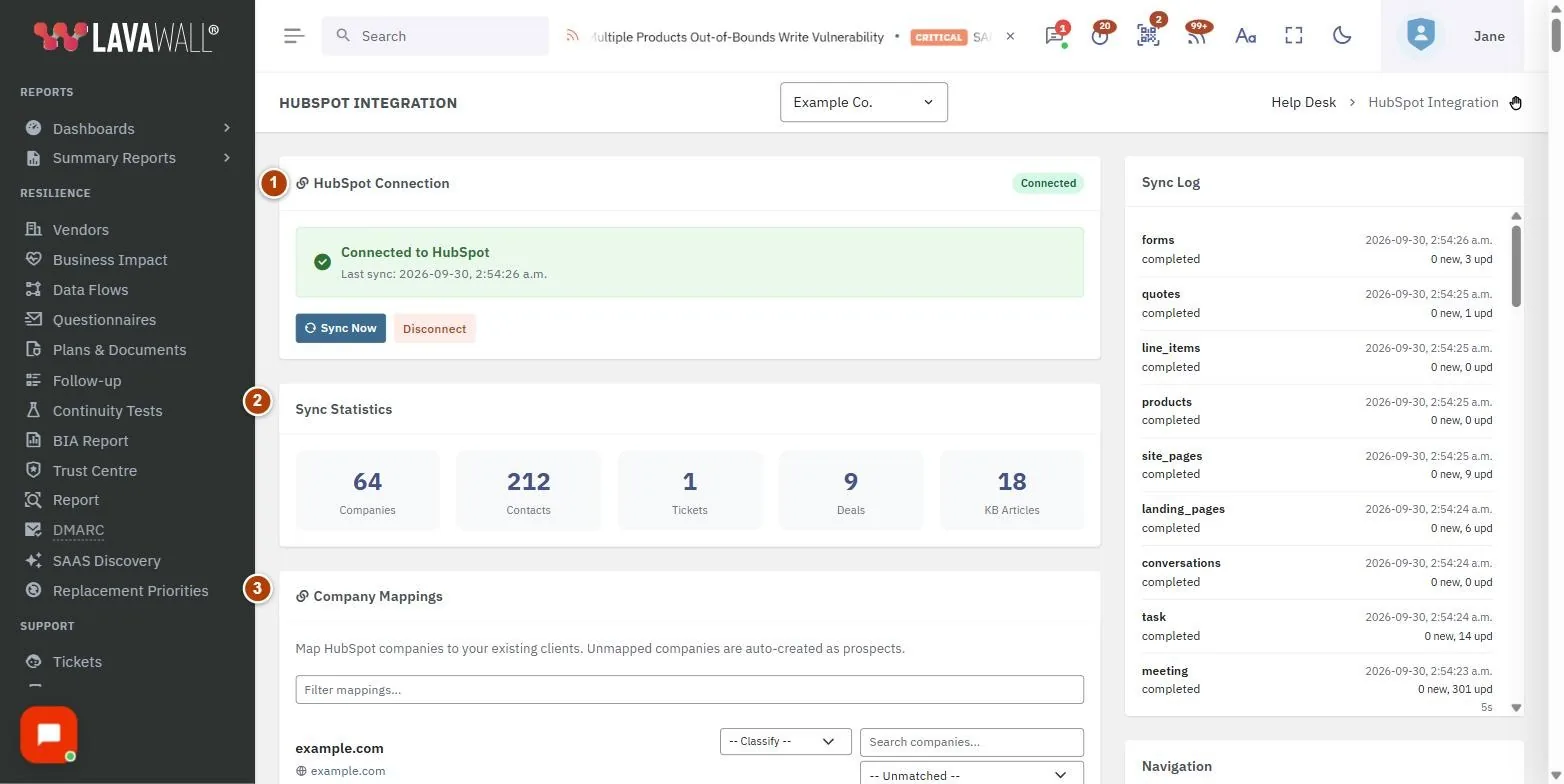
- HubSpot Connection: Not Connected or Connected to HubSpot, with Sync Now and Disconnect, or the Private App Token box, setup steps and Connect.
- Sync Statistics: counts of imported Companies, Contacts, Tickets, Deals and KB Articles.
- Company Mappings: each HubSpot company with the client it maps to, whether it was Auto-matched, and whether it is a Prospect or Client, plus its contacts and deals.
- Sync Log: recent syncs and whether they succeeded or failed.
- Navigation: links to Help Desk Tickets and CRM & Sales.
How to use this page
How to connect HubSpot
- In HubSpot, open Settings, then Integrations → Private Apps, and create a private app named Lavawall.
- Give it the read permissions listed on the page, covering CRM objects, tickets and engagements, and content and marketing.
- Create the app, then open Auth, select Show Token and copy the access token.
- Paste the token into Private App Token and select Connect.
How to import your data
- Select Sync Now. The page shows "Syncing data from HubSpot..." while it runs.
- When it finishes, check Sync Statistics and the Sync Log.
- Run Sync Now again whenever you want to bring in newer HubSpot records.
How to check and fix company matches
- In Company Mappings, type in Filter mappings... to find a company.
- Review the contacts and deals shown for the company to confirm it is the right client.
- To change the match, choose a client in the company list (type to search), or -- Unmatched --.
How to disconnect HubSpot
- Select Disconnect and confirm. Data already imported is kept.
Tips
- Unmapped HubSpot companies are created as prospects, so map companies to existing clients to avoid duplicates. If duplicates appear, merge them on List Clients.
- Companies that have been merged away are not offered as mapping targets.
- Deals show as Won, Lost or their open stage.
- Imported tickets appear in the help desk, and imported articles in the knowledge base.
Troubleshooting
- "Please enter a token"
- appears when you select Connect with an empty box.
- "Failed to connect"
- or another error on connect usually means the token is wrong or missing permissions. Check the app's permissions in HubSpot and copy the token again.
- "Sync error: …"
- means the sync stopped. Read the message and check the Sync Log, then try Sync Now again.
- "No company mappings yet. Run a sync first."
- Select Sync Now.
Task guides that use this page
Related articles
Still need help?
Search the support centre, or contact our support team and tell us which page you were on:
- Chat now: use the chat button in the bottom-right corner of this page to reach our team right away. Where cookie consent is needed, the chat starts after you accept (cookie settings).
- Email: send our support team a message through the contact page. It goes straight to a person.
- Phone:
 AB: 1-403-538-5053
 US: 1-406-988-7333
 UK: +44 20 3695 9786
Names, companies, devices and figures in the pictures are examples. Other product and company names are trademarks of their respective owners.