List Clients
See every organization you manage in one table, with device health at a glance, and edit, merge or remove them.
What the page is for
List Clients is a page in the Lavawall® console, in the Clients (MSP) area. Lavawall is the RMM, security, and compliance platform from ThreeShield, built and hosted in Canada. About this feature.
List Clients shows each client organization under your account alongside a quick health check: how many devices it has, which platforms, whether Microsoft 365 is connected, and how many devices need a restart, have antivirus problems, are missing updates or have configuration issues. Most numbers link straight to the matching filtered report.
From here you can edit an organization's details and security settings, delete an organization, or merge a duplicate into another company. Filters let you include prospects and inactive or merged companies, narrow by type, or show only organizations with or without devices.
What you see
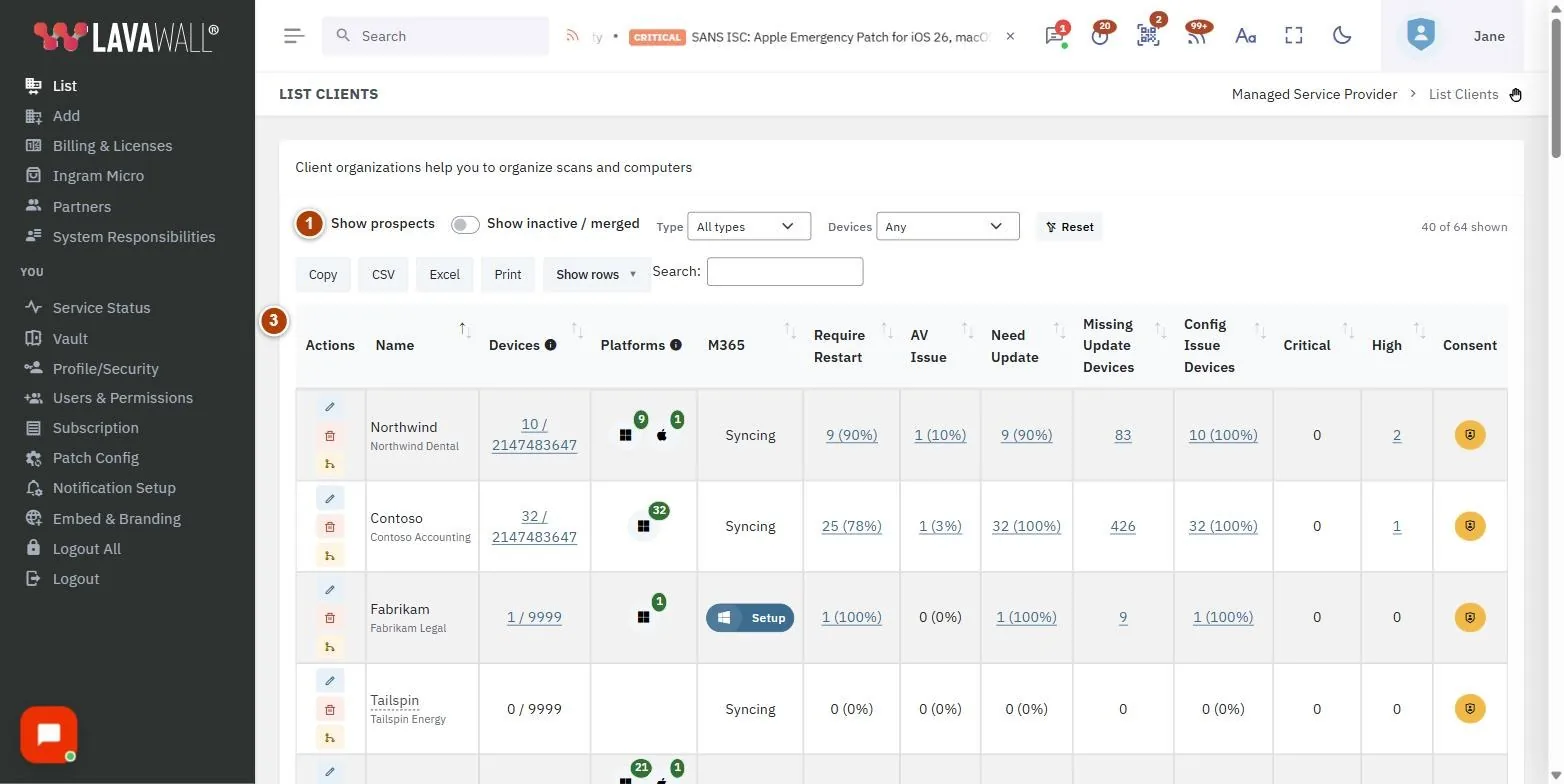
- Filters: Show prospects, Show inactive / merged, Type, Devices and Reset, with a count of matching organizations.
- Actions: edit, delete and merge buttons for each organization.
- Client table: Name, Created, Devices, Platforms, M365, Require Restart, AV Issue, Need Update, Missing Update Devices, Config Issue Devices, Critical and High.
- Consent: whether users at that organization must consent before remote support (shown to people allowed to manage consent).
- Edit Organization: the dialog for names, type, status, vault recovery, compliance, regional consoles, industry and operating locations.
How to use this page
How to find a client
- Type in the table's search box, or sort by any column heading.
- Use Type to show Clients, Prospects, Affiliates, Sub-MSPs or Audit clients.
- Use Devices to show organizations With devices or Without devices.
- Turn on Show prospects or Show inactive / merged to include those organizations. Select Reset to clear all filters.
How to drill into a client's issues
- Select a number in Devices, Platforms, Require Restart or AV Issue to open the matching device list for that client.
- Select a number in Need Update or Missing Update Devices to open the patch summary.
- Select a number in Config Issue Devices, Critical or High to open the configuration summary.
- If M365 shows Setup, select it to connect that client's Microsoft 365 tenant.
How to edit an organization
- Select the edit (pencil) button in Actions.
- Change the Organization Name or Short Name (up to 12 characters).
- Set the Company Type, Active status and whether it is a Referral partner (can refer clients and earn fees).
- Review Vault recovery, FIPS 140-3 compliance mode, Compliance standards and Trusted computers.
- If you can manage the Access Policy page, check Regional consoles. See how to let a client register on another regional console.
- Choose the Industry and add Operating Locations (country and province or state).
- Select Save Changes.
How to let a client register on another regional console
Lavawall® keeps each organization on the console for its region. The Regional consoles section of Edit Organization lets people at a client's verified domains also register on another region's console. It is the same setting as By organization in the Regional Consoles section of Access Policy, and it is shown only to people who can manage that page.
- Select the edit (pencil) button in Actions, and find Regional consoles. The line above the boxes says where the organization lives.
- The region where it lives is ticked and greyed out. A region shown as partly ticked and marked (some domains) is allowed for only some of its verified domains.
- Tick a region to let people at every verified domain of the organization also register on that console, or untick it to stop. What they create there is kept in that region.
- Each change saves straight away, with a note below the boxes. Save Changes is not needed for this section.
Only Canada, the United States and Europe are offered. A US government or CJIS organization is limited to the United States, and other regions show as not available for it. An organization with no verified domains has its people placed by their own email address: allow them one at a time in Access Policy.
How to merge a duplicate company
- Select the merge button in Actions for the duplicate.
- In Merge / Consolidate Company, choose the Survivor (data is moved into this company) and add a Reason (optional).
- Check the summary of contacts, tickets, deals and import mappings that will move.
- Select Merge & disable and confirm. The duplicate is disabled and its data moves to the survivor.
How to delete an organization
- Select the delete (bin) button in Actions.
- Read the warning. Deleting removes all associated devices, users and data and cannot be undone.
- Confirm Delete.
How to require consent for remote support
- In the Consent column, select the button for the organization.
- When it is highlighted, users at that organization must consent before a remote session. Select it again to turn the requirement off.
How to let your managing organization act on organizations you manage
If your organization is managed by another organization (for example, you are an MSP working under a larger MSP) and you manage organizations of your own, a Your managing organization card appears at the top of this page. By default, your managing organization can act on your organization, but not on the organizations you manage.
- Find Your managing organization at the top of List Clients. It names the organization that manages yours and says whether it is currently allowed.
- Turn on Allow my managing organization to act on organizations I manage.
- In the confirmation, type your organization's name, complete the security check and select Allow access.
- To stop it, turn the switch off and confirm with Stop access. It takes effect straight away.
Only a Super Admin or Admin of your organization can change this, and they need the High-impact actions permission. When it is on, people at your managing organization who have an administrator role and that permission can change settings of, and carry out high-impact actions on, the organizations you manage, up to ten levels down. An organization you manage that manages others of its own decides for those itself. Every change of this setting, and every action taken this way, is recorded in the activity log, and the administrators involved are emailed.
Language
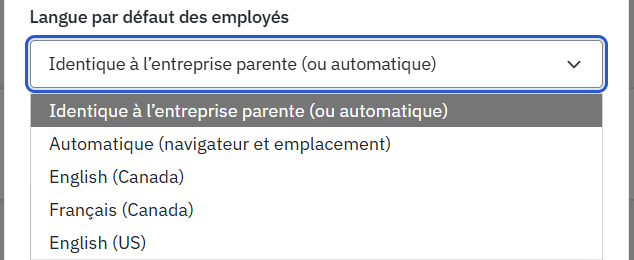
In the edit dialog, Default language for employees sets the language for the client's users who are left on Company default. Choose Same as the parent company (or automatic), Automatic (browser and location) or a specific language. A client with nothing set follows its parent company.
See Choose the console language.
Tips
- Use merge rather than delete when a company was created twice, for example by an import. Nothing is lost, and the duplicate is simply disabled.
- Audit clients are left out of anything set to "all clients", such as checklists.
- A child organization can add compliance standards, but cannot remove one its MSP follows. Selecting CJIS also turns on FIPS 140-3.
- Numbers in brackets beside a count show the share of that client's devices affected.
- On narrow screens, select a row's name to expand the hidden columns.
Troubleshooting
- "You have not added any companies yet."
- Select Add clients to create your first client organization.
- "Type and active status can't be changed for your own organization."
- These fields are locked when you edit your own company.
- A client is missing from the list.
- Turn on Show prospects and Show inactive / merged, and set Type to All types.
- Devices pending uninstall
- during a merge means some devices were set to uninstall but never finished, for example after reimaging. Merge only if those machines are gone.
- Regional consoles is missing from Edit Organization.
- It is shown only to people who can manage the Access Policy page. Ask a Super Admin to give you that permission.
- Regional consoles says "Not saved".
- The box goes back to how it was. Try again, or refresh the page if it keeps happening.
- "… has not allowed its managing organization to act on organizations it manages."
- The organization named sits between yours and the one you chose, and has not turned on Allow my managing organization to act on organizations I manage. Ask one of its Super Admins or Admins to turn it on in Your managing organization on their List Clients page.
Task guides that use this page
Related articles
Still need help?
Search the support centre, or contact our support team and tell us which page you were on:
- Chat now: use the chat button in the bottom-right corner of this page to reach our team right away. Where cookie consent is needed, the chat starts after you accept (cookie settings).
- Email: send our support team a message through the contact page. It goes straight to a person.
- Phone:
 AB: 1-403-538-5053
 US: 1-406-988-7333
 UK: +44 20 3695 9786
Names, companies, devices and figures in the pictures are examples. Other product and company names are trademarks of their respective owners.