Service Status
See at a glance whether the services your organization relies on are up, follow your own support tickets, and reach your IT team.
What the page is for
Service Status is a page in the Lavawall® console, in the Service desk area. Lavawall is the RMM, security, and compliance platform from ThreeShield, built and hosted in Canada. About this feature.
Service Status answers "is it just me?" in one place. A banner at the top says whether everything is up, how many monitored services are down, or whether a cloud provider is reporting a problem.
The main table lists every service your IT team monitors for your organization, such as websites, internet connections and office equipment, with its current status, when it was last checked and its last outage. It refreshes every minute. Below it, cards show Microsoft 365 service health (when your organization is connected to Microsoft 365), Google Workspace status (when connected to Google Workspace) and the public status of other service providers you use.
On the right, My tickets lists the support tickets you raised, so you can read updates and reply without email. Talk to your IT team points you to the chat button, which reaches your IT provider.
What you see
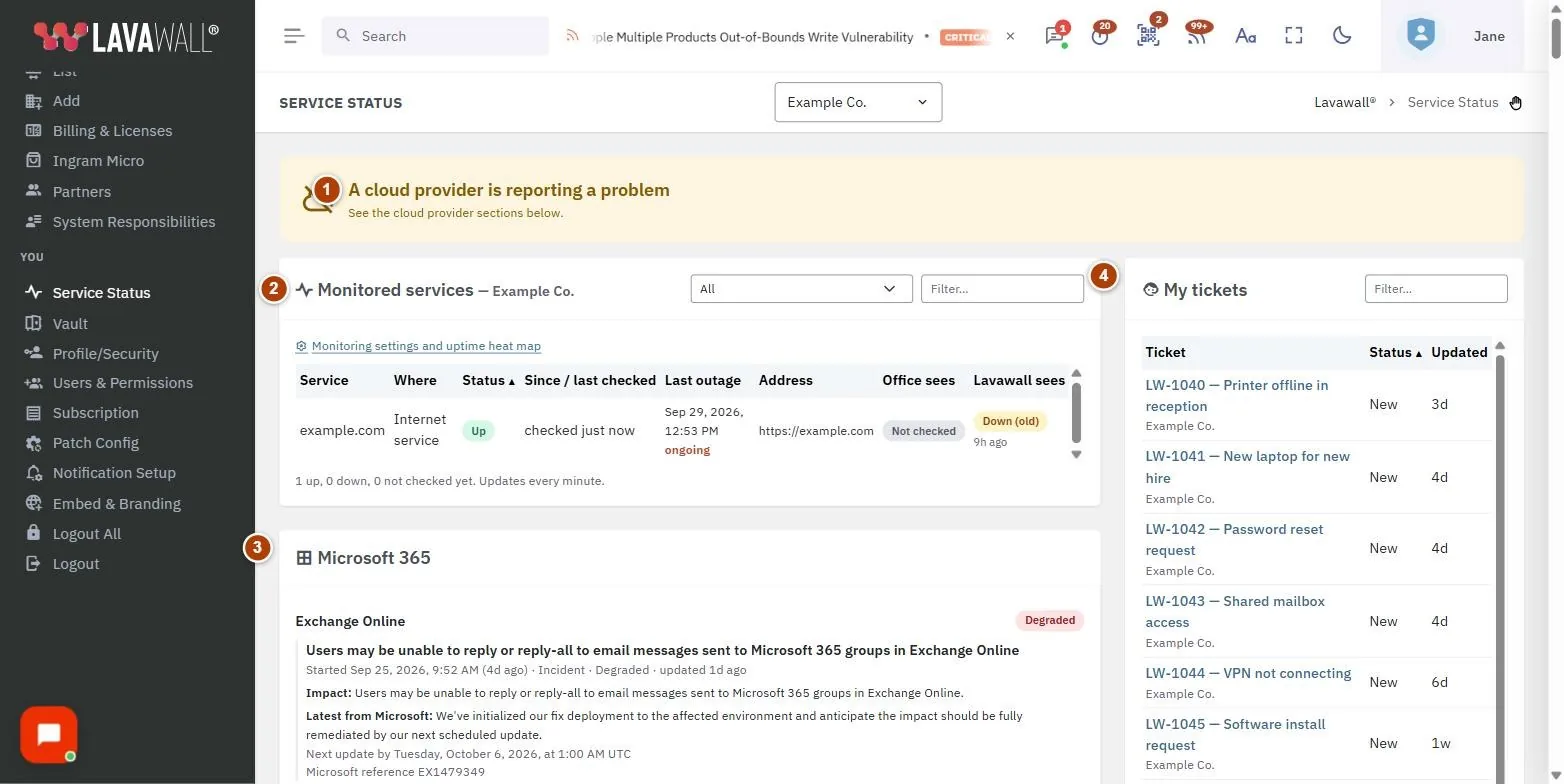
- Status banner: "Everything is up", the number of services down, or a notice that a cloud provider is reporting a problem.
- Monitored services: each service with Service, Where, Status, Since / last checked and Last outage, with a status filter and a text filter.
- Microsoft 365, Google Workspace and Other service providers: open incidents and notices from those providers, with links to their status pages.
- My tickets: your own tickets with Ticket, Status and Updated.
- Talk to your IT team: who the chat button reaches.
- New users from your domain: a switch that lets people from your approved email domains sign up for status and ticket access (administrators only).
How to use this page
How to check whether something is down
- Read the banner at the top of the page.
- In Monitored services, the list opens showing only services that need attention when anything is down. Use the status list to switch between All, Down, not checked or blocked, Check blocked by a firewall and Up.
- Type in Filter… to find a service by name.
- Select a column heading to sort by it; select it again to reverse the order.
- Check the Microsoft 365, Google Workspace and Other service providers cards for problems outside your office.
How to follow up on your ticket
- In My tickets, select the ticket.
- Read the original request and the public updates from your IT team.
- Type in Add an update and select Send update.
How to contact your IT team
- Select the chat button in the bottom corner of the page.
- Type your message. If nobody is available, the chat takes a message and they will get back to you.
How to let people from your domain sign up (administrators)
- In New users from your domain, turn on Let people from your approved email domains sign up for status and ticket access.
- Anyone who signs up with an address on one of your approved auto-add domains joins as Status & tickets only. They see this page and their own tickets, and nothing else.
- To stop new sign-ups, turn the switch off and confirm Turn off. People who already have access keep it.
Tips
- Status colours: green Up, red Down, amber Not being checked or an old result, grey Not checked yet, and purple when a firewall answered the check instead of the site.
- Last outage shows when the most recent outage started and how long it lasted, or "ongoing" in red if it has not ended.
- When a site's check is blocked by a web application firewall, the site is shown as up. Select How to allow for the steps to let Lavawall's checks through.
- Tickets marked Waiting on you sort to the top, because your IT team needs a reply from you.
- Your IT team is notified automatically when a monitored service goes down, so you do not need to report it.
Troubleshooting
- "Verify your email address in your profile to see your tickets."
- Your tickets are matched on your verified email address. Verify it on your profile, then return.
- "Nothing is being monitored for this company yet."
- Your IT team has not set up monitoring for your organization.
- "Microsoft 365 service health is not being collected for this company yet."
- Your IT team needs to grant the extra Microsoft 365 permission for service health.
- "Your account has not been given access to the service status page."
- Ask an administrator in your organization to give you access.
- "You have sent a lot of updates in the last hour."
- Ticket replies are rate limited; wait and try again. Very long updates are also refused.
Task guides that use this page
Related articles
Still need help?
Search the support centre, or contact our support team and tell us which page you were on:
- Chat now: use the chat button in the bottom-right corner of this page to reach our team right away. Where cookie consent is needed, the chat starts after you accept (cookie settings).
- Email: send our support team a message through the contact page. It goes straight to a person.
- Phone:
 AB: 1-403-538-5053
 US: 1-406-988-7333
 UK: +44 20 3695 9786
Names, companies, devices and figures in the pictures are examples. Other product and company names are trademarks of their respective owners.