Users & Permissions
See everyone who can sign in to Lavawall for your company and your clients, and control what each person can do.
What the page is for
Users & Permissions is a page in the Lavawall® console, in the Account & users area. Lavawall is the RMM, security, and compliance platform from ThreeShield, built and hosted in Canada. About this feature.
This page lists every Lavawall user in your company and, for MSPs, in your client companies. For each person it shows their email, company, whether the account is active or locked, their role, last activity, name, failed sign-in count and which sign-in methods they use.
An MSP can show every organization it manages at once, or one organization at a time, with the Organization list above the table.
From here you can add users, lock or unlock an account, edit a user's details and permissions, reset their MFA or password, and permanently delete a user.
The Edit User window holds all per-user settings: details and photo, organization and role, account recovery, feature and module permissions, application elevation rights, vault rights, remote support access and, for Super Admins, admin permissions.
What you see
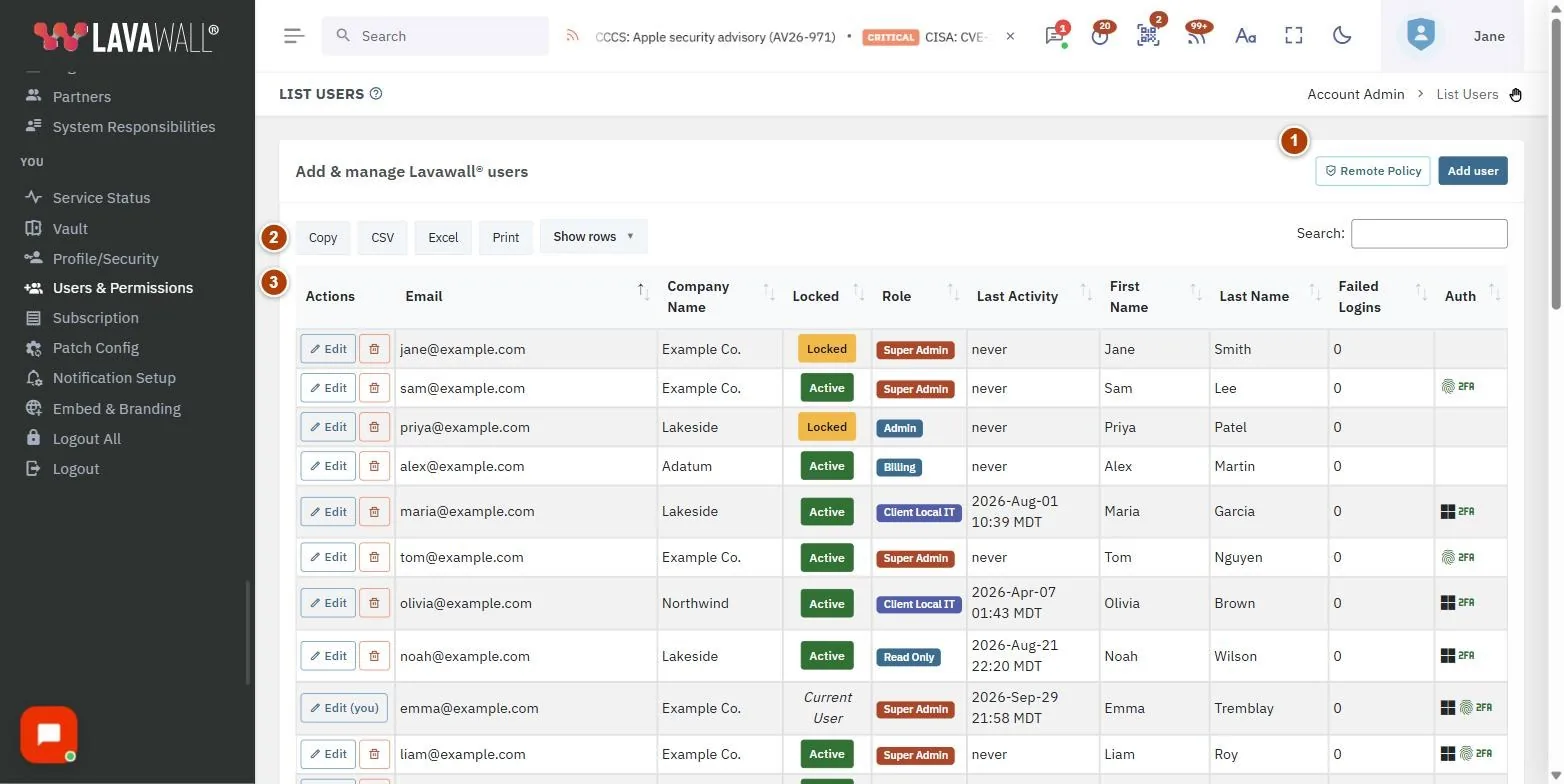
- Header buttons: Remote Policy (opens Access Policy, for people allowed to change it) and Add user.
- Table tools: Copy, CSV, Excel, Print, Show rows and a search box.
- User table: Actions (Edit and delete), Email, Organization (when all organizations are shown), Locked (Active or Locked), Role, Last Activity, First Name, Last Name, Failed Logins and Auth.
- Edit User window: user details, Account Recovery, Feature Permissions, Module Permissions, Application Elevation, Vault, Admin Permissions, Governance, Risk and Compliance and Remote Support Access, with Save Changes.
How to show one organization or all of them
- Above the table, open the Organization list. Type part of a name to find an organization quickly.
- Choose an organization to list only its users, or All organizations to list everyone in your organization and your active clients, with an Organization column.
- The list reloads. The organization you choose is also selected on your other console pages, and it stays selected when you come back to this page.
The list shows your own organization and your active client organizations. Prospects and inactive organizations are not listed, and an MSP Client Administrator sees client organizations only. A reseller’s own clients are managed by that reseller and are not listed here.
How to lock or unlock a user
- Find the user in the table. The Locked column shows Active or Locked.
- Click Edit on the user's row.
- Set Account Status to Locked to lock the account, or to Active to unlock it, then click Save Changes.
How to edit a user and their permissions
- Click Edit on the user's row.
- Update their details, Organization, Role or Account Status.
- Turn permissions on or off: Feature Permissions (CRM, Help Desk, Blog, Knowledge Base, Reports, Integrations), Module Permissions (Unrestricted or specific modules), Application Elevation and Vault.
- Under Remote Support Access, choose a Remote Access Scope: Use company default, All companies (MSP + clients), Client companies only, Own company only, Specific companies... or No remote access. For specific companies, tick them under Allowed Companies.
- Click Save Changes.
How to set mobile mode for a person
- Click Edit on the user's row and scroll to Mobile mode.
- In Mobile mode for this person, choose Follow the organization, Automatic mobile mode or Off. The line beside it says what applies to them right now. The choice saves as soon as you make it.
- The table lists their devices in mobile mode with the mobile network recorded for each. Click Reset to have a device record its mobile network again, for example after they change carrier.
The organization-wide choice is on Access Policy.
How to reset a user's MFA or password
- Click Edit on the user's row.
- Under Account Recovery, click Reset MFA or Reset Password and confirm. These act straight away; you do not need to click Save Changes.
- Reset MFA clears their authenticator, forgets remembered computers and signs them out; they set up a new authenticator at next sign-in and are told by email.
- Reset Password stops the current password working at once, signs them out and emails them a single-use link valid for 1 hour. You never see the link or the new password.
How to delete a user
- Click the red bin button on the user's row.
- Type the user's email address exactly to confirm, then click Delete permanently.
- The account, permissions and remembered MFA computers are removed and the user is signed out everywhere. Their activity history is kept for audit. This cannot be undone.
How to export the list
- Click CSV or Excel to download, Copy to copy it, or Print.
- Use the search box first to export only matching users.
Language
When you edit a user, the Language field sets the language the console uses for that person. Company default follows the organization's setting. Only an administrator who can edit users can change someone else's language; anyone can change their own from the top bar or on their profile.
Password, MFA reset and sign-in notices go to the user in their own language. See Choose the console language.
Tips
- Manage referral partners lets someone run your referral partner program on the Partners page: enrol partners (including organizations that are not in Lavawall® yet), set terms, record referrals and payments, and manage invite codes. Super Admins always can. Only a Super Admin can give or remove it, and only for people in your own organization.
- The Auth column icons show Microsoft sign-in, Google sign-in, passkey, password and MFA for each user. A password without MFA is worth following up.
- A red number in Failed Logins means recent failed sign-in attempts.
- Vault permissions build on each other: every vault permission includes Use the password vault. Only a Super Admin can grant the recovery key and vault administration permissions.
- Application Elevation: Module Admin includes Manage Rules, which includes Approve Requests.
- Turn on May reset other users' MFA or May reset other users' passwords to let a trusted person handle account recovery.
Troubleshooting
- "You have not added any users yet."
- Click Add user to create the first one.
- "No users to show for this organization."
- The organization chosen has no users you can manage here, or it is not one of your organizations. Choose another organization, or All organizations.
- "You do not have permissions to view this page."
- Ask a Super Admin to give you the User Permissions permission.
- There is no Edit or delete button on a row.
- You cannot edit yourself unless you are a Super Admin, cannot delete yourself, and cannot delete a Super Admin unless you are one.
- "Not permitted" when changing a permission.
- You cannot grant more than you hold yourself.
- Reset buttons are greyed out.
- Hover over them to see why; you need the reset permission for that user.
Task guides that use this page
Related articles
Still need help?
Search the support centre, or contact our support team and tell us which page you were on:
- Chat now: use the chat button in the bottom-right corner of this page to reach our team right away. Where cookie consent is needed, the chat starts after you accept (cookie settings).
- Email: send our support team a message through the contact page. It goes straight to a person.
- Phone:
 AB: 1-403-538-5053
 US: 1-406-988-7333
 UK: +44 20 3695 9786
Names, companies, devices and figures in the pictures are examples. Other product and company names are trademarks of their respective owners.