Connect Microsoft 365
Connect or re-authorize your Microsoft 365 tenant so Lavawall can monitor it, without seeing any monitoring data yourself.
What the page is for
Connect Microsoft 365 is a page in the Lavawall® console, in the Microsoft 365 area. Lavawall is the RMM, security, and compliance platform from ThreeShield, built and hosted in Canada. About this feature.
This page is for people who need to connect Microsoft 365 to Lavawall but should not see the monitoring results, such as an IT administrator at a client who only grants access. Users with this limited permission are sent here instead of the Microsoft 365 dashboard.
The page shows whether your Microsoft 365 tenant is already connected and, if so, which tenant. One button starts Microsoft's sign-in and consent process. You sign in with a Microsoft 365 administrator account and choose the level of access Lavawall gets.
No monitoring data is shown on this page. Only the authorization happens here.
What you see
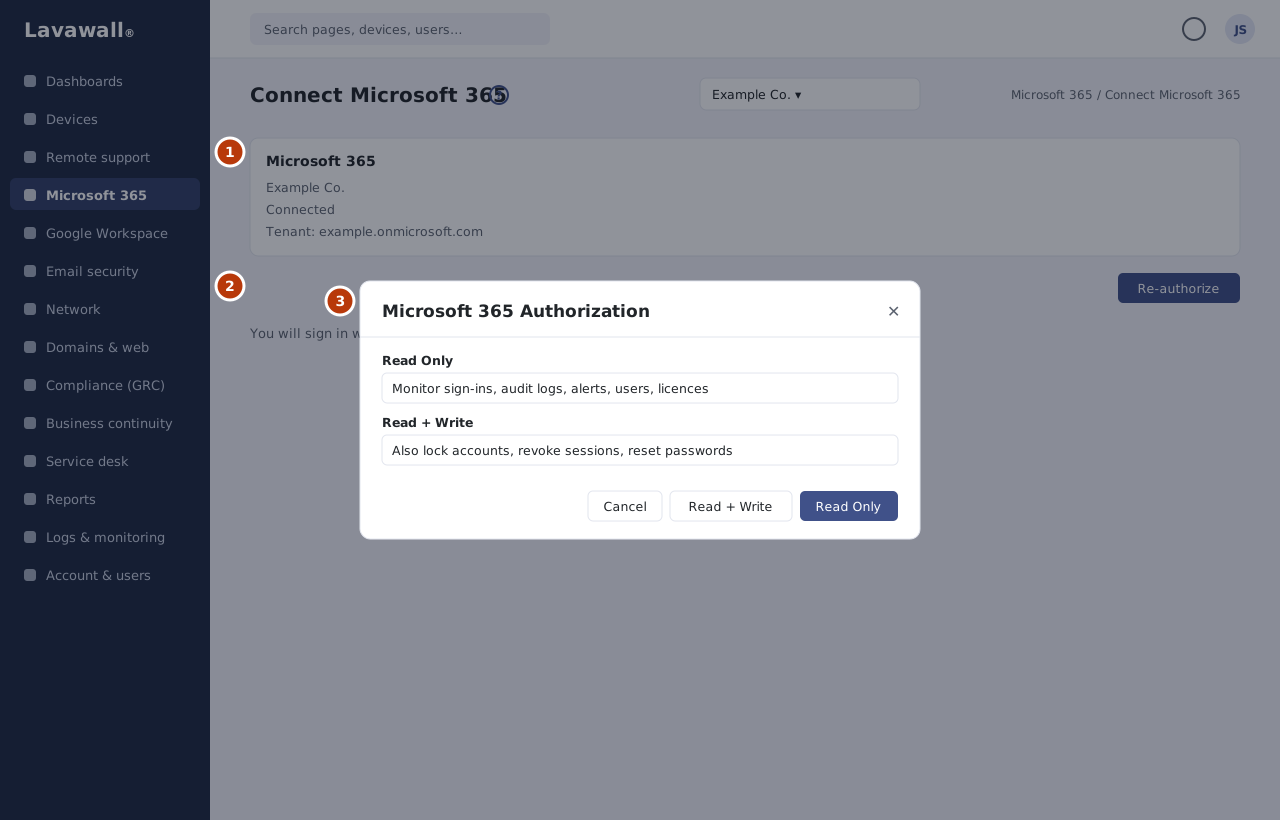
- Company and status: your company name and a Connected badge with the tenant domain, or a note that the tenant is not yet connected.
- Connect Microsoft 365 / Re-authorize: starts the Microsoft sign-in. The button reads Re-authorize when a tenant is already connected.
- Microsoft 365 Authorization dialog: choose Read Only or Read + Write access.
How to connect Microsoft 365
- Click Connect Microsoft 365.
- In the Microsoft 365 Authorization dialog, choose the access level:
- Read Only: monitor sign-ins, audit logs, security alerts, users and licences. No changes are made to your tenant.
- Read + Write: everything in Read Only, plus locking or disabling accounts, revoking sessions, forcing password resets and managing conditional access.
- Sign in with a Microsoft 365 administrator account.
- Review the permissions Microsoft shows and accept them.
- You are returned to Lavawall and the page shows Connected with your tenant.
How to re-authorize
- Click Re-authorize.
- Choose Read Only or Read + Write. Choose Read + Write if you want to switch from read-only to response actions.
- Sign in as a Microsoft 365 administrator and accept the permissions again.
Tips
- Use a Microsoft 365 administrator account that can grant consent for your whole organization.
- Start with Read Only if you only need monitoring. You can re-authorize later to add Read + Write.
- Re-authorize if Lavawall reports that the connection has stopped working or if you want to change the access level.
Troubleshooting
- "This tenant is not yet connected."
- No Microsoft 365 tenant has been authorized for this company yet. Click Connect Microsoft 365.
- Microsoft says you need admin approval.
- Sign in with an account that has administrator rights in Microsoft 365.
- I can't see any Microsoft 365 data.
- That is expected with the authorize-only permission. Ask your provider or administrator for access to the Microsoft 365 dashboard.
Task guides that use this page
- Connect Microsoft 365 and review the first findings
- Deploy the Phishing Reporter and clean up a reported phish
Related articles
Still need help?
Search the support centre, or contact our support team and tell us which page you were on:
- Chat now: use the chat button in the bottom-right corner of this page to reach our team right away. Where cookie consent is needed, the chat starts after you accept (cookie settings).
- Email: send our support team a message through the contact page. It goes straight to a person.
- Phone:
 AB: 1-403-538-5053
 US: 1-406-988-7333
 UK: +44 20 3695 9786
Names, companies, devices and figures in the pictures are examples. Other product and company names are trademarks of their respective owners.