Readiness Roadmap
See how close you are to a certification, which of the seven phases you are on, and the next few actions that will move you forward the most.
What the page is for
Readiness Roadmap is a page in the Lavawall® console, in the Compliance (GRC) area. Lavawall is the RMM, security, and compliance platform from ThreeShield, built and hosted in Canada. About this feature.
The Readiness Roadmap breaks the route to a certification into seven phases and measures each one from your own compliance records at the moment you open the page. Nothing is cached, so reloading the page recounts everything.
For each phase you see a percentage, what the phase is about, why it matters and exactly what is still outstanding, with a link to the page where you can fix each item. The overall figure is the average of the phases that can be measured, with each phase counting the same, so a framework with hundreds of controls cannot drown out whether anyone has written a policy.
The Next best actions list picks the outstanding items that unblock the most, in order. You can also record a plan for each phase: its status, who owns it, a target date and a note.
What you see
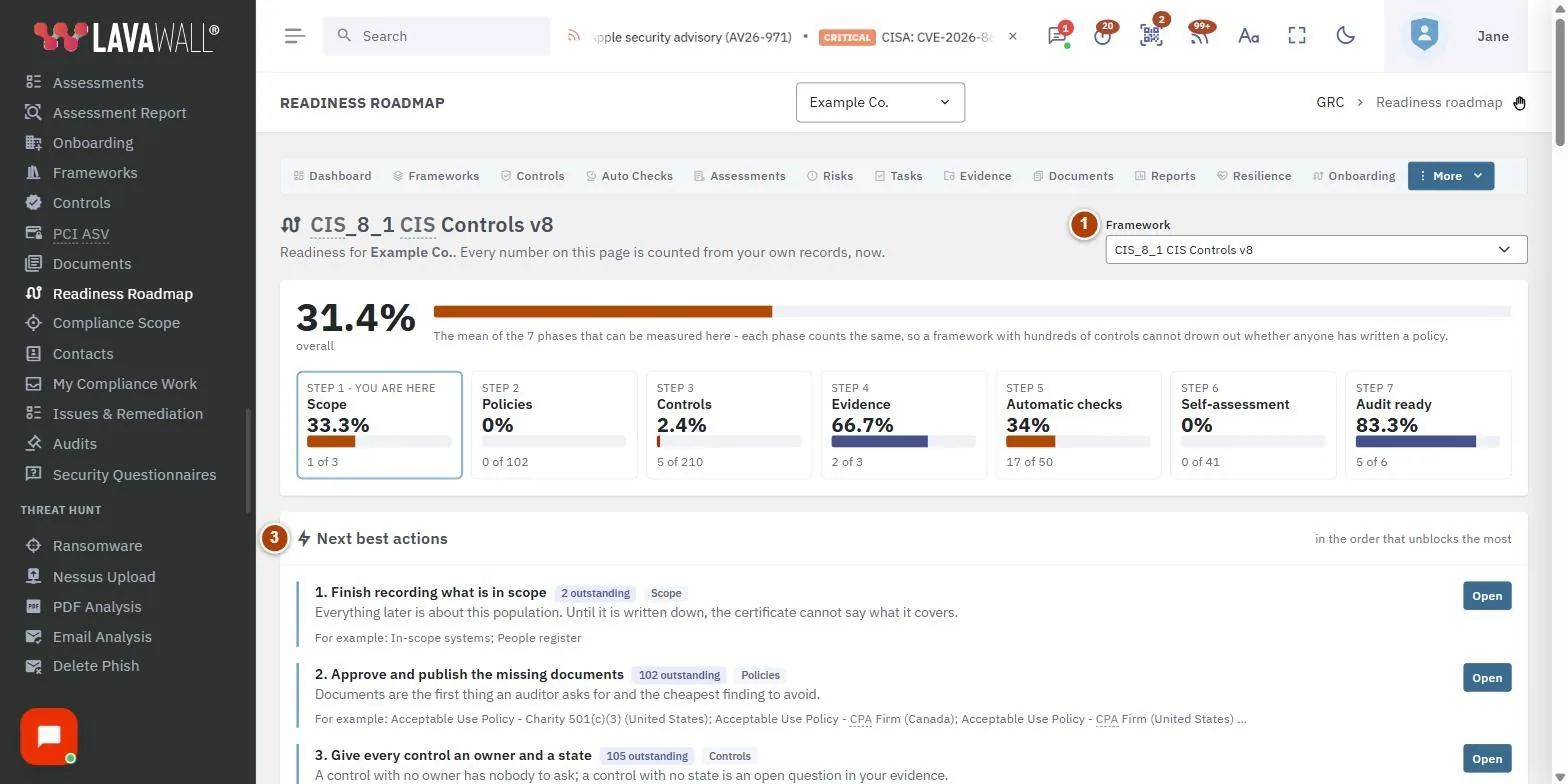
- Framework header: the framework the roadmap is aimed at, with a Framework picker if your company has adopted more than one.
- Overall readiness and phase rail: the overall percentage, and one cell per step showing each phase's percentage and progress bar. "You are here" marks the current phase; target dates that have passed are shown in red.
- Next best actions: up to five actions, each with how many items are outstanding, which phase it belongs to, why it matters, a few examples and a button that takes you to the right page.
- Phase cards: one card per phase: what it covers, Why it matters, a breakdown of what is counted, Still outstanding with links, and badges such as You are here and Past its target date.
- Phase plan: Status, Owner, Target date and Note for each phase, with a Save button.
How to work through the roadmap
- Check the phase marked you are here on the rail.
- Go to Next best actions and select the button on the first action. It opens the page where the work is done.
- Complete the work, then come back to the roadmap. The numbers are recounted each time the page loads.
How to set a phase's owner and target date
- Click a phase on the rail to jump to its card.
- At the bottom of the card, choose a Status and an Owner.
- Pick a Target date and add a Note, for example what is holding it up.
- Select Save. The card shows who last changed it and when.
How to switch frameworks
- If your company has adopted more than one framework, open the Framework list at the top right.
- Pick a framework. The roadmap is recalculated for it.
Tips
- Bar colours show how far along a phase is: red for early, amber for under way, blue for most of the way, green for complete. Grey means the phase is not measured.
- A phase marked "nothing to do yet" or "not measured here" is left out of the overall figure rather than shown as 0% or 100%.
- A target date is a plan, not an approval. Anyone who can edit can record one, so record them early.
- Use the links under Still outstanding to go straight to each item that needs work.
Troubleshooting
- "No framework adopted yet".
- A roadmap needs a framework to aim at. Select Choose a framework, or Not sure which? Use the wizard.
- "The readiness roadmap is not part of this company's plan."
- Your plan does not include the roadmap. Talk to your provider about adding it.
- A phase says "Not measured here".
- That part of the platform is not set up for your company yet, so the phase is left out of the overall figure.
- "Nothing is outstanding in the phases this server can measure."
- That is the good answer: everything measurable is done.
Task guides that use this page
Related articles
Still need help?
Search the support centre, or contact our support team and tell us which page you were on:
- Chat now: use the chat button in the bottom-right corner of this page to reach our team right away. Where cookie consent is needed, the chat starts after you accept (cookie settings).
- Email: send our support team a message through the contact page. It goes straight to a person.
- Phone:
 AB: 1-403-538-5053
 US: 1-406-988-7333
 UK: +44 20 3695 9786
Names, companies, devices and figures in the pictures are examples. Other product and company names are trademarks of their respective owners.