Company Systems & Admin Access
Know who holds administrator access to every system each client relies on, and spot systems with no administrator or only one.
What the page is for
Company Systems & Admin Access is a page in the Lavawall® console, in the Clients (MSP) area. Lavawall is the RMM, security, and compliance platform from ThreeShield, built and hosted in Canada. About this feature.
Clients depend on many systems: security tools, Microsoft 365 or Google Workspace, domains and hosting, website platforms, remote management tools, on-premises directories and cloud apps. If only one person can administer a system and they leave, the client can be locked out. This page tracks each system and its administrators so you can close those gaps.
Lavawall scans each client automatically and adds the systems it finds, such as Huntress, Sophos, Microsoft 365, Google Workspace, hosting, website platforms, domain registrars, remote management and endpoint agents, on-premises Active Directory, cloud devices and SaaS apps. You can also add systems yourself, add or remove administrators, and record each client's local IT contacts.
Each system card is coloured by coverage: red for no administrators recorded, orange for a single administrator, and normal for two or more. Across all clients you can view a coverage summary list or a grid of clients against system types.
What you see
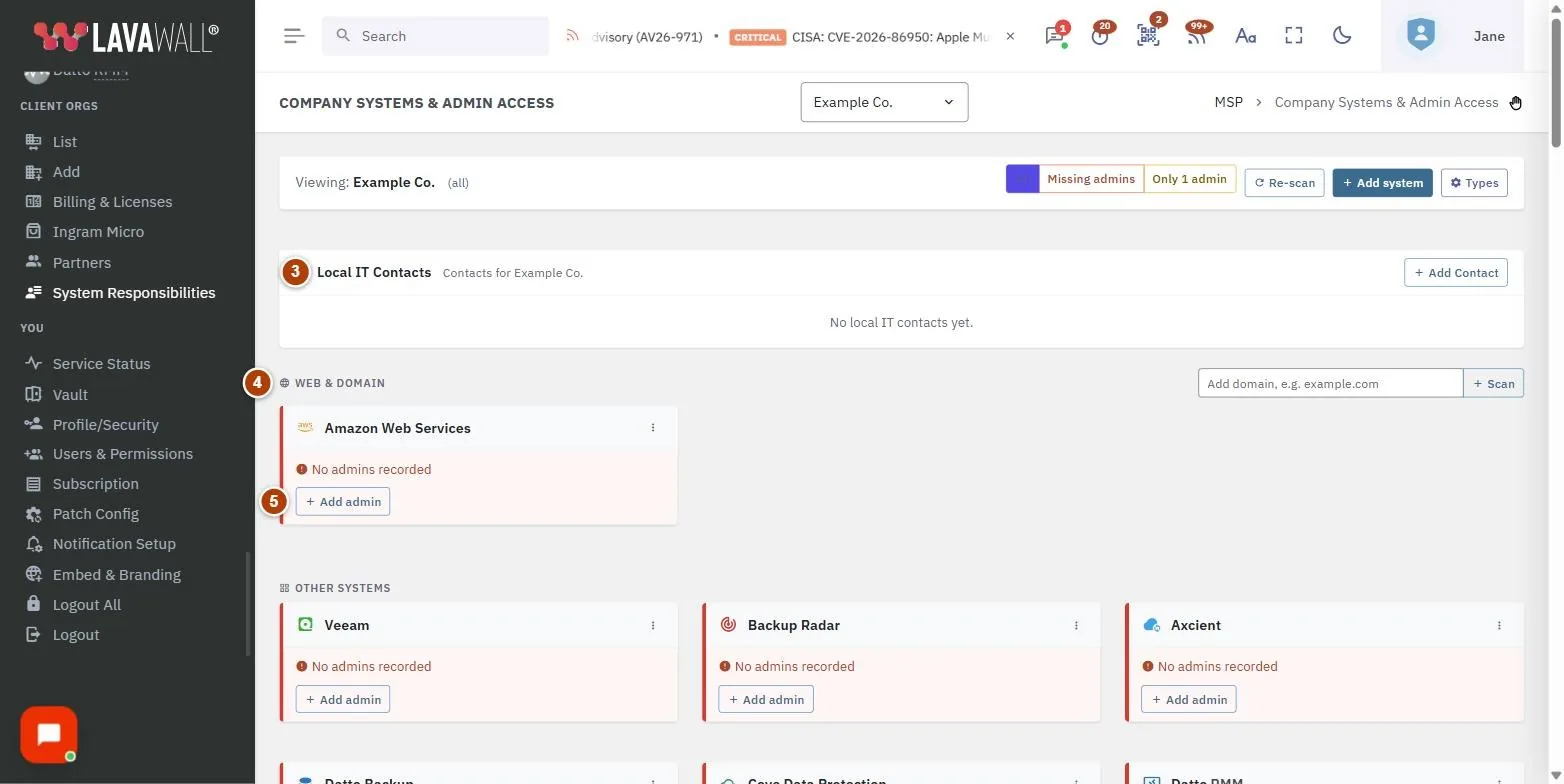
- Toolbar: which client you are viewing, List or Grid view, the All, Missing admins and Only 1 admin filters, Re-scan or Scan all, Add system and Types.
- Administrator Coverage Summary: per client, how many systems are tracked, missing admins or have only one (all-clients list view).
- Local IT Contacts: people at the client to call about IT, with Add Contact.
- Web & Domain: the client's domains and web systems, with a field to add a domain and Scan it.
- System cards: each system with its administrators, a primary star, Add admin, and a menu with Open admin, Hide or Delete.
How to use this page
How to find clients with admin gaps
- Open the page with all client companies selected.
- Review the Administrator Coverage Summary, or switch to Grid to see every client against every system type. Grid cells show the number of admins, coloured red, orange or green.
- Select Missing admins or Only 1 admin to show only the systems with that problem.
- Select a client name to open that client.
How to add an administrator to a system
- Open a client.
- On the system's card, select Add admin.
- Choose or enter the person and save.
- To remove someone, select the remove (×) button beside their name.
How to track a system that was not found automatically
- Open a client and select Add system.
- Choose the system type and enter its details.
- To track a new domain, type it in Add domain, e.g. example.com under Web & Domain and select Scan.
- Select Types to manage the list of system types you can choose from.
How to record the client's local IT contacts
- Open a client and select Add Contact under Local IT Contacts.
- Enter Display name, Email, Phone and Role / title.
- Tick the Categories this person covers and choose their Locations, or select + Add a location… to add one.
- Add any Notes and select Save.
How to refresh or tidy the list
- Select Re-scan for one client, or Scan all for every client. A progress bar shows while the scan runs.
- For a system found automatically that you do not want to track, open its menu and select Hide.
- For a system you added yourself (marked custom), open its menu and select Delete.
Tips
- Aim for at least two administrators on every system, so a single departure never locks the client out.
- A star next to a name marks the primary administrator.
- Open admin in a card's menu takes you straight to that system's admin site, when its address is known.
- Locations you add for a contact are saved to your list so you can reuse them for other clients.
- Billing Summary shows the same coverage counts, with a Manage button that brings you here.
Troubleshooting
- "No systems tracked yet"
- means the first scan is still running. Wait a moment and refresh.
- "No domains tracked for this client yet."
- Add the client's domain under Web & Domain to start a scan.
- Add Contact is greyed out.
- Contacts are added per client. Open a specific client first.
- "No admins recorded"
- on a card means Lavawall found the system but no administrators. Add them with Add admin.
Task guides that use this page
Related articles
Still need help?
Search the support centre, or contact our support team and tell us which page you were on:
- Chat now: use the chat button in the bottom-right corner of this page to reach our team right away. Where cookie consent is needed, the chat starts after you accept (cookie settings).
- Email: send our support team a message through the contact page. It goes straight to a person.
- Phone:
 AB: 1-403-538-5053
 US: 1-406-988-7333
 UK: +44 20 3695 9786
Names, companies, devices and figures in the pictures are examples. Other product and company names are trademarks of their respective owners.