Evidence Requests
Ask a vendor, IT provider or manager to upload evidence through a secure link, then review and accept what they send.
What the page is for
Evidence Requests is a page in the Lavawall® console, in the Compliance (GRC) area. Lavawall is the RMM, security, and compliance platform from ThreeShield, built and hosted in Canada. About this feature.
Evidence Requests lets you collect evidence from people who don't have a console login. You say what you need, and the recipient is emailed a private link. They confirm a six-digit code sent to the same email address, then upload their files. Uploaded files are encrypted on arrival and fingerprinted.
When the recipient sends the evidence back, the request shows as Needs review. You look at each file, accept the ones that count as evidence (they are added to the evidence library and linked to the control you chose), and then accept the request or return it for changes with a note.
Requests can repeat, for example a quarterly backup test, and each request keeps a full history of what the recipient did: when they viewed it, verified their code, uploaded and sent the evidence.
What you see
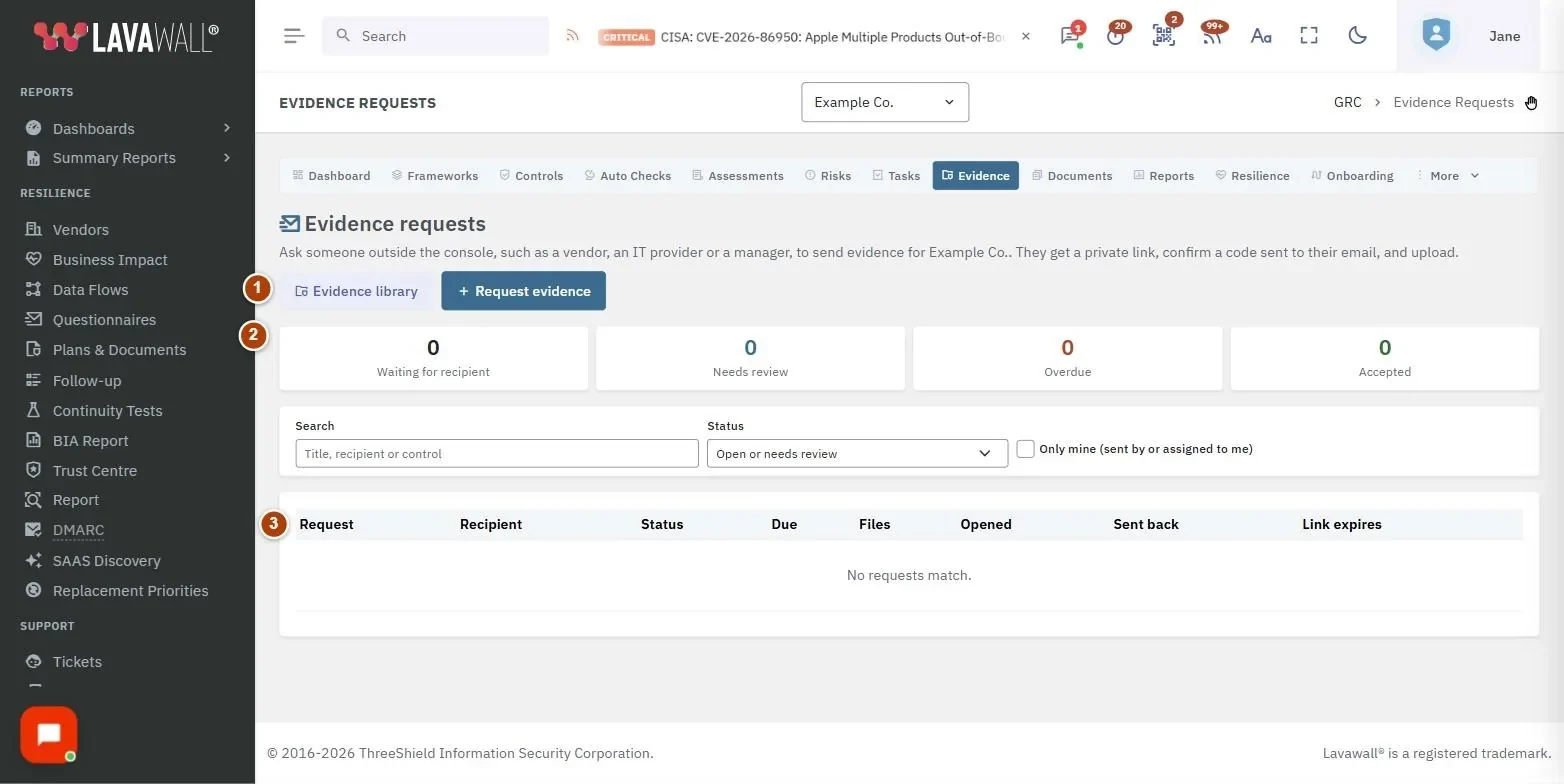
- Header: Evidence library (opens the evidence page) and Request evidence.
- Summary cards: Waiting for recipient, Needs review, Overdue and Accepted. Click a card to filter.
- Filters: Search, Status (Open or needs review, Waiting for recipient, Needs review, Returned for changes, Overdue, Accepted, Expired, Cancelled, All) and Only mine (sent by or assigned to me).
- Requests table: Request, Recipient, Status, Due, Files, Opened, Sent back and Link expires.
- Request evidence dialog: what you need, instructions, recipient, control, owner, repeat, due date, link expiry and upload limits.
How to request evidence
- Select Request evidence.
- Fill in What do you need? (for example "Q3 backup restore test results") and Instructions. Say exactly what counts: which system, which period, what a screenshot must show.
- Enter the Recipient email and Recipient name.
- Optionally choose a Control (optional); files you accept are linked to it. Choose an Internal owner (optional) to be told when the evidence arrives.
- Set Repeats, Due date and Link expires, and if needed Maximum files and Maximum total size.
- Select Create and email. The link is emailed to the recipient.
How to review what was sent
- Select Needs review, then open the request.
- Under Files sent, download each file. You can copy its SHA-256 fingerprint.
- For each file that counts, enter an Evidence title, choose an Evidence type, set Expires on (optional) and Controls it supports, and select Accept as evidence.
- Select Accept request to finish, or Return for changes with a note telling the recipient what to change. They get your note and a new link.
How to manage an open request
- Open the request and scroll to the Manage section.
- Send a new link emails a fresh link; the link in earlier emails stops working.
- Extend gives the request a new link expiry date. Reopen reopens an expired request and emails a new link.
- Change recipient sends the request to a new email address; the current recipient loses access straight away.
- Cancel request stops the link working and signs the recipient out. Files already accepted stay in the evidence library.
Tips
- Use Repeats for evidence you need regularly. The next request is sent about 30 days before its due date, once the current one is accepted.
- The link expiry defaults to 30 days after the due date.
- The Portal activity history shows whether the recipient opened, verified and uploaded, which helps when chasing.
- If a request was sent to your own address, someone else has to review it (or, where self-approval is allowed, you must give a reason that auditors will see).
Troubleshooting
- "The email could not be sent. Copy the link and send it to them yourself."
- Copy the link shown at that moment. It is the only time it can be shown.
- "Recipients cannot upload until it is."
- Evidence storage is not ready for your company yet. Contact support.
- "Enter one valid email address for the recipient."
- Only one address per request.
- "A repeating request needs a due date."
- Set a Due date when using Repeats.
- "Write a note telling the recipient what to change."
- A note is required to return a request.
Task guides that use this page
Related articles
Still need help?
Search the support centre, or contact our support team and tell us which page you were on:
- Chat now: use the chat button in the bottom-right corner of this page to reach our team right away. Where cookie consent is needed, the chat starts after you accept (cookie settings).
- Email: send our support team a message through the contact page. It goes straight to a person.
- Phone:
 AB: 1-403-538-5053
 US: 1-406-988-7333
 UK: +44 20 3695 9786
Names, companies, devices and figures in the pictures are examples. Other product and company names are trademarks of their respective owners.