My Compliance Work
One list of everything in your compliance program that is assigned to you or waiting on you, across every company you work with.
What the page is for
My Compliance Work is a page in the Lavawall® console, in the Compliance (GRC) area. Lavawall is the RMM, security, and compliance platform from ThreeShield, built and hosted in Canada. About this feature.
My Compliance Work gathers your part of the compliance program in one place, so you don't have to check each page. It lists tasks and issues assigned to you, controls due for review, evidence you own, evidence that has been sent back for your review, approvals you can give (documents, risk acceptances, control designs and exceptions to automated checks), auditor requests, and policies you have been asked to read and accept.
If you work for a service provider, the list covers your own company and every client below it, grouped by company. Clicking Open takes you to the item in the right company.
The page also shows comments where someone mentioned you by name, and your recent compliance notifications. You are never asked to approve something you wrote or requested yourself.
What you see
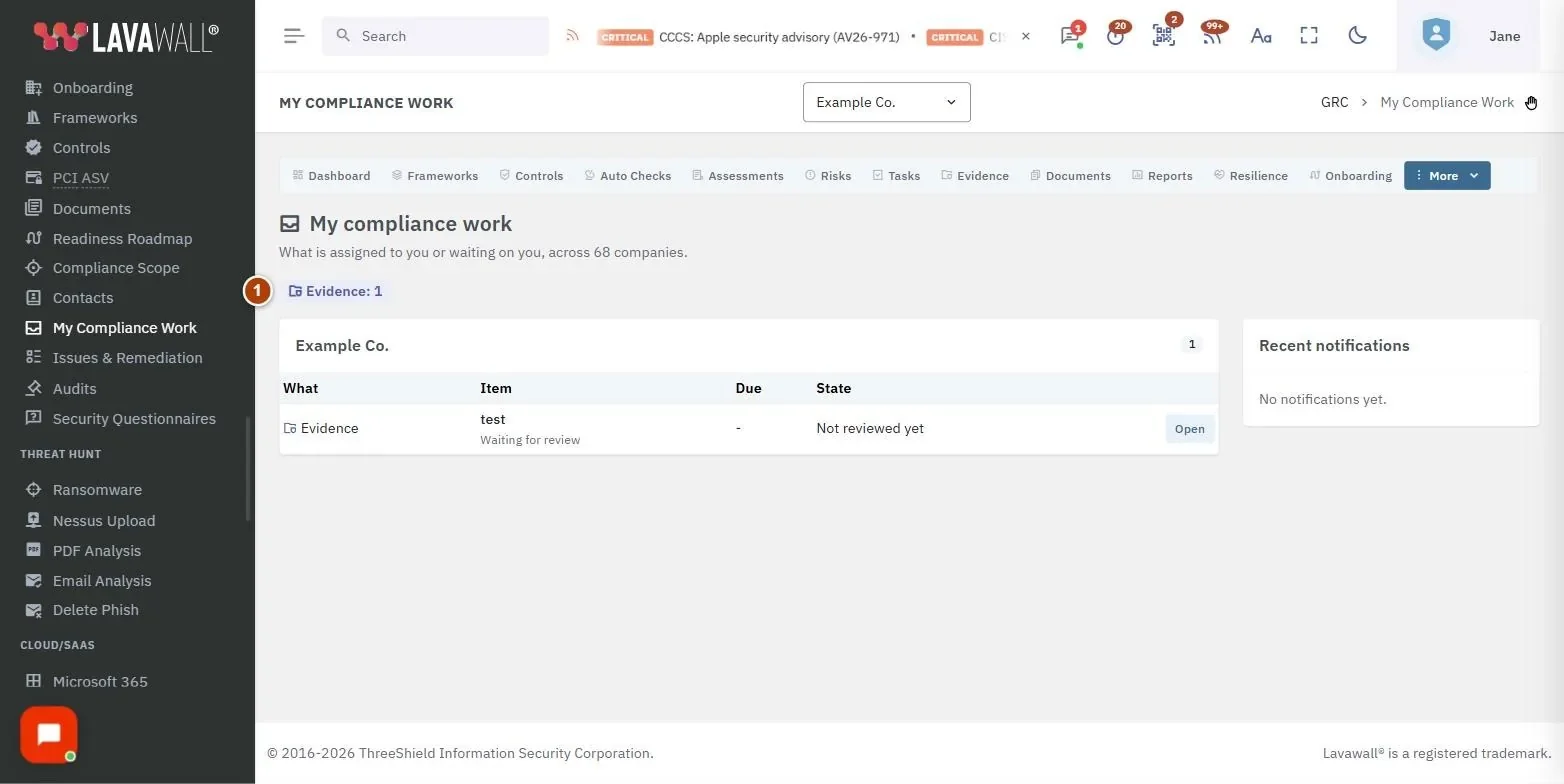
- Summary badges: a count for each kind of item waiting on you, such as Task, Issue, Control review, Document approval, Audit request or Mention.
- Mentions: comments that named you, with Where, What was said and When, an Open button, Mark read and Mark all read.
- Work by company: one card per company with What, Item, Due, State and an Open button. Overdue items are highlighted.
- Recent notifications: your latest compliance notifications, unread ones in bold, with Mark all read.
How to work through your list
- Start with the highlighted rows: these are overdue or expired.
- Select Open on a row to go to the task, issue, control, document or request.
- Finish the work there. The item leaves your list once it no longer waits on you.
How to deal with mentions
- In Mentions, read What was said.
- Select Open to go to the item and reply.
- Select Mark read on the row, or Mark all read to clear them all.
How to get a new link to accept a policy
- Find the row marked Policy to accept.
- Select Email me a new link, then Send it.
- Check your inbox for the new link. Links in earlier emails stop working.
Tips
- Items are ordered with the most urgent first. If you have more than 500, the page shows the first 500.
- A red due date means the item is past due.
- Document approval rows say "(you were named)" when the author picked you as the approver.
- Evidence rows show "Expired", "Expiring" or "Not reviewed yet" so you know what to do first.
Troubleshooting
- "Nothing is waiting on you."
- You have no assigned work, reviews or approvals right now. That is good news.
- I expected an approval but it isn't listed.
- Approvals only appear if your GRC role can approve, and never for something you wrote or requested yourself.
- "A new link was sent recently."
- Check your inbox and junk folder, or try again in an hour.
- "This attestation has no usable address."
- Ask the person who sent you the policy to send it again.
Related articles
Still need help?
Search the support centre, or contact our support team and tell us which page you were on:
- Chat now: use the chat button in the bottom-right corner of this page to reach our team right away. Where cookie consent is needed, the chat starts after you accept (cookie settings).
- Email: send our support team a message through the contact page. It goes straight to a person.
- Phone:
 AB: 1-403-538-5053
 US: 1-406-988-7333
 UK: +44 20 3695 9786
Names, companies, devices and figures in the pictures are examples. Other product and company names are trademarks of their respective owners.