Google Workspace
See the security of your Google Workspace at a glance, check your licences and manage the connection.
What the page is for
Google Workspace is a page in the Lavawall® console, in the Google Workspace area. Lavawall is the RMM, security, and compliance platform from ThreeShield, built and hosted in Canada. About this feature.
This is the starting point for Google Workspace in Lavawall. Once connected, Lavawall monitors your Google Workspace for signs of compromise and weak configuration, and this page summarizes the results together with your licence usage and connection details.
If the Google credential Lavawall uses stops working, a banner warns you that data is no longer updating, so old figures are never mistaken for current ones. Some checks depend on your Google Workspace edition; when your edition limits what can be assessed (for example, data loss prevention is only in some editions), a note explains it.
MSPs can choose all companies to see a card for each client with suspected breach cases, users, users without MFA, apps, risky apps and configuration findings, plus combined totals.
What you see
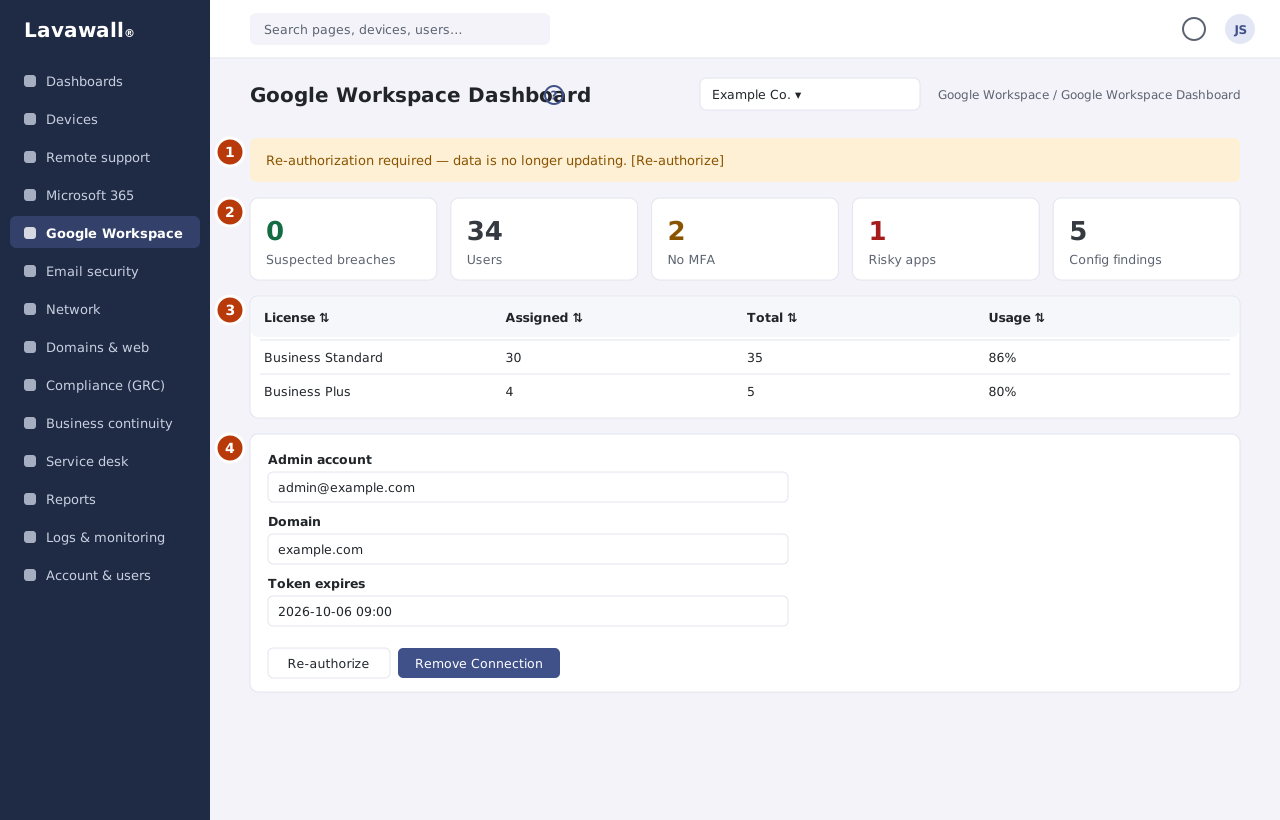
- Connection banner: shown only when re-authorization is needed or the connected Google account was deleted, with Re-authorize.
- Security summary: suspected breaches, configuration findings and other security results for the workspace.
- Google Workspace Licenses: License, Assigned, Total and Usage, with total licence usage and View All.
- Google Workspace Connection: Admin account, Domain and token expiry, with Re-authorize and Remove Connection.
How to connect Google Workspace
- If the page shows Google Workspace Not Connected, click Connect Google Workspace.
- Confirm the prompt, then sign in with a Google Workspace administrator account.
- Allow the permissions Google shows. You are returned to the dashboard.
How to fix a connection that stopped updating
- If you see Re-authorization required or Google account deleted, click Re-authorize in the banner.
- Sign in with a live Google Workspace administrator account and allow the permissions.
- Figures start refreshing again after the next sync.
How to check licence usage
- Review Google Workspace Licenses for each licence's assigned and total seats.
- Usage bars turn amber or red as licences fill up.
- Click View All for a licence summary across your companies.
How to remove the connection
- In Google Workspace Connection, click Remove Connection.
- Optionally tick Also delete all synced Google Workspace data (users, apps, signals).
- Type the four-character code shown and click Remove Connection. Your Google Workspace itself is not affected, only its connection to Lavawall.
Tips
- Use the Google Workspace pages in the sub-navigation (Drive activity, activity search, apps, users and sharing) to dig into what the dashboard shows.
- In the all-companies view, click a company name to open its dashboard.
- Keep the connected administrator account active. If it is deleted, monitoring stops.
Troubleshooting
- "Re-authorization required: data is no longer updating."
- The stored Google credential expired or was revoked. Click Re-authorize.
- "Google account deleted: data is no longer updating."
- Reconnect with a different, active administrator account.
- "Assessment coverage is limited by this domain's Google Workspace edition."
- Some checks need a higher Google Workspace edition. The note lists which.
- "No license data available."
- Licence information appears after the first sync.
- "Confirmation code does not match."
- Type the code exactly as shown when removing the connection.
Task guides that use this page
Related articles
Still need help?
Search the support centre, or contact our support team and tell us which page you were on:
- Chat now: use the chat button in the bottom-right corner of this page to reach our team right away. Where cookie consent is needed, the chat starts after you accept (cookie settings).
- Email: send our support team a message through the contact page. It goes straight to a person.
- Phone:
 AB: 1-403-538-5053
 US: 1-406-988-7333
 UK: +44 20 3695 9786
Names, companies, devices and figures in the pictures are examples. Other product and company names are trademarks of their respective owners.