Google Drive External Sharing
See which Google Drive files are shared outside your organization right now, who can open them and whether they can edit.
What the page is for
Google Drive External Sharing is a page in the Lavawall® console, in the Google Workspace area. Lavawall is the RMM, security, and compliance platform from ThreeShield, built and hosted in Canada. About this feature.
This page shows the current sharing state of Google Drive files, not a history of sharing events. It answers the questions an auditor or owner asks: which files are shared with people outside the organization, which are public or open to anyone with the link, and which of those can be edited.
The data comes from your connected Google Workspace and fills in once Lavawall has read Drive file permissions for the tenant. Public files are listed first, then external shares, then the most recently changed.
Summary counts across the top and a list of the top external domains help you spot the biggest exposures quickly. Click a domain to see every file shared with it.
What you see
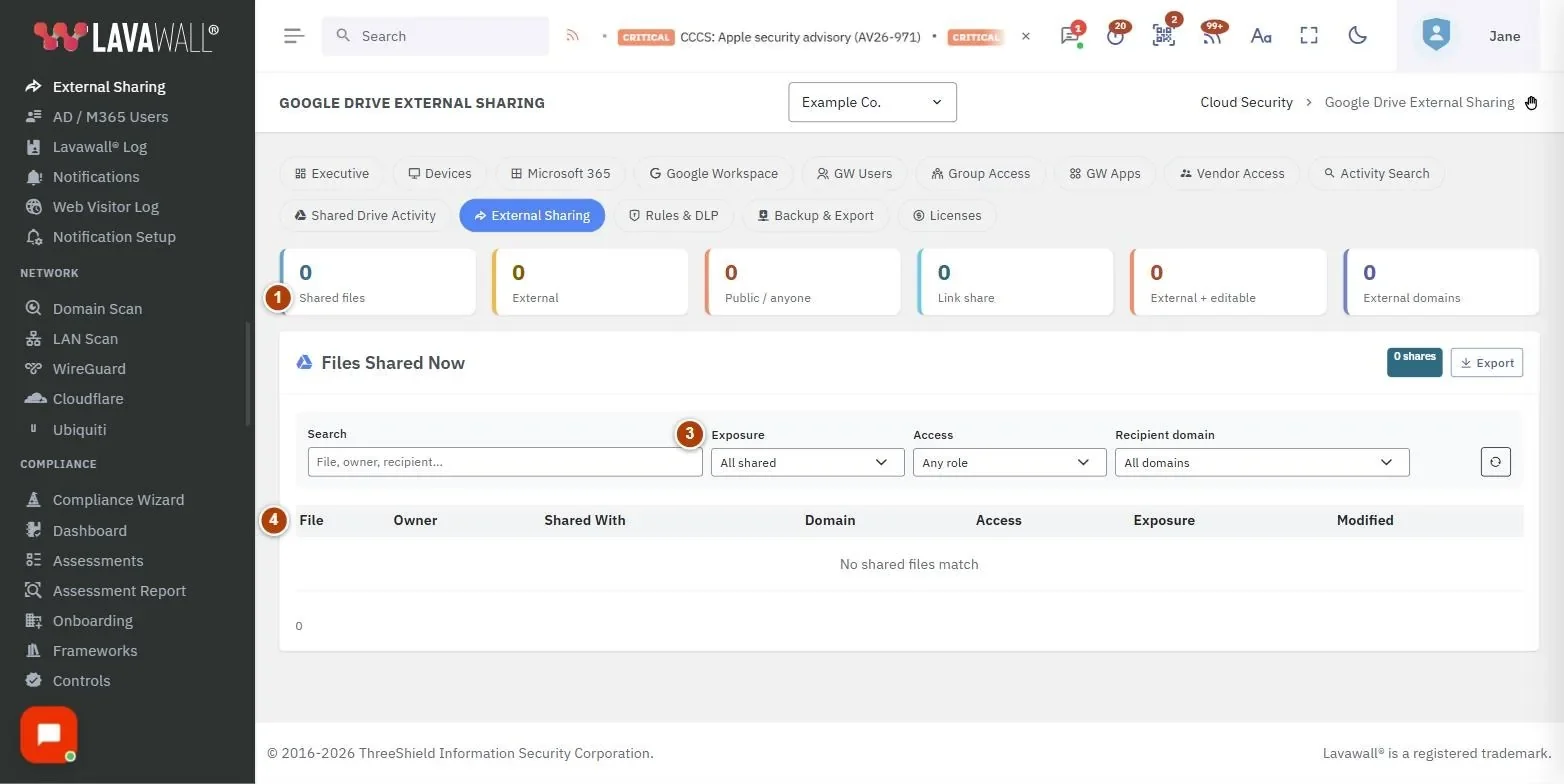
- Summary tiles: Shared files, External, Public / anyone, Link share, External + editable and External domains.
- Top external domains: the outside domains your files are shared with most, each with a count. Click one to filter the table to it.
- Filters: Search (file, owner, recipient), Exposure (All shared, External, Public / anyone, Link share), Access (Any role, Can edit, View/comment only), Recipient domain and a reset button.
- Files Shared Now: the table of shares with File, Owner, Shared With, Domain, Access, Exposure and Modified, plus a share count and Export.
How to find files that are public or open by link
- Set Exposure to Public / anyone or Link share.
- Public rows are highlighted. Click a file name to open it in Google Drive and change its sharing.
How to find externally shared files people can edit
- Set Exposure to External.
- Set Access to Can edit.
- Review the list with the file owners.
How to review everything shared with one outside organization
- Click the domain under Top external domains, or choose it in Recipient domain.
- The table shows every file shared with that domain.
How to export the list
- Click Export in the Files Shared Now header.
- A CSV file downloads with every shared file, including the ones hidden by your current filters.
Tips
- Start with External + editable and Public / anyone. These carry the most risk.
- Badges in the Exposure column: red Public, amber External, blue Link, grey Internal. A red Can edit badge means the recipient can change the file.
- Sort by File or Modified by clicking the column heading.
- The table shows up to 2,000 rows at a time. Use filters to narrow large results.
Troubleshooting
- "No current-state sharing data yet."
- Lavawall has not finished reading Drive file permissions for this tenant. It fills in after the next Google Workspace sync.
- "No shared files match."
- Your filters exclude everything. Click the reset button.
- "No company in scope."
- Choose a company in the console first.
Related articles
Still need help?
Search the support centre, or contact our support team and tell us which page you were on:
- Chat now: use the chat button in the bottom-right corner of this page to reach our team right away. Where cookie consent is needed, the chat starts after you accept (cookie settings).
- Email: send our support team a message through the contact page. It goes straight to a person.
- Phone:
 AB: 1-403-538-5053
 US: 1-406-988-7333
 UK: +44 20 3695 9786
Names, companies, devices and figures in the pictures are examples. Other product and company names are trademarks of their respective owners.