Google Workspace Activity Search
Search sign-ins, admin changes and Drive activity across your Google Workspace in one place.
What the page is for
Google Workspace Activity Search is a page in the Lavawall® console, in the Google Workspace area. Lavawall is the RMM, security, and compliance platform from ThreeShield, built and hosted in Canada. About this feature.
When you investigate a Google Workspace account, the evidence is spread across sign-ins, admin console changes and Drive activity. This page searches all three at once and shows the results in time order, so you can follow what a person did from sign-in to file access.
Each result shows the time, the type of activity, the user, the event, its target or detail, and the IP address with its country, city and internet provider. Events flagged as suspicious or involving outsiders are marked with a warning icon.
The most recent activity loads automatically when you open the page.
What you see
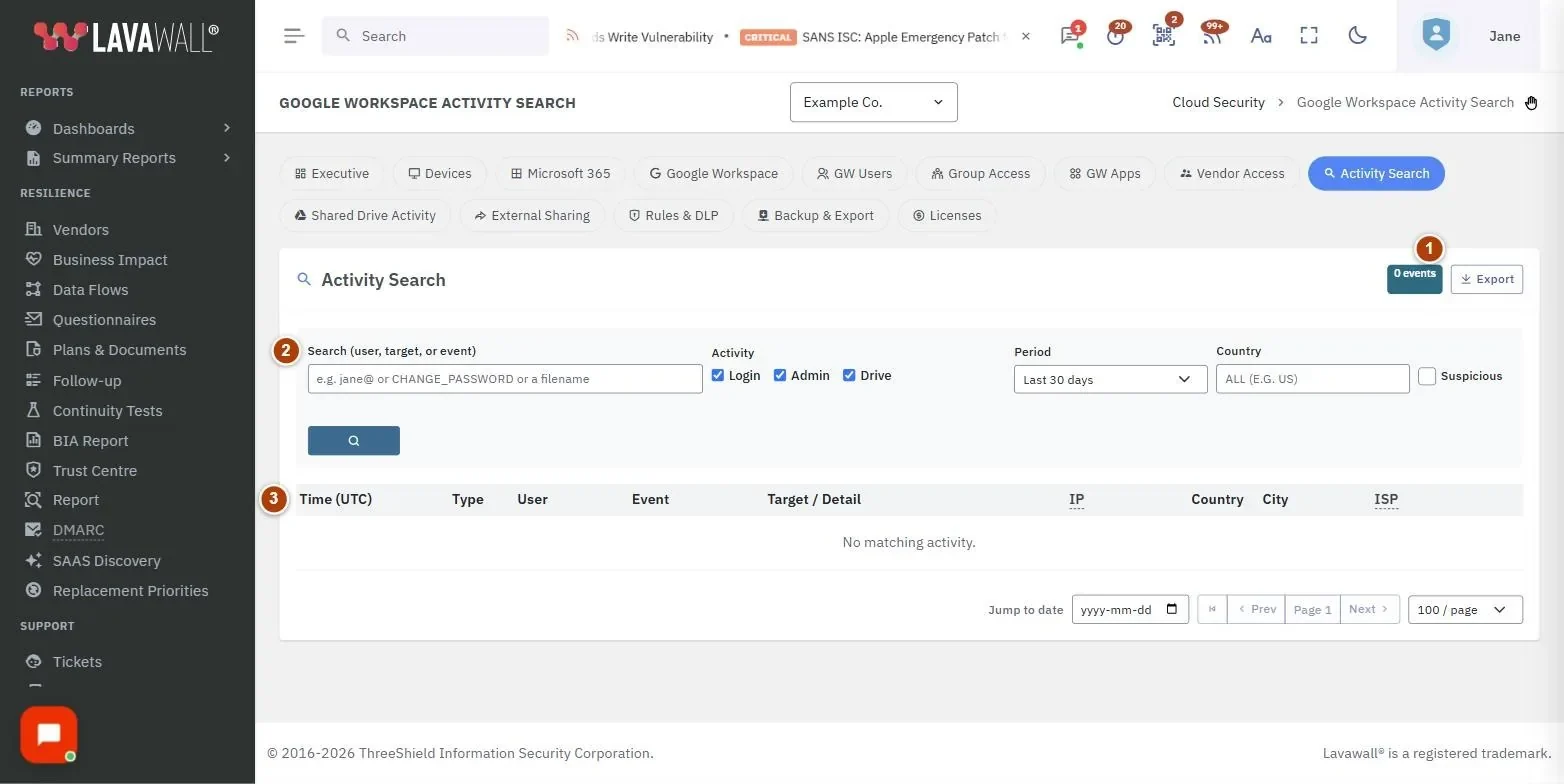
- Activity Search header: with Export.
- Filters: Search (user, target, or event), Activity (Login, Admin, Drive), Period, Country, Suspicious and the search button.
- Results table: Time (UTC), Type, User, Event, Target / Detail, IP, Country, City and ISP.
- Paging: Jump to date, first page, Prev, the page number, Next and rows per page (50, 100 or 200).
How to investigate one user
- Type part of the person's address in Search, for example jane@.
- Leave Login, Admin and Drive ticked to see everything.
- Choose a Period: last 24 hours, 7, 30, 90 or 180 days.
- Click the search button or press Enter.
- Read the results from newest to oldest. Look for sign-ins from unexpected countries followed by admin or Drive activity.
How to find suspicious sign-ins
- Tick only Login under Activity.
- Tick Suspicious.
- Optionally enter a two-letter Country code, for example US, to see sign-ins from one country.
- Run the search.
How to find a specific event or file
- Type an event name or a file name in Search.
- Tick Admin for admin console changes, or Drive for file activity.
- Use Jump to date to go to a particular day. Click the ✕ beside it to return to the most recent activity.
How to export results
- Run your search.
- Click Export to download the current page of results as a CSV file.
Tips
- Times on this page are in UTC.
- The Country box suggests countries already seen in your results.
- A red warning icon beside an event means it was flagged as suspicious or external.
- Increase rows per page to 200 before exporting to capture more at once.
Troubleshooting
- "No matching activity."
- Widen the Period, tick all activity types, or clear Country and Suspicious.
- "No matching activity on or before <date>."
- The jump-to date is limiting results. Clear it to see the most recent activity.
- No results at all.
- Check that Google Workspace is connected on the Google Workspace dashboard.
Task guides that use this page
Related articles
Still need help?
Search the support centre, or contact our support team and tell us which page you were on:
- Chat now: use the chat button in the bottom-right corner of this page to reach our team right away. Where cookie consent is needed, the chat starts after you accept (cookie settings).
- Email: send our support team a message through the contact page. It goes straight to a person.
- Phone:
 AB: 1-403-538-5053
 US: 1-406-988-7333
 UK: +44 20 3695 9786
Names, companies, devices and figures in the pictures are examples. Other product and company names are trademarks of their respective owners.