Google Workspace OAuth Applications
See every app your users have connected to Google Workspace, what it can access and how risky it is.
What the page is for
Google Workspace OAuth Applications is a page in the Lavawall® console, in the Google Workspace area. Lavawall is the RMM, security, and compliance platform from ThreeShield, built and hosted in Canada. About this feature.
Users can sign in to third-party apps with their Google account and grant those apps access to Gmail, Drive and other data. Administrators can go further and give an app domain-wide delegation, which lets it act as any user in your organization. This page lists every connected app with a risk score from 0 to 100, the permissions (scopes) it holds, and how many users use it.
Apps flagged as suspicious or scoring 70 or more are highlighted. Recognized backup and disaster-recovery apps are labelled Backup instead of showing a raw score: they need broad access to do their job, but you should still confirm the vendor is authorized.
What you see
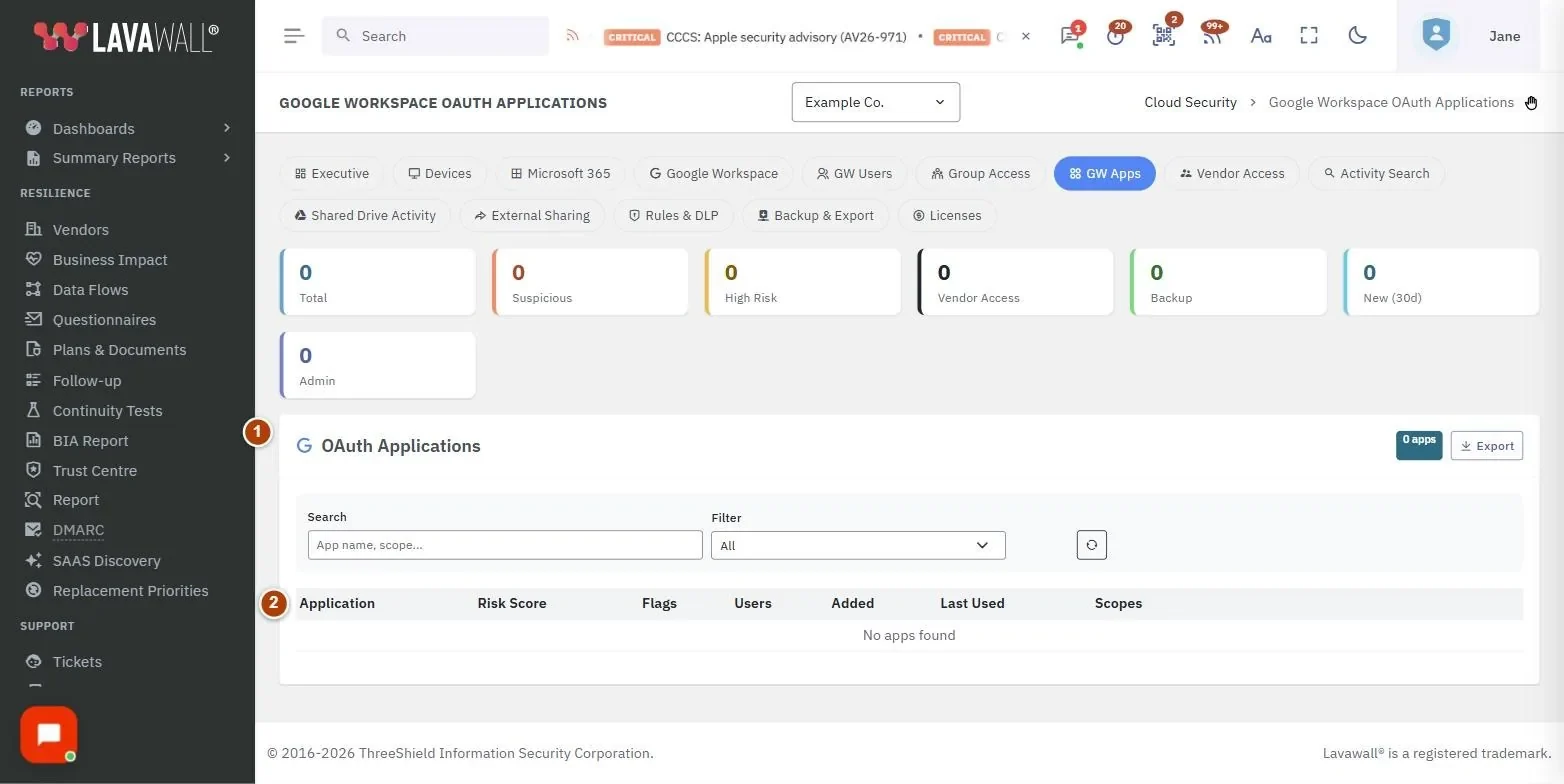
- Summary figures: Total, Suspicious, High Risk, Vendor Access, Backup, New (30d) and Admin.
- OAuth Applications header: the number of apps and Export.
- Filters: Search (app name or scope), Filter and a reset button.
- Apps table: Application, Risk Score, Flags, Approval, Users, Added, Last Used and Scopes.
How to find risky apps
- In Filter, choose Suspicious or High Risk (70+).
- Check the Risk Score badge: red is 70 or more, amber is 40 to 69, green is below 40. Hover over it for details.
- Check Flags for Suspicious, Domain-wide, Service acct, Admin-granted, New, verified and 3rd Party.
- Review the Scopes column to see exactly what the app can access.
How to review vendor and admin access
- In Filter, choose Vendor Access (delegation/service acct), Domain-Wide Delegation or Service Accounts.
- For each app, confirm you know the vendor and still need it.
- Choose Backup / DR vendors to confirm your backup apps are the ones you expect.
- Choose Admin Scopes or Sensitive Scopes to see apps that can change settings or read sensitive data.
How to approve an app
Approve an app once your organization has reviewed it and accepts it. Lavawall's automatic compliance checks, such as the checks for unapproved AI apps, then treat it as accepted. Approval is recorded in the activity log with your name.
- In the Approval column, click Approve.
- Add a note if you want, for example who asked for it or what it may be used for, and click Approve.
- Hover over Approved to see who approved the app, when, and the note.
- To undo it, click Remove approval. In Filter, choose Approved or Not approved to list either group.
Only a Super Admin or Admin, an MSP Client Administrator (for client organizations) or Client Local IT (for their own organization) can approve apps. Approving an app in Lavawall does not change anything in Google Workspace.
How to export the list
- Click Export.
- A CSV file downloads with each app's name, client ID, risk score, flags, delegation type, the kinds of data it can reach (Gmail, Drive, admin), user count, first seen, last used, whether it is approved, and scopes.
Tips
- Sort by Risk Score (the default) to see the riskiest apps first, or by Added to see what is new.
- Domain-wide means the app can act as any user in your organization. Treat it with care.
- Hover over Admin-granted to see which administrator granted access.
- Use New (30d) after an incident to check what was connected recently.
Troubleshooting
- "No apps found."
- Clear the search and set Filter to All.
- An app you removed still appears.
- The list updates on the next Google Workspace sync.
- No apps at all.
- Check that Google Workspace is connected on the Google Workspace dashboard.
Task guides that use this page
Related articles
Still need help?
Search the support centre, or contact our support team and tell us which page you were on:
- Chat now: use the chat button in the bottom-right corner of this page to reach our team right away. Where cookie consent is needed, the chat starts after you accept (cookie settings).
- Email: send our support team a message through the contact page. It goes straight to a person.
- Phone:
 AB: 1-403-538-5053
 US: 1-406-988-7333
 UK: +44 20 3695 9786
Names, companies, devices and figures in the pictures are examples. Other product and company names are trademarks of their respective owners.