Huntress Summary
Connect your Huntress account to see open Huntress incidents, match Huntress organizations to your clients, and roll out the Huntress agent where it is missing.
What the page is for
Huntress Summary is a page in the Lavawall® console, in the Integrations area. Lavawall is the RMM, security, and compliance platform from ThreeShield, built and hosted in Canada. About this feature.
If you use Huntress for managed detection and response, this page brings Huntress into Lavawall. After you enter your Huntress API credentials and account key, Lavawall syncs your Huntress organizations, devices and incidents.
The page lists any open Huntress incidents with their severity, each linked to the affected computer. A table shows every one of your organizations with its matching Huntress organization and counts: devices with and without Huntress, devices with active incidents, Huntress agents, security awareness training learners, incident reports, Microsoft 365 users and log sources. From that table you can install the Huntress agent on every computer at an organization that does not have it yet.
What you see
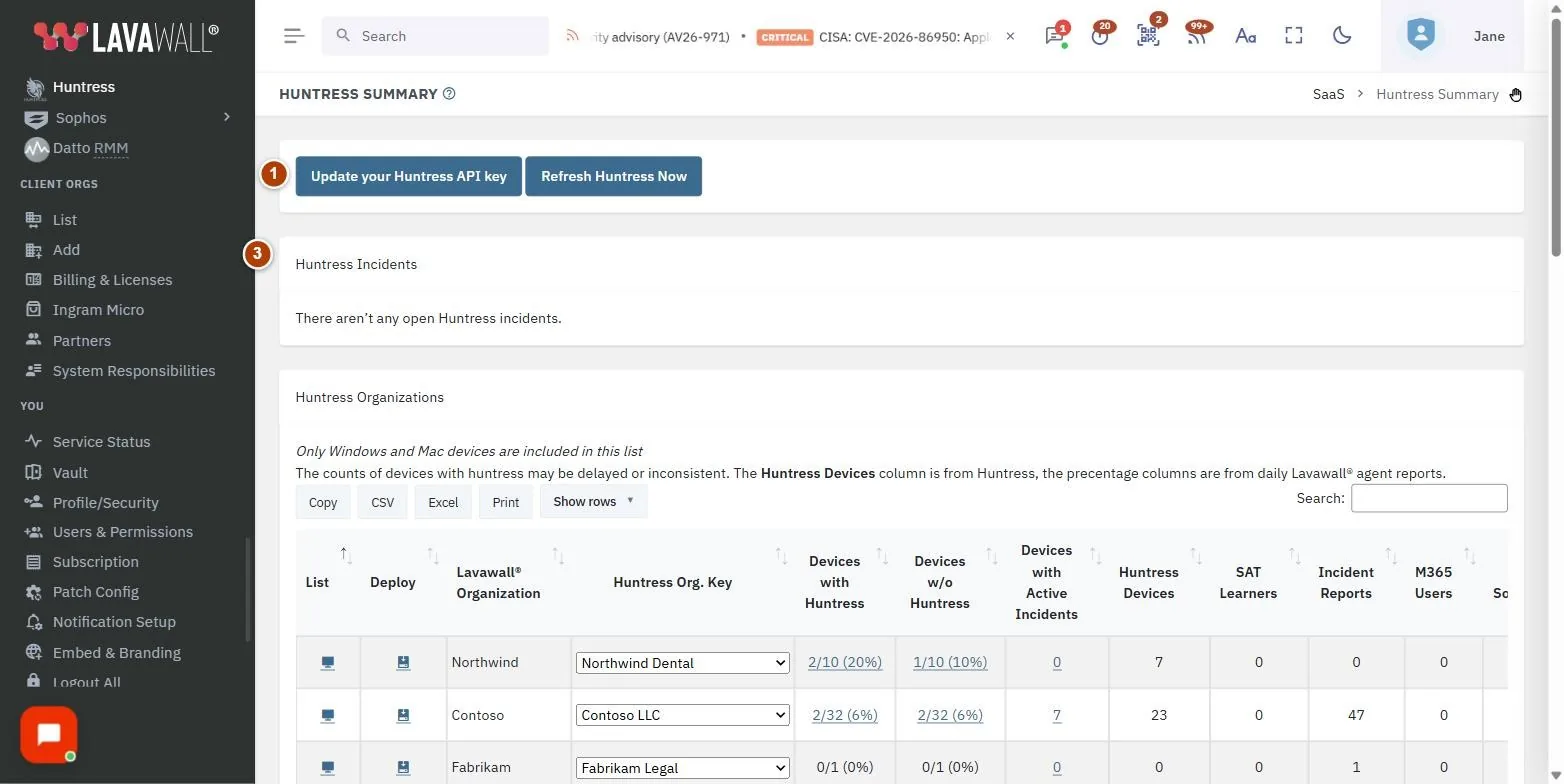
- Setup: steps to find your keys in Huntress, and Huntress API Key, Huntress API Secret and Huntress Account Key with Update and Revert. Once connected, Update your Huntress API key and Refresh Huntress Now.
- Huntress Setup Progress: progress bars for account, organization, device and incident information while the first sync runs.
- Huntress Incidents: the number of open incidents and each incident's summary, severity icon and when its status was last updated.
- Huntress Organizations: List, Deploy, Lavawall Organization, Huntress Org. Key, Devices with Huntress, Devices w/o Huntress, Devices with Active Incidents, Huntress Devices, SAT Learners, Incident Reports, M365 Users, Log Sources, Added and Updated.
How to use this page
How to connect Huntress
- Sign in to Huntress, open the menu (three lines, top right) and select API Credentials. Generate the credentials.
- Paste them into Huntress API Key and Huntress API Secret.
- In Huntress, open the menu, select Download Agent, then Get Your Keys, and copy the Account key.
- Paste it into Huntress Account Key and select Update.
- Watch Huntress Setup Progress until the sync completes.
How to match Huntress organizations to your clients
- In Huntress Organizations, find each Lavawall organization.
- If Huntress Org. Key is blank, choose the matching Huntress organization from Select Huntress Org.
- Organizations with Huntress devices are usually matched automatically; set the rest by hand after the first sync.
How to install Huntress where it is missing
- Check Devices w/o Huntress for the organization.
- Select the install button in the Deploy column.
- Confirm Huntress Installation Confirmation. Huntress is installed on every computer at that organization that does not already have it.
How to investigate an incident
- Under Huntress Incidents, select the incident summary.
- The affected computer opens on its Huntress tab in Device Detail.
- Or select the number in Devices with Active Incidents to list affected computers for one organization.
How to refresh or change your Huntress connection
- Select Refresh Huntress Now to sync straight away.
- Select Update your Huntress API key to enter new credentials.
Tips
- Red, amber and blue icons mark high, medium and low severity incidents.
- Select the numbers in Devices with Huntress or Devices w/o Huntress to open the matching computer list.
- Only Windows and Mac computers are counted in the device columns.
- Huntress counts such as agents, learners and Microsoft 365 users also appear on Billing Summary, and can drive quantities on Client Billing.
Troubleshooting
- "There aren't any open Huntress incidents."
- Nothing needs attention right now.
- "Your Huntress account is either inactive or you have not yet loaded a Huntress Account Key into Lavawall."
- Select Update your Huntress API key and enter the account key.
- "Please make sure that the API key and API secret are correct."
- Copy the credentials from Huntress again.
- "There are no devices to install that do not already have Huntress in this company"
- : every computer already has it.
- "You are not authorized to install Huntress at this company"
- : ask an administrator for permission.
Related articles
Still need help?
Search the support centre, or contact our support team and tell us which page you were on:
- Chat now: use the chat button in the bottom-right corner of this page to reach our team right away. Where cookie consent is needed, the chat starts after you accept (cookie settings).
- Email: send our support team a message through the contact page. It goes straight to a person.
- Phone:
 AB: 1-403-538-5053
 US: 1-406-988-7333
 UK: +44 20 3695 9786
Names, companies, devices and figures in the pictures are examples. Other product and company names are trademarks of their respective owners.