Datto RMM Summary
Link each Lavawall organization to its Datto RMM site, and install the Datto RMM agent on computers that do not have it yet.
What the page is for
Datto RMM Summary is a page in the Lavawall® console, in the Integrations area. Lavawall is the RMM, security, and compliance platform from ThreeShield, built and hosted in Canada. About this feature.
If you use Datto RMM alongside Lavawall, this page connects the two. Each of your organizations is listed with a box for its Datto RMM site GUID, the identifier Datto RMM uses for a client site. Once a site is linked, Lavawall knows where each client's computers belong in Datto RMM.
From the same list you can open an organization's computers in Lavawall, or deploy the Datto RMM agent through the Lavawall agent to every computer at that organization that does not already have it.
What you see
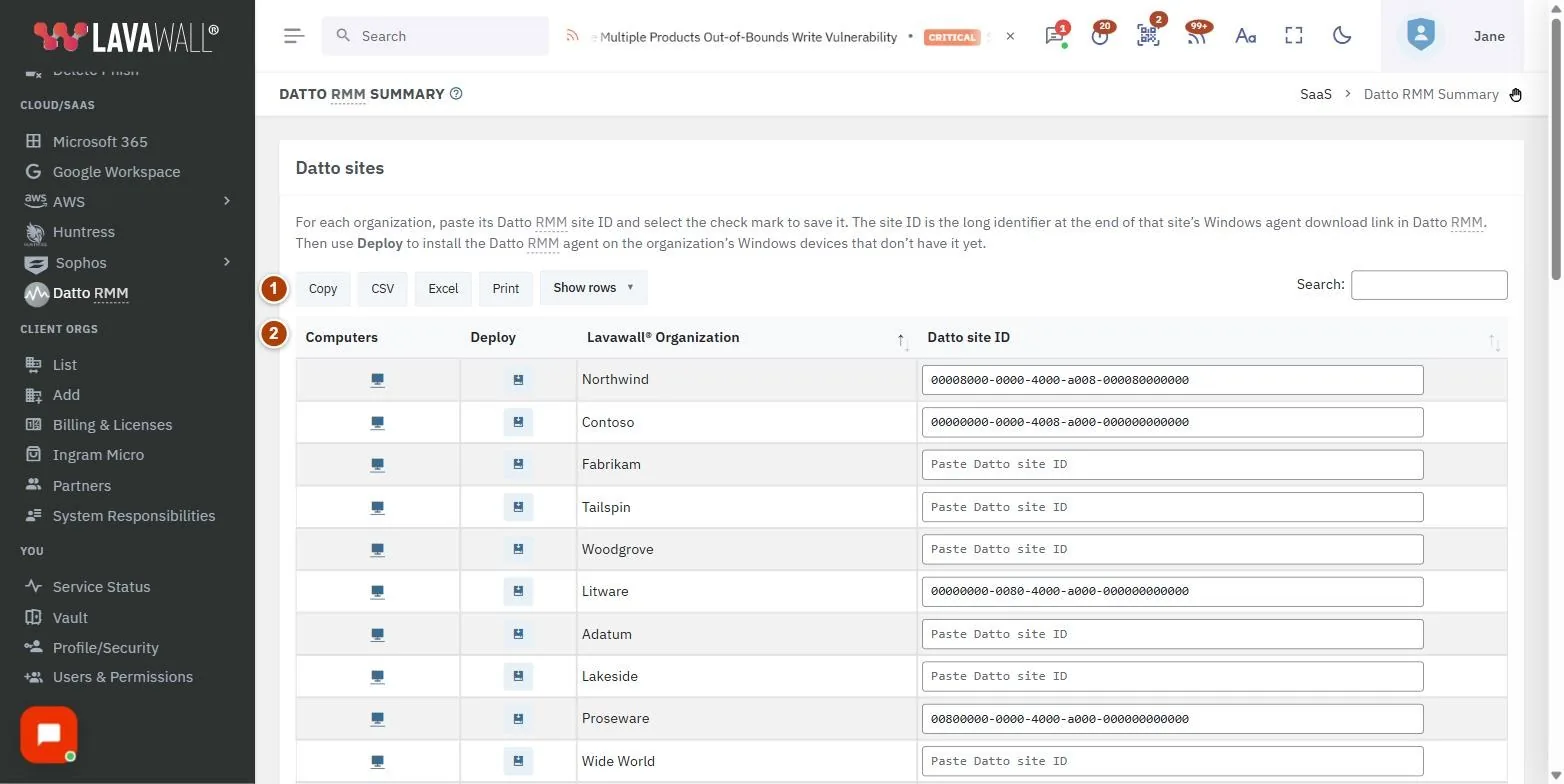
- Table tools: copy, CSV, Excel and print buttons, a row count selector and search.
- Datto Sites table: one row per organization with List, Deploy, Lavawall Organization and Datto Site GUID.
- Datto Site GUID box: paste the site GUID; a save (tick) button appears when the value changes.
How to use this page
How to link an organization to its Datto RMM site
- In Datto RMM, open the client's site and copy its site GUID.
- On this page, find the organization and paste the value into Paste Datto Site GUID.
- Select the tick button to save. A double tick confirms the save.
How to install the Datto RMM agent at an organization
- Link the organization to its Datto RMM site first.
- Select the install button in the Deploy column.
- Confirm Datto RMM Installation Confirmation. The agent is installed on all computers at that organization that do not already have it.
- A "Datto RMM is installing" message confirms the request.
How to see an organization's computers
- Select the computer button in the List column to open that organization's computers in Lavawall.
How to export the list
- Use the copy, CSV, Excel or print buttons above the table.
Tips
- Only computers with the Lavawall agent can receive the Datto RMM agent this way.
- Link every organization before you start using Datto RMM counts for billing on the Client Billing page.
Troubleshooting
- "You are not authorized to install Datto RMM at this company"
- : ask an administrator for permission to install software for that organization.
- "There are no devices to install that do not already have Datto RMM in this company"
- : every computer already has the agent.
- "Your Datto account is either inactive or you have not yet loaded a Datto RMM Account Key into Lavawall."
- Check the organization's site GUID on this page and that the Datto RMM account is active.
- "We are having problems installing Datto RMM."
- Contact Lavawall support.
- "You have not added any companies yet."
- Select Add clients to create an organization first.
Related articles
Still need help?
Search the support centre, or contact our support team and tell us which page you were on:
- Chat now: use the chat button in the bottom-right corner of this page to reach our team right away. Where cookie consent is needed, the chat starts after you accept (cookie settings).
- Email: send our support team a message through the contact page. It goes straight to a person.
- Phone:
 AB: 1-403-538-5053
 US: 1-406-988-7333
 UK: +44 20 3695 9786
Names, companies, devices and figures in the pictures are examples. Other product and company names are trademarks of their respective owners.