Subscription and Billing
Choose your Lavawall plan and add-ons, see what you will pay, and set up how you pay, by card or by invoice.
What the page is for
Subscription and Billing is a page in the Lavawall® console, in the Account & users area. Lavawall is the RMM, security, and compliance platform from ThreeShield, built and hosted in Canada. About this feature.
This page is where you manage your Lavawall subscription. You pick a plan, switch individual services on or off, choose how much security history to keep, and see a live breakdown of your monthly or annual cost, including discounts and sales tax.
You add or replace the payment card on file, or switch to invoiced billing and pay by Interac e-Transfer, cheque, Canadian pre-authorized debit or US ACH debit. Invoices and their status are listed on the same page.
MSPs also get an All companies tab to set the plan, services, self-pay and security history for every client company in one table, and a Templates tab to save a standard client setup and apply it to new clients automatically.
What you see
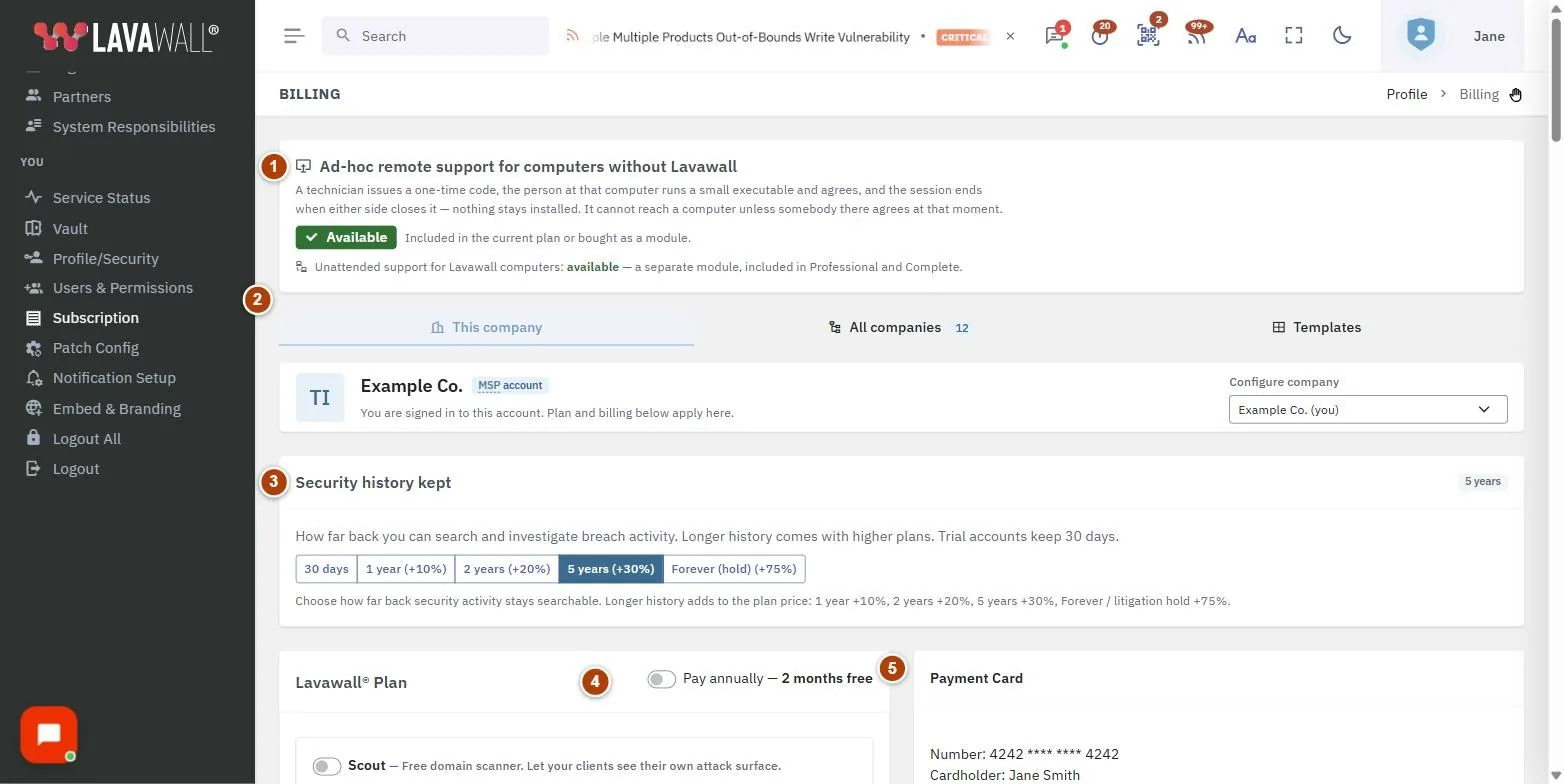
- Tabs: This company, All companies and Templates (the last two for accounts with client companies).
- Notices: why you were sent here if a page was blocked, and your trial status and end date.
- Ad-hoc remote support: whether one-time remote support for computers without Lavawall is available, and whether unattended support is.
- Security history kept: how far back you can search and investigate breach activity.
- Lavawall Plan: the plan choices with base, per-device and per-domain prices, what each includes (Show details), Pay annually: 2 months free, and Unsubscribe.
- Individual Services: switches and quantities for add-on services, grouped by category, with "included in your tier" where your plan already covers them.
- Current Investment: the cost breakdown, seat count, subtotal and tax, in the currency for your billing country.
- How you pay: what you pay with now, Change how you pay with every way to pay and what each needs, and Invoices. Organizations with billing also see Maximum computers below it.
- Payments: your payment history.
- Organization Profile: Industry and Operating Locations, with Save Profile.
How to choose or change your plan
- In Lavawall Plan, click Show details under a plan to see what it includes.
- Select the plan's switch. Current Investment updates straight away.
- Tick Pay annually: 2 months free to switch to yearly billing; the page shows how much you save.
How to add or remove individual services
- In Individual Services, turn on the switch beside a service.
- If the service is counted per user or device, set the quantity. Included quantities show as included, and only the extra is billable.
- Turn the switch off to remove the service.
Lavawall Backup capacity
Lavawall Backup is not in Individual Services. It has its own Lavawall Backup card, which shows the backup plan of the company chosen in Configure services for:
- Backup: 2 TB (with the plan's name, if it has one): backups are on, with 2 TB of capacity.
- Backup: not enabled: no new backups run for the company. Backups already taken can still be restored and downloaded.
The card says Backup capacity is set by your provider. Contact them to add or change it. Only Lavawall can turn Lavawall Backup on or off and set its capacity, for any company. An MSP cannot change a client's backup plan itself; it asks Lavawall.
Lavawall Backup is billed in blocks of 250 GB of capacity (4 blocks make 1 TB), always rounded up to the next block, so 500 GB is billed as 2 blocks and 600 GB as 3. The cost is counted in Current Investment.
GRC evidence, documents and audit files include 50 GB per organization. Above that, storage is billed in blocks of 100 GB, rounded up, and the number of blocks follows what is stored: it goes up when files are added and down when they are deleted.
How to add Lavawall Backup or change its capacity
- Check the Lavawall Backup card. If you manage client companies, choose the client in Configure services for first.
- Contact your provider with the capacity you need: Lavawall support, or your MSP if one manages your account.
- When Lavawall has saved the plan, the card shows the new capacity. If backups were paused because storage was full, new backups can run again once the space used is below the new capacity.
When Lavawall Backup is turned off, new backups stop and the company is no longer billed for backup. Backups already taken stay restorable, and nothing is deleted. To see how much of the capacity is used, open Backup & Recovery.
How to change how you pay
How you pay shows what you pay with now. Under Change how you pay, choose one of: Credit card, Pre-authorized debit (Canadian bank account), ACH debit (US bank account), Invoice, paid by Interac e-Transfer (Canadian billing addresses only) or Invoice, paid by cheque. Each option says what it needs, and choosing it shows its details right below. Nothing changes until you confirm. Only an account or billing administrator can make changes.
Pay by credit card
- Choose Credit card.
- Click Add card. If your billing phone number and address are not saved yet, you are asked for them first.
- Enter the card details in the secure payment form. Card numbers go straight to our payment processor and are never stored by Lavawall.
- With a card already on file, use Replace card or Remove card. If you pay by invoice and want to pay by the card on file instead, click Pay by this card from now on; adding a card while you pay by invoice switches you to card once it is saved.
Pay by invoice or bank debit
- Choose the invoice or bank debit option you want.
- Fill in the billing details shown below it: billing email, phone and contact, street address, city, province or state, postal or ZIP code and country, and your PO number if you use one. If you do not have a plan yet, choose one there too.
- For bank debit, tick the authorization box and click Request the agreement. You receive an agreement from our payment partner on the next business day, complete it with your banking details, and confirm two small test deposits. Your card stays on file and is charged until the account is verified.
- For an invoice, click Save. New invoiced billing is confirmed by Lavawall, normally within one business day; until then the page shows Waiting for Lavawall to confirm, and a free account can register up to 3 computers unless a card is on file.
- Click Invoices to see each invoice, its due date, what was paid and the balance. To stop paying by invoice, use Stop invoiced billing.
How to set a maximum number of computers
Organizations with billing can limit how many computers Lavawall may be installed on, so billing cannot grow unexpectedly.
- Under Maximum computers, enter a whole number from 1 to 99,999, or leave it empty for no maximum. If you manage client organizations that you pay for, choose the Organization first.
- Leave the field or press Enter. The change is saved straight away, and the page says how many computers are registered now.
- If the number is below the computers registered now, you are asked to confirm. Nothing already installed is removed, but new computers are refused until fewer are registered than the maximum.
A client organization billed through the company that manages it sees its maximum but cannot change it; the managing company sets it. Free trials do not have this setting.
How to set up client companies in bulk (MSPs)
- Open All companies. Each row shows a client's plan, services, Self-pay and Security history.
- Change a value on a row; it saves immediately. To change several, tick them, pick an action such as Set plan…, Turn on service… or Apply template…, and click Apply.
- Set Default plan for client companies on This company so new clients start on the right plan.
- On Templates, click Save this company as a template, or New template, and tick Automatically apply to every new company added under this account to use it for every new client.
Tips
- Current Investment counts seats as the greatest of active devices, licensed Microsoft 365 users and licensed Google Workspace users.
- A client set to Self-pay is billed on its own account, and its services are left out of your total.
- To close your account, remove your payment card. The Unsubscribe option explains this: after 30 days, agents uninstall automatically.
- The billing currency follows your billing country. Use the change link beside the currency to correct it.
- Fill in Organization Profile so compliance and risk features know your industry and where you operate. Lavawall suggests locations detected from your computers.
Troubleshooting
- "Your trial has ended."
- Choose a plan to keep the features you were using.
- "You were sent here from …"
- A page you opened is not in your plan, or your user account has not been given access to it. The notice says which, and which service unlocks it.
- "The credit card was declined"
- or "verification address and/or CVV failed." Try another card or check the details.
- "Only an account or billing administrator can change the card on file."
- Ask a Super Admin, Admin or Client Local IT user.
- "Please enter your full billing information in Change how you pay."
- You pay by invoice, and your billing phone number, city or postal code is missing or too short. Until it is complete, the console brings you back to Billing and invoiced billing does not count toward lifting the free-account computer limit. Fill in the details under Change how you pay and save. If you are not an account or billing administrator, ask one to do it.
- "Waiting for Lavawall to confirm"
- Lavawall confirms new invoiced billing, normally within one business day. Until then, a free account can register up to 3 computers unless a card is on file.
- "Set up billing first. The maximum number of computers can be set once billing is in place."
- Maximum computers is for organizations with billing. Choose a way to pay first.
- Backup: not enabled
- Lavawall Backup is not turned on for the company chosen in Configure services for. No new backups run, and backups already taken can still be restored. Contact your provider to add it.
- Lavawall Backup is not listed under Individual Services
- It has its own Lavawall Backup card, and only Lavawall can change it. See Lavawall Backup capacity.
Related articles
Still need help?
Search the support centre, or contact our support team and tell us which page you were on:
- Chat now: use the chat button in the bottom-right corner of this page to reach our team right away. Where cookie consent is needed, the chat starts after you accept (cookie settings).
- Email: send our support team a message through the contact page. It goes straight to a person.
- Phone:
 AB: 1-403-538-5053
 US: 1-406-988-7333
 UK: +44 20 3695 9786
Names, companies, devices and figures in the pictures are examples. Other product and company names are trademarks of their respective owners.