Stakeholder Questionnaires
Ask the people who actually do the work a few plain-language questions, then fold their answers into your business impact assessment.
What the page is for
Stakeholder Questionnaires is a page in the Lavawall® console, in the Business continuity area. Lavawall is the RMM, security, and compliance platform from ThreeShield, built and hosted in Canada. About this feature.
The people who run a process or look after a vendor usually know the details that matter for continuity planning: how they would work around an outage, when downtime would hurt most, and how data is backed up. This page sends them a short questionnaire by email and tracks the replies.
Each person gets a personal link. They do not need a Lavawall login. Questionnaires about a specific vendor or process are sent from the Vendor Inventory and Business Impact Assessment pages (the Ask the owner button). From this page you can send general, ready-made question sets, for example one that asks staff which tools they use.
When answers come in, you review them and select Apply to record. Lavawall fills only fields that are still empty on the vendor or process, and never overwrites anything you have already recorded. The full set of questions and answers is filed with the record, and anything that could not be filled automatically stays in the answers window for you to copy by hand. Tools named in a tools round-up are added to your vendor inventory.
What you see
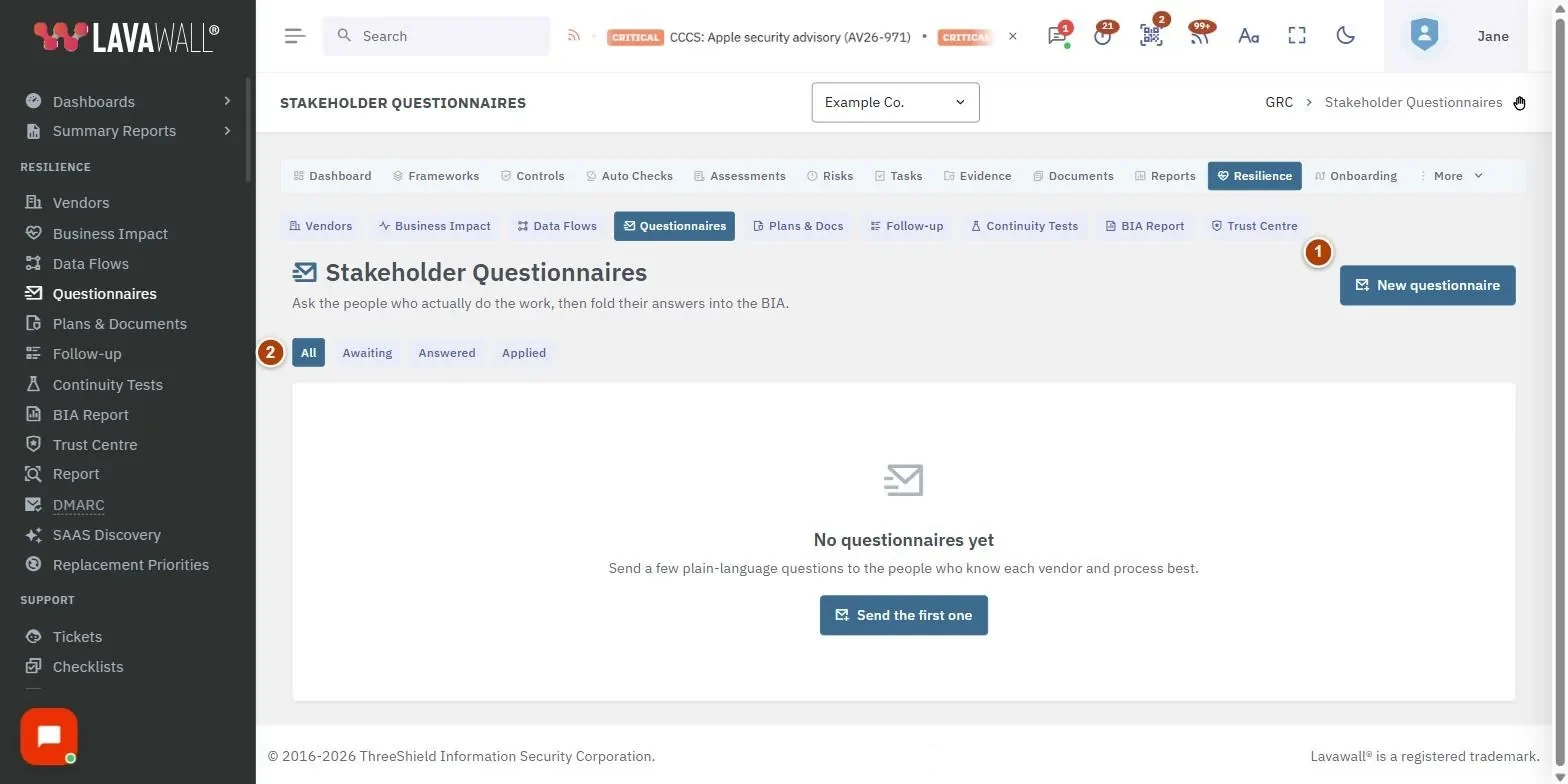
- New questionnaire: send a ready-made question set to someone by email.
- Status filters: All, Awaiting, Answered and Applied.
- Questionnaire table: Sent to, About (the vendor, process or data flow it concerns), Status, Sent and Answered.
- Row actions: View answers, Resend with a new link and Cancel.
- Answers: the questions and replies, with Apply to record.
How to send a general questionnaire
- Select New questionnaire (or Send the first one if the list is empty).
- Choose the Questionnaire type. A short description of the question set appears below it.
- Enter the person's Email and, optionally, their Name and a Note to include (for example "This helps us finish our continuity plan. Thanks!").
- Select Send. They receive a personal link by email.
How to review and apply answers
- Select Answered to see questionnaires with replies.
- Select View answers on the row.
- Read the answers. Select Apply to record and confirm Apply these answers?. Only empty fields are filled; nothing is overwritten.
- Copy anything else you want to keep by hand, then select Close.
How to resend or cancel a questionnaire
- To resend, select Resend with a new link and confirm. The link in earlier emails stops working; any answers already saved are kept.
- To cancel, select Cancel on the row and confirm Cancel it. The link stops working for the recipient.
Tips
- Send questionnaires about a particular process or vendor from its own page with Ask the owner, so the answers are linked to the right record.
- Use the Awaiting filter to see who has not replied yet, and resend with a new link as a reminder.
- Questionnaires take most people under five minutes.
- Unanswered questionnaires and answers not yet applied also appear on the Follow-up page.
- If applying finds no empty fields to fill, the questionnaire is still marked as applied so it drops off your to-do list.
Troubleshooting
- "This request has expired. Send a new one."
- Links expire after a while. Resend it with a new link or send a new questionnaire.
- The recipient says the link doesn't work.
- It may have been replaced by a resend or cancelled. Resend with a new link.
- I can't see New questionnaire, Resend or Cancel.
- Your compliance role does not include request permission.
- "Your GRC role does not include access to questionnaires."
- Ask an administrator to change your compliance role.
Task guides that use this page
Related articles
Still need help?
Search the support centre, or contact our support team and tell us which page you were on:
- Chat now: use the chat button in the bottom-right corner of this page to reach our team right away. Where cookie consent is needed, the chat starts after you accept (cookie settings).
- Email: send our support team a message through the contact page. It goes straight to a person.
- Phone:
 AB: 1-403-538-5053
 US: 1-406-988-7333
 UK: +44 20 3695 9786
Names, companies, devices and figures in the pictures are examples. Other product and company names are trademarks of their respective owners.