Follow-up
See everything in your business continuity records that is missing, out of date or contradictory, and fix it in one place.
What the page is for
Follow-up is a page in the Lavawall® console, in the Business continuity area. Lavawall is the RMM, security, and compliance platform from ThreeShield, built and hosted in Canada. About this feature.
Your vendors, processes, data flows and questionnaires are recorded on separate pages. Over time, things slip: a vendor gets added and never assessed, a security review ages out, or a process is given a recovery target that is longer than the business can actually survive. This page checks all of those records at once and lists what needs doing.
Each finding states a fact about your data, for example "Critical process, no RTO", "Reassessment overdue" or "Personal data with no lawful basis". It does not judge whether a value is right for your business. Where the answer needs a person, the row links to the record instead of offering a one-click value.
Findings are sorted by urgency: Needs attention now, Soon and When you can. You can tick several rows and change the same field on all of them at once, or set a finding aside with a reason, such as an accepted risk.
What you see
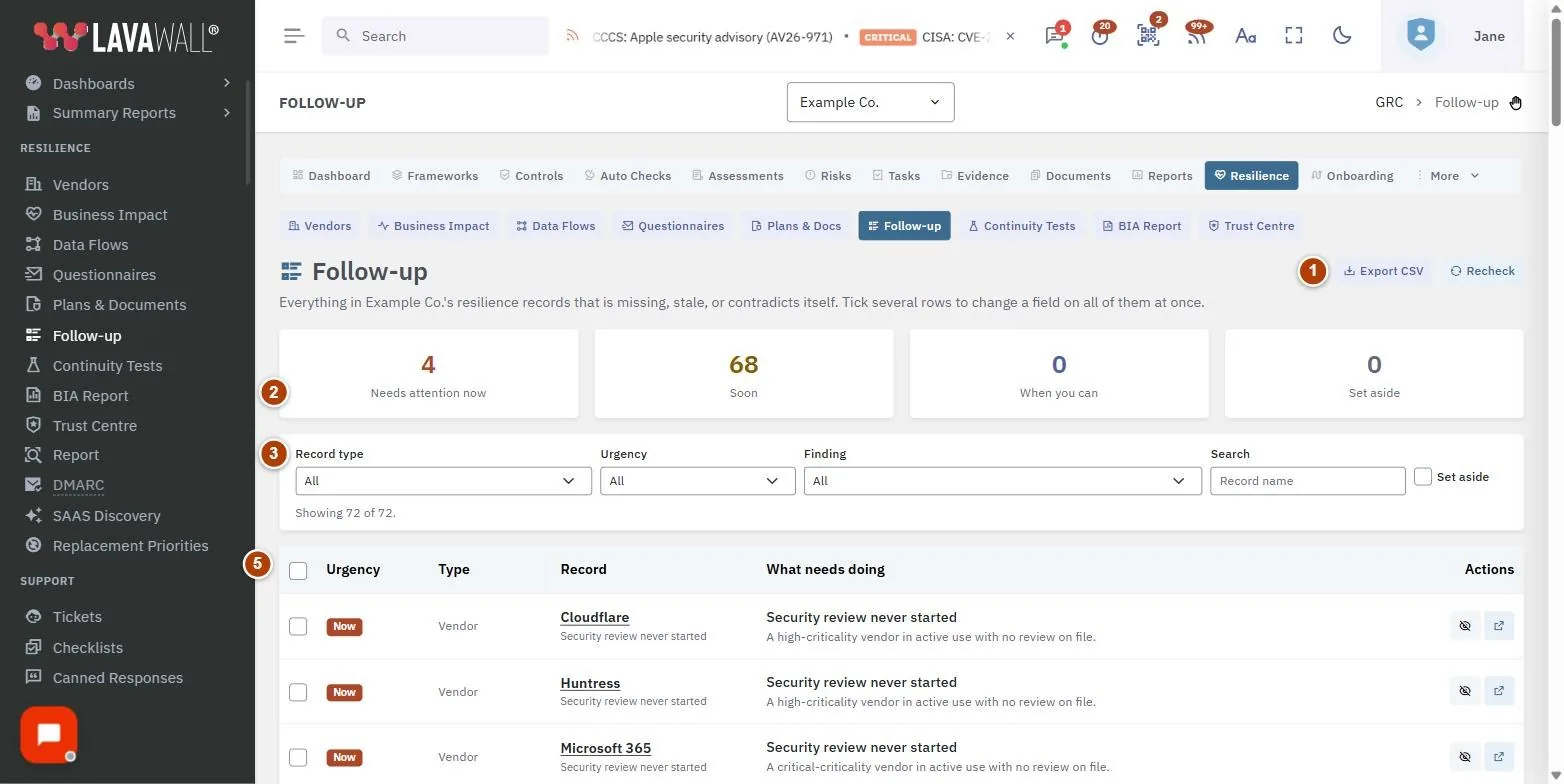
- Toolbar: Export CSV and Recheck.
- Urgency summary: counts for Needs attention now, Soon, When you can and Set aside.
- Filters: Record type, Urgency, Finding, Search and a Set aside switch to include set-aside findings.
- Bulk change bar: Change a field To a new value on every ticked row, with Apply and Clear.
- Findings table: Urgency, Type (vendor, process, data flow or questionnaire), Record, What needs doing and Actions (open the record, set aside or bring it back).
How to work through the list
- Start with Needs attention now. Use the Urgency filter to show only those.
- Read What needs doing on each row.
- Select the Open the record button to go to the vendor, process, data flow or questionnaire and fix it there.
- Select Recheck to refresh the list after you make changes.
How to change a field on many records at once
- Filter the list, for example Record type set to vendors and a single Finding.
- Tick the rows you want to change, or tick the box in the header to select everything visible.
- In the bar that appears, choose the field under Change and the new value under To. Changes apply to every ticked row.
- Select Apply. The page reports how many records were updated and rechecks the list. Select Clear to untick everything.
How to set a finding aside
- Select the Set aside button on the row.
- Optionally, enter why, for example "accepted risk" or "handled outside Lavawall", and confirm.
- To see set-aside findings again, turn on the Set aside switch in the filters. Select Bring it back to restore one.
How to export the list
- Select Export CSV to download the findings, including whether each one is set aside.
Tips
- "Nothing outstanding" with very few records usually means not much is recorded yet. Start on Vendor Inventory or Business Impact Assessment.
- A set-aside finding comes back automatically if the record is edited later, so decisions about old data do not hide new problems.
- Findings cover vendors (for example never assessed, no DPA answer for personal data, renewal approaching), processes (no owner, no recovery targets, recovery slower than the business can survive), data flows (no lawful basis, not encrypted in transit) and questionnaires (unanswered, answers not applied).
- Bulk changes are limited to 500 records at a time. Narrow the filter if you need more.
Troubleshooting
- "Your GRC role does not include access to the resilience follow-up list."
- Ask an administrator to change your compliance role.
- "That is more than 500 records at once."
- Narrow the filter and try again.
- "Those records were not found. Reload the page."
- The records changed or were removed since the page loaded. Reload.
- "There is nothing to export."
- The current list is empty.
Task guides that use this page
Related articles
Still need help?
Search the support centre, or contact our support team and tell us which page you were on:
- Chat now: use the chat button in the bottom-right corner of this page to reach our team right away. Where cookie consent is needed, the chat starts after you accept (cookie settings).
- Email: send our support team a message through the contact page. It goes straight to a person.
- Phone:
 AB: 1-403-538-5053
 US: 1-406-988-7333
 UK: +44 20 3695 9786
Names, companies, devices and figures in the pictures are examples. Other product and company names are trademarks of their respective owners.