Data Flows
Document where your information moves, what is in it, how it is protected and which borders it crosses.
What the page is for
Data Flows is a page in the Lavawall® console, in the Business continuity area. Lavawall is the RMM, security, and compliance platform from ThreeShield, built and hosted in Canada. About this feature.
Privacy laws, auditors and cyber insurers often ask where personal information goes. This page lets you record each flow of information in plain language, for example payroll files sent to the bank or client details entered into a CRM, and what kind of information it contains.
For each flow you record where it starts and where it goes, whether it goes to one of your vendors, whether it contains personal, payment or health information, how it travels, how often, whether it is encrypted in transit and where it is stored, whether it leaves the country, the reason you are allowed to share it, and how long the destination keeps it.
The page suggests flows based on your key vendors, your important processes and your industry. The Foreign processing panel then brings together every country your data touches, from both your vendors and the flows on this page. This information feeds your Data Flow and Foreign Processing Disclosure documents automatically.
What you see
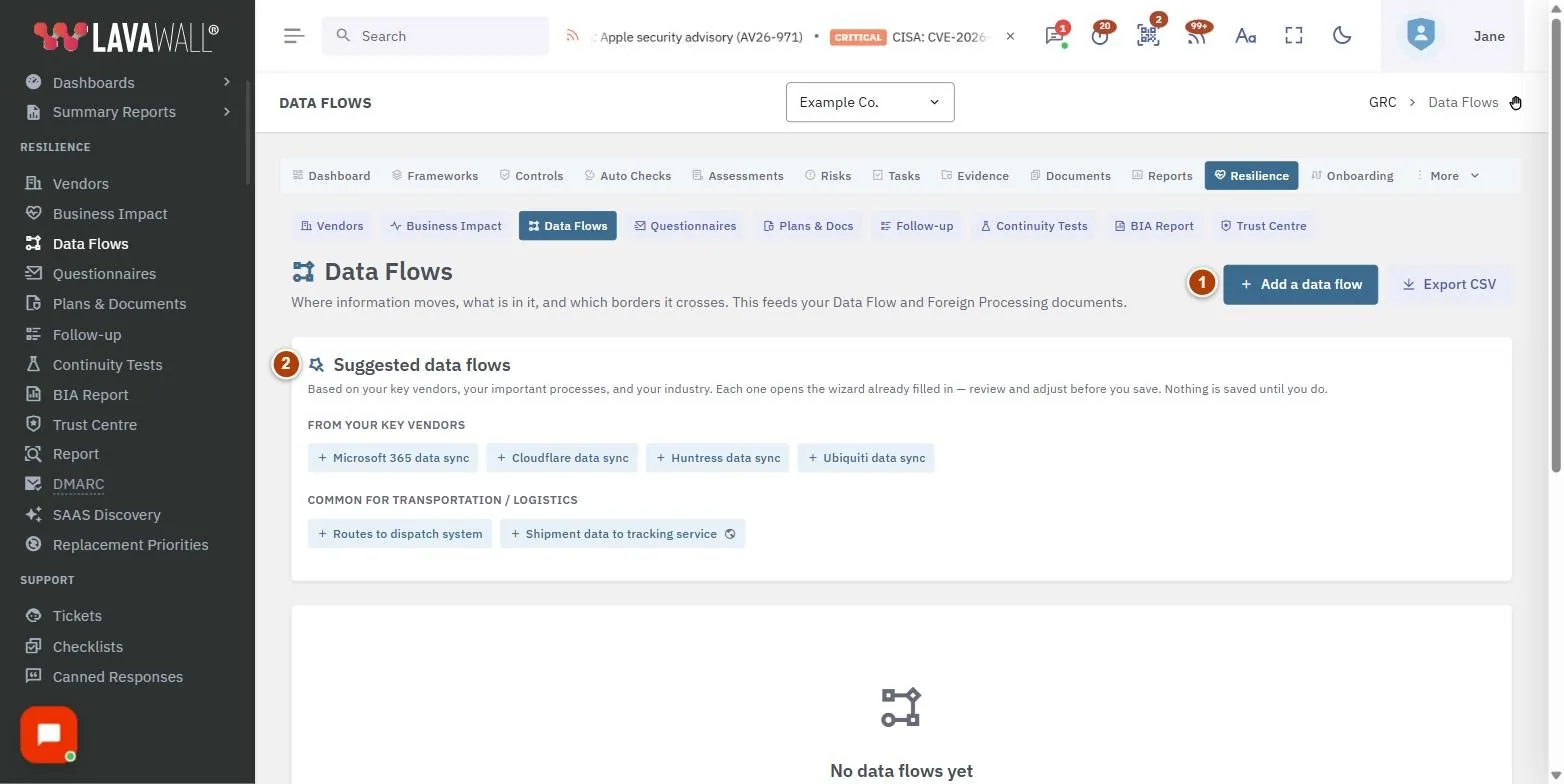
- Toolbar: Add a data flow and Export CSV.
- Suggested data flows: ready-made flows based on your vendors, processes and industry. Each opens the wizard already filled in. It is expanded when you have no flows yet.
- Data flow table: each flow with From → To, whether it holds personal information (with extra markers for payment card and health information), whether it leaves the country, the method, encryption, frequency and lawful basis.
- Foreign processing: the countries your data touches, listed "via vendors" and "via flows".
How to add a data flow
- Select Add a data flow (or Document the first flow if the list is empty), or pick one of the Suggested data flows.
- On 1. What moves?, enter What should we call this flow?, a one-sentence description, Where does it start?, Where does it go? and, optionally, which vendor it goes to. Type to search your vendors; if the vendor is not there, choose + Add a new vendor and a short form opens over the wizard.
- On 2. What is in it?, tick whether it includes information about people, credit card or payment details, or health information. Some boxes are pre-ticked from your earlier answers; untick any that are wrong.
- On 3. Protection & borders, choose How does it get there? and How often?, tick whether it is encrypted while it travels and where it is stored, and answer Does any of it leave the country?. If yes, enter the two-letter country codes, separated by commas.
- Choose Why are we allowed to share it? and enter How long does the destination keep it?.
- Select Save flow. Nothing is saved until you do.
How to edit or delete a data flow
- In the table, select the Edit button on the row, make your changes with Back and Next, and select Save flow.
- To remove a flow, select the Delete button and confirm. This cannot be undone.
How to review cross-border processing
- Scroll to Foreign processing.
- Check the countries listed via vendors and via flows. To add a country, mark a flow as leaving the country, or record processing countries on the vendor in Vendor Inventory.
How to export your data flows
- Select Export CSV to download every flow as a spreadsheet file.
Tips
- A flow that carries personal information across a border shows a shield button in its row. Select it to start a privacy impact assessment for the transfer, or to open the one it already has.
- Think about where information leaves one place and lands in another: files to the bank, client details into a CRM, invoices emailed out.
- Link the flow to a vendor so the vendor's processing countries and risk carry through to your documents.
- Not sure which countries? Check the vendor's privacy page for "where we store data".
- Lawful basis choices are: They agreed (consent), Needed for the contract, The law requires it, Legitimate business need, and Not sure.
- Hover over the encryption icons in the table: they show whether the flow is encrypted while it travels and where it is stored.
Troubleshooting
- "No cross-border processing documented yet."
- No flow is marked as leaving the country and no vendor has processing countries recorded. Add one of these and it will show up.
- "There is nothing to export yet."
- Add at least one data flow before exporting.
- "Your GRC role does not include viewing this page."
- Ask an administrator to change your compliance role.
- I don't see the vendor I want in the list.
- Type its name in the vendor box and choose + Add as a new vendor. A short form opens over the wizard. If you do not see that choice, your compliance role cannot add vendors; ask an administrator.
Task guides that use this page
Related articles
Still need help?
Search the support centre, or contact our support team and tell us which page you were on:
- Chat now: use the chat button in the bottom-right corner of this page to reach our team right away. Where cookie consent is needed, the chat starts after you accept (cookie settings).
- Email: send our support team a message through the contact page. It goes straight to a person.
- Phone:
 AB: 1-403-538-5053
 US: 1-406-988-7333
 UK: +44 20 3695 9786
Names, companies, devices and figures in the pictures are examples. Other product and company names are trademarks of their respective owners.